Knowledge Base Search Instructions
Use Caree the Virtual Assistant
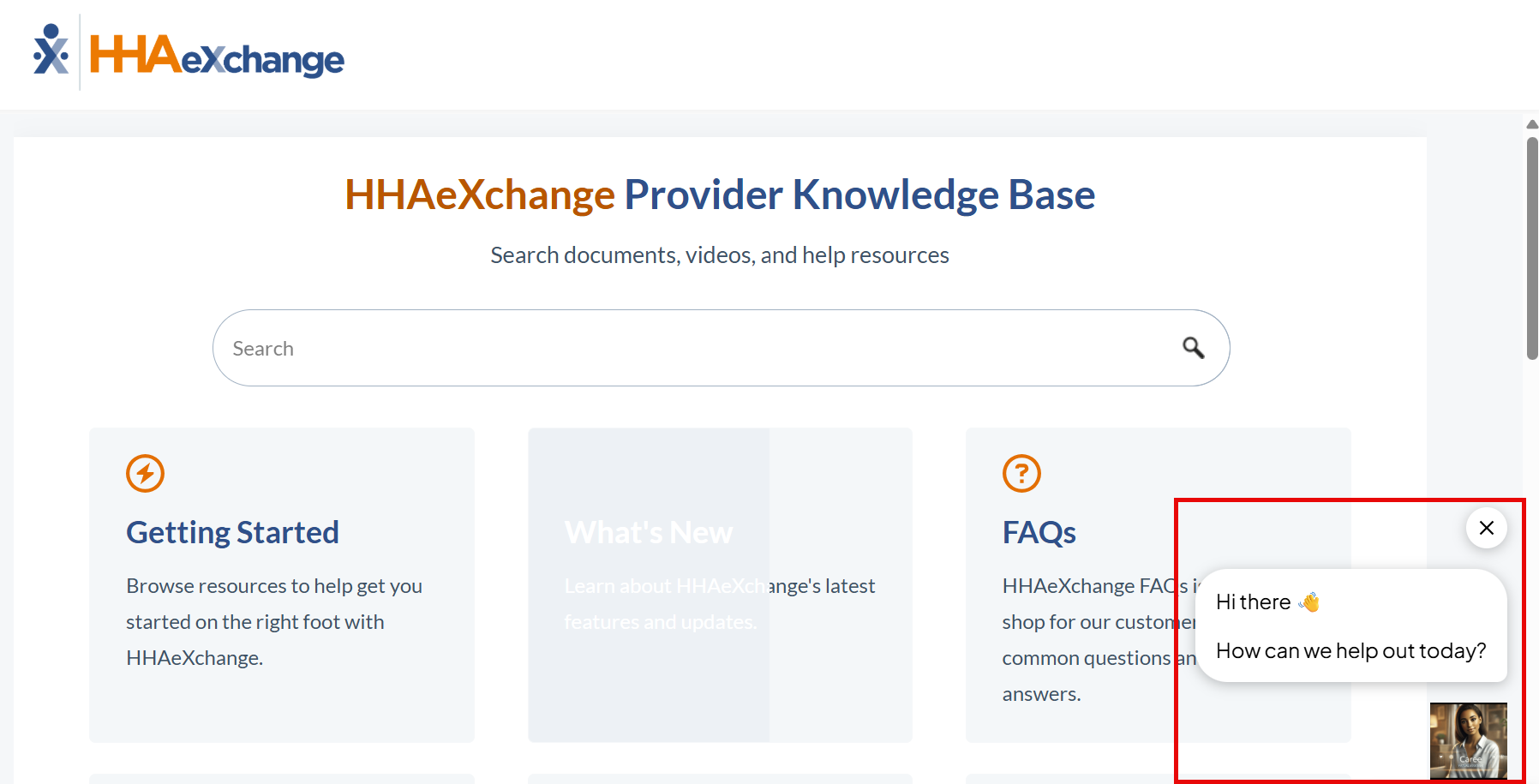
Caree Virtual Assistant is an AI search feature added to the HHAeXchange Knowledge Base to help you find answers to your questions faster. Caree is located at the bottom right side of the Knowledge Base screen.
-
Select the Caree text box.
-
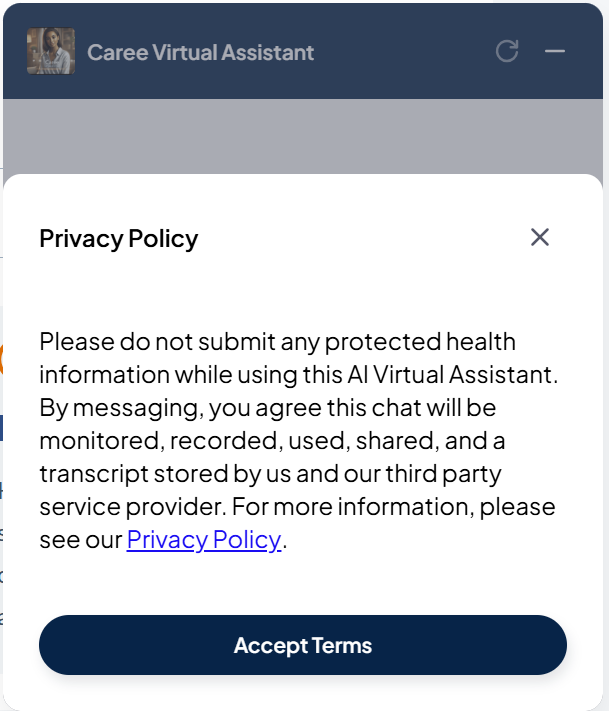
The Privacy Policy agreement opens. Read the Privacy Policy, and then select Accept Terms.
-
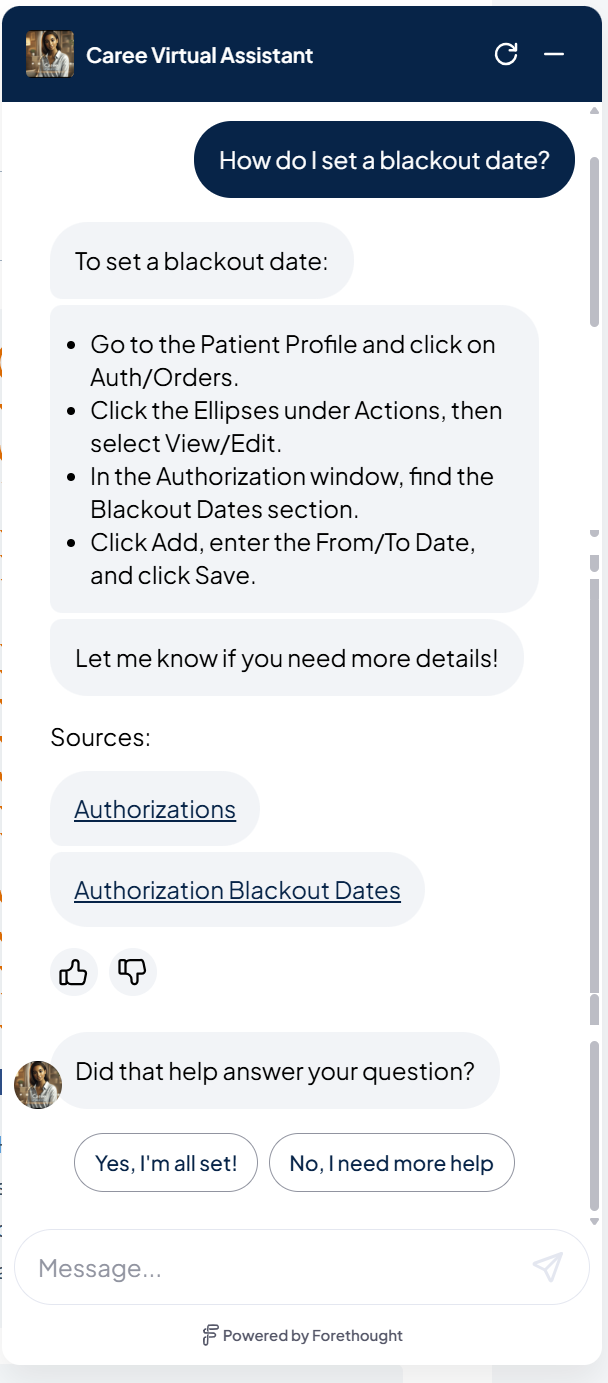
Ask your question. Select the link to the topic to review more information.
If the response doesn't answer your question, try rephrasing or ask a more specific question.
For best results, ask full questions and use the subject in your search criteria. For example, you can search blackout, blackout date, or How do I set a blackout date?
Use the Knowledge Base Search Bar
In the Search box, type your search criteria and then press Enter or click the Search icon.
For best results, use only the subject in your search criteria. Don't ask a full question. For example, search "blackout" or "blackout date" not "How do I set a blackout date?"
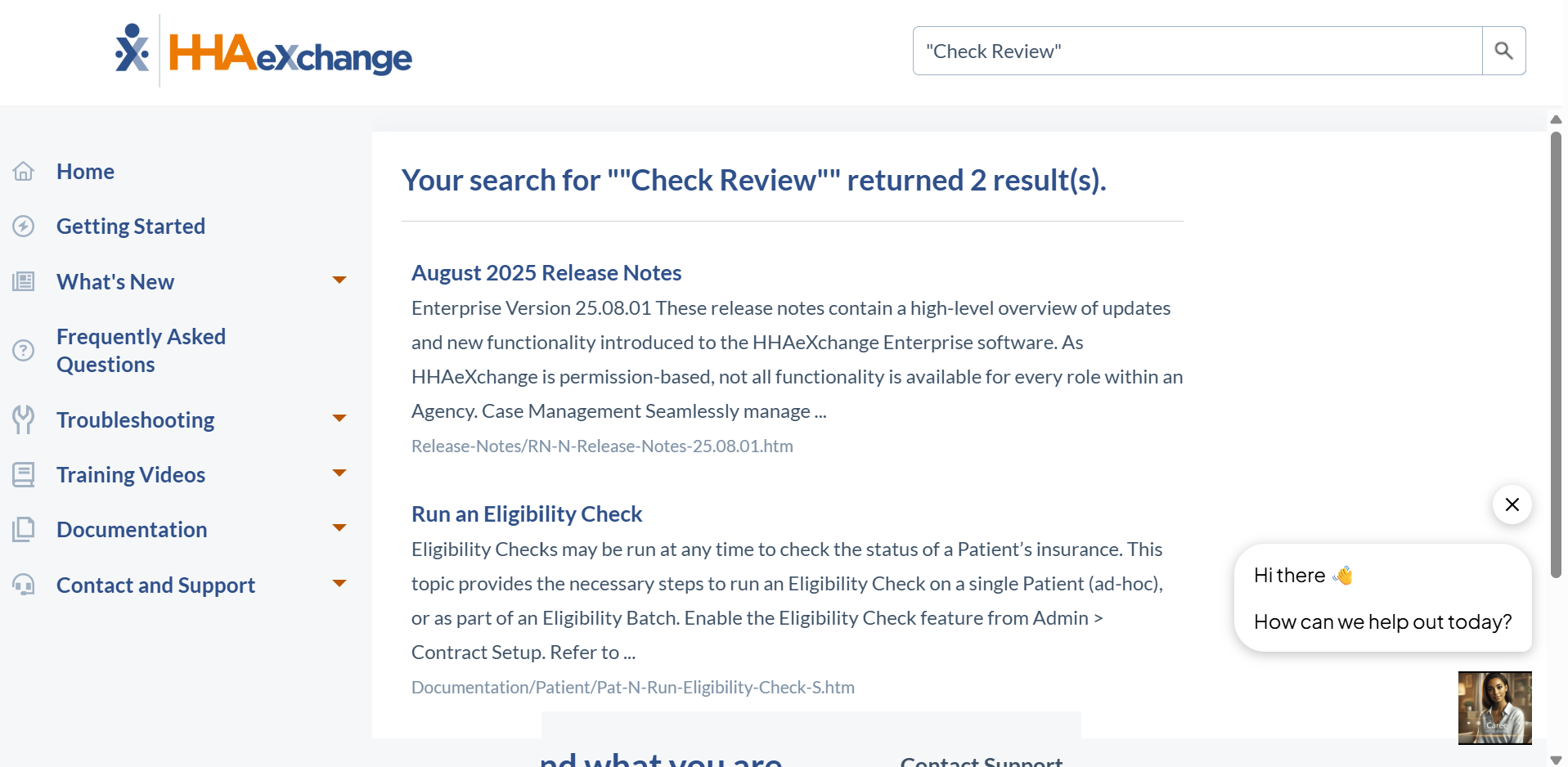
Narrow your search using these techniques:
-
Standard search
Finds topics that contain all of the search terms. For example: blackout date finds topics that contain the word blackout and the word date anywhere in the topic.
-
Exact match
Use quotes around your search input for an exact match. For example, "blackout date" finds topics with the words blackout and date together.
-
OR
Put the word OR between search terms to find topics with one term or the other. For example, blackout OR date finds topics with either the word blackout or the word date.
-
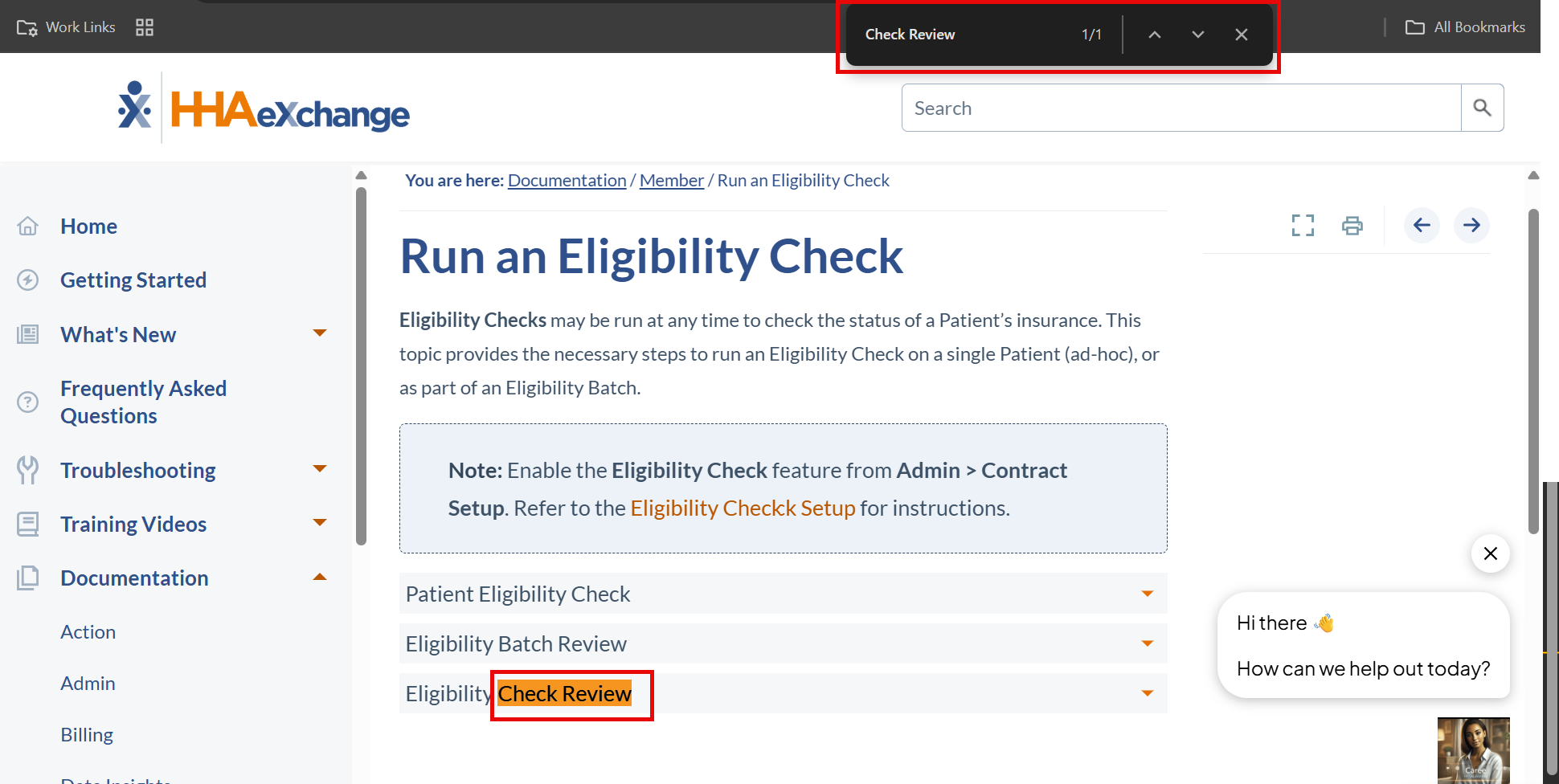
Ctrl-F
To search for a keyword in the topic, press CTRL-F on your keyboard to open a Search box. Type the keyword in the Search box and select Enter. This search only searches in the open topic.