Conversations Feature
This feature may not be available in all markets or for all Providers.
The Conversations feature lets you securely message everyone involved in care – the patient, their representative, and the provider – all in one place. It helps you stay connected, share updates, and keep everyone on the same page.
In this help topic, we'll review how to start and respond to conversations, and how to archive conversations that are no longer needed. You can do this all within the HHAeXchange Mobile App.
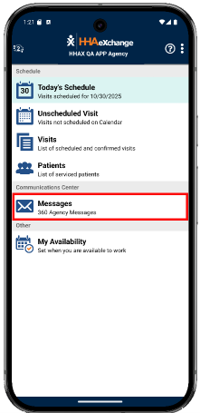
To open the Conversations section, tap on Messages in the main menu.
Start a Conversation
To start a conversation:
1. Tap the + New Conversation button.
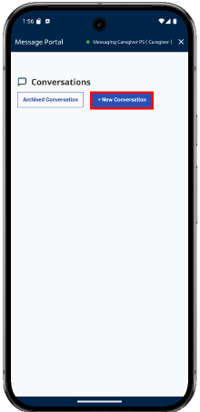
On the following screen, select your Provider, Coordinator or Provider Group. Selection of a Group is optional, and a group will only be available if the provider has setup user groups to receive messages. If you only have one Provider, it is automatically selected for you.
Then, select to whom you would like to send the message using the dropdown fields. You can include multiple entities in the conversation. Select any of the following recipients:
-
Member — If you would like to include the Member in the conversation, select the Include Member as Recipient checkbox.
-
Representative – A Representative can be added to the conversation if they have been signed up to use Conversations.
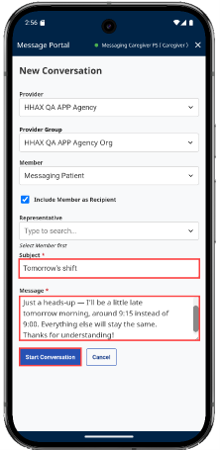
2. Enter a Subject and a Message. When finished, tap the Start Conversation button.
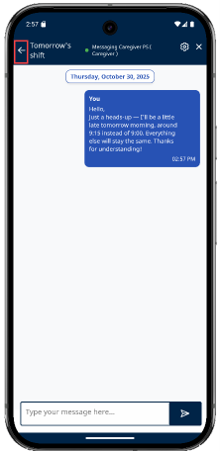
3. The conversation then opens, showing your message. Tap the arrow on the left side of the screen to return to the main Conversations page.
Respond to a Conversation
When someone sends you or responds to a conversation, it appears in the Conversations section with a green notification symbol.
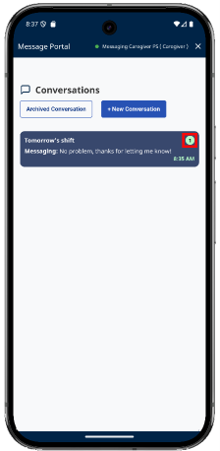
To respond to the message:
1. Tap on the message.
2. Type your response in the text at the bottom of the page. When finished, tap the send button.
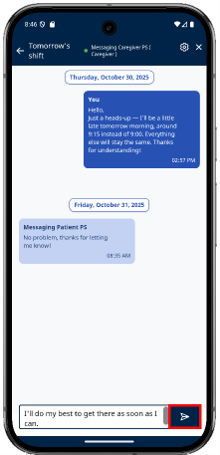
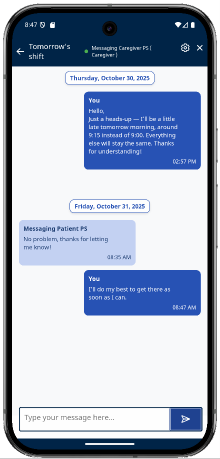
3. Your response appears below.
Archive a Message
The system automatically archives messages that have no response after 30 days. A response to a message will remove it from the archive.
You can also archive conversations yourself that are no longer relevant and causing clutter. These conversations leave the main Conversations section, but can still be accessed or unarchived if needed.
To archive a conversation:
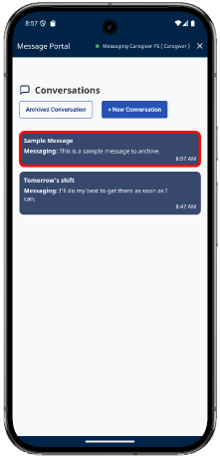
1. Tap on the conversation you want to archive in the Conversations panel.
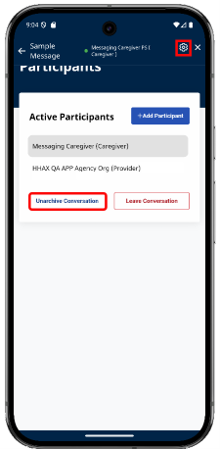
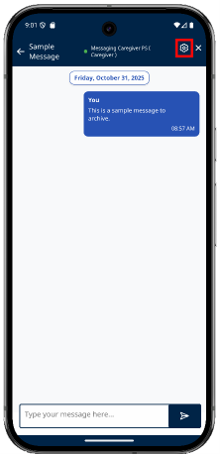
2. Click the gear icon in the upper right corner.
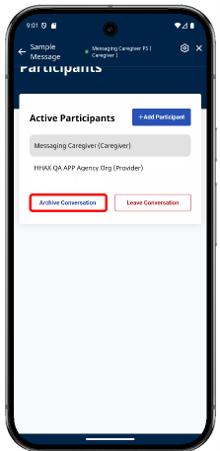
3. Tap the Archive Conversation button.
4. In the pop-up that appears, click Confirm.
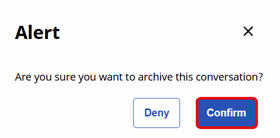
The conversation is now archived.
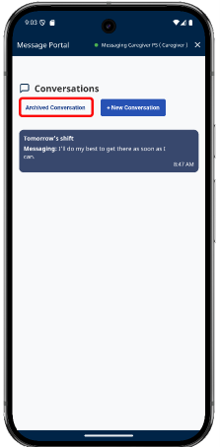
5. To view an archived conversation, tap the Archived Conversation button in the main Conversations section.
6. Tap the Active Conversations button to toggle back to unarchived conversations or tap on an archived conversation to view it.
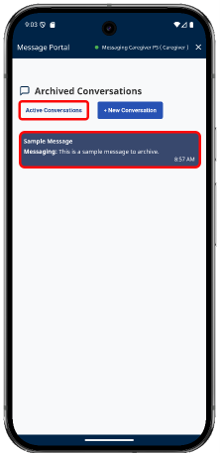
7. To bring the conversation back into the active Conversations page, tap the gear icon, and then tap the Unarchive Conversations button.