HHAeXchange+ Mobile App Multifactor Authentication
Multi-factor authentication (MFA) is an extra layer of security that helps make sure you are really you when logging into an account. Instead of only entering a password, MFA asks you to confirm your identity in two or more ways.
MFA sends a one-time passcode to the email or phone number on file for your account. Because that passcode is your key to signing in, it's important to keep this contact information current.
Follow the steps below to set up MFA
We strongly encourage every user to go to the MFA Settings page in their profile and update their contact information (email and/or phone number) as soon as either one changes. Waiting to update your contact information until you're already locked out can delay your access — update it proactively whenever your email or phone number changes.
Recommended time to make updates:
-
While you are within an active MFA session/duration, you can make this update yourself. No support ticket is needed.
-
If you are outside the MFA window (for example, your session has expired), you will not be able to update this information on your own and will need to contact the HHAeXchange Support Team for assistance.
When you’re ready to initiate your MFA Setup, Click Set up Now and choose your preferred method to verify your identity.
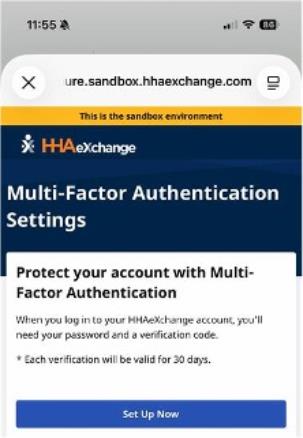
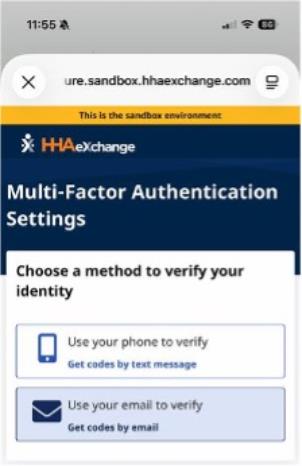
Follow the prompts on the screen.
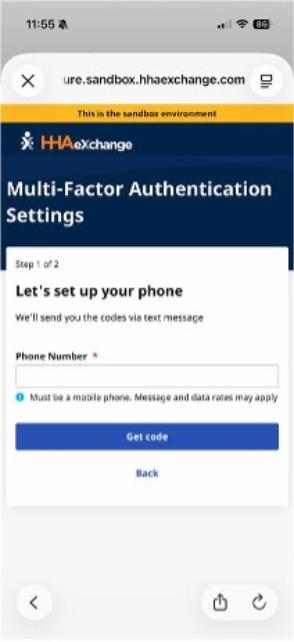
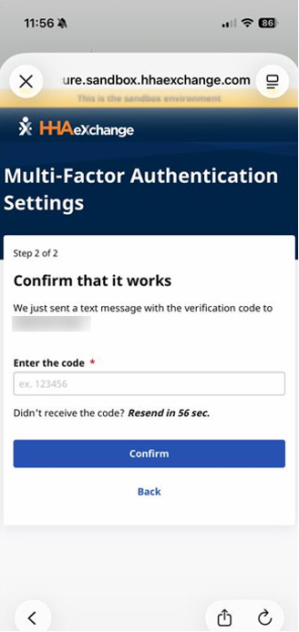
Confirm the MFA Settings.
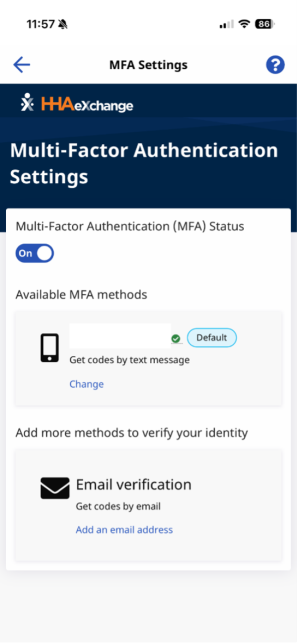
Review Your Settings
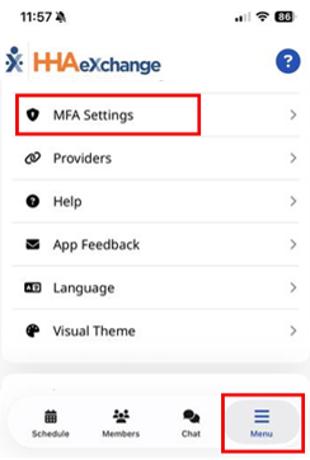
If you ever need to access your MFA Setting, you’ll find them by accessing the Menu tab on the bottom right of your screen:
Didn't Receive Your MFA Passcode?
In rare cases, a user may not receive their MFA passcode through either email or SMS. If this happens to you, contact the HHAeXchange Support Team for assistance. Do not repeatedly request new codes on your own.