Broadcast Message
HHAeXchange is updating the system to fit Accessibility standards. As we work diligently on screen updates, note that some images within this document may still reflect an older version.
Each office at an agency can broadcast a short, recorded message to their Caregivers under Action > Broadcast Message. Broadcast messages are recorded by phone (one message per language per IVR line), managed, and then activated. Once assigned, a broadcast message is heard by all Caregivers who dial in to Time and Attendance (IVR) phone lines. See the Set Up a New Office Set Up a New Office
This topic provides the following information about the Broadcast Message function:
-
Suggested content for a recorded message
-
Permissions required to record and activate a Broadcast Message
-
The Caregiver experience with Broadcast Message
-
Instructions for the 2-phase process to record, then activate and broadcast a message

Since Caregivers hear the office-recorded message each time they clock-in and out of a visit, it is recommended that the message be no longer than 15-20 seconds. Below is an example of a message an office might record related to the current COVID-19 outbreak:
This message is for Caregivers at [InsertOfficeName]: If you or any individual for whom you are providing care are showing symptoms related to COVID-19 (such as fever, cough or shortness of breath), or have been potentially exposed to someone with a confirmed or suspected case of COVID-19, please hang up and contact us at [InsertPhoneNumber]
Once the Broadcast Message is activated, the following is a description of what Caregivers hear when clocking in or out using the landline IVR call system:
-
Caregiver hears Welcome to HHAeXchange. Press 1 for Clock In, 2 for Clock Out.
-
After selecting an option, the Caregiver is prompted to enter their Assignment ID.
-
Once the Assignment ID process is completed, the recorded office Broadcast Message plays.
-
Go to Admin > Office Setup. Select New Office or Search Office and follow the prompts. Select the office name link. Scroll down to find the system-generated Office ID and Office Password located in the Recording Information for Conexus and Message Broadcasting section.

-
Dial into the HHAeXchange Recording System at 718.215.6569.
-
Follow the system prompts, entering the Office ID and Office Password when prompted, to record and save the message. Once saved, the message is placed into the HHAeXchange system.
If necessary, create a new Office Password by entering a 4-digit numeric code and clicking Save.
-
Repeat Steps 1-3 to record any additional messages in other languages.
-
Allow 10 minutes after recording for the recorded message(s) to be available for scheduling and activation, before continuing to the next phase.
-
Go to Action > Broadcast Message and select the Search button to access a list of recorded messages.
-
Click the Speaker icon
 in the Message ID column. An audio file is downloaded.
 -
Find the downloaded file(s) to listen to each recording to ensure accuracy and quality.
-
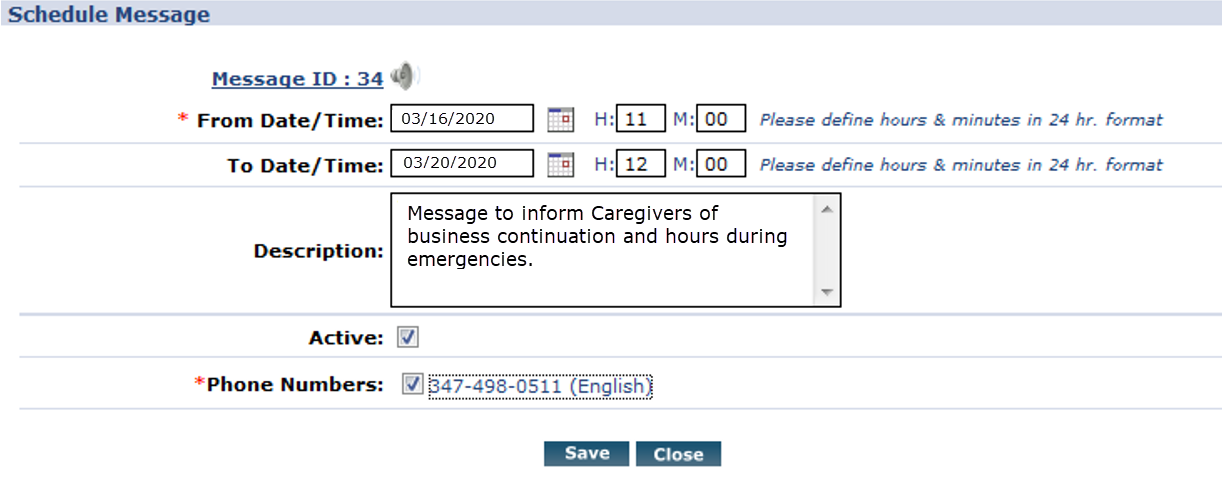
Click the Schedule or Edit link for a recorded message to open the Schedule Message window.
-
In the Schedule Message window:
-
Enter the From Date/Time (required) to specify when broadcast should begin
-
Enter the To Date/Time (optional) to specify when broadcast should stop
Leaving this field blank results in the broadcast remaining indefinitely
-
Enter the Description (optional) if desired.
-
Select the checkboxes next to all Phone Numbers used by Caregivers at your office, associated with the language for the selected recorded message.
Ensure the Active checkbox is selected and click Save to finalize and Activate the Broadcast.
As Offices may have multiple phone numbers for Caregiver use, only one Active message can be assigned to each phone line at one time (per Office).
-