Run Exclusion/Verification Lists
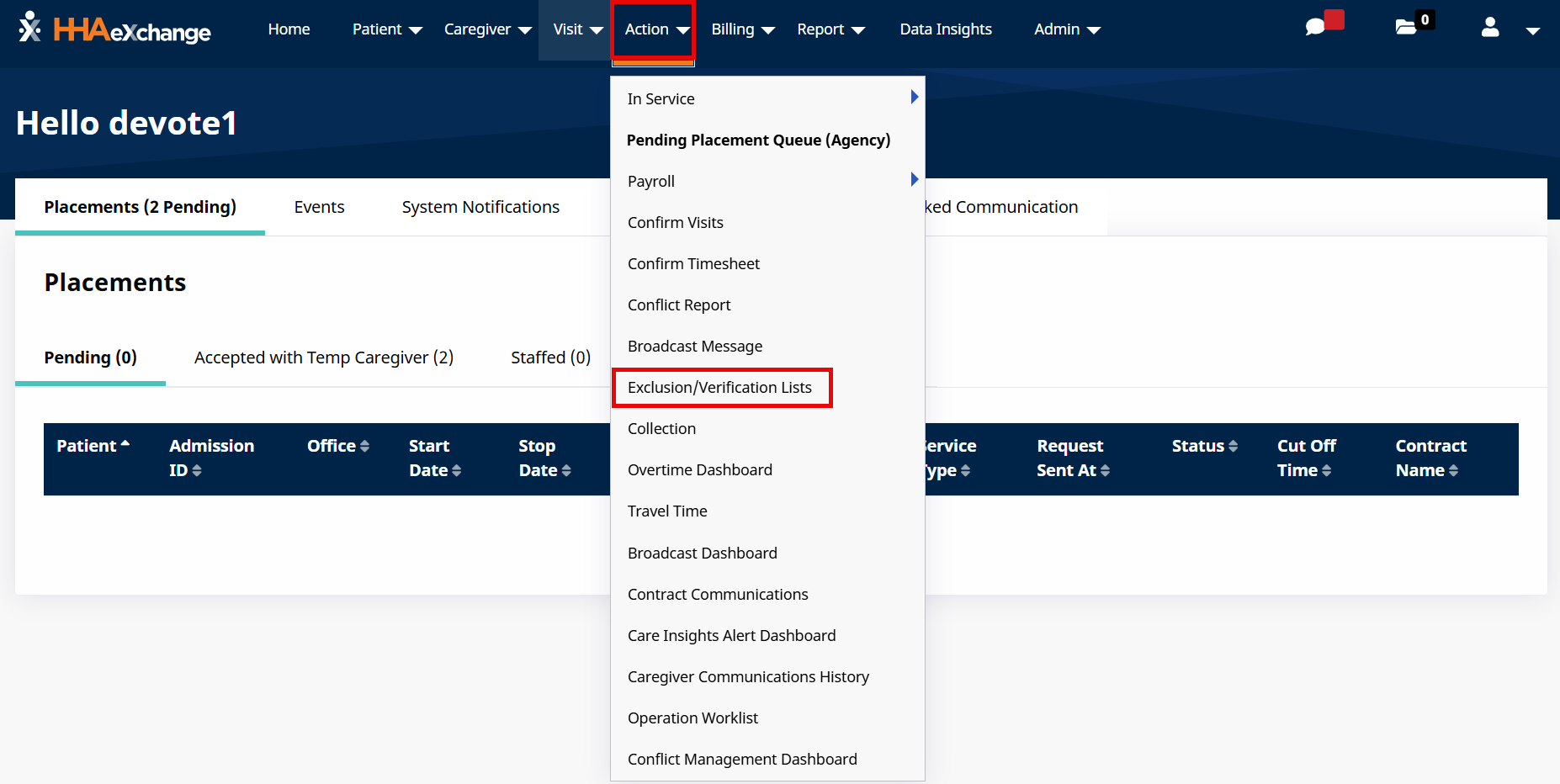
To run Exclusion/Verification Lists, go to Action > Exclusion/Verification Lists.
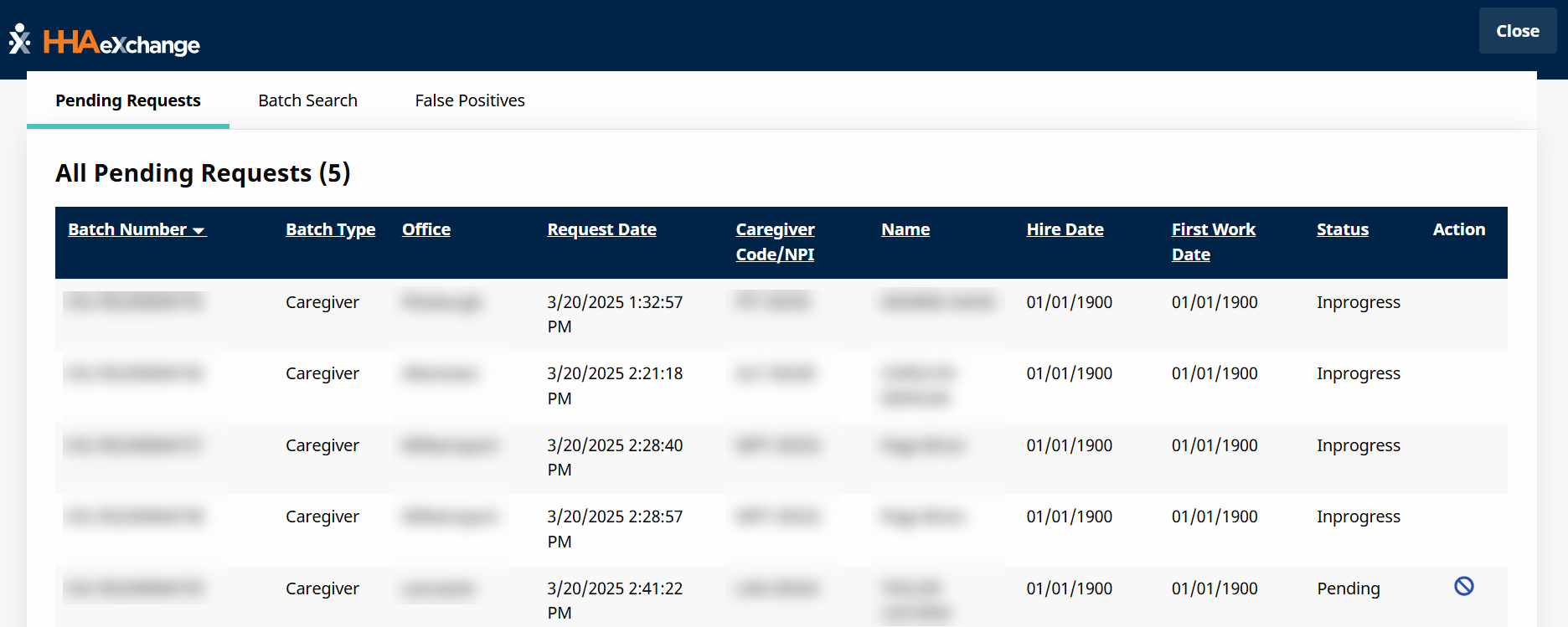
The Exclusion/Verification Lists page opens in a separate window to a summary page on the Pending Requests tab. Other tabs include Batch Search and False Positives.

The Pending Requests tab under Action > Exclusion/Verification Lists provides search results. From here, users can see detailed information including the Batch Number, the Batch Type, and other pertinent information such as the Caregiver’s Code/NPI and the Status.
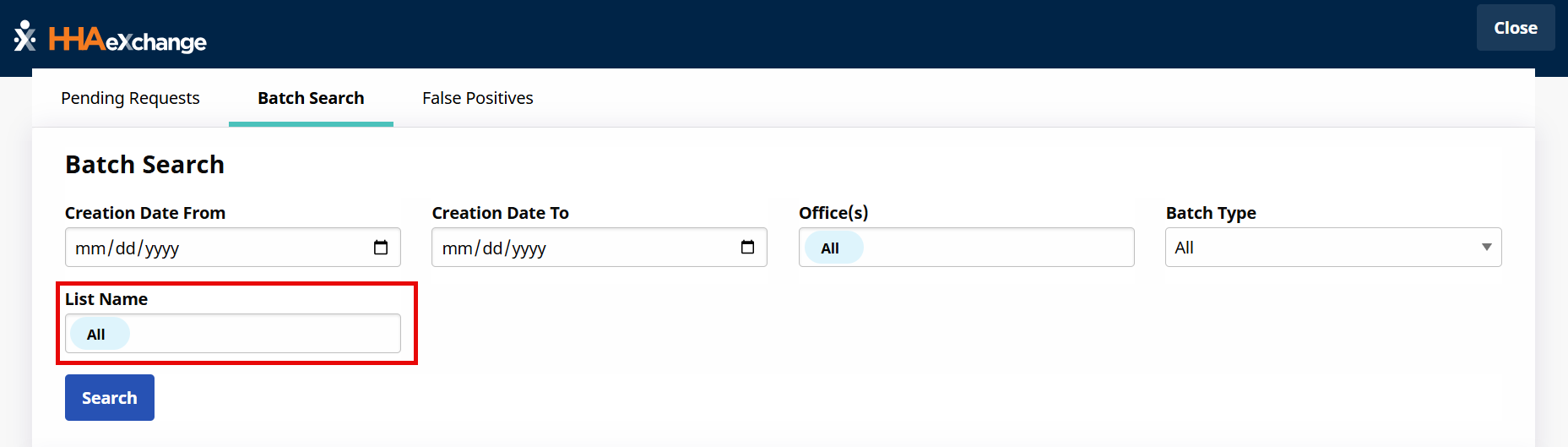
Click the Batch Search tab under Action > Exclusion/Verification Lists, select the List Name, and then select Search.
A List Name dropdown is available to select lists set up by the System Administrator. The lists displays selections the user has permissions for, based on their Agency’s offices.
Once a search is completed, the results page appears.
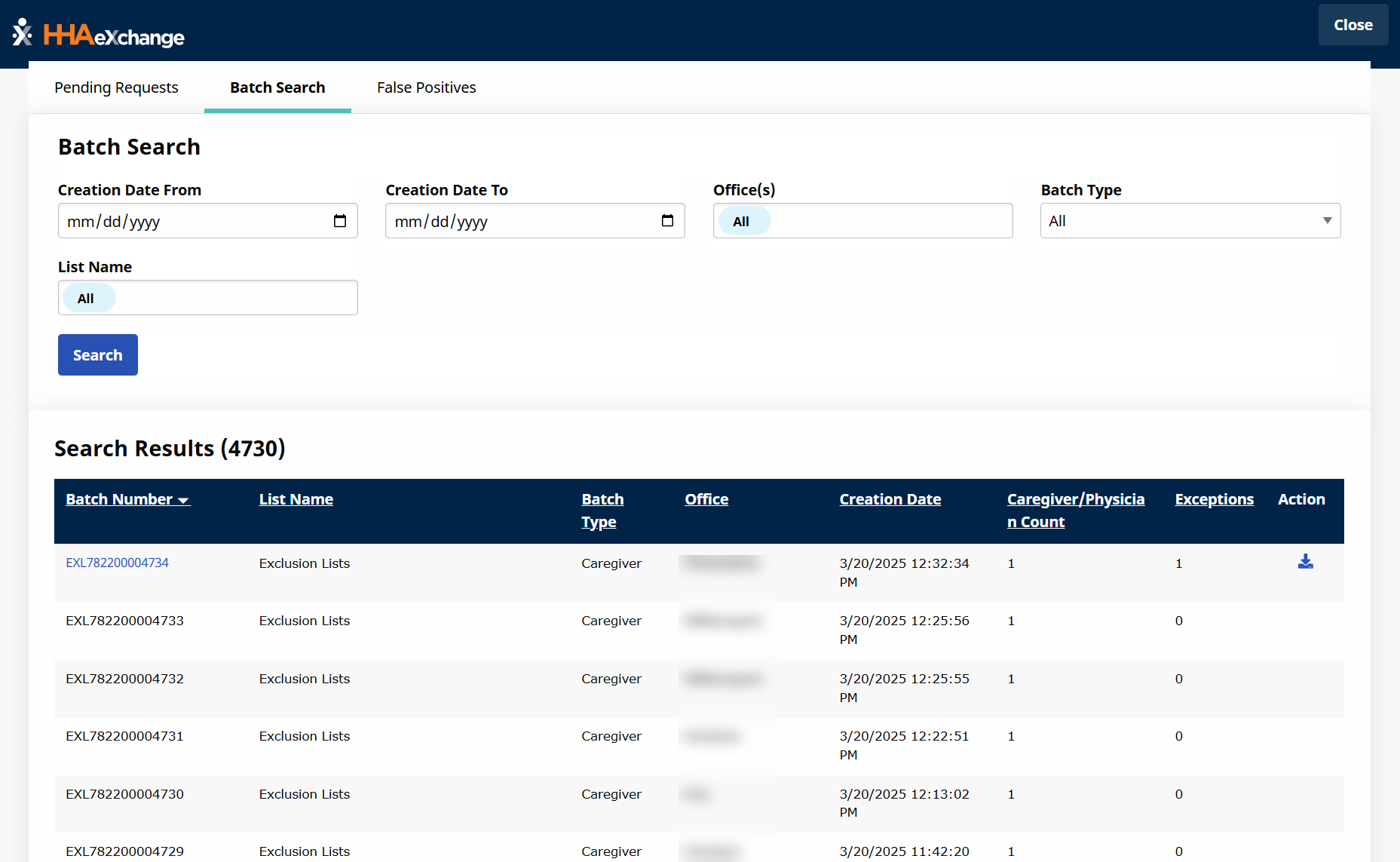
All Exclusion Lists for which the Agency chooses to run batches are displayed. Search results are based on the selected Exclusion Lists.
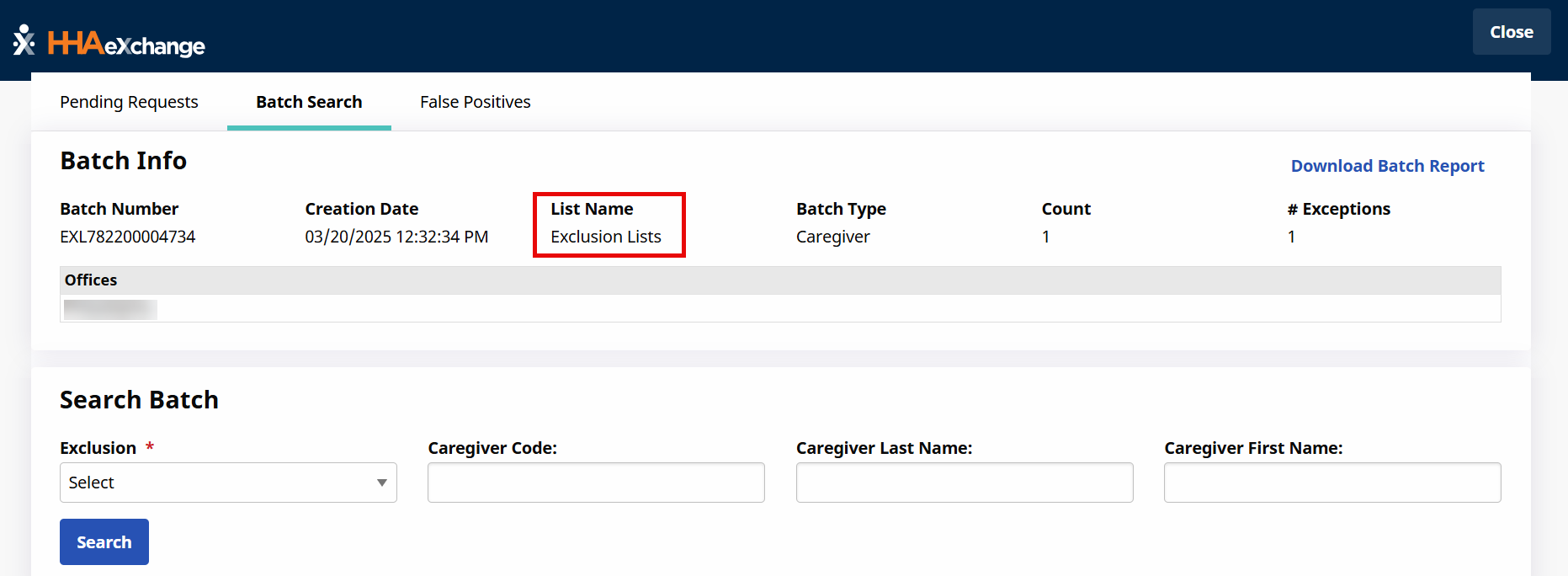
When selecting a batch number link, the Batch Info search page appears and provides the selected Batch details such as List Name and Batch Number. Search filters are available to expand the search. Complete the required field and click the Search button to expand details further.
|
Field (Select…) |
Results… |
|---|---|
|
All |
Displays Valid, Invalid, and Not Searched results on the same page. |
|
Valid |
Displays all Verification List results where the search details are the same as the match details. |
|
Invalid |
Displays all results where search name and license number do not match records in queried database. In the image above, the Death Master List is used. In this List, a person’s Social Security Number (SSN) is verified to ensure that the SSN does not belong to a dead person (in case the employee provides a false SSN). In the system, the SSN is considered a License Number. In this case, a searched license number is identical to a matched license number which may indicate fraud. For this reason, the individual shows as Invalid. |
|
Not Searched |
Displays all results which had insufficient information recorded in the HHAeXchange system such that a query would have been unsuccessful, and therefore no query was run. All individuals batched up to be run through a Verification List must have the minimum required details available in the required fields of their profile. If the required details are not available in the required fields, they are not entered into a batch or query, and their record appears as Not Searched. |
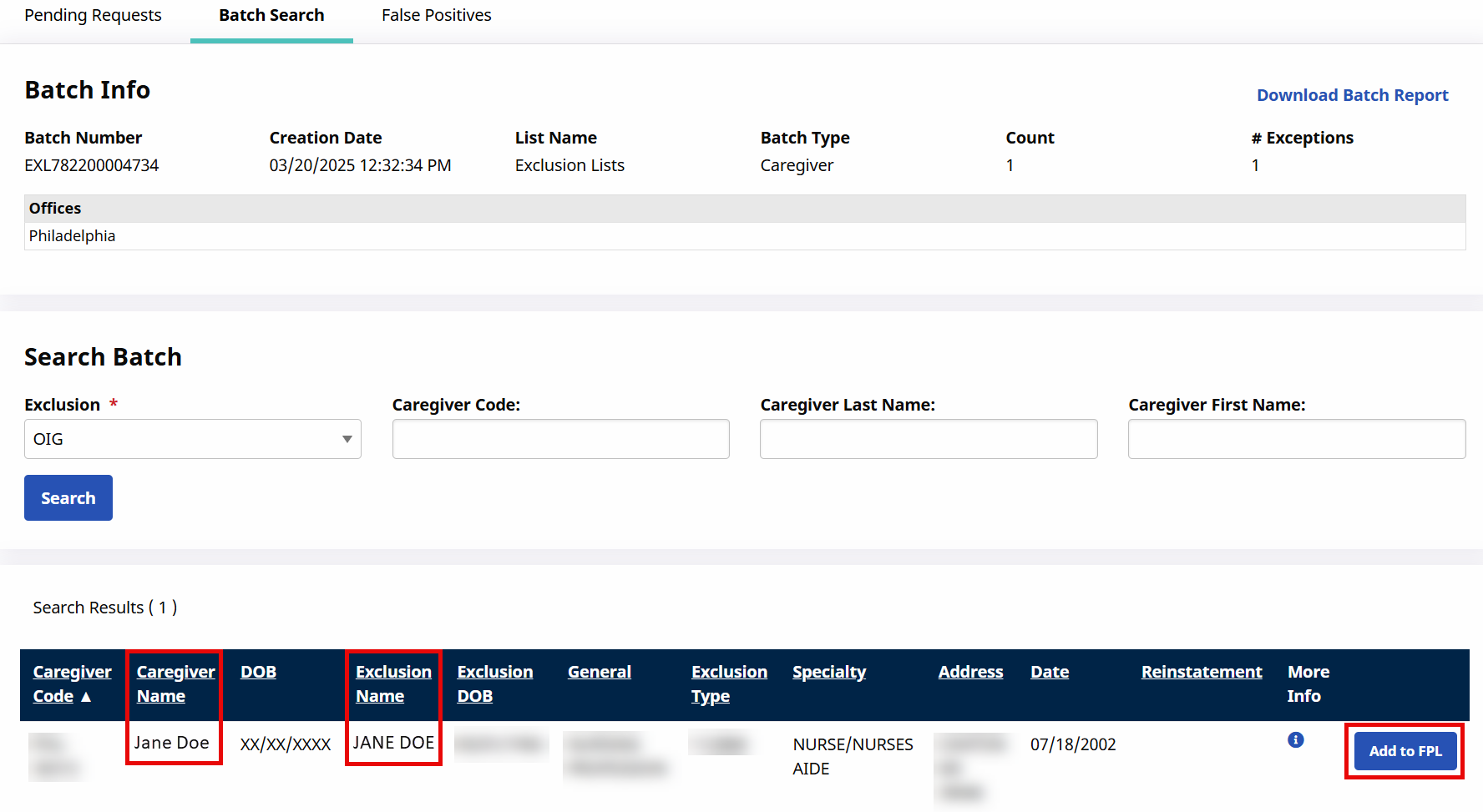
The following example illustrates how to add a Caregiver to a False Positive List (FPL) after running a Batch Search under Action > Exclusion/Verification Lists. Caregiver Jane Doe shows up on a GSA list; however, the Agency has determined that Jane Doe is not a Caregiver.
-
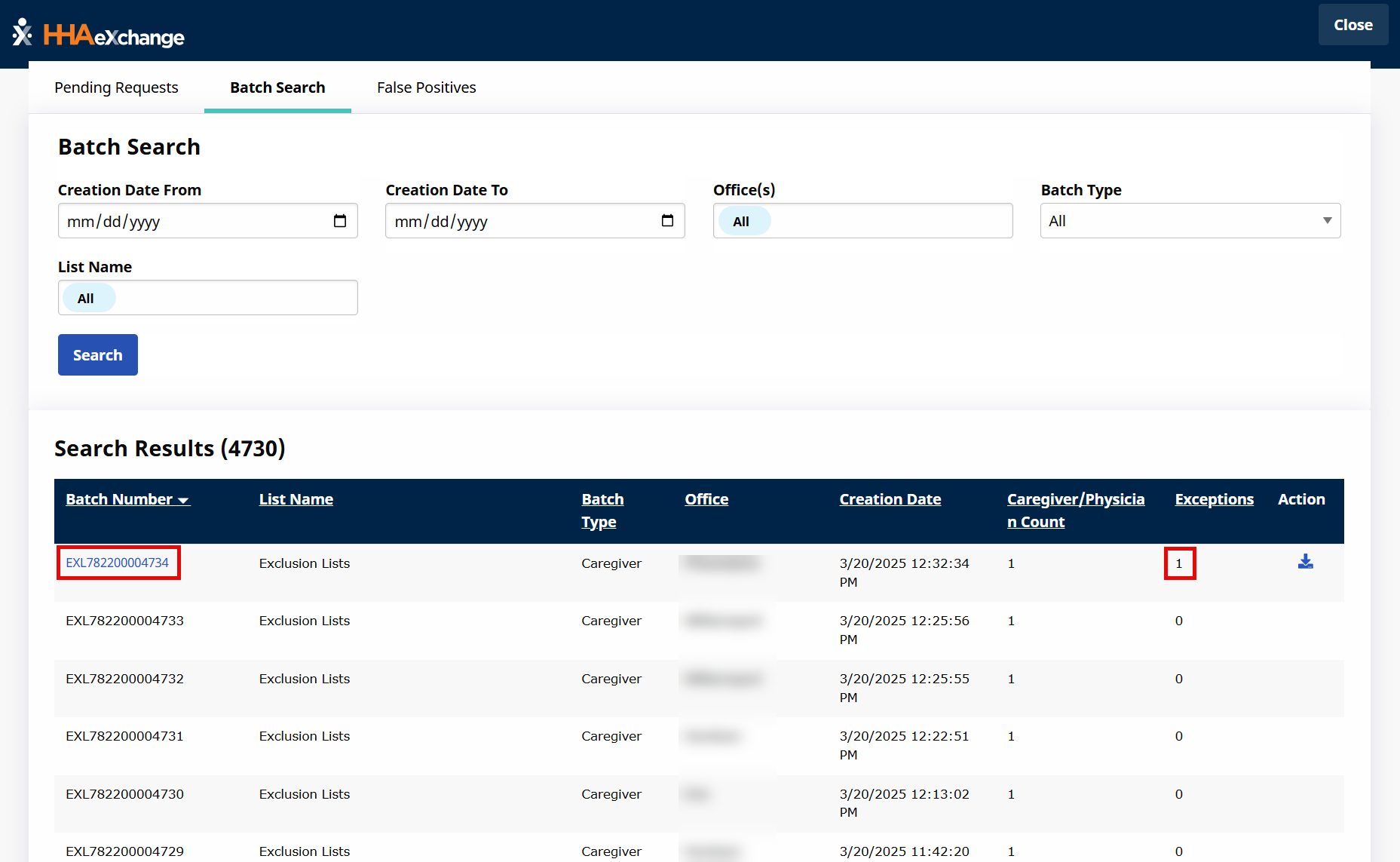
On the Batch Search results, click on the Batch Number link showing Exceptions (count).
-
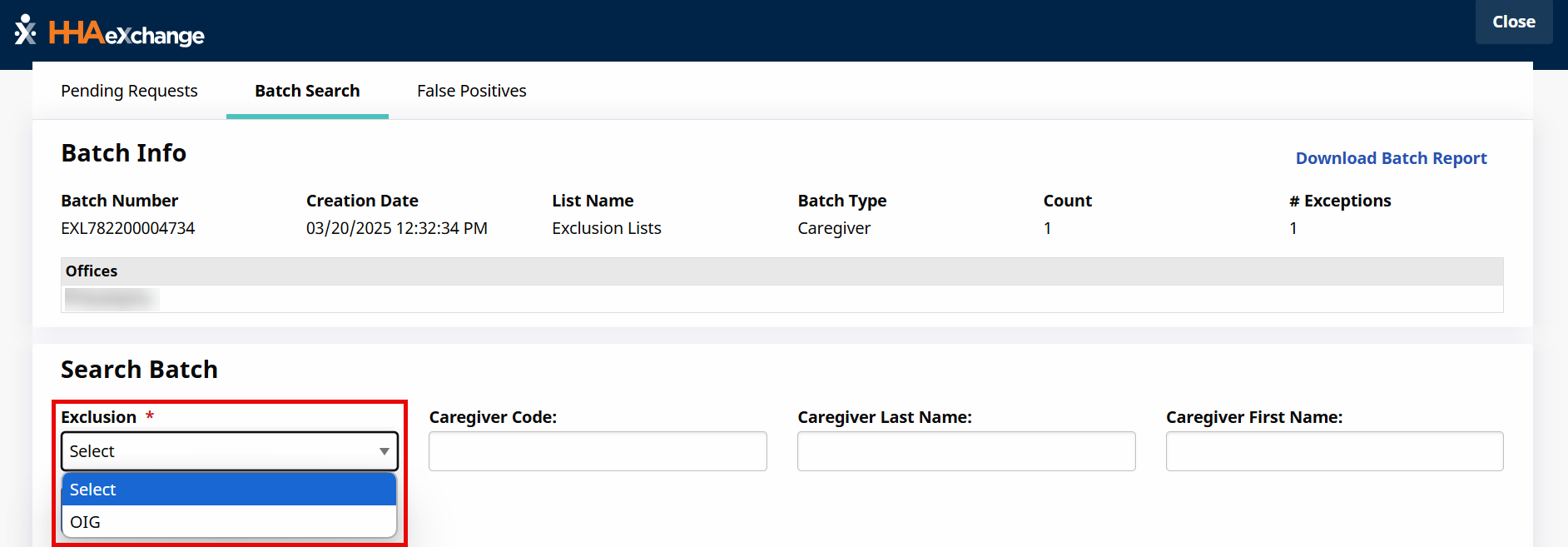
The Batch Details page opens. Select the Exclusion (for example OIG).
-
On the search results
-
Compare and confirm that the Caregiver is a false positive.
-
Click on the Add to FPL button.
-
-
The selected Caregiver does not show up on the selected Exclusion list when compared to the same incorrect excluded individual.
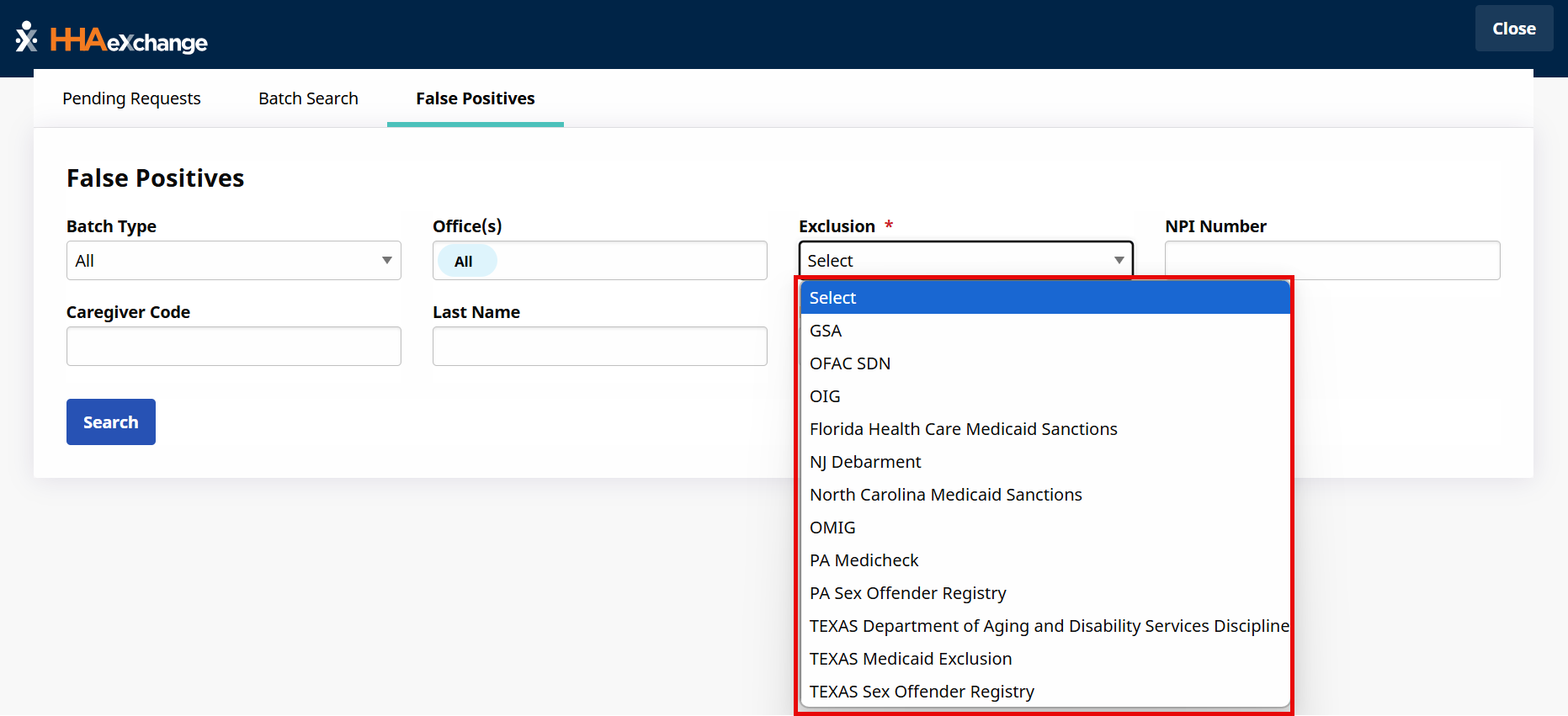
The False Positive List tab under Action > Exclusion/Verification Lists only deals with Exclusion Lists which includes newly added Lists. The Exclusion dropdown shows all selected Lists (all Lists available for any office throughout an Agency). Select an Exclusion List from the dropdown, which is required to run a query. Click the Search button to continue.
The results are generated in the False Positive List grid. Each line item indicates specific information.
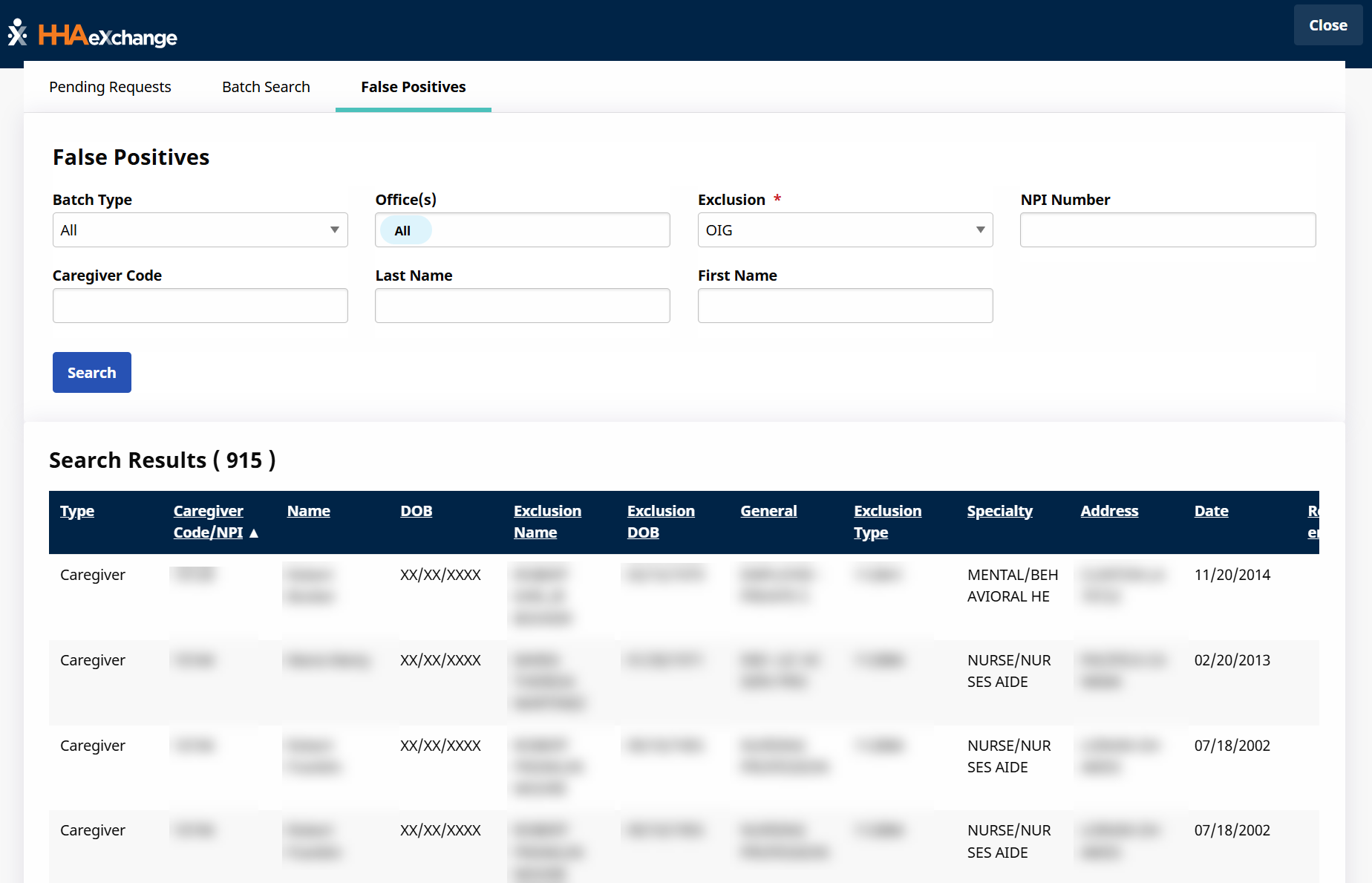
|
Column |
Description |
|
|---|---|---|
|
Type |
Indicates Employee Type (Caregiver or Physician). |
|
|
Caregiver Code/NPI |
The National Provider Identifier (NPI) Number or Caregiver Code assigned by the HHAeXchange system. |
|
|
Name |
Caregiver/Physician Name. |
|
|
DOB |
Date of birth recorded in the system. |
|
|
Exclusion Name |
Name registered with Licensure. |
|
|
Exclusion DOB |
Date of birth registered with Licensure. |
|
|
General |
Specifies the type of Licensure. |
|
|
Exclusion Type |
Indicate what the applicable Exclusion. |
|
|
Specialty |
Indicates the individual’s specialty. |
|
|
Address |
Address registered with Licensure. |
|
|
Date |
Effective date of Exclusion. |
|
|
Reinstatement |
Effective date of Reinstatement (if applicable). |
|
|
Date Added |
Date added to the Exclusion list. | |
|
More Info |
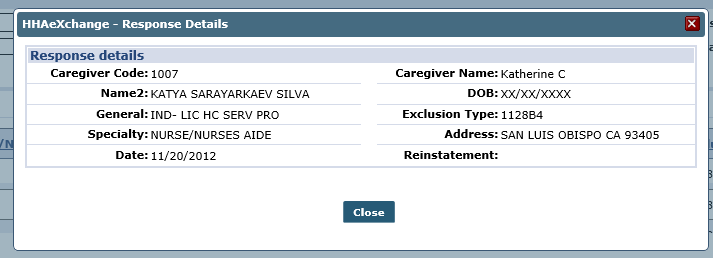
Click the More Info icon to access the view-only Response Details pop-up summary window.
|
|
|
Delete |
Delete the record from the result list. |
|