Billing/Collections Tab
The Billing/Collections tab on the Contract Setup page contains all fields related to invoicing and collections. This page is comprised of six sections to include: General Billing and Collections Configurations, Contractual Discount Allowance, Invoice Organization, Prebilling Validations, Duty Sheet Printing Options, and Automated Collection Notes settings.
This tab is found under Admin > Contract Setup.

In this section, enter a Collection Representative to handle any billing/remittance issues. To setup Automated Collection Notes, select values for the fields.

|
Column |
Description |
|---|---|
|
Enable |
Select the checkbox to enable the functionality for the applicable Office. |
|
Office |
List of possible Offices. |
|
*Generate After |
(Required) Set the number of days an invoice goes without being marked as “paid” before the system generates the note. |
|
From |
Specify whether the value in the Generate After field is based on the Invoice Date or the Date of Service. |
|
*Assign To |
(Required) Select which Collection Representative receives the automated note. |
|
*With Status |
(Required) Specify the required status of an invoice before an automated collection note is generated. |
|
Note Text |
Additional information that is automatically applied to the collection note. |
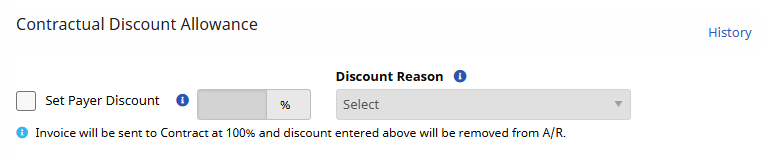
This section is used to set discount rates if/as applicable to a Payer.
Refer to the Discounted Payer Contracts topic in the Billing category for full details and instructions on Discount Allowances.
Refer to the table below for field/option descriptions.
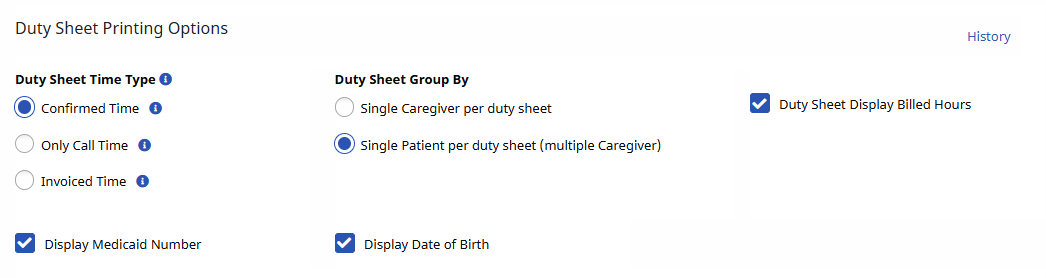
|
Field |
Description |
|---|---|
|
Duty Sheet Time Types |
Select the type of information to display in the Time In and Time Out fields on a printed Duty Sheet, as follows:
|
|
Duty Sheet Group By |
Select grouping display: Single Caregiver per Duty Sheet OR Single Patient per Duty Sheet (multiple Caregivers). |
|
Duty Sheet Display Billed Hours |
Select to display billed hours. |
|
Display Medicaid Number |
Select to display the Patient’s Medicaid number. |
|
Display Date of Birth |
Select to display the date of birth. |
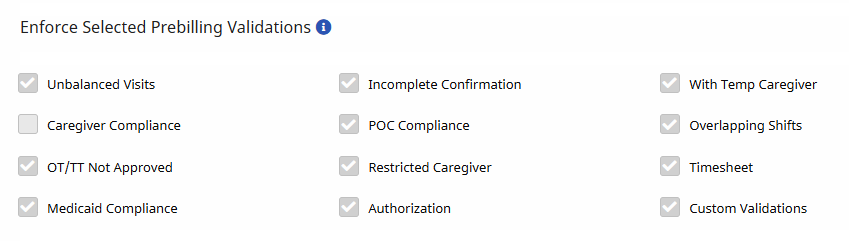
Select the Prebilling Validations checkboxes in this section that a visit must satisfy for the Contract if Contract Compliance has been selected. Any visit that violates any of the validations are held at Prebilling. The checkboxes in this section are for review purposes only. Contact the HHAeXchange Support Team to configure Contract Compliance.
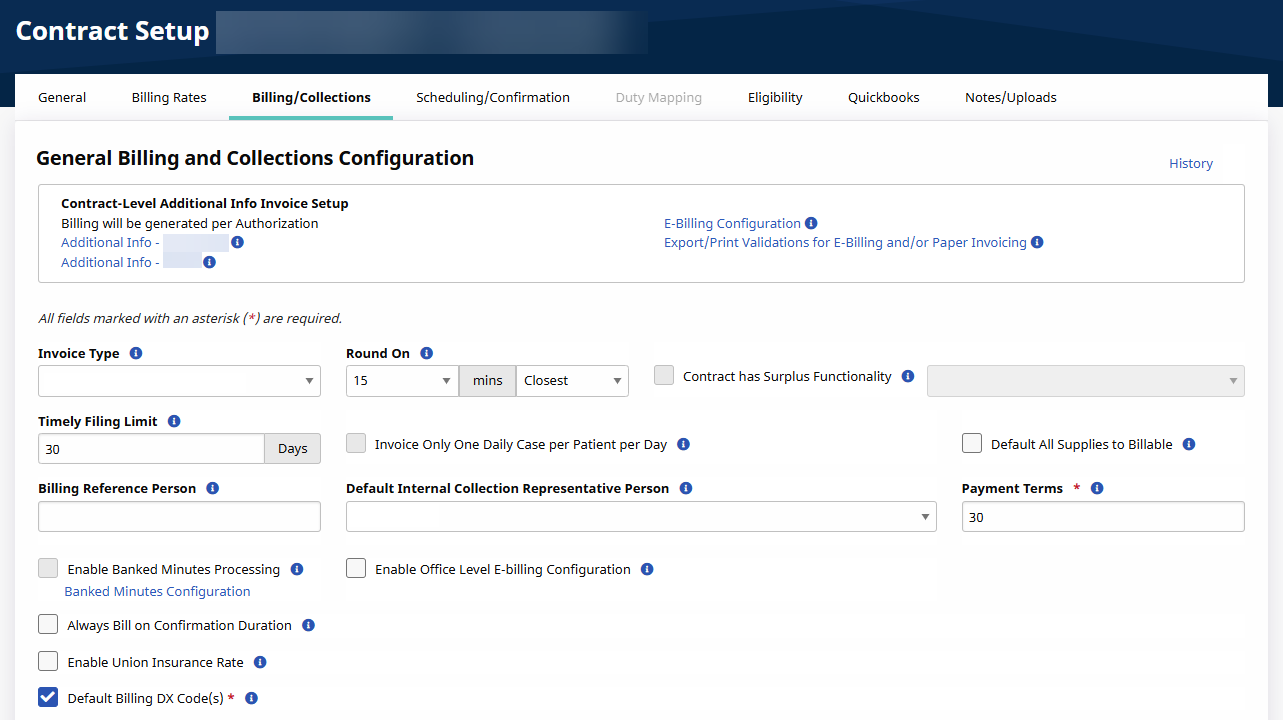
|
Field |
Description |
|---|---|
|
Contract-Level Additional Info Invoice Setup |
(Links) These two links allow Agencies to add or edit fields found on printed invoices. |
|
E-Billing Configuration |
(Link) Click to view the E-Billing configuration for this Contract. Contact the HHAeXchange Support Team to edit a Contract’s E-Billing Configuration. |
|
Export/Print Validations for E-Billing and/or Paper Invoicing |
(Link) Click to view the Export/Print Validations which have been configured for this Contract. |
|
Invoice Type |
Select the invoice type (which refers to the paper or electronic documentation used to file a claim). The options here are added by HHAeXchange. Agencies can also create a custom invoice via the Dynamic Invoice Setup function. |
|
Round On |
Define how the final billed duration is determined when rounding the unrounded confirmed visit duration. Select:
|
|
Contract has Surplus Functionality |
If checked, then the Surplus functionality has been enabled for the Contract displayed in the adjacent dropdown box. Patients under this Contract can then be assigned a Surplus from the Additional Bill Info section of their profile Contracts tab. If assigned, a Surplus invoice is generated each month for that amount for the Surplus Contract listed here. That surplus amount is also deducted from invoices generated for the Patient’s regular Contract. |
|
Timely Filing Limit (Days) |
Generally, a Payer provides a deadline for how long after a visit’s scheduled date, an Agency can invoice for services provided. Enter the number of days in the Timely Filing Limit field to indicate this duration. This helps the Agency to run additional reports to identify and highlight visits that are approaching the deadline and have not yet been invoiced. |
|
Invoice Only One Daily Case Per Patient Per Day |
Select for the system to only invoice one visit with a Daily rate type per Patient per day of service. If the Patient is scheduled with multiple visits with a Daily rate type on a single day, then one visit is invoiced for the full daily amount while the other Daily visit types are invoiced as non-billable service. This option is activated by HHAeXchange. Information pulled up by this function is for reference only. |
|
Default All Supplies to Billable |
Select so that any supplies recorded under Patient > Supplies default to Billable; included in the next invoice created. |
|
Billing Reference Person |
Enter the name of the Payer representative connected to the Contract. This is the name that appears on invoices transmitted by the Agency. |
|
Default Internal Collections Representative Person |
Select the individual responsible for accounts receivable collection for the Contract. |
|
*Payment Terms |
(Required) The number of days the system waits until it marks invoices as unpaid in various Accounts Receivable functionalities. |
|
Enable Banked Minutes Processing |
When enabled, the system banks any visit minutes which were rounded down and not fully included during invoicing. This bank increases until 1 hour of minutes are banked. At that point, the next visit is automatically processed with a positive billing adjustment of 1 hour, and the bank total drops by 1 hour. |
|
Default Billing DX Code(s) |
Select this checkbox and select the relevant Diagnosis Code if the Contract requires the Agency to always include the same Diagnosis information on Patient invoices. These codes are always included on the Patient invoices for this Contract, unless the selected codes are overridden at the Patient or Authorization level. |
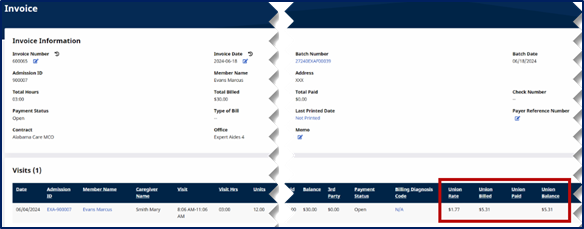
A system configuration has been established at the contract level to activate Union Insurance rates for reporting and 837 export purposes.
Once enabled, these rates can be incorporated into the billing rate and are calculated based on hourly rates. The rates are shown on the visit Billing Info tab and are listed separately on the invoice.
To enable the union insurance setting:
-
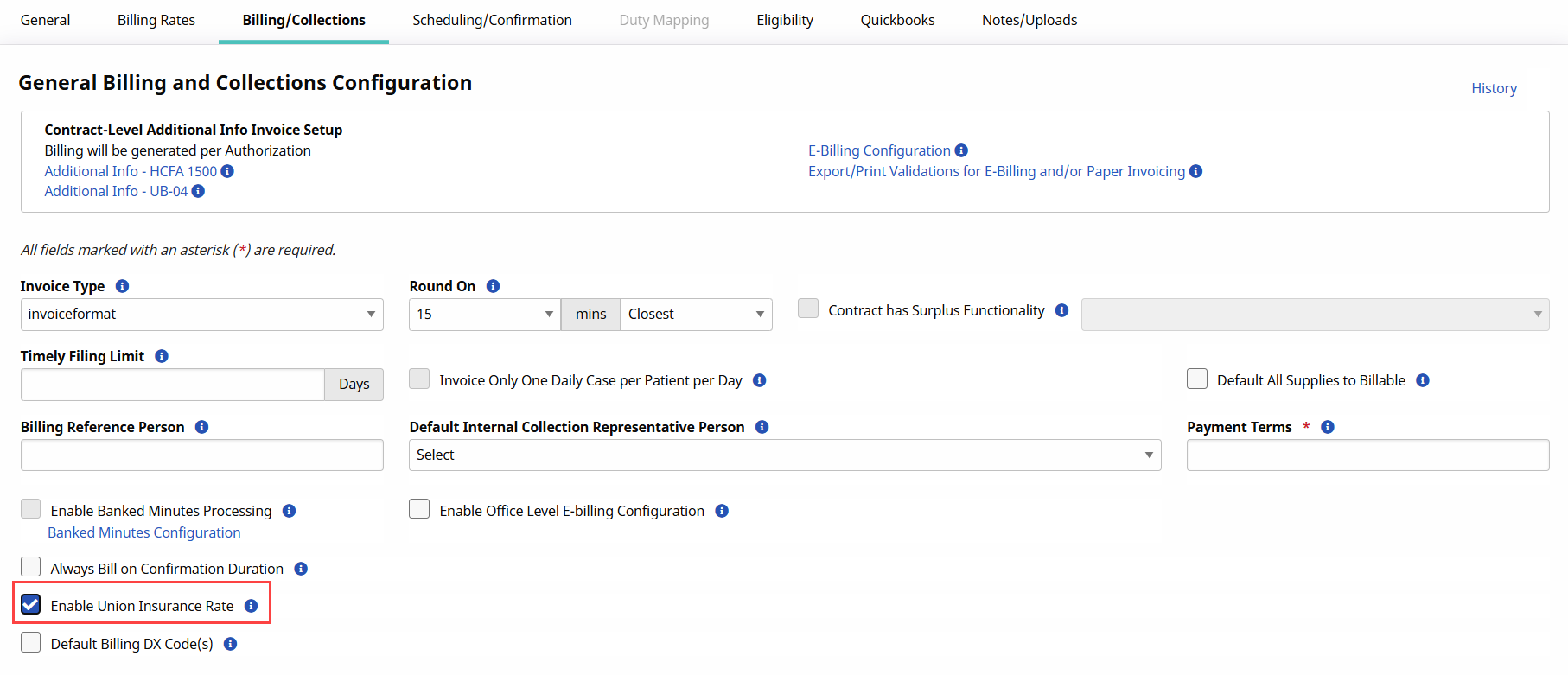
Go to Admin > Contract Setup > Search Contract > Billing/Collections tab.
-
Select the Enable Union Insurance Rate checkbox and then click Save.
-
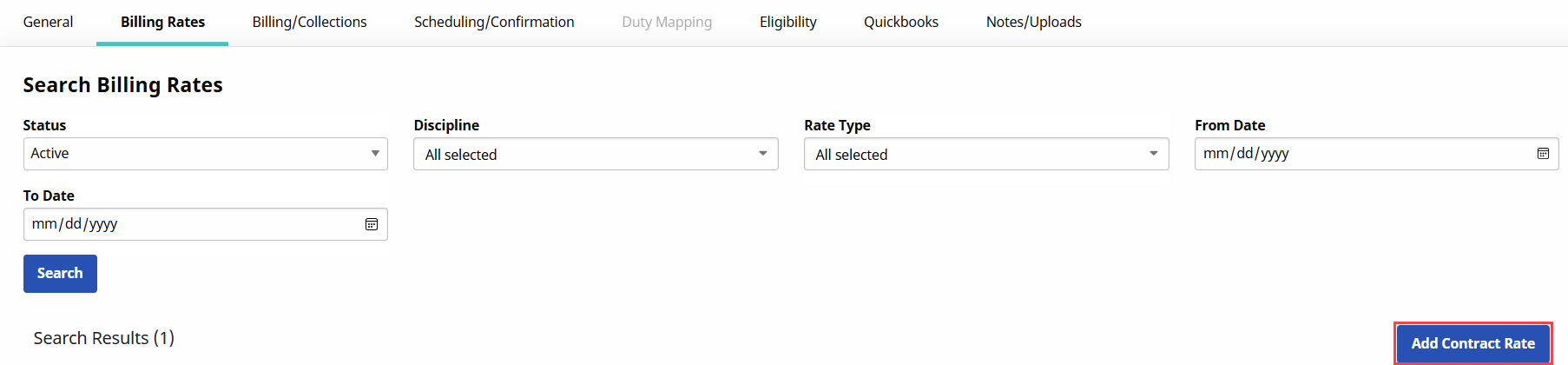
Select the Billing Rates tab and then click Add Contract Rate.
-
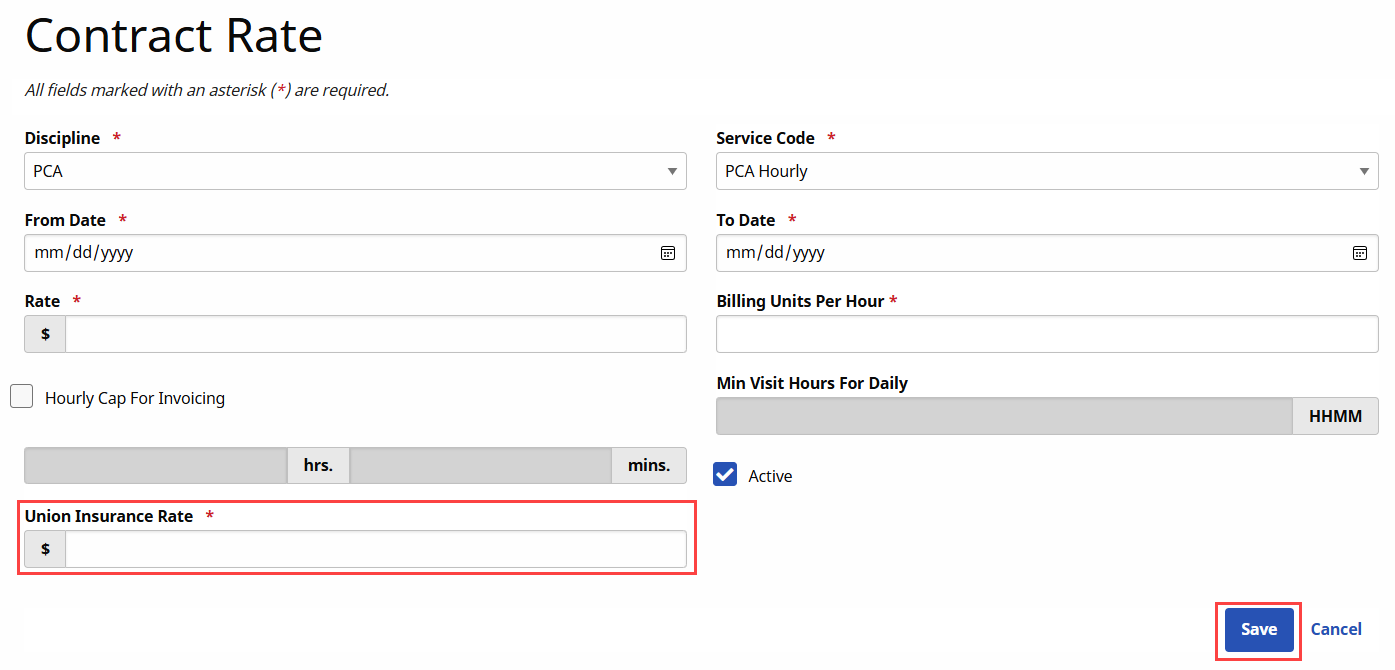
The Contract Rate window opens. Add the rate to the Union Insurance Rate field and then click Save.
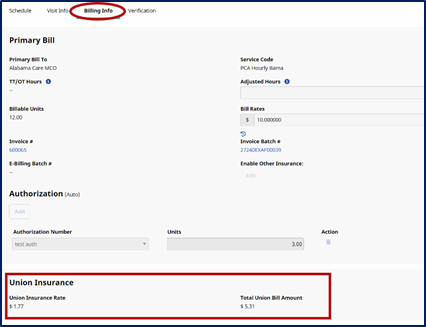
When the visit is billed the rate displays in the visit Bill Info tab under the Union Insurance section in the Union Insurance Rate field. The union total billed is displayed in the Total Union Bill Amount field.
The rate is also displayed in the invoice under the Union Rate column for each visit. Additionally, other columns provide a detailed breakdown of the union rate total.
This section allows you to automate the generation of invoices and submission of claims.
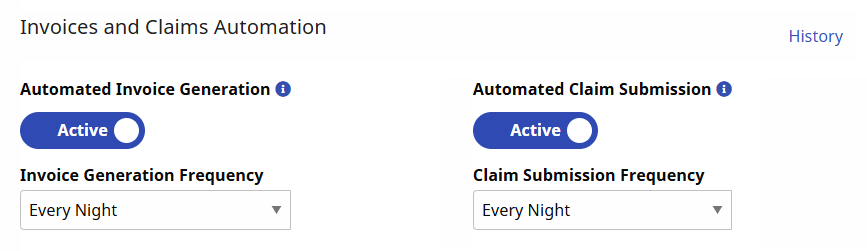
If you choose to automate Invoice Generation, Claims Submission is automated as well. You can choose to automate Claims Submission by itself.
There are three types of frequencies you can choose from for automations:
-
Every 15 Minutes
-
Every Night
-
Weekly: Selecting this frequency opens a secondary dropdown for choosing a day of the week.
Selecting Weekly runs the process after midnight on the selected day. The data included is from the previous payroll week.
For example, if an agency's payroll week runs Monday through Sunday, and they have selected Tuesday for Automated Invoice Generation and Claims Submission, the process runs just after midnight on Tuesday. It collects all Visits from the previous Monday through Sunday.
It does not include Visits from Monday or Tuesday of the current week, since the current payroll week is still in progress.
The frequency chosen for one form of automation affects the other automation.
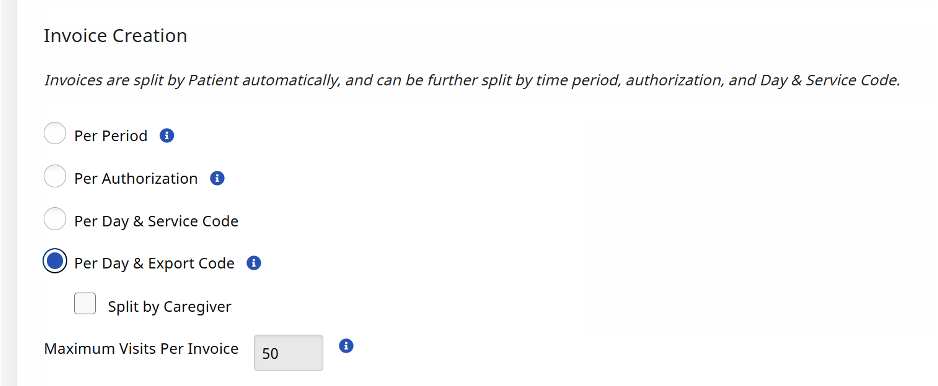
The Per Day & Export Code option lets you group invoiced visits and claim line items by Export Code instead of Service Code when submitting claims.
If your agency uses multiple Service Codes that map to the same Export Code — for example, PCA Hourly Brooklyn and PCA Hourly Queens both billing under T1019 — claims were being rejected because the payer only expects to see one line per Export Code. The Per Day & Export Code feature groups those visits together automatically, the way the payer expects, so claims go through cleanly.
Here is how to enable this feature:
-
Go to the Billing/Collections tab of the contract Settings.
-
Scroll to the Invoice Creation section.
-
Check the Per Day & Export Code checkbox.
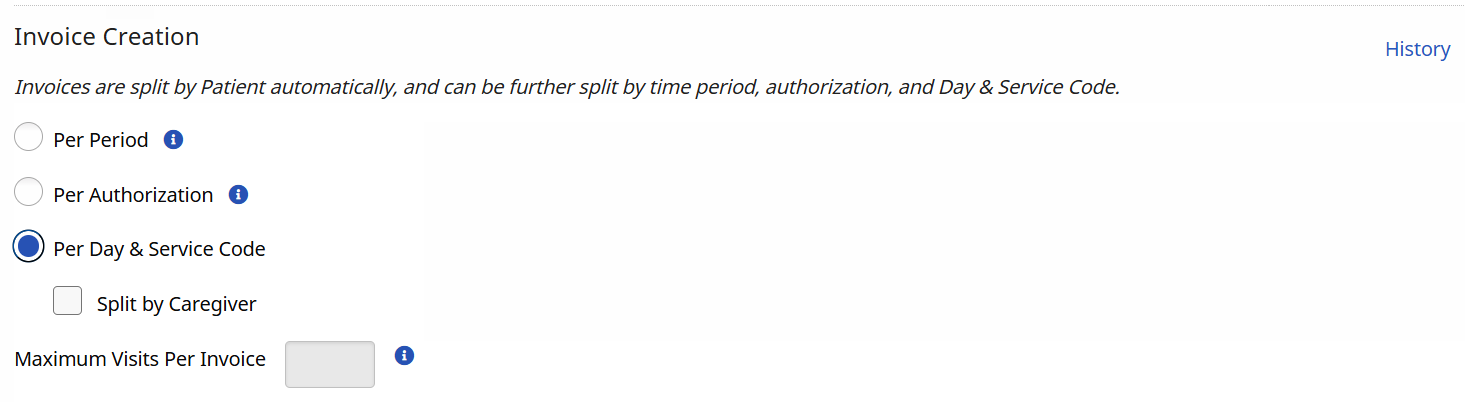
This section defines how to organize Invoices.
|
Field |
Select to… |
|---|---|
|
Per Period, Split by Caregiver |
Set how visits are grouped within Invoices for the Patient per Period. You also have the option to split the invoice by the Caregiver. |
|
Per Authorization |
Place visits for the same Patient into separate Invoices, organized based on the Authorization number applied to the visit. |
|
Per Day & Service Code, Split by Caregiver |
Create different Invoices for the same Patient, with visits in those Invoices organized by the date of service and the Service Code used to schedule the visit. You also have the option to split the invoice by the Caregiver. |