Capture Notes When Editing Schedule Tab for Linked Contract Patients
Agencies can choose to require a Note when a user edits specific visit Scheduling (or fields edited on the Visit Info tab of the Visit Window) and/or Billing information for Internal and Linked Contracts.

To require a Note for such cases, go to Admin > Contract Setup and click on the contract. On the Scheduling/Confirmation tab, select which instances should require a Note under the Require Note when Editing Visit field, to include:
-
Schedule Times
-
Pay Code
-
Plan of Care
-
Bill To (Contract)
-
Service Code
-
Caregiver
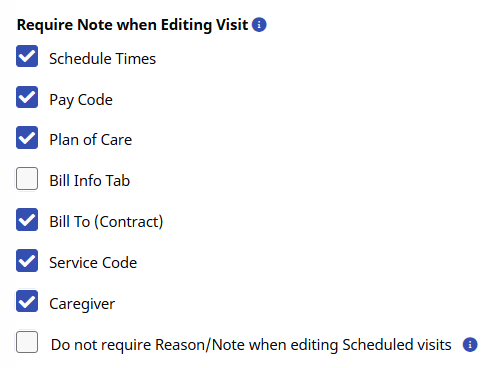
By default, no Note is required when editing Schedule or Billing information.
This field also contains an option to require a Note in response to any change on the Bill Info Tab. This is a Contract-specific function; therefore, selections made in the Require Note when Editing Visit field only affect visits scheduled under the selected Contract.
Aside from enabling at a Contract level, the reasons (values) must also be entered/created via the Reference Table Management functionality under Admin > Reference Table Management. Complete the steps below to create Note Edit Reasons.
-
Go to Admin > Reference Table Management.
-
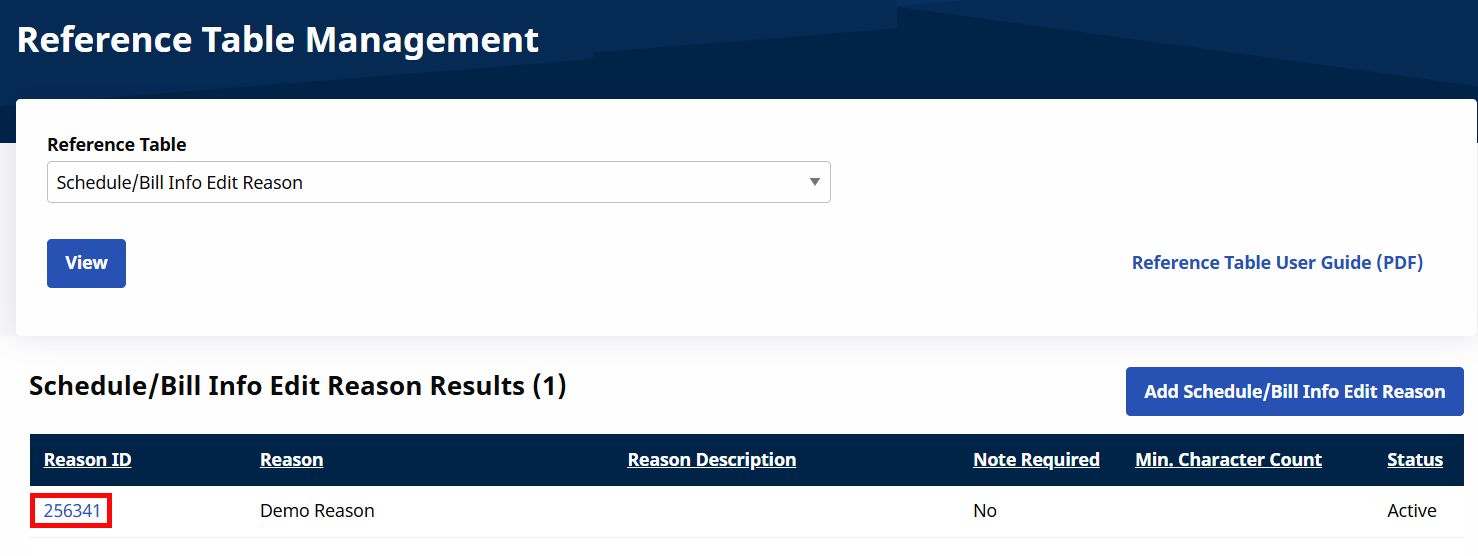
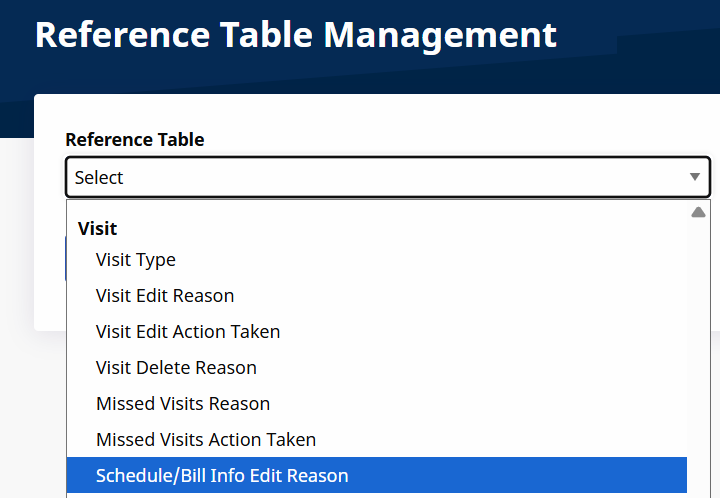
Select Schedule/Bill Info Edit Reasons under the Visit category from the Reference Table dropdown and click the View button.
-
Click the Add button.
-
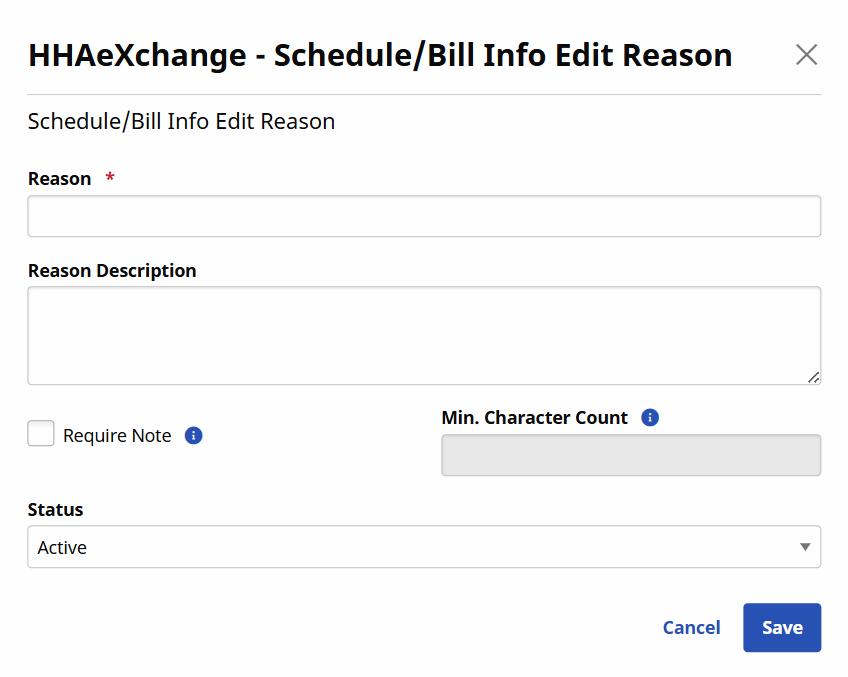
The Schedule/Bill Info Edit Reason window opens. Complete the necessary fields.
Field
Description
*Reason
(Required). Enter the reason for updating (Schedule and/or Billing) information.
Reason Description
An optional description field expanding on the Reason.
Require Note
Selecting this checkbox prompts the requirement; user must enter a Note for the associated Reason.
Min. Character Count
Set the minimum amount of characters required if a Note is required.
Status
Specify whether the note Reason is Active or Inactive.
-
Click Save to finalize.
-
To edit existing values, select the Reason ID link.