Caregiver Compliance
The Provider Agency can use the Caregiver Compliance feature to verify caregiver regulatory compliance using three functions: Item Manager, Compliance Setup, and Caregiver Compliance.
Refer to the Caregiver Compliance category for full details and instructions.

This section is intended for Agency Admin users responsible for setting up Caregiver compliance.
The Compliance Setup is comprised of six tabs to include General, I-9 Requirements, CriminalBackground, Training Schools, Compliance Field, and Medicals/Other Compliance. Each of these tabs are covered in the following sections.

One can either create a New Compliance Setup or search for an existing setup by entering the Setup Name, selected Office(s), and/or Status. The results are also organized by these fields.

|
Field |
Description |
|---|---|
|
Setup Name |
Enter the Setup name in this free text field. |
|
Office(s) |
Select the applicable Office(s) to generate a Search. |
|
Status |
Select All, Active or Inactive to search for a Setup by Status. |
Select the Criminal Background tab to set values for the selected Compliance Setup. There are no additional rules which may be set for Criminal Background.
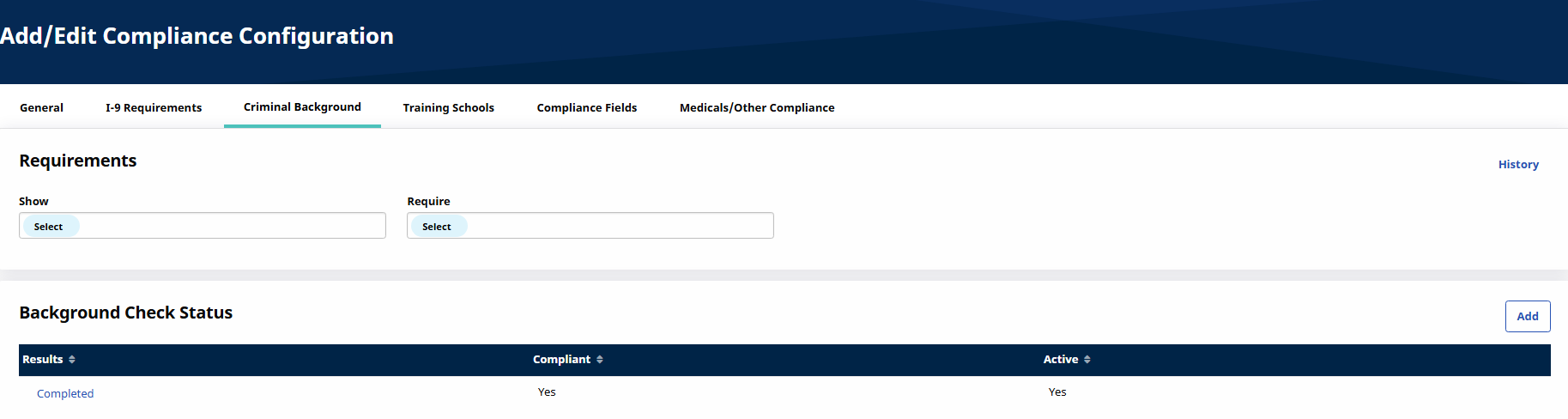
In the Background Check Status section, the previously created results values appear with the corresponding information under the Compliant and Active columns. To add a Criminal Background Result value, click the Add button.
The HHAeXchange – New Criminal Background Check Status window opens. Complete the fields as indicated. The Result field is required.
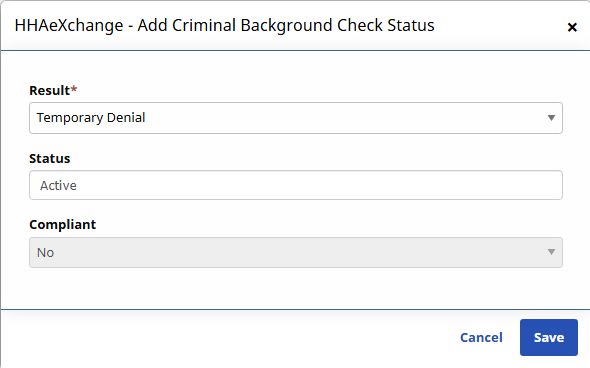
To edit a Criminal Background Check Status value, click the named value link.
Review the selected values for the Criminal Background check to ensure there is at least one compliant value entered. Upon saving on the Compliance Setup, Criminal Background tab, the system validates if there is at least one Active compliant value. If not, the system issues a validation warning. The warning does not stop one from saving and to proceed without an active compliant value for this section.
Select the I-9 Requirements tab to create an I-9 Compliance Setup. Unlike other compliance areas, I-9 requirements are dictated by the Federal government; therefore, these the values and rules are predefined. In the HHAeXchange system, users have the option to specify if a given I-9 document expires and/or requires re-verification (like the functionality currently controlling I-9 requirements).
This tab includes a Requirements section and an Expiration/Re-Verification section.
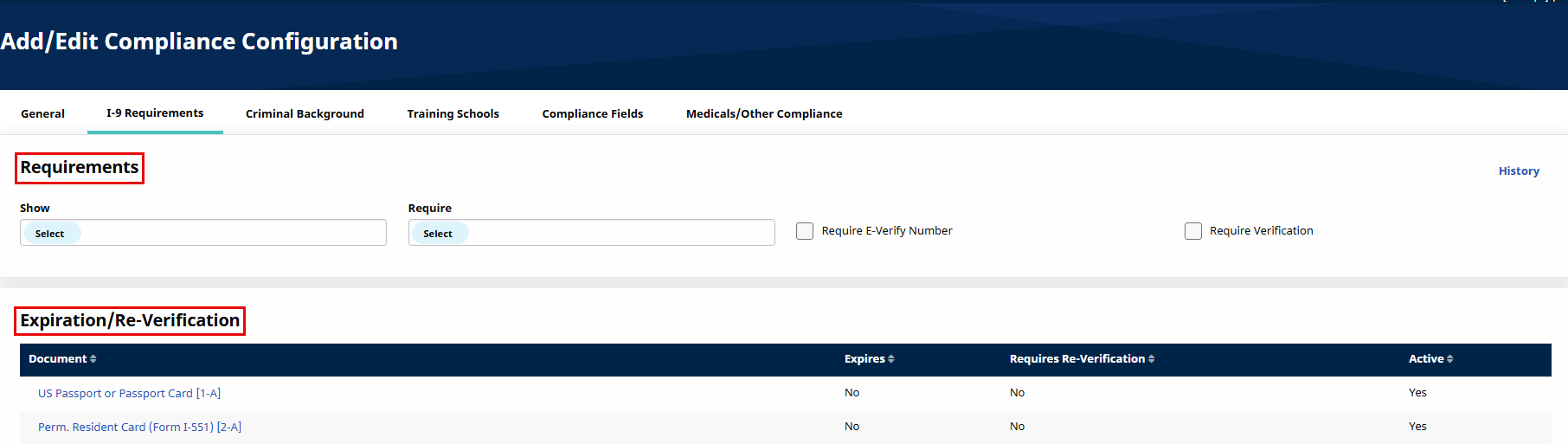
The I-9 Requirements, Criminal Background, and Training School tabs allow users to specify whether that specific section of compliance either Shows and if so, whether it is Required for a given set of Caregiver Disciplines.
-
If a Discipline is set to Show in a compliance section, that section displays on the Caregiver Compliance page. Associated information can be captured in the compliance section; however, it is not used in their compliance calculation unless it is also set to Required.
-
Once a Discipline is set to Show in a compliance section, one can specify (in the Required dropdown) if that Discipline needs to meet the compliance requirements of the section to remain compliant.
Agencies have the option to specify whether an E-Verify Number and/or Verification is required for compliance purposes.
The Expiration/Re-Verification section provides a list of values to include Document (type), Expiration (Yes/No), Requires Re-Verification (Yes/No) and the Active (enable/disable a value). The document types/values are preloaded based on federal regulations. Agencies cannot rename values; however, Agencies have the option to specify expiration requirements.
Complete the steps below to edit value requirements in this section.
-
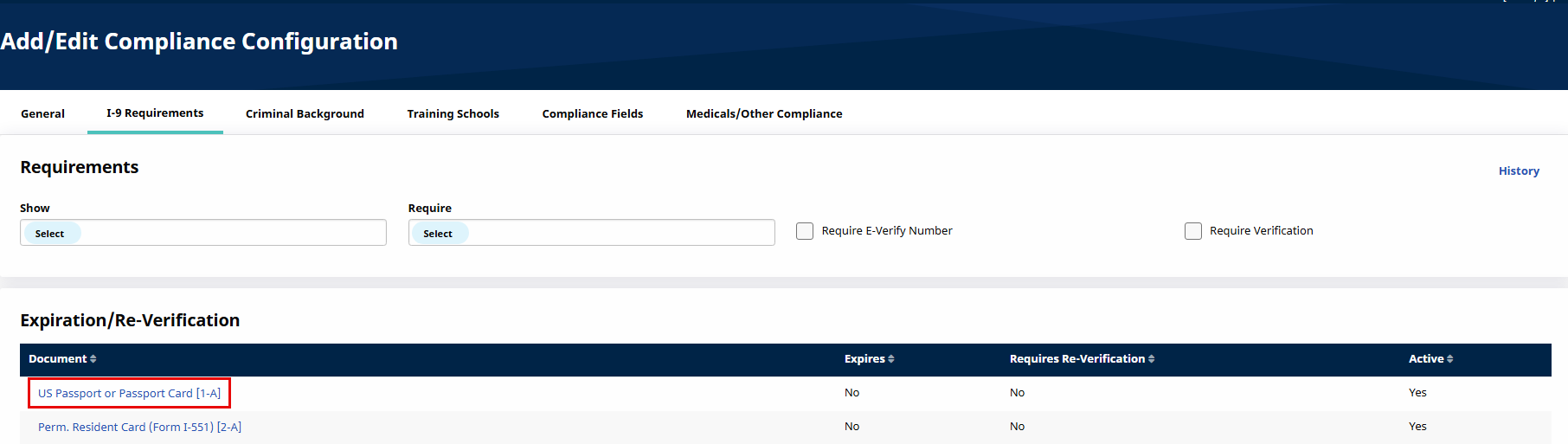
Click the Document title.
-
The HHAeXchange- Edit I-9 Requirement window opens. The fields available to edit are the Status as well as whether the requirement Expires and/or Requires Re-Verification. The I-9 Document title is unavailable to edit.
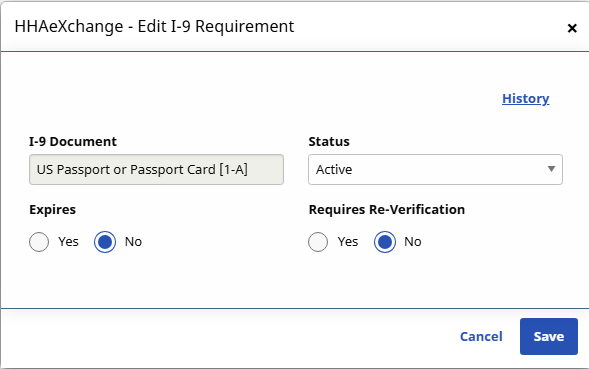
Field
Description
Status
The status of the I-9 document for the specific Compliance Setup. By default, the status for all I-9 items is set to Active.
Expires
Select the Yes or No radio-buttons as desired. If Yes is selected, users must enter a value for the I-9 Document Expiration field on the Caregiver Compliance page.
Requires Re-Verification
Select the Yes or No radio-buttons as desired. If Yes is selected, the Caregiver changes to Non-Compliant if the current date exceeds the entered I-9 Document Expiration value on the Caregiver Compliance page.
-
Click the Save button to save requirements.
The Compliance Fields tab is used to set the custom fields for the selected Compliance Setup. Unlike the other compliance sections, where users define the fields which Show and/or are Required (per Discipline) to remain compliant, Compliance Fields are configured on a field by field basis.
For example, if an Agency wants to capture the Professional License Number for Skilled Disciplines, a Professional License Number Compliance Field is created via the Item Manager, then added to a Compliance Setup. When applying the field to the Compliance Setup, the user then has the option to select which Disciplines the field is required for.
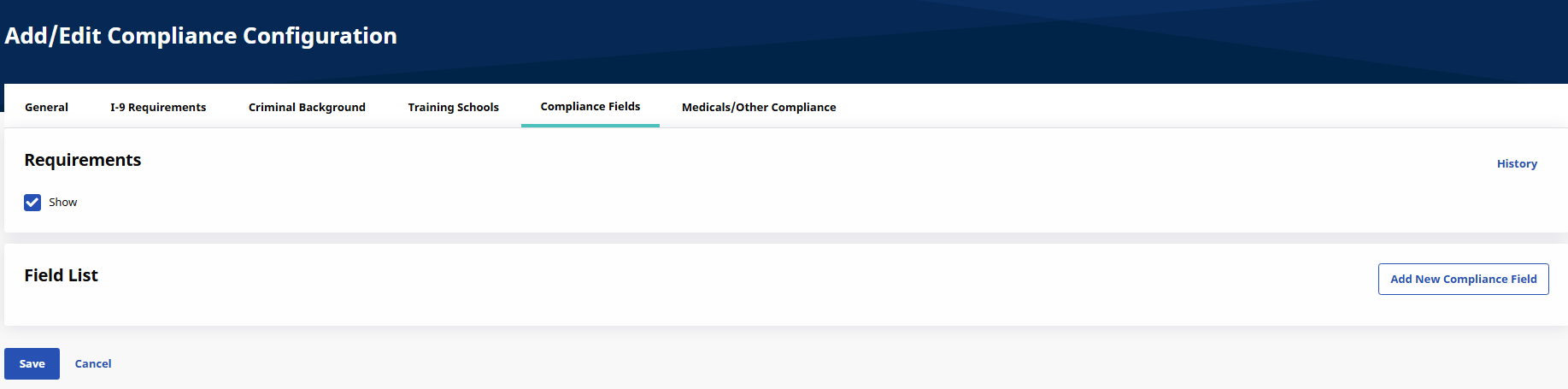
The Requirements section only has the Show checkbox; unlike other Compliance sections. When the Show checkbox is selected, all added Compliance Fields for the given Compliance Setup show for all Disciplines. Fields are then set as Required for specific Disciplines. If not selected, no custom field section displays on the Caregiver Compliance profile.
Under the Field List section, the custom field records are listed with respective information in columns to include Field, Active, Require, Disciplines, and Field Type. Up/Down sort arrows allow users to place these fields in appearance order on the Caregiver Compliance page.
To add a New Compliance Field, click the Add New Compliance Field button.
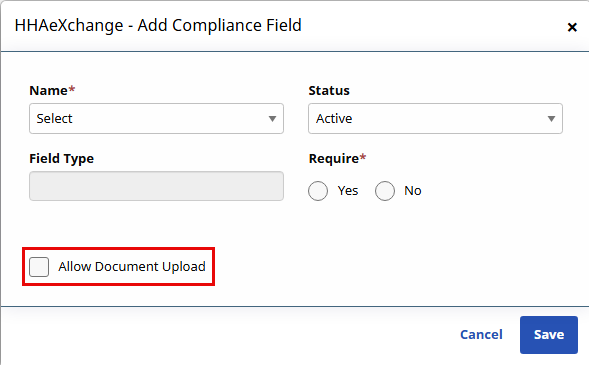
The HHAeXchange – Add Compliance Field window opens. Complete the fields as described in the table under the following image.
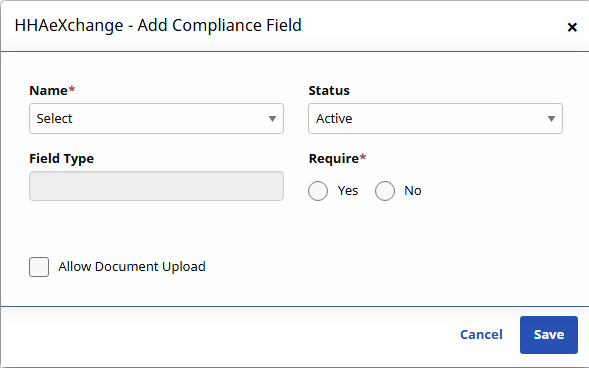
Once a Record is saved, only certain values can be edited; the Field Name cannot be edited.
|
Field |
Description |
|---|---|
|
Name |
Select the name of the custom Compliance Field from the list of fields created in the Compliance Item Manager. |
|
Status |
The status of the field. By default, the status is set to Active. |
|
Field Type |
Select the Field Type for the dropdown menu (refer to the Item Manager). Depending on the selection, other fields may be required or customized as needed. If a Compliance Field is set as either a Single-Select or Multi-Select dropdown, then one must add values once it is taken into the Compliance Setup. |
|
Require |
Select the Yes or No radio-buttons as desired.
|
|
Discipline |
Select all applicable Disciplines listed in the system. If Discipline is not selected, the field continues to display on the page. |
Accepted Selection Validations
An Accepted Selection may be required for certain Compliance Fields for the system to properly calculate Caregiver Compliance. If a Single-Select or Multi-Select field is set to Required, then at least one value must be designated as the Accepted Selection.
If no Accepted Selection is detected, then the system issues a validation error prompting one to define an Accepted Selection. An Accepted Selection must be defined to save the Single-Select or Multi-Select field designated as Required and Active.
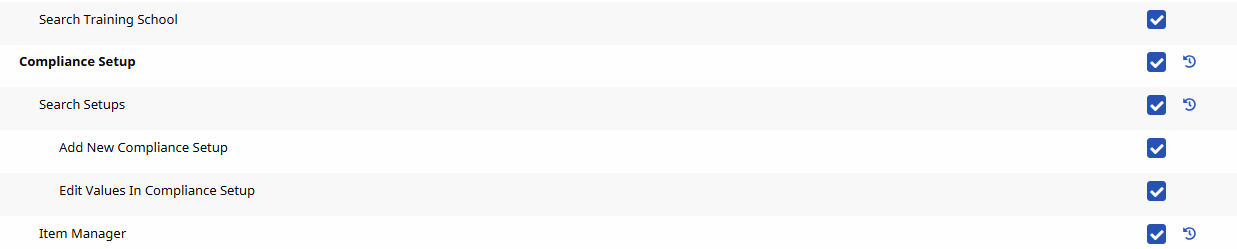
The following permissions are necessary to add new information or edit the Compliance Setup under Compliance Setup > Search Setup:
|
Permission |
Description |
|---|---|
|
Add New Compliance Setup |
Allows users to create a new Compliance Setup. |
|
Edit Values in Compliance Setup |
Allows users to add and edit existing values in the Compliance Setup. |
Go to Admin > User Management > Edit Roles. Select Admin from the Section dropdown and Admin from the Roles dropdown to enable these permissions.
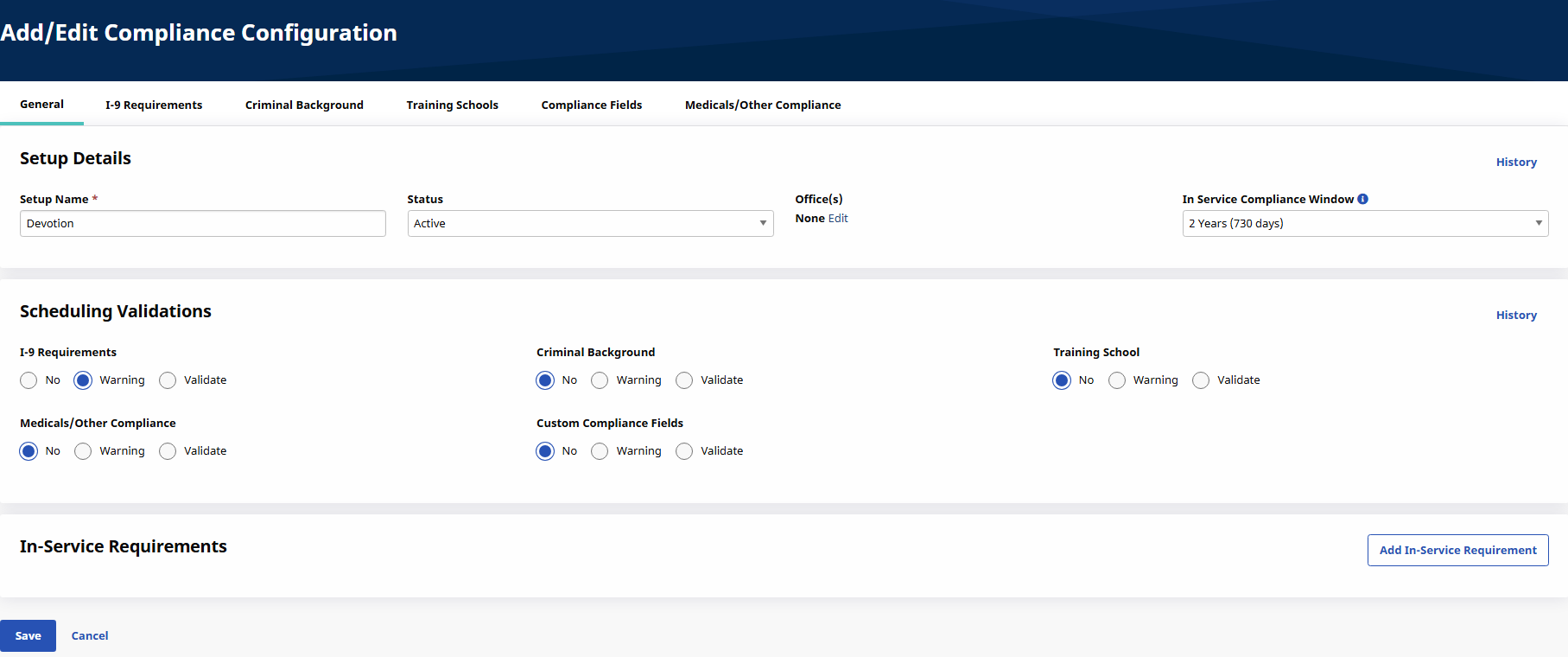
The Compliance Setup under Admin > Compliance Setup function opens to the General tab as a default. The Setup Details section is seen below the Tabs Menu including the Setup Name, Status, Office(s) listing the Offices for which to add/edit the selected Setup, and the In-Service Compliance Window dropdown for selecting the compliance tracking method for your agency. The default remains 2 Years (730 days).
The Scheduling Validations section displays the setup tab names. From here, one can select whether the system checks the item prior to scheduling for compliance, and if so, whether the item is validated for compliance, or only issues a warning for non-compliance. Select the No, Warning, or Validate radio buttons per section, as desired.
The In-Service Requirements section is used to add In-Service Requirements on a Compliance Setup level assigning certain values to specific Disciplines. In-Service Requirements are organized and displayed in a table format by Discipline, Hours, and Status (Active or Inactive).
The Medicals/Other Compliance tab is used to set the Medicals and Other Compliance Items for the selected Compliance Setup. Like the Compliance Fields, this compliance section displays and requires Compliance Items on a discipline-by-discipline basis.
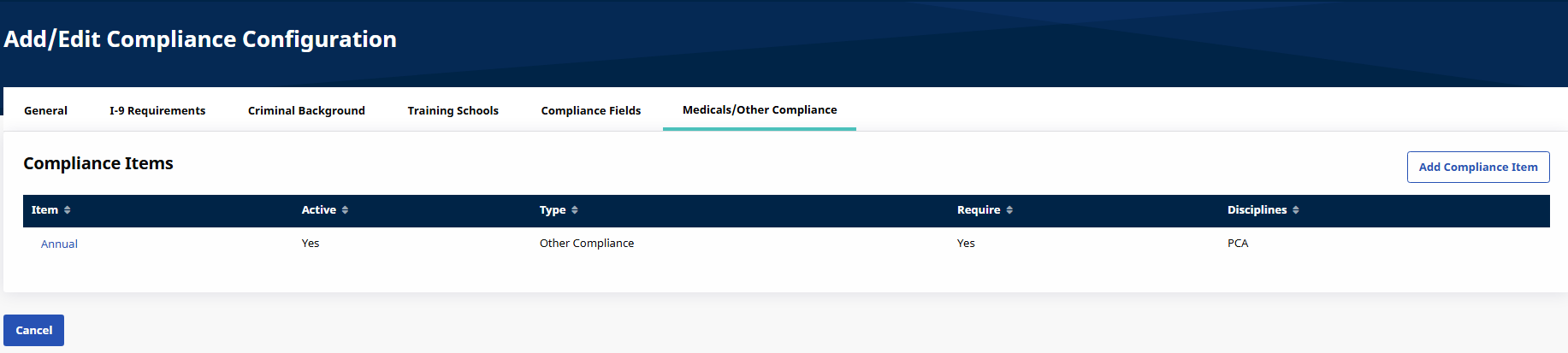
In the Compliance Items section, a list of compliance items is displayed with respective information in columns to include Item, Active, Require, and Disciplines. To add a New Medical/Other Compliance Field, click the Add Compliance Item button.
The HHAeXchange – Add Compliance Item window opens. Complete the fields as described in the table below.
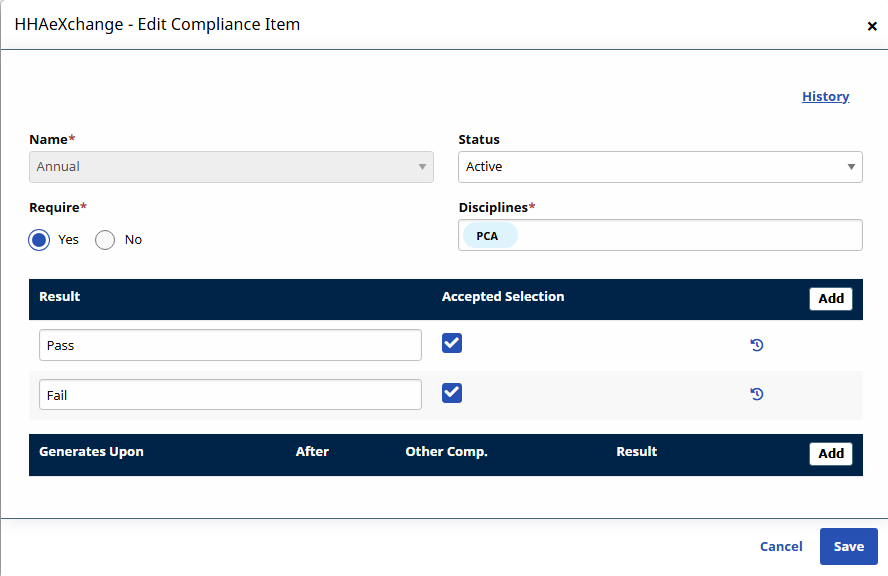
Once a Record is saved, only certain values can be edited; the Field Name cannot be edited.
|
Field |
Description |
|---|---|
|
Name |
Select the Name of the Compliance Item, populated from the Item Manager. |
|
Status |
The status of the field. By default, the status is set to Active. |
|
Require |
Select the Yes or No radio-buttons to specify if the item is required to meet compliance.
|
|
Discipline |
Select all applicable Disciplines listed in the system which should be validated for this Compliance Field. If Discipline is not selected, the field continues to display on the page. |
|
Result |
Create/Enter Results to specify whether compliance is met in the open text fields. For example, Pass or Fail. For each Result entered, indicate the Accepted Selection. |
As with other tabs, Medical/Other Compliance Fields can be edited via the Compliance Setup functionality. To edit an item, click the item Name link and edit information as needed.
An Accepted Selection may be required for certain Medicals/Other Compliance Items for the system to properly calculate Caregiver Compliance. If a Single-Select or Multi-Select field is set to Required, then at least one value must be designated as the Accepted Selection.
If no Accepted Selection is detected, then the system issues a validation error prompting one to define an Accepted Selection. An Accepted Selection must be defined to save the Single-Select or Multi-Select field designated as Required and Active.
When the Generates Upon function under Admin > Search Compliance > Compliance Item > Add has Hire Date selected under the Event field, an added For Hire Dates After field becomes available to set a date for new medicals to automatically generate based on the Caregiver hire date.
For example, if a Caregiver’s Hire Date is 01/28/2018, and the For Hire Dates After is set for 01/12/2018, then the Medical is automatically generated. If the For Hire Dates After is set for 01/30/2019, then the Medical is not automatically generated.
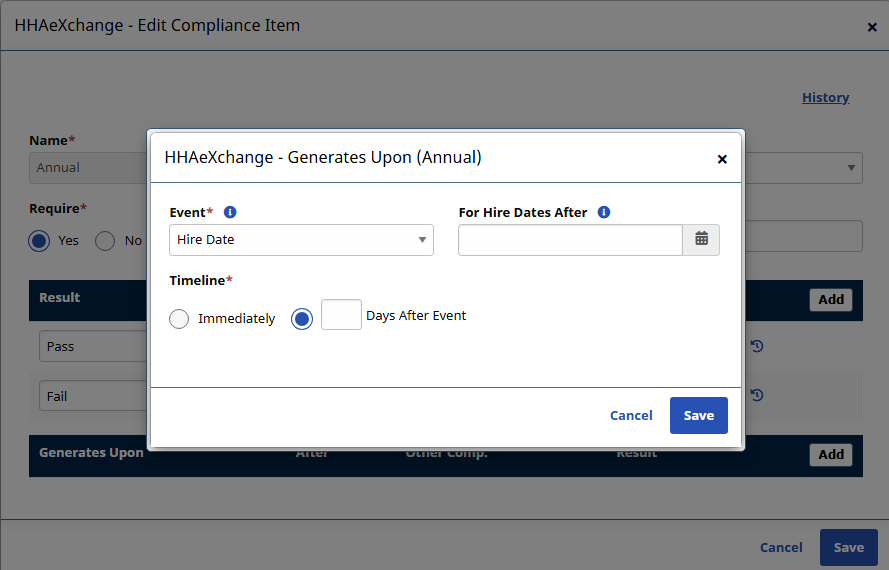
The Hire Date Generates Upon condition creates records for only those Caregivers with the selected Discipline field. If a new value is selected in the Discipline field for a Caregiver, then the system applies Medical/Other Compliance records for the newly defined Discipline upon publishing the Compliance Setup. If the value is unselected for the Discipline field, then the previously added Medical/Other Compliance record is not affected.
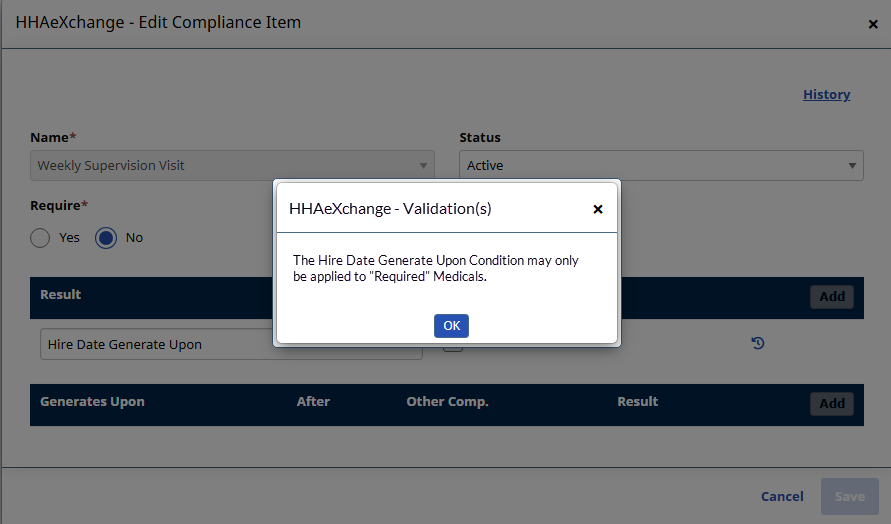
If a Hire Date Generates Upon condition is entered for a Medical/Other Compliance item that is not required, then the system does not generate any records for any Caregiver, existing or new. If a Hire Date is entered without an added required Discipline(s), then a validation message populates when saved.
The Training Schools tab is used to set values for the selected Compliance Setup. From here, determine whether the below-listed fields are required for compliance when entering a training school record on the Caregiver Compliance page: Certification Date, On File, Verification, and Verification Date.
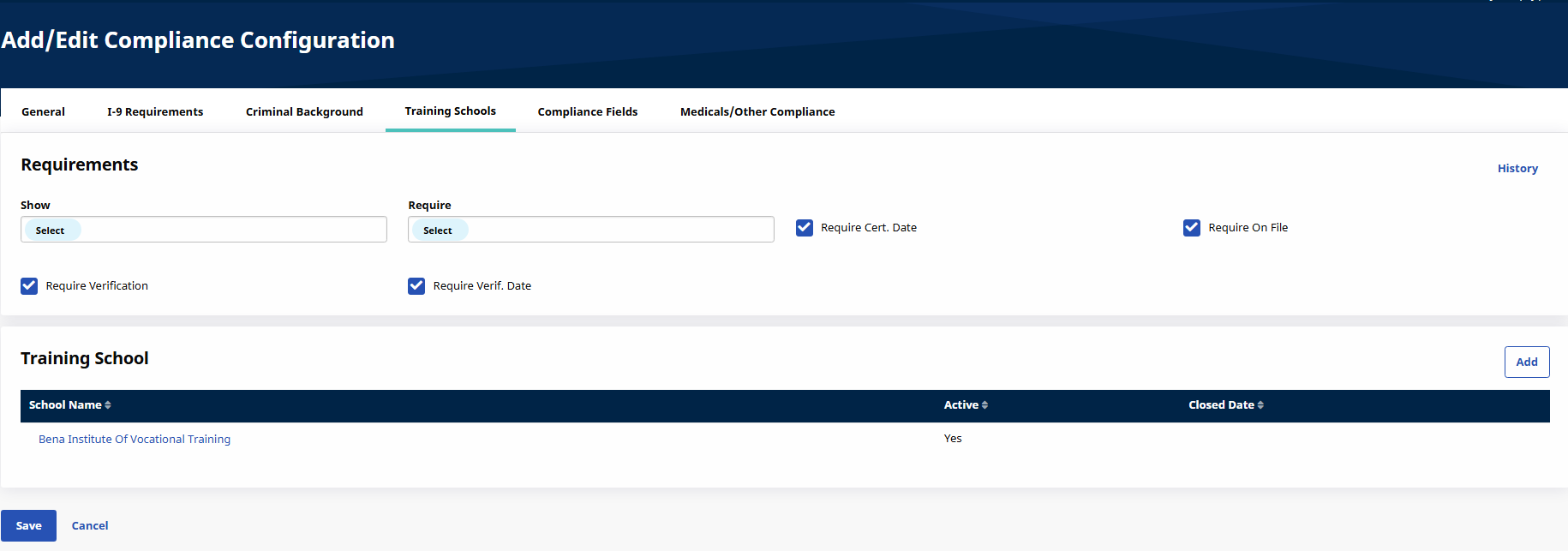
Refer to the Show vs Required in the Requirements for a description of how to select by Caregiver Discipline. Select checkboxes to require Cert Date, On File, Verification, and Verification Date.
In the Training School section, a list of created Training School records displays in columns to include the School Name, Status (Active/Inactive) and Closed Date. To add a Training School created in the Compliance Item Manager), click the Add button.
The HHAeXchange – Add Training School window opens. Complete the fields as indicated. The School Name field is required. Select from the list of Training Schools as created in the Item Manager.
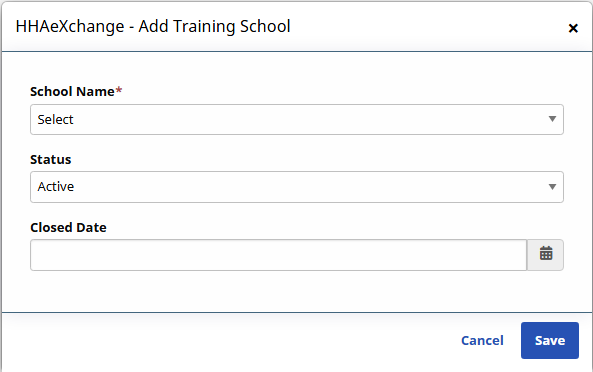
To edit a Training School value, click the School Name link under the Training Schools section.
-
Go to the Admin > Compliance Setups > Search Setups.
-
Click the Add Compliance Configuration button.

-
In the Setup Details section, enter a Setup Name and set the Status to Active. Select applicable Office(s) to apply this Setup to. Click the Edit link to add Offices.

If an Office is not assigned to a Compliance Setup, Caregiver Compliance is not enabled for that Office. In addition, the Status for a given Compliance Setup cannot be deactivated until all Offices are moved to another Compliance Setup. If a Compliance Setup has an assigned Office and the Status is changed to Inactive, the system issues a warning message.
-
In the In-Service Compliance Window dropdown, select the right compliance tracking method for your agency.
Option Best For What it Means Example Scenario Result 2 Years (730 days) Agencies using rolling compliance Tracks last 730 days continuously -
Caregiver completes hours on Mar 1, 2025
-
Does NOT complete hours in 2026
-
Compliant in 2025 and 2026
-
Not compliant on Mar 2, 2027
Calendar Year Agencies with annual requirements Resets Jan 1 each year -
Caregiver completes hours in 2025
-
Does NOT complete hours in 2026
-
Compliant in 2025 and 2026
-
Not compliant on Jan 1, 2027
-
-
In the Scheduling Validations section, select the validation value (No, Warning, or Validate) to apply to each section.

The system removes Caregivers from visits they are already scheduled for on the date they fall out of compliance if the Validate option is selected in the Compliance Scheduling Validation for a particular item in the Compliance Setup.
-
Click the Save button to save the entered information.
-
Continue to the other tabs.
Saved information and settings are not applied on the Caregiver Compliance page until it is Published. Refer to the Publish & Discard Feature section for complete information.
Follow the steps outlined below to add an In-Service Requirement on a Compliance Setup level.
-
Click the Add In-Service Requirement button.

-
The Add In-Service Requirements window opens. Complete the required fields denoted with a red asterisk.
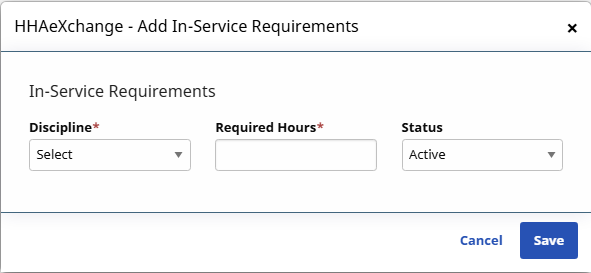
Field
Description
Discipline
Select the applicable Discipline from the single-select dropdown.
Disciplines which already have rules configured are not listed as a value on the dropdown.
Required Hours
Indicate the number of Hours of In-Service the selected Discipline requires for compliance. A number higher than “0” must be entered.
Status
Indicate whether the In-Service Requirement is Active or Inactive. If Active, then this requirement must be met for compliance.
-
Click the Save button to finalize.
All In-Service Hours completed by a Caregiver are applied to In-Service Compliance. Therefore, to be In-Service Compliant, a Caregiver must meet the In-Service hours defined in the Compliance Setup, regardless of the assigned Discipline(s). For example, if the Compliance Setup requires 3 hours of HHA In-Service and then Caregiver completes 3 hours of In-Service for any Discipline(s), then the Caregiver is In-Service Compliant.
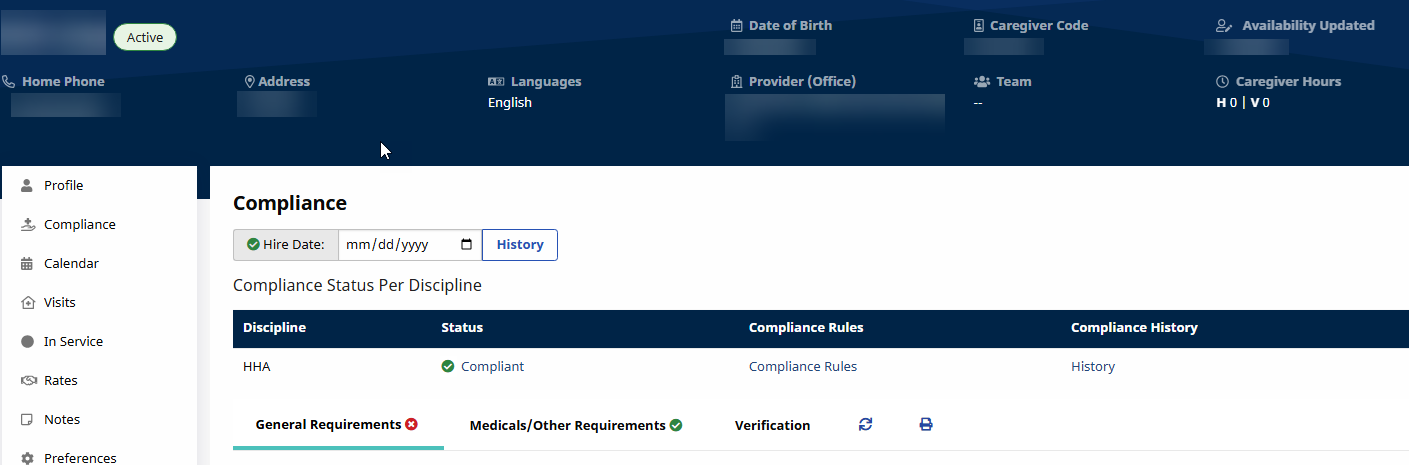
Providers can manage In-Service Topics determining whether or not to include or exclude from the Compliance requirements. Default settings can be placed at an Agency level as well as at an Office level (for multi-office Agencies). This setting can be enabled or disabled per Caregiver, as needed.
To set as default for a specific topic at an Agency level, go to the Reference Table Management function under Admin > Reference Table Management and select In Service Topics from the Reference Table field. On the Search Results, click the applicable Topic Title link.
The In Service Topic window opens. From here select/deselect the newly added Count Towards Compliance checkbox.
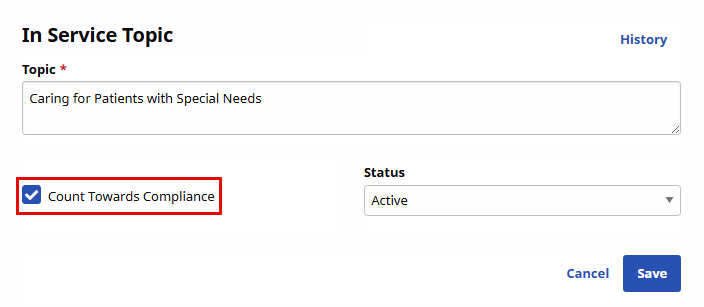
Click Save to finalize. Moving forward, the default setting for the selected Topic counts towards Caregiver Compliance as set.
By default, all existing In Service Topics are set to Count Towards Compliance.
To set a default at an Office level, go to the Office Setup page under Admin > Office Setup > Search Office. On the Office Setup page, scroll to the Office Option Setup section (at the bottom of the page), select In Service Topics from the Field dropdown field and click Search.
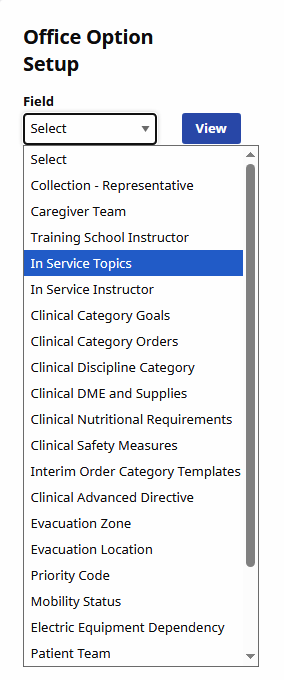
The Search Results populate directly underneath. The same instructions (as stated above) apply here. Select the In Service Topic link and select/deselect the Count Towards Compliance checkbox, as applicable.
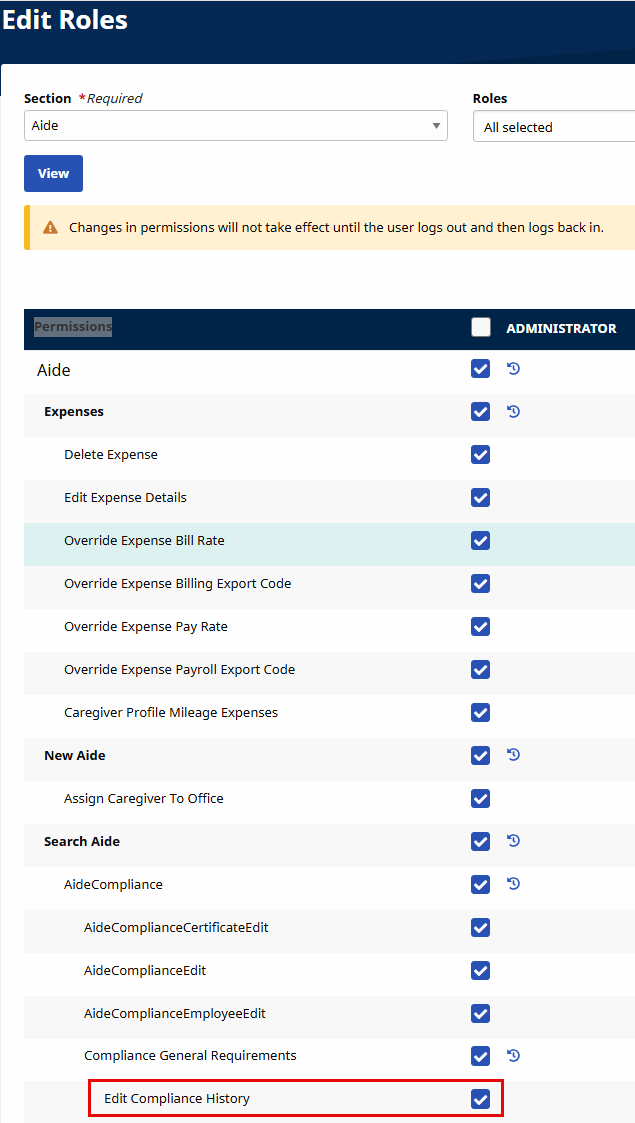
This feature is enabled by HHAeXchange by default for all Providers on the New Caregiver Compliance environment. To enable this permission for specific roles, go to Admin > User Management > Edit Roles. On the Section field select Aide and select the applicable roles from the Roles dropdown. Under the Search Aide sub-section, select the Edit Compliance History permission.
This permission allows users under a specified Role to update and save information on the Compliance History window; otherwise the user can only view information and close the window.
Providers can set up fields allowing document uploads (such as Caregiver References) in any of the Custom Compliance fields. Go to the Compliance Setup under Admin > Compliance Setup > Search Setup > Compliance Fields tab and the Item Manager under Admin > Compliance Setup > Item Manager >Compliance Fields tab.
Select the Allow Document Upload checkbox in the (New/Edit) Compliance Field windows to allow the upload of supporting documents to specific compliance fields.
The Aide Compliance permissions under Admin > User Management control access to the Caregiver > Compliance page while permissions for Compliance General Requirements and Compliance Medicals Other Compliance control access to the separate tabs. The remaining permissions control the ability to add/edit/delete medicals and Other Compliance items.
Under the Aide Compliance category, several permissions control access to Caregiver Compliance functionality, as follows:
|
Tabs |
Permissions |
||
|---|---|---|---|
|
Compliance General Requirements |
|
||
|
Compliance Medicals Other Compliance |
|
|
Permission |
Controls access to… |
|---|---|
|
Compliance General Requirements |
The Caregiver > Compliance > General Requirements tab as well as the ability to add and edit items on the tab. |
|
Edit Compliance History |
Update and save information on the Compliance History window; otherwise the user can only view information and close the window. |
|
Compliance Medicals Other Compliance |
The Caregiver > Compliance > Medicals/Other Compliance tab |
|
Add Medical |
The Add function for Medicals on the Caregiver Compliance page. Users with this permission may only enter values for the Medical Name and Due Date fields. |
|
Add Medical Date Performed |
The Date Performed field when adding a medical. |
|
Add Medical Result |
The Result field when adding a medical. |
|
Edit Medical Name |
The Medical Name field when editing a medical. |
|
Edit Medical Due Date |
the Due Date field when editing a medical. |
|
Edit Medical Date Performed |
The Date Performed field when editing a medical. |
|
Edit Medical Result |
The Result field when editing a medical. |
|
Delete Medical |
The ability to delete a medical. |
|
Add Other Compliance |
The Add function for Other Compliance Items on the Caregiver Compliance page. Users with this permission may only enter values for the Compliance Item and Due Date fields. |
|
Edit Other Compliance Item |
The Medical Name field when editing a Other Compliance Item. |
|
Edit Other Compliance Due Date |
The Due Date field when editing a Other Compliance Item. |
|
Edit Other Compliance Date Performed |
The Due Date field when editing a Other Compliance Item. |
|
Edit Other Compliance Result |
The Result field when editing a Other Compliance Item. |
|
Delete Medical |
The ability to delete existing Medicals on the Caregiver Compliance page. |
|
Delete Other Compliance Item |
The ability to delete existing Compliance Items on the Caregiver Compliance page. |
|
Edit Verification |
Edit Verification information (Exclusion and Verification Lists configured for the Agency). |