EDI Tool
This feature is activated by HHAeXchange System Administration. Contact HHAeXchange Support Team for details, setup, and guidance.
The EDI Tool allows users to transfer electronic data directly into the HHAeXchange system without the use of an FTP/SFTP application. In addition, the tool allows users to correct failed records directly on the screen further streamlining the process. This topic provides a high-level view of navigation and basic functions of the EDI tool.
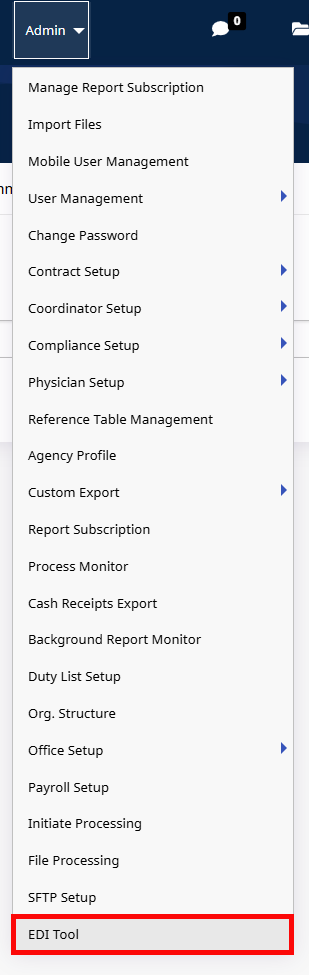
To access the EDI Tool, go to Admin > EDI Tool.

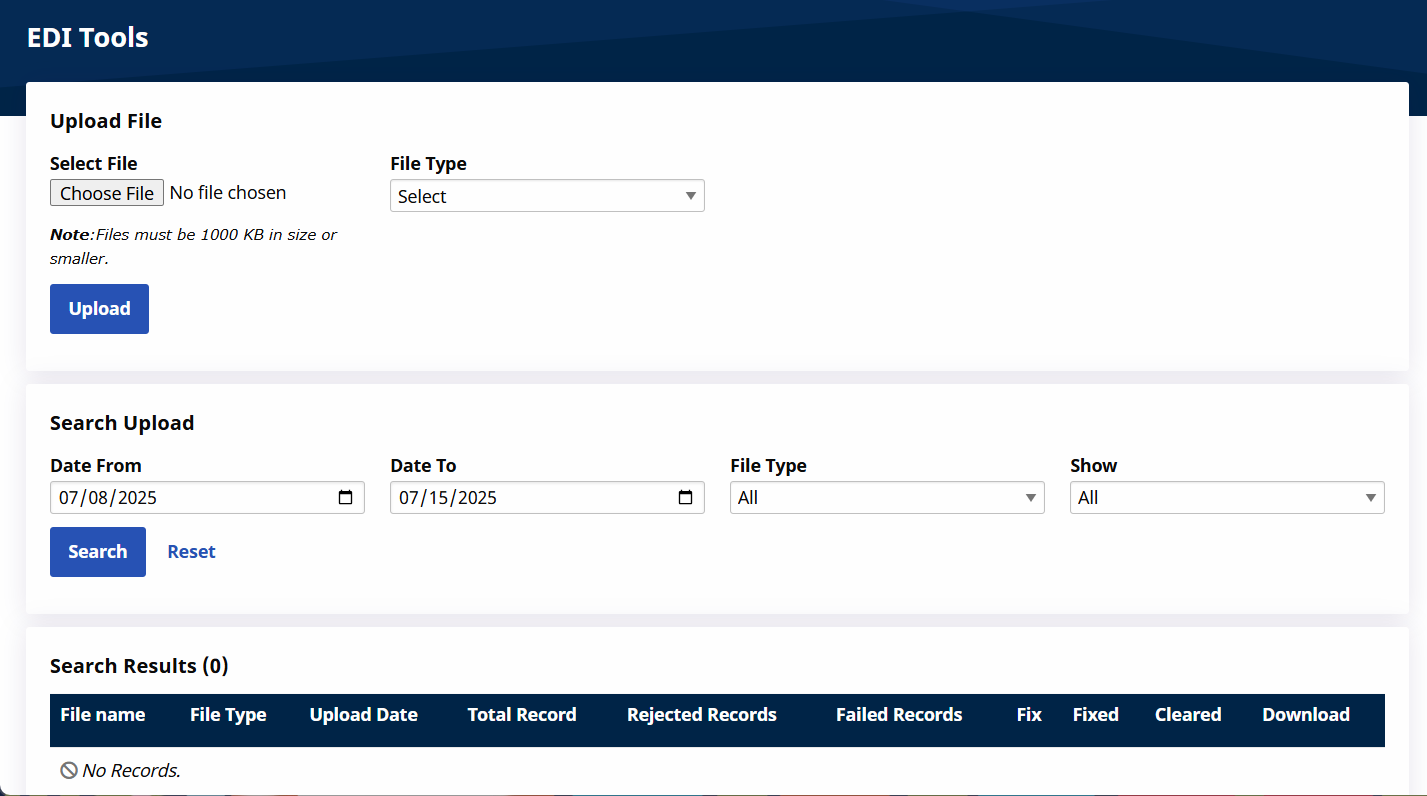
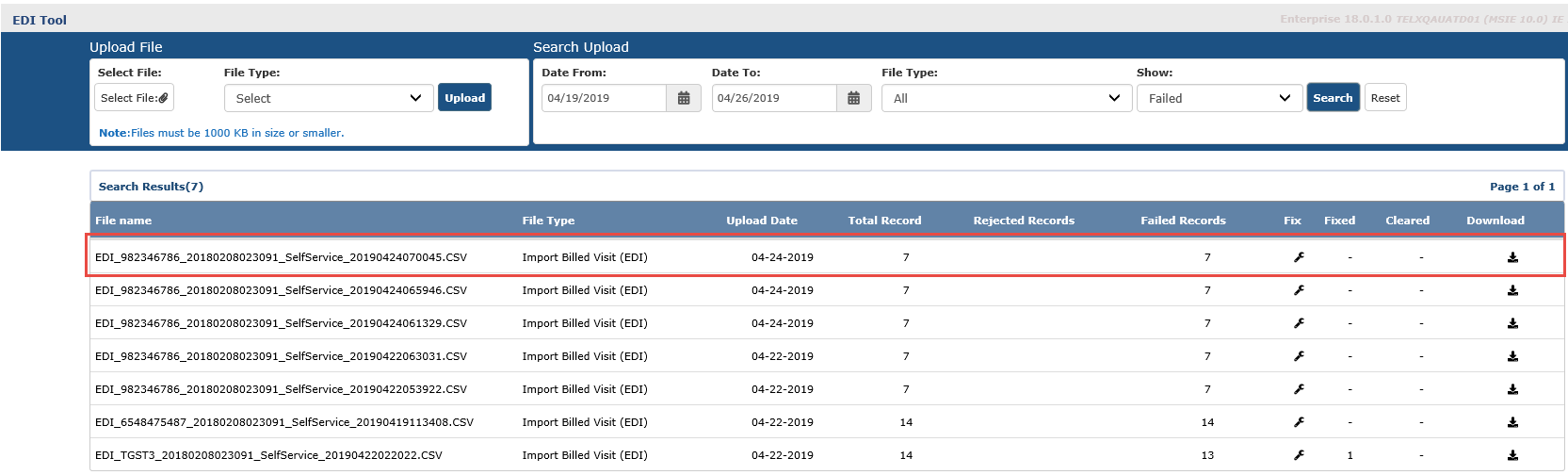
The EDI Tool main screen is comprised of 3 sections including: Upload File, Search Upload, and Search Results.
An EDI Tool icon is available in the notification section with a count of failed records. Click the icon to access the EDI Tool.
|
Section |
Description |
||||||||||||||||||||||
|---|---|---|---|---|---|---|---|---|---|---|---|---|---|---|---|---|---|---|---|---|---|---|---|
|
Upload File |
Used to upload/import a file into HHAeXchange. |
||||||||||||||||||||||
|
Search Upload |
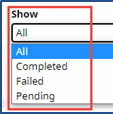
Select search filters to locate specific upload(s): To/From Date, File Type, and Show (the status of the upload).
|
||||||||||||||||||||||
|
Search Result |
Search results based on selected search parameters. Each row contains file information as described in the table below.
|
The Clear All button clears all the rows in the results and is only visible when uncleared records exist.
The Un-ClearAll button unclears all the rows in the results and is only visible when cleared records exist.

Files are downloaded in CSV format. To open the file from the workstation, select Open With and select a tabbed text editor such as Notepad ++. This preserves the formats for each field.
There are two different types of downloads within the EDI Tool, as follows:
To download the complete file, click the download icon from the Search results in the main screen. Follow the system prompts to save to the workstation.

To download only the Failed records, click the download icon from the summary section from the Fix screen. Follow the system prompts to save to the workstation.

Follow the steps outlined below when correcting failed records in an uploaded file.
-
Select a file with failed records from the Search results indicated by a wrench icon under the Fix column. Click the Wrench Icon
 .
. 
-
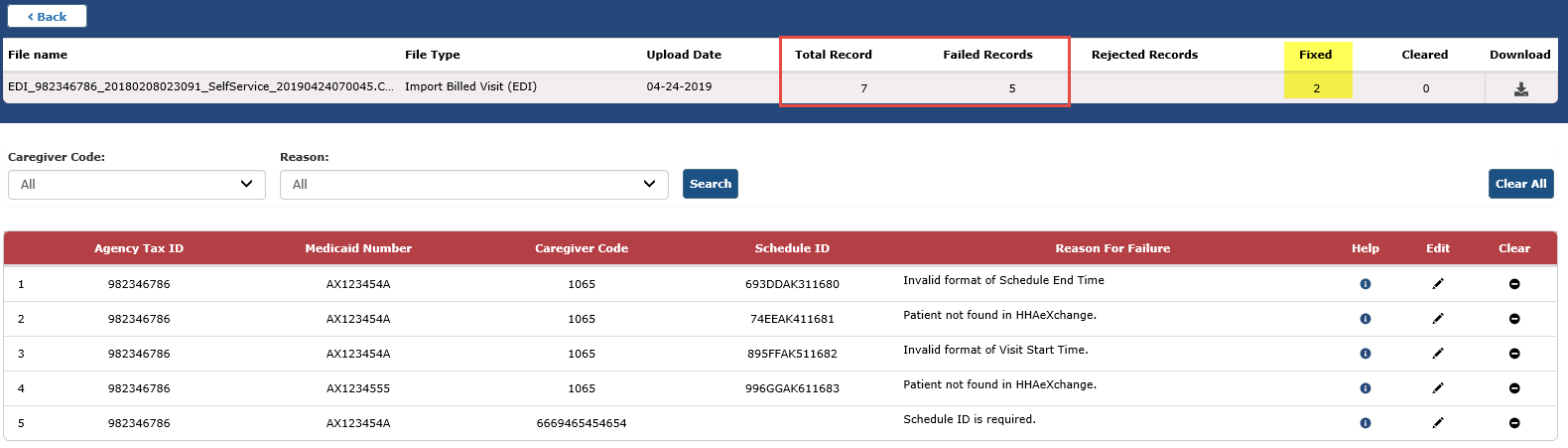
On top of the Fix screen, the file is summarized with the specific failed records listed underneath. Each row contains the Agency Tax ID, Medicaid Number, Caregiver Code, Schedule ID, Reason for Failure as well as action items (icons) to facilitate further action to include: Help, Edit, and Clear.
-
Use the Caregiver Code and Reason filters to sort through selected information within the file.
-
For this example, click the Pencil Icon
 under the Edit column to correct the first record.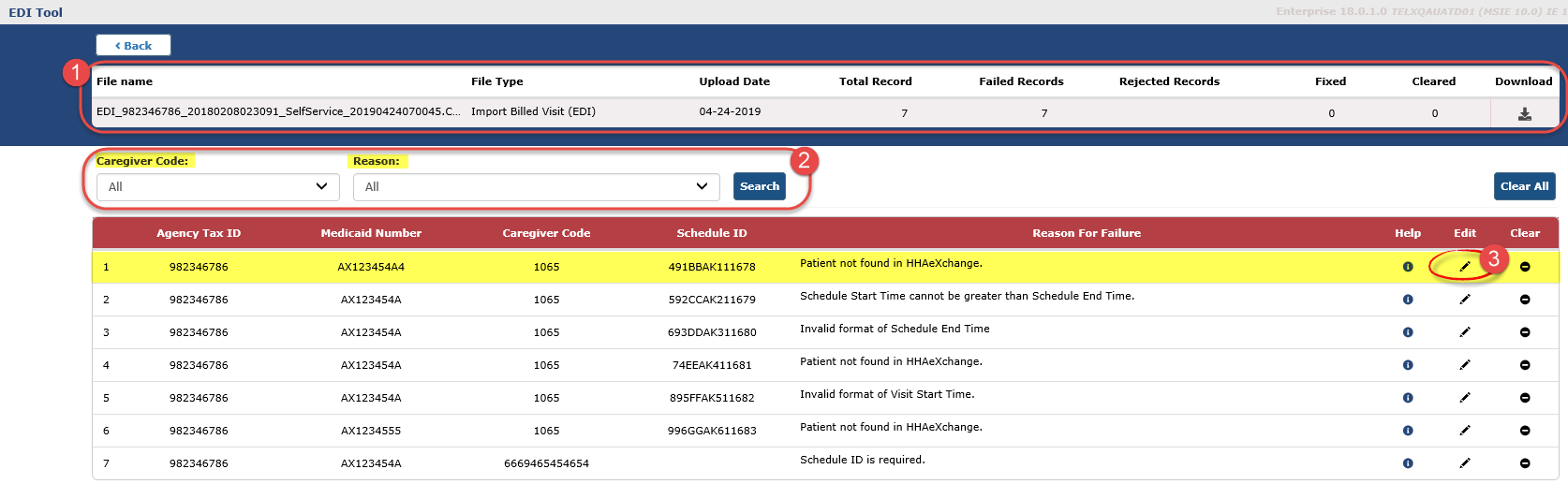
-
-
The fields for that record populate right underneath the row. Use the bottom scroll function to navigate the entire row to locate the field to fix. Once corrected, click the Save Changes button above the row.
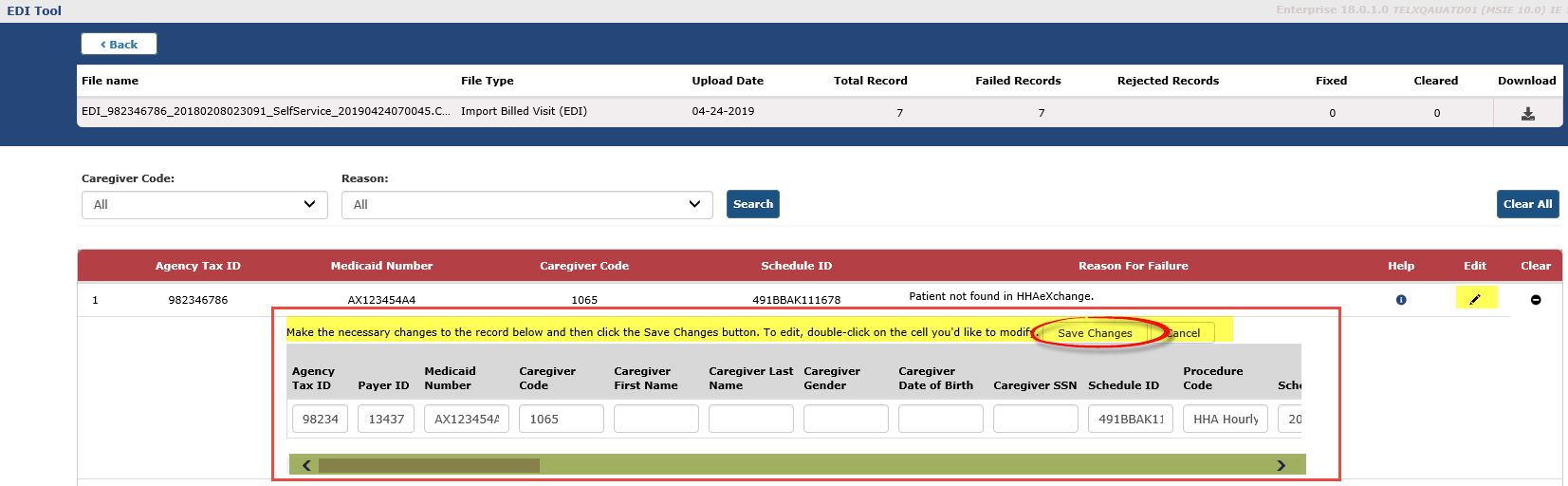
After updating, the fixed record is reprocessed overnight. Correcting a record does not necessarily mean that the record is fixed. If the record fails again, it comes back as a new failed record.
-
The system alerts of a successful edit. Click Close to continue.
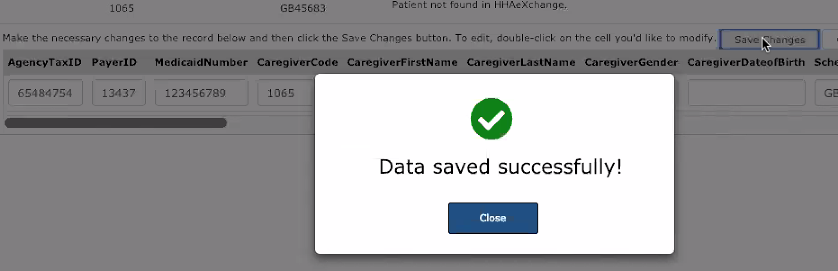
-
As records are edited, the summary section indicates the number of Fixed records and how many Failed records remain.
-
Proceed to fix other records. Click the pencil icon on another record and correct. Click the Save Changes button.

-
If there is an error with the correction, the system alerts of an error to a specific field. Click Close to close the window. Click the Help Icon
 to access guiding documentation to aid in fixing the record.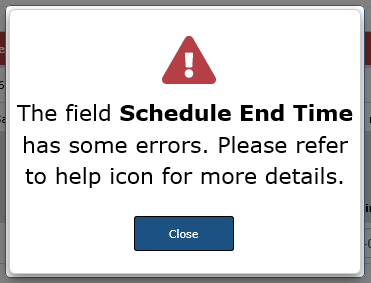
-
The summary section indicates that there are 6 Fixed records and that 1 Failed record remains.
To clear, click the Clear Icon
 on the remaining record.
 The Clear function is typically used when a user does not want a record to be reprocessed. The goal of the EDI Tool is to either fix or clear all failed records.

-
The system prompts for a clear record confirmation.
Click Yes to clear.
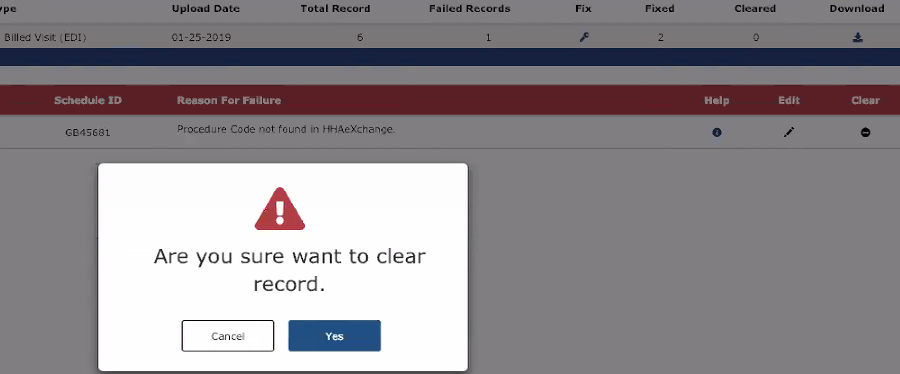
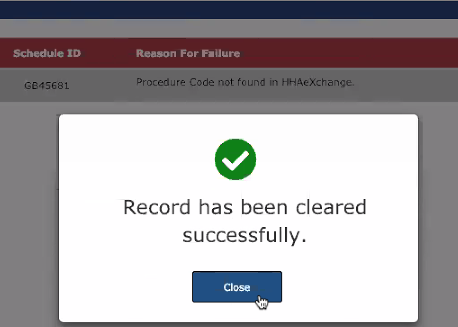
Once cleared, the system indicates that the record has been successfully cleared.
-
Click Close.
-
To revert back on a cleared record, click the Revert button to re-open the record.
