Family Portal Global Management
Use the Family Portal Global Management function to set up user accounts for family members, to broadcast notifications, and to review activity in the Family Portal.

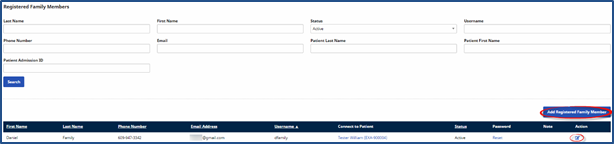
Use the Registered Family Members page to enter new family members and search for existing ones. To Add a member, click Add or click the Edit icon to update an existing member. Use the search filters to locate an existing member.
In the Add Family Member to Portal window, complete the required fields for the new Family Member (denoted with a red asterisk).
When you are finished, click Save.
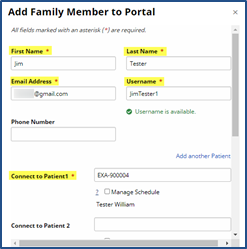
| Field | Description |
|---|---|
|
*First/Last Name |
(Required) Enter the First and Last Name in respective fields. |
|
*Email Address |
(Required) Enter the provided email address. |
|
*Username |
(Required) Enter a unique username. The system alerts of username availability. |
|
Phone Number |
Enter a contact phone number. |
|
*Connect to Patient 1 |
(Required) Connect the family member to the Patient. A signle family member can be connected to as many Patients as necessary. |
|
Status |
Select Active to activate. |
|
Note |
Enter notes if/as needed. |
Use the Announcements section to review past announcements and send new ones. Use the search filters to locate a past announcement or click Add Announcements to create a new one.

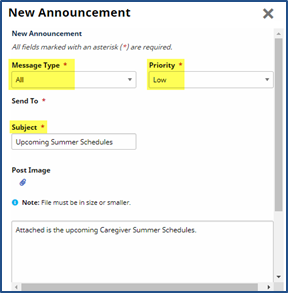
In the New Announcement window, complete the required fields (denoted with a red asterisk).
Click Save to send the announcement.
| Field | Description |
|---|---|
|
*Message Type |
(Required) Select All to send all registered family members or select Private to send to an individual. |
|
*Sent To |
(Required) When sending a Private message, use this multi-select dropdown to select specific family members. |
|
*Priority |
(Required) Select Low, Medium, or High to indicate priority level. |
|
*Subject |
(Required) Enter the Announcement subject. |
|
Post Image |
Click the paperclip icon to attach a document to the message. |
|
Note |
Enter the actual message in the free text window. |
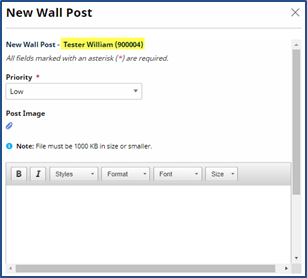
Use the Wall Posts page to review any wall posts made by Family Members or Agency Users. To create a new wall post, go to Patient > Family Portal and click Add Wall Post in the Wall Posts section.
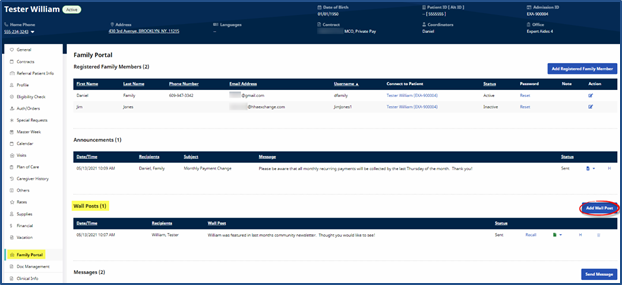
In the New Wall Post window, the Patient Name and ID appear on the top bar. Select the Priority level (Low, Medium, or High) and enter the message in the Note window. Click Save to post.