General Agency Info
The General section of the Agency Info page is used to capture and set basic Agency information and requirements. It can be found under Admin > Agency Info.
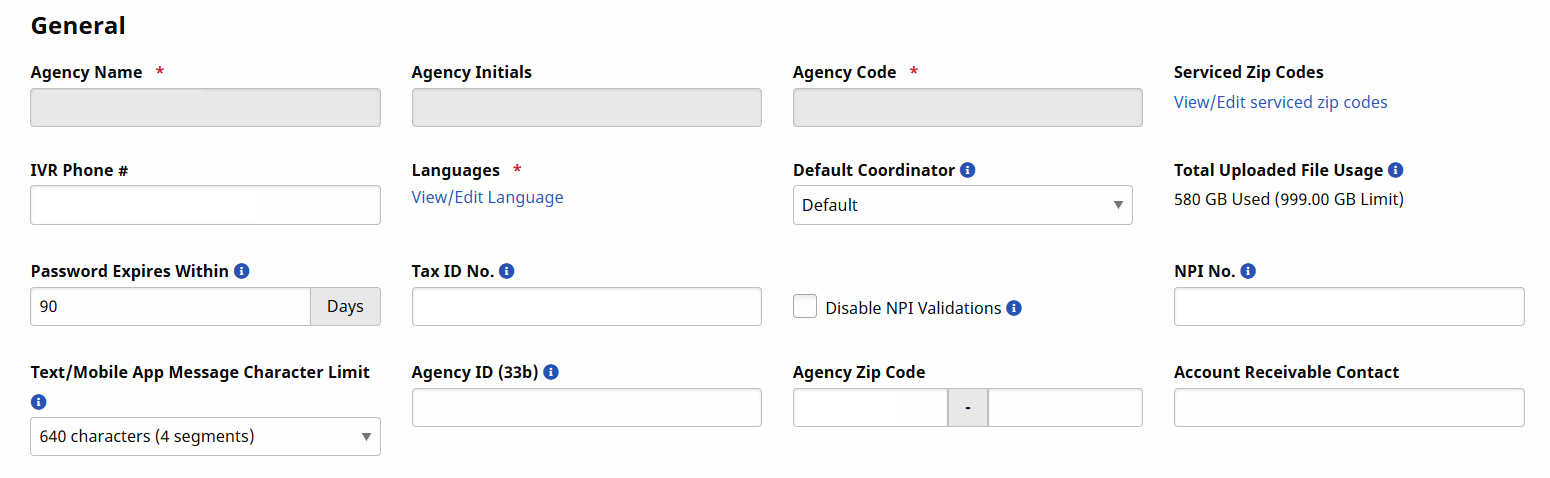
| Field | Description |
|---|---|
|
*Agency Name/ Initials/Code |
(Required) The name, initials, and system code assigned to the Agency. These fields are set by HHAeXchange during implementation and cannot be edited by users. |
|
Serviced Zip Codes |
Enter the Agency’s specific identifier number for the NPI registry. |
|
IVR Phone # |
The IVR phone number used by Caregivers to Clock IN and OUT of a visit when using the landline phone Clock IN and Clock OUT method. This field is for review purposes only. Only the HHAeXchange Support Team can change this setting. |
|
*Languages |
(Required) Use the Select Language link to define applicable languages spoken to provide services. |
|
Default Coordinator |
Select a Coordinator who is automatically assigned to every new Patient entered in the system. |
|
Total Uploaded File Usage |
This number indicates the total size of all files loaded and hosted in the HHAeXchange system for the Agency. Once the hosting limit is reached, the system does not allow further loading. Contact the HHAeXchange Support Team to increase the file limit for the Agency. |
|
Password Expires Within (Days) |
Enter the number of days the Agency’s password is valid before expiration. |
|
Tax ID No. |
Enter the Agency’s unique Tax Identification number. |
|
Disable NPI Validation |
Select to allow entry of custom alpha-numeric values, up to 15 characters (from standard 10). If unselected, then alpha-numeric values are not allowed and the 10-character limit remains. |
|
NPI No. |
Enter the Agency’s specific identifier number for the NPI registry. |
| Text/Mobile App Message Character Limit | Agency sets a limit to the number of characters allowed in messages sent to Caregivers. The recommended (default) limit is 640 characters, but an Agency can select a higher length limit, 1120 characters, or a lower limit, 160 characters. |
|
Agency ID (33b) |
Enter the Agency ID in this field to allow the system to automatically populate this field on the HCFA 1500 form when generating invoices in that format. If your Agency uses an Atypical Provider Identifier (API), enter the API value here. |
|
Account Receivable Contact |
Enter the name of the individual responsible for the Agency’s Accounts Receivable. |
|
Encryption Password |
When an Agency transmits a Caregiver’s Profile, the system automatically encrypts the data due to the sensitive information contained within the file. Enter a password in this field to allow recipients to view sensitive information on a transmitted file. |
|
Closing Date (Date through which books are closed) |
Use the Update link to set a Closing Date to prevent alterations to billing and payment data prior to the specified date. For example, if a Closing Date of 3/1/2019 is set, any billing and payment data entered into the system prior to 3/1/2019 can no longer be edited. |
|
Invoice Numbers by Contract |
Select for the system to assign invoice numbers by Contract, instead of assigning the next available invoice number regardless of what Contract is generated for. This field is for review purposes only. Only the HHAeXchange Support Team can change this setting. |
|
HRA Agency ID |
Enter the Agency’s HRA ID number. |
|
Speak Out Duties |
Speak Out Duties refers to the duty entry model where the system uses a voice recording to read off the required duties, based on the specific Patient’s POC, for the visit when a Caregiver is Clocking Out. After each duty is read, the Caregiver must enter 1 for completed, 0 for incomplete, or * for refused. This field is for review purposes only. Only the HHAeXchange Support Team can change this setting. |
|
Add Caregiver Team Identifier to Billing Batch Number |
Select for all the billing batches to be generated based on a Caregiver Team to include the first two letters of the selected Team in the billing batch number. This field is for review purposes only. Only the HHAeXchange Support Team can change this setting. |
|
Prompt with Current Time During Time and Attendance Calls |
Select for Caregivers to be prompted with the current time when making a Time and Attendance Call. |
|
Homepage Default View |
Select Communication or Notification to indicate which page is the default homepage when users open the application. |
|
*Accept Time and Attendance Call From |
(Required) Select which phone numbers (from the Patient’s Profile) are acceptable for Time and Attendance calls. Calls made from an unverified number are sent to the Call Maintenance exception page. |
|
Allow Auto-Activating of Caregiver Mobile Access |
Select to automatically re-activate Caregivers who switched from Non-Active to Active status. |
|
Vendor Export link |
Select for the Vendor Export link to be visible in the search results when performing a batch search. |
|
Hide Manual Confirmations on Confirm Timesheets Page When |
Select Visit Start Time is updated and/or Visit End Time is updated for user not to see any manually adjusted times when reviewing visit information on the Confirm Timesheet page. |
|
*MD Order ICD Code Requirement |
(Required) Select the type of ICD Diagnosis Codes required and applied to Patient MD Orders (e.g., 485 Orders). The effective date is required. |
|
Master Week Rollover on Deleted Visit |
Select for the Master Week rollover to recreate deleted visits within the rollover range. |
|
Validate ICD Code Selections |
Select for the system to validate the codes assigned to each Patient. |
|
Enable Automated Non-Compliance Restrictions |
Select for the system to automatically generate a Non-Compliant Restriction on the Caregiver’s Absence/Restriction page for all dates the Caregiver is listed as Non-Compliant (based on the Agency’s Compliance Rules). When a restriction is created, the Caregiver cannot be scheduled for any of the listed days, regardless of their current compliance status. |
|
Maintain Pay Code after Changing Caregiver on Visit |
Select for the system to maintain the Pay Code applied to a visit if the assigned Caregiver is switched. This only applies if both the original and newly assigned Caregiver are of the same Discipline. This field is for review purposes only. Only the HHAeXchange Support Team can change this setting. |