Pay Code
Once a payroll configuration has been created, Pay Codes must be established. Pay Codes are used to define Caregivers pay rates for specific types of work/situations. By default, the system contains an active Non Payable Pay Code for every discipline. The following are Pay Code examples that an Agency may set up for HHAs:
-
HHA Standard for a standard HHA rate.
-
HHA In Service for an HHA Caregiver attending an In Service.
-
HHA Holiday, for an HHA Caregiver rate applied on a designated Agency holiday.

-
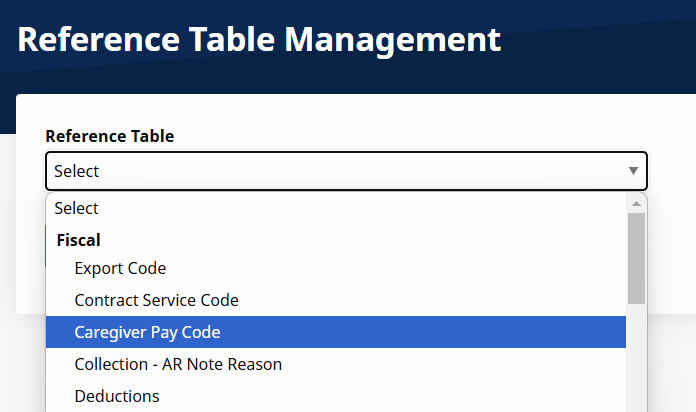
Go to Admin > Reference Table Management.
-
In the Reference Table field, select Caregiver Pay Code under the Fiscal header and click View.
-
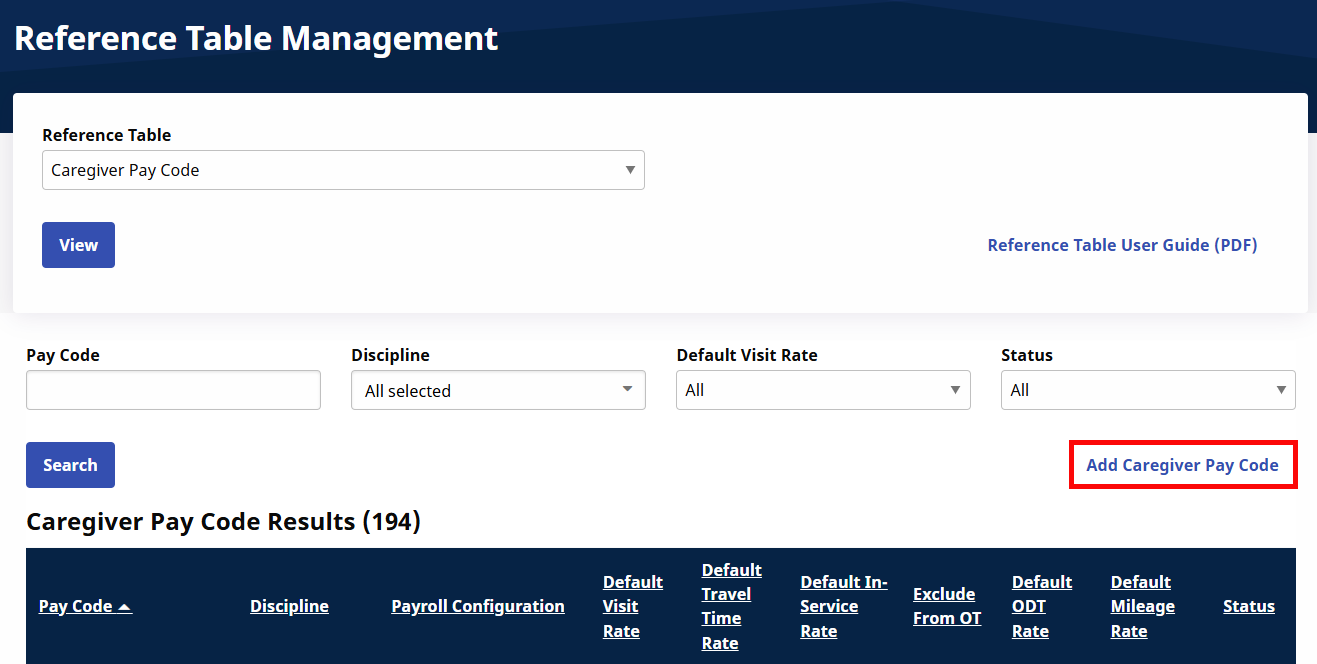
On the search results page click the Add Caregiver Code button.
-
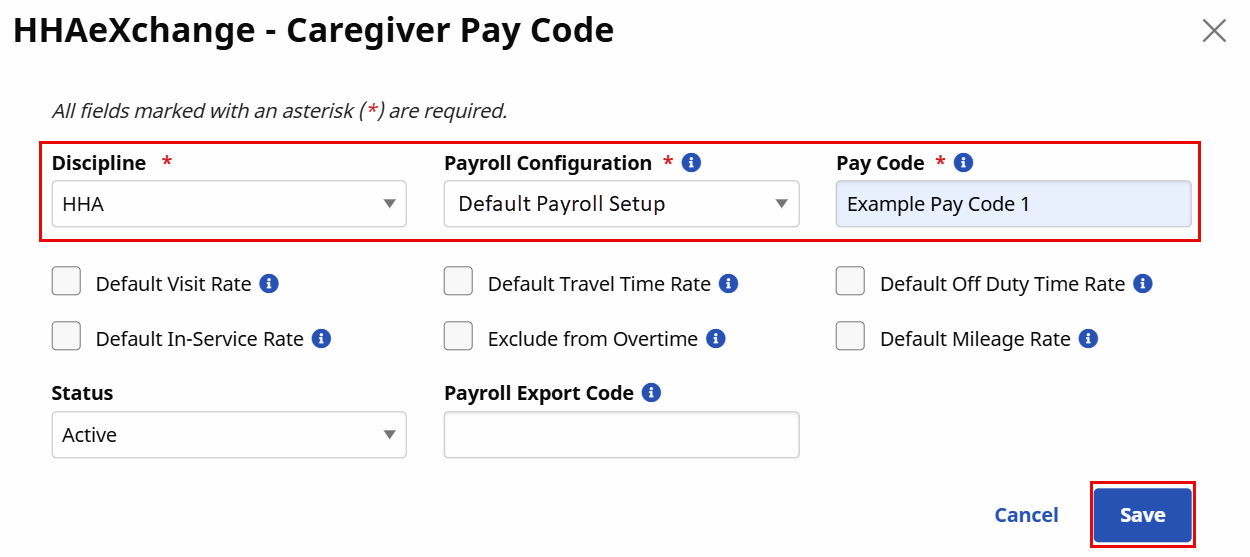
The Caregiver Pay Code window opens. Complete the required fields (marked with a red asterisk) to include Discipline, Payroll Configuration, and Pay Code. Click Save. See the table below for a description of each field.
|
Field |
Description |
|---|---|
|
*Discipline |
(Required) Select the Discipline the new Pay Code applies to. |
|
*Payroll Configuration |
(Required) Select the Payroll Configuration the Pay Code applies to. |
|
*Pay Code |
(Required) Enter the Pay Code Name. |
|
Default Visit Rate |
Select this checkbox to automatically apply the Pay Code to visits, when a Caregiver with the associated Discipline is scheduled. |
|
Default Travel Time Rate |
Select this checkbox to automatically apply the Pay Code to new Travel Time entries, when a Caregiver with the associated Discipline is scheduled. |
| Default Off Duty Time Rate | Select this checkbox to automatically apply the Pay Code to Off Duty Time associated with a Travel Time batch, when a Caregiver with the associated Discipline is scheduled. |
|
Default In-Service Rate |
Select this checkbox to automatically apply the Pay Code to new In-Services created with the Discipline associated to the Pay Code. |
| Exclude from Overtime | Select this checkbox to exclude services performed from the overtime hours calculation. |
| Default Mileage Rate | Select this checkbox to automatically apply the Pay Code as the default for mileage. |
|
Status |
Select Active to activate the Pay Code. |
| Payroll Export Code | Enter the Export Code that should populate in your agency’s payroll export file when using the Pay Code. |
-
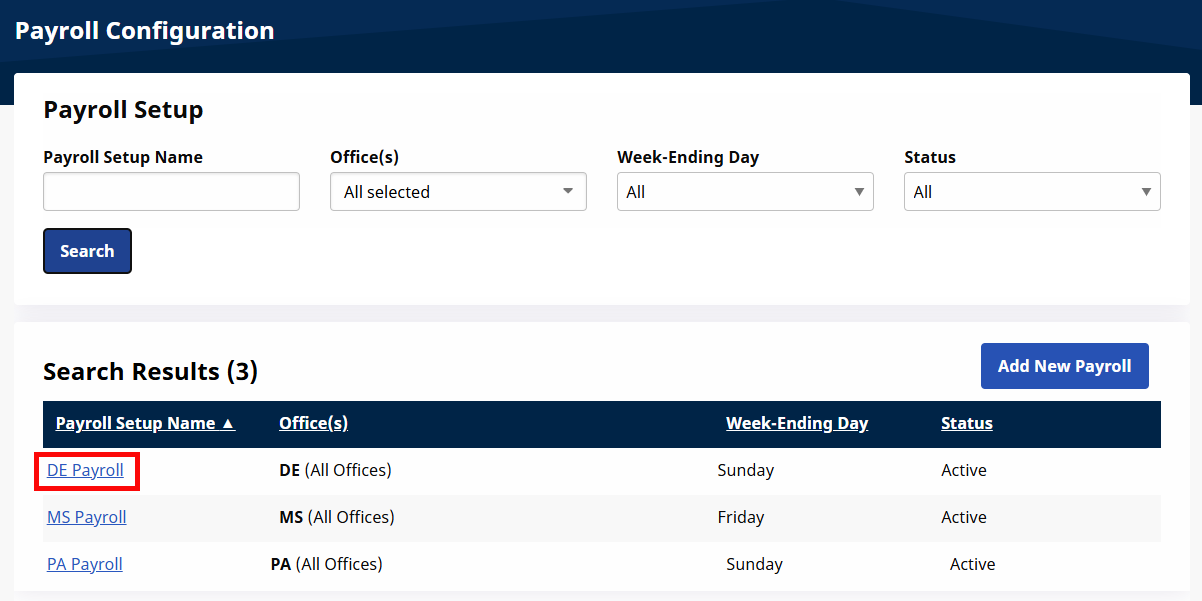
Go to Admin > Payroll Setup. Click Search to locate the appropriate Payroll Setup.
-
From the search results, click the applicable Payroll Setup Name.
-
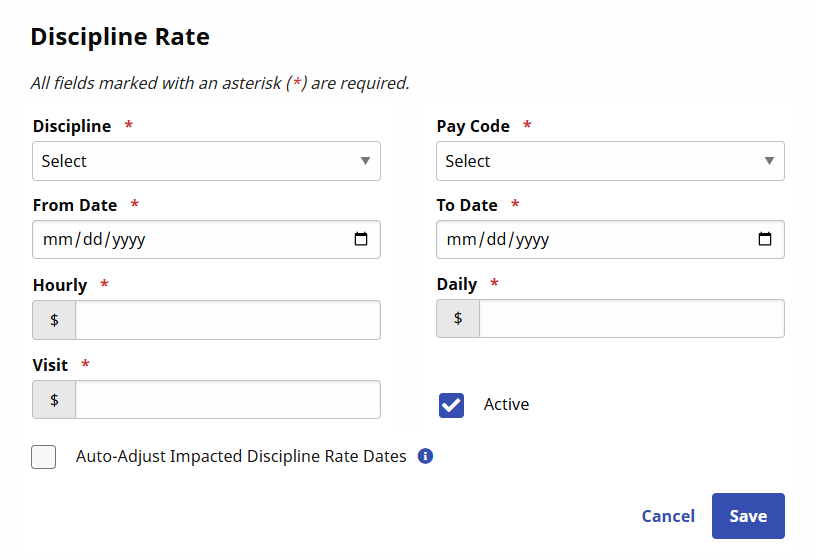
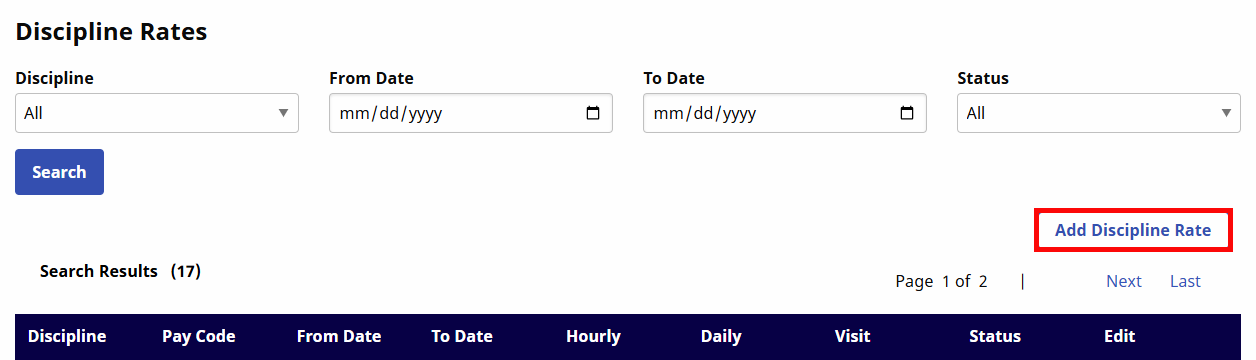
On the Add/Edit Payroll Configuration page, scroll to the Discipline Rates section. Click the Add Discipline Rate button.
-
The Discipline Rates window opens. Complete the required fields (denoted with red asterisk) to include Discipline, PayCode, From/To Date, Hourly, Daily, and Visit. Click Save.