Process Monitor
The Process Monitor feature offers real-time, updated data, sorting processes into categories including All Sections, Billing, Payroll, Import, Compliance, Travel Time, and All Others. This feature is found under Admin > Process Monitor.
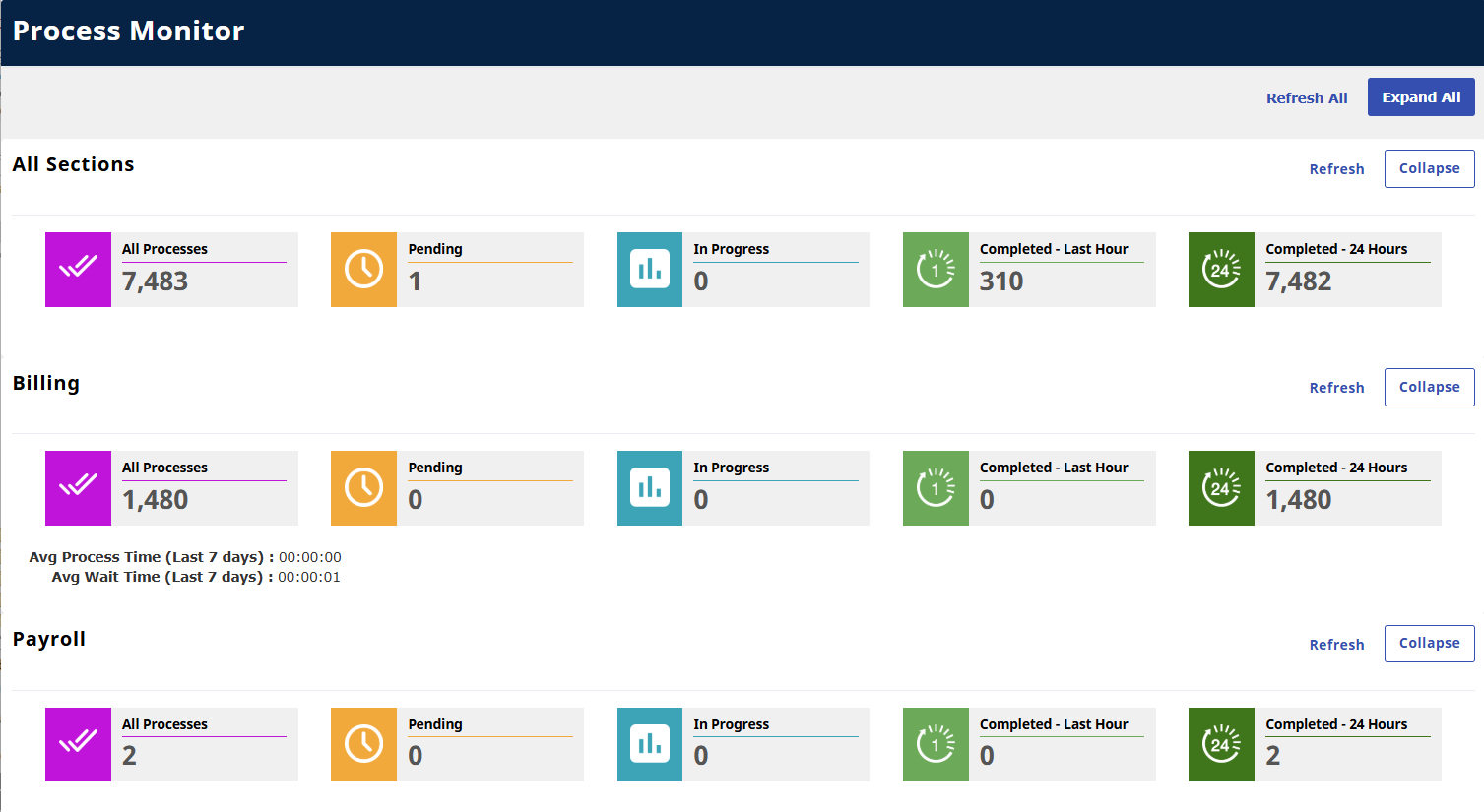
Each category provides Status indicators to indicate the number of current processes that are Pending, In Progress, Completed in the Last Hour, and Completed in the Last 24 Hours. All categories are preceded by a total number of current processes (All Processes) and each status is refreshed individually. All sections can be expanded and refreshed.
Each category can be expanded or collapsed. When categories are collapsed, the Refresh button disappears and the information stops refreshing or auto-synching.

When categories or sections are expanded, the Refresh button becomes available and data is automatically refreshed every 10 seconds. Data can be refreshed individually by clicking on the Refresh button at any time. The image below shows the Billing section expanded.
The Billing section provides details such as the Average Process Time (in the Last 7 days) which shows the average process start and end time and the Average Wait Time (in the Last 7 days) which shows the average time from the time requested to the process start time.

The Average Process Time and the Average Wait Time are only available in the Billing section.
Clicking on a Status indicator opens the respective category providing details such as the current process status. A pop-up window populates displaying the current processes in a grid (as seen in the following image). These records also refresh every 10 seconds.
Auto-refresh stops on the main page if a category pop-up is open.
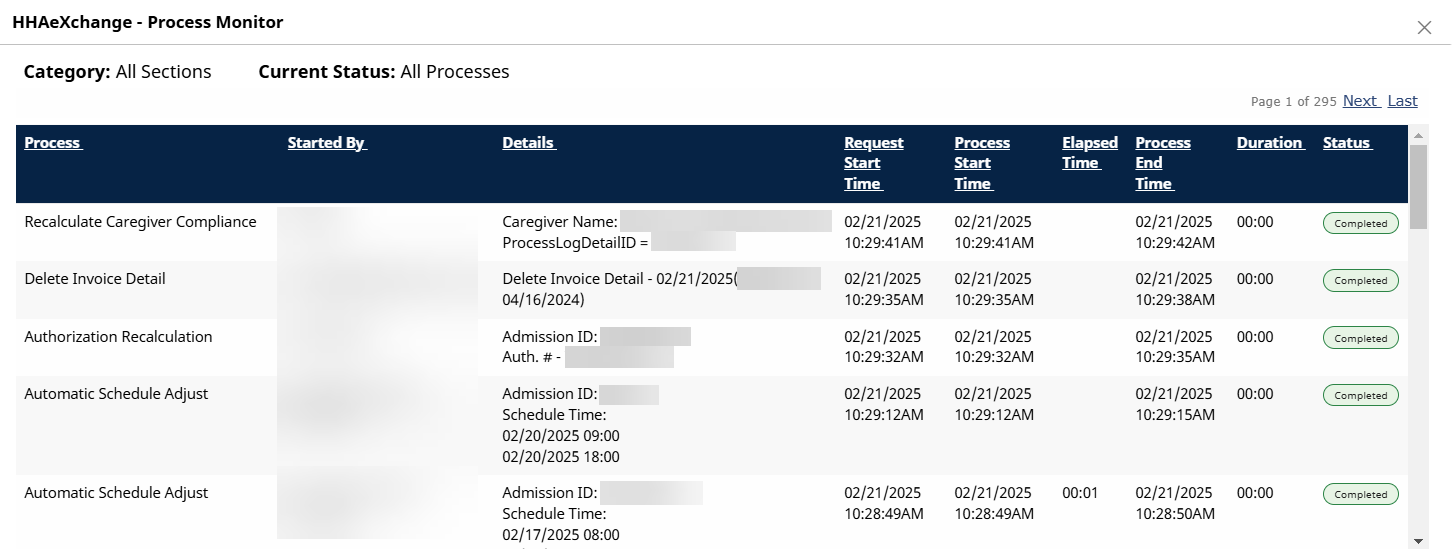
Completed processes is marked as Completed in the Status column.

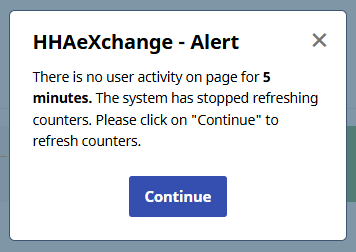
Page Idle Alert
While on the Process Monitor page, if a user is idle for more than 5 minutes, the system stops refreshing the information and a pop-up displays asking to continue. Click Continue for the system to continue refreshing records.