Travel Time Configuration
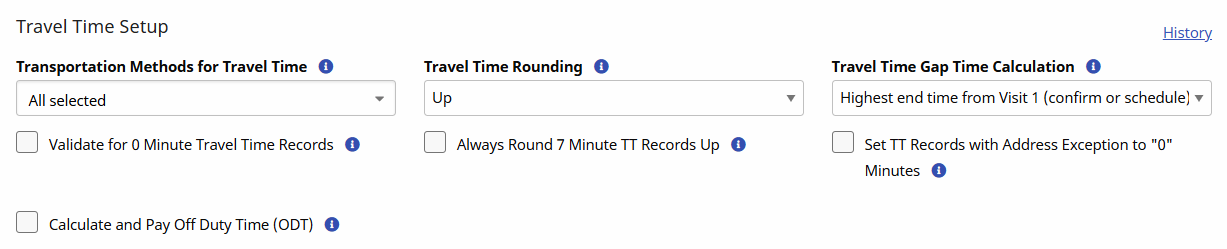
Before using Travel Time, system configuration is necessary. The Travel Time Setup section in the Edit Office page under Admin > Office Setup is used to manage Travel Time settings. This section provides field definitions as well as subsections with details on some of these configurations.
|
Field |
Description |
|---|---|
|
Validate for 0 Minute Travel Time Records |
If this checkbox is selected, then the system validates for 0-minute Travel Time records. If unselected, then the system allows for the creation of 0-minute Travel Time records. Providers can create non-payable Travel Time records to clear the visits from the Travel Time page. |
|
Travel Time Rounding |
Configure the rounding logic for Travel Time to round TT records up, down, or to the closest quarter-hour increment for created payroll batches. Select No Rounding to opt-out of the rounding logic functionality altogether. By default, the Always Round 7 Minute TT Records Up checkbox is selected which overrides any setting configured in the Travel Time Rounding field. Ensure to deselect this setting when applying rounding logic. |
|
Travel Time Gap Time Calculation |
Configure the gap time calculation when creating a Travel Time record by selecting any of the following options:
|
|
Transportation Methods for Travel Time |
Select default transportation methods for Travel Time to include All, Driving, Public Transportation, and Walking to automatically calculate time between shifts. |
|
Set TT Records with Address Exception to 0 Minutes |
When selected, the system automatically sets Travel Time (TT) records with address exception errors to 0 minutes (instead of calculating the entire duration time between Visit 1 and Visit 2). This ensures that TT records are not mistakenly created for greater durations than desired. |
|
Always Round 7 Minute TT Records Up |
Select to round up any Travel Time record that is 7 minutes or less to 15 minutes, regardless of the defined TT Rounding rule. The gap time is defined as the time between the end of the first visit and the start of the second visit. |

A Gap Time is defined as the time between two visits. Gap Time calculation can be configured in the system to apply when a Travel Time record is created.
-
Go to Admin > Office Setup to locate and select the applicable office.
-
Go to the Travel Time Setup section in the Edit Office page.
-
On the Travel Time Gap Time Calculation field select one of the following:
-
Highest End Time from Visit 1 (Confirmed or Scheduled) and Lowest Start Time from Visit 2 (Confirmed or Scheduled); this is the current system behavior.
-
Confirmed End Time of Visit 1 and Confirmed Start Time for Visit 2: use only the Confirmed Times to calculate the Gap; or
-
Scheduled End Time of Visit 1 and Scheduled Start Time for Visit 2; use only the Scheduled Times to calculate the Gap.

-
Based on the current logic, the Gap Time is 15 minutes, because the system takes the scheduled End Time for Visit 1 (the later of the two) and the confirmed Clock-In for Visit 2 (the earlier of the two).
If the setting is configured to look only at confirmed duration (1345 and 1415) the Gap Time is 30 minutes. For scheduled (1400 and 1430), the Gap is also 30 minutes.
The Transportation Methods for Travel Time field is located in the Edit Office page under Admin > Office Setup. This is a multi-select dropdown field where Providers can specify the Methods of transportation at an Office level to apply to TT.
By default, this field is set to All, applying all methods such as Driving, Public Transportation, and Walking to calculate TT. To remove a Method for an Office, deselect the method to prevent the use of it when entering TT on the Travel Time page.
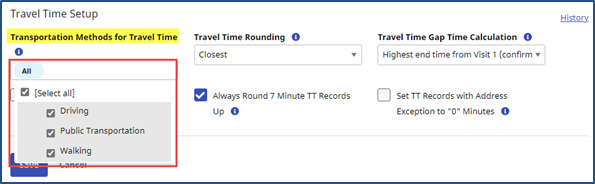
Deactivating any Transportation Method at the Office level removes the options in the Caregiver Profile.
A Caregiver's preferred Travel Time Method can be indicated in the Caregiver Profile.
-
Go to Caregiver > Caregiver Search to locate the applicable Caregiver.
-
Click the Caregiver Name link to open the Caregiver Profile. Select the Profile page.
-
In the Employment Info section, select Driving, Public Transportation, or Walking from the Default Travel Method field and Save.
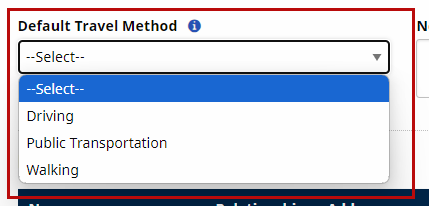
When a Travel Time Batch is created, the system automatically selects the transportation method as defined in the Caregiver Profile. The transportation Method can be changed on the batch, before submitting the batch.
If the method is changed from one to another, such as from Driving to Walking, then the Remaining Gap column shows the gap time difference.
-
Go to Admin > Reference Table Management.
-
Select Caregiver Pay Code from the Reference Table field and click Search.
-
Click on the applicable code link to open the Caregiver Pay Code window.
-
In the window, ensure that the Pay Code field is set to Travel Time Pay Code, and check the Default Travel Time Rate checkbox.
-
Click Save.
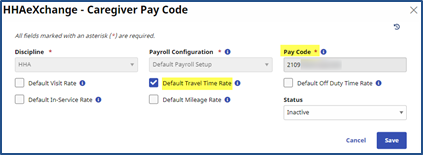
When flagged, the designated Pay Code automatically populates new TT entries for any Office using the selected Payroll Configuration. Provider can still change the Pay Code, or enter an Override Pay Rate value, when a default Pay Code is set up.
Permissions for Travel Time are required to allow assigned roles the right to perform specific Travel Time-related actions and the authority to override set TT record values.
-
Go to Admin > User Management > Edit Roles.
-
Select Action from the Section field and the applicable roles from the Roles field.
-
Scroll to the Travel Time section and select the applicable permissions for the selected roles.
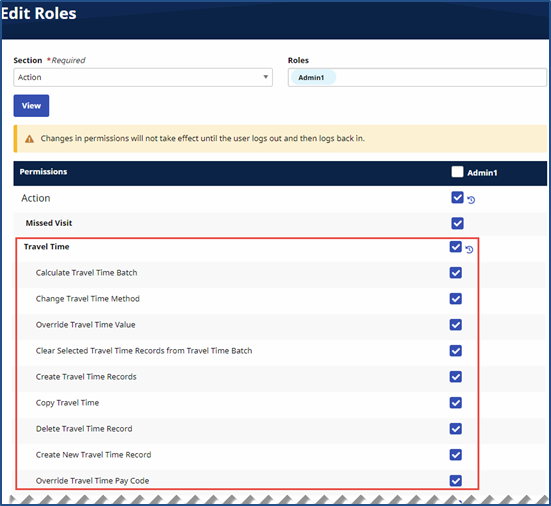
Permission
Description (Allows…)
Travel Time
Access the Travel Time page.
Calculate Travel Time Batch
Calculate a compiled TT batch.
Change Travel Time Method
Selection of the Method of travel associated with the TT record.
Override Travel Time Value
Manual entry of a Travel Time value.
Clear Selected Travel Time Records from Travel Time Batch
Removal of TT records from a batch.
Create Travel Time Records
Create TT records on the Travel Time page.
Copy Travel Time
Copy a TT record on the Caregiver Calendar page and apply it to another date.
Delete Travel Time Record
Delete a saved TT record from the Caregiver Calendar page.
Create New Travel Time Record
Create TT records on the Caregiver Calendar page.
Override Travel Time Pay Code
Override the Pay Code associated with a saved TT record.
Override Travel Time Pay Rate
Override the Pay Rate associated with a saved TT record.
-
Click Save.
When Set TT Records with Address Exceptions to 0 Minutes is selected for an office, the system automatically sets Travel Time records with Address Exception errors to 0 minutes, instead of calculating the entire duration time between Visit 1 and Visit 2.
This ensures that TT records are not mistakenly created for greater durations than desired.
This option is available in the Edit Office page under Admin > Office Setup. By default, TT records with Address Exception errors continue to be calculated using the time between Visit 1 and Visit 2.

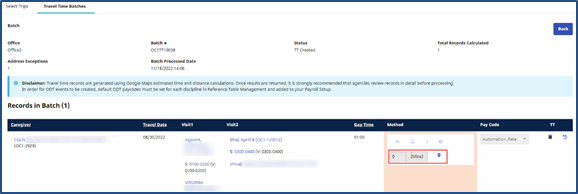
Once applied, this setting is viewed in the Travel Time Batches tab, when a batch with Address Exceptions is selected. On the Results page, a set value of 0 Mins is displayed under the Method column, instead of the entire duration between Visit 1 and Visit 2.