User Management
The User Management feature is used to create and edit user accounts and assigned role-based permissions to users in the system. This topic covers how to create a new user account, edit a user account, reset a user password, and assign role-based permissions.
Users are employees who handle the logistics at a Provider Agency. The Provider Agency assigns each User a Role, such as Admin, Coordinator, or Collection Representative. Permissions for system access are role-based, so permissions are set for each role (rather than for each User). Access to features and functions, including Admin features and functions, is determined by the system permissions granted to the User's Role.
Permissions are granted and modified for Roles using the User Management feature on the Admin menu. Use the User Management function to create a New User, generate a User Search, and Edit Roles.

User Management permissions must be enabled for system users to operate in the User Management feature. To enable permissions for the User Management feature:
-
Go to Admin > User Management > Edit Roles.
-
Select Admin from the Section field and the applicable role(s) from the Roles field.
-
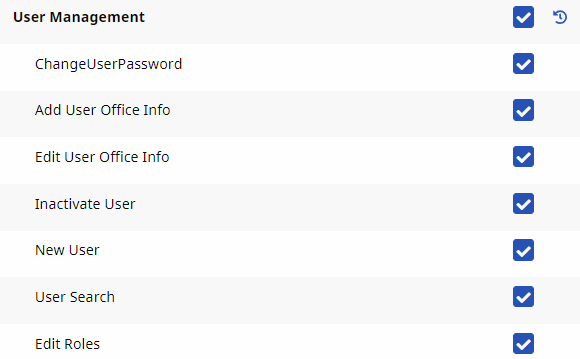
Verify that the following permissions are selected for the role. Select or deselect as needed.
-
Change User Password: Allows role to change a user's password.
-
Add Office User Info: Allows role to add office information to user account.
-
Edit Office User Info: Allows role to edit office information for a user account.
-
Inactivate User: Allows role to deactivate a user account.
-
New User: Allows role to create a new user in the system.
-
User Search: Allows role to search for a system user.
-
Edit Roles: Allows role to assign role-based permissions in the system.
-
-
Click Save to apply the changes.
For more details on roles, refer to the Edit Roles section.
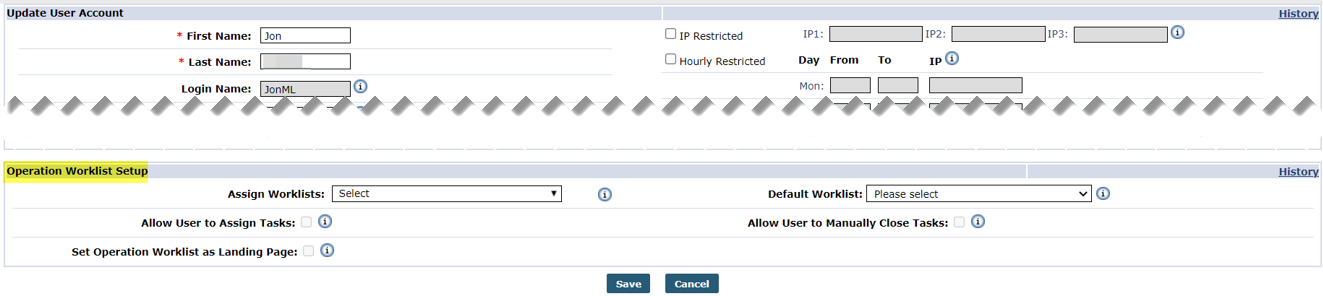
Access and permissions to Ops Worklists are managed at a user level in the User Account page under Admin > User Management > User Search > Update User Account. In the User Account page, scroll to the Operations Worklist Setup section and select from the options.
|
Field |
Description |
|---|---|
|
Assign Worklists |
Select the applicable worklist(s) from this dropdown field to assign the user to one or more worklists. When assigned to a worklist, the user can access the Operation Worklist page and be assigned to worklist tasks. |
|
Default Worklist |
Select a default worklist for the user; the worklist that opens by default when the user opens the Operations Worklist page. |
|
Allow User to Assign Tasks |
Select this checkbox to allow the user to assign worklist tasks to other users. A user can self-assign tasks even if this permission is not granted to them. |
|
Allow User to Manually Close Tasks |
Select this checkbox to allow the user to manually close worklist tasks at any time, bypassing the predefined conditions that automatically mark the Status as Completed. |
|
Set Operation Worklist as Landing Page |
Select this checkbox to prompt the system to automatically open the Operation Worklist page when the user logs in. |
-
Go to Admin > User Management > Edit Roles.
-
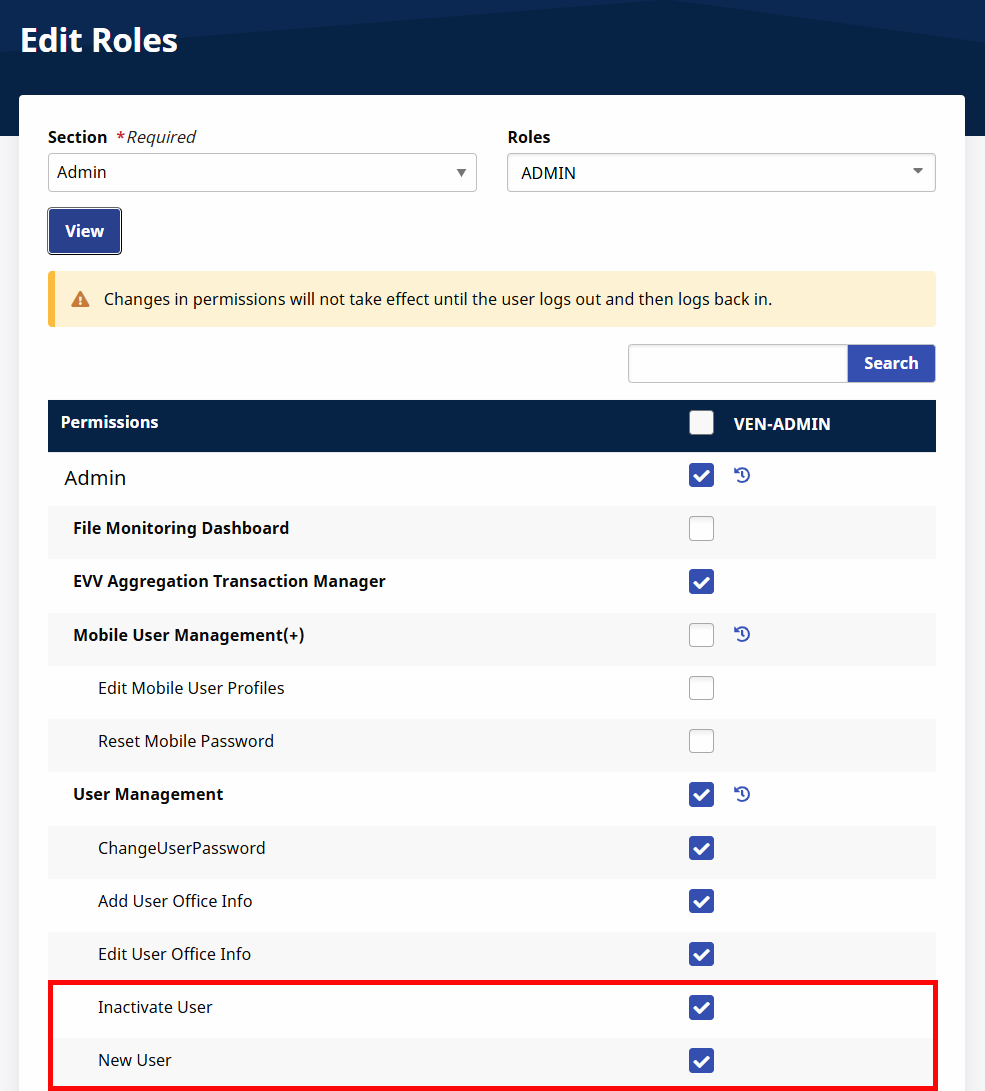
Select the system section from the Section field list, and the role from the Roles field list (optional). Click View.
-
Select New User and Inactivate Users under the User Management section.
-
Click Save (at the bottom of the page) to apply the changes.
-
Go to Admin > User Management > New User to access the Add New User page.
-
The Add New User page opens. Complete the required fields.
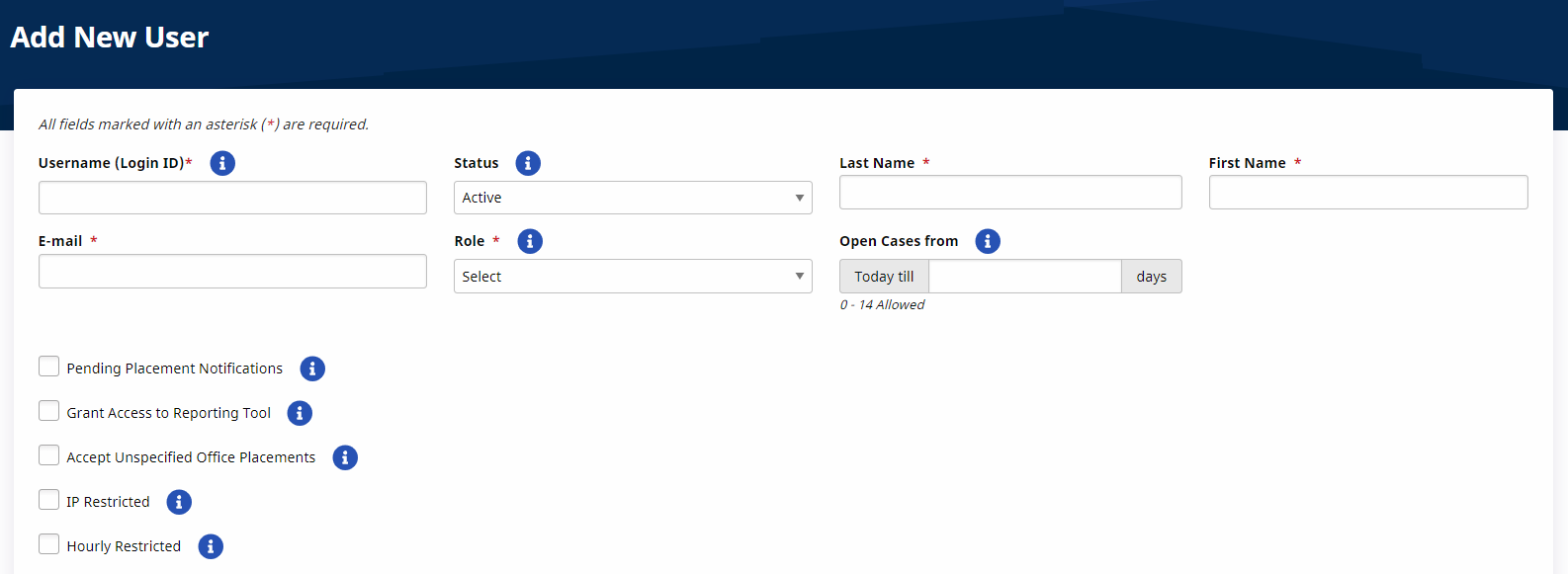
Field
Description
*Username (Login ID)
(Required) Enter the login name for the user to enter the system. Login name must be unique within an Agency AND across the HHAeXchange platform. Username can include letters, numbers, underscores, dashes, @ sign, or dots. There is a 50-character limit to any login name. Email address can be used.
Status Active is selected by default to enable the user account once completed and saved. *Last Name
(Required) Enter the user's last name.
*First Name
(Required) Enter the user's first name.
*Email
(Required) Enter the user’s unique email address. This email is used for any assigned system notifications to include the initial email with temporary password to log in to the system.
*Role
(Required) Select the Role(s) for the user. There are three roles: Admin, Coordinator, and Billing.
Open Cases from (Optional) This field is used to enter the number of days (timespan) for unstaffed cases. The range is always from current day to number of days entered, with a maximum of 14 days. -
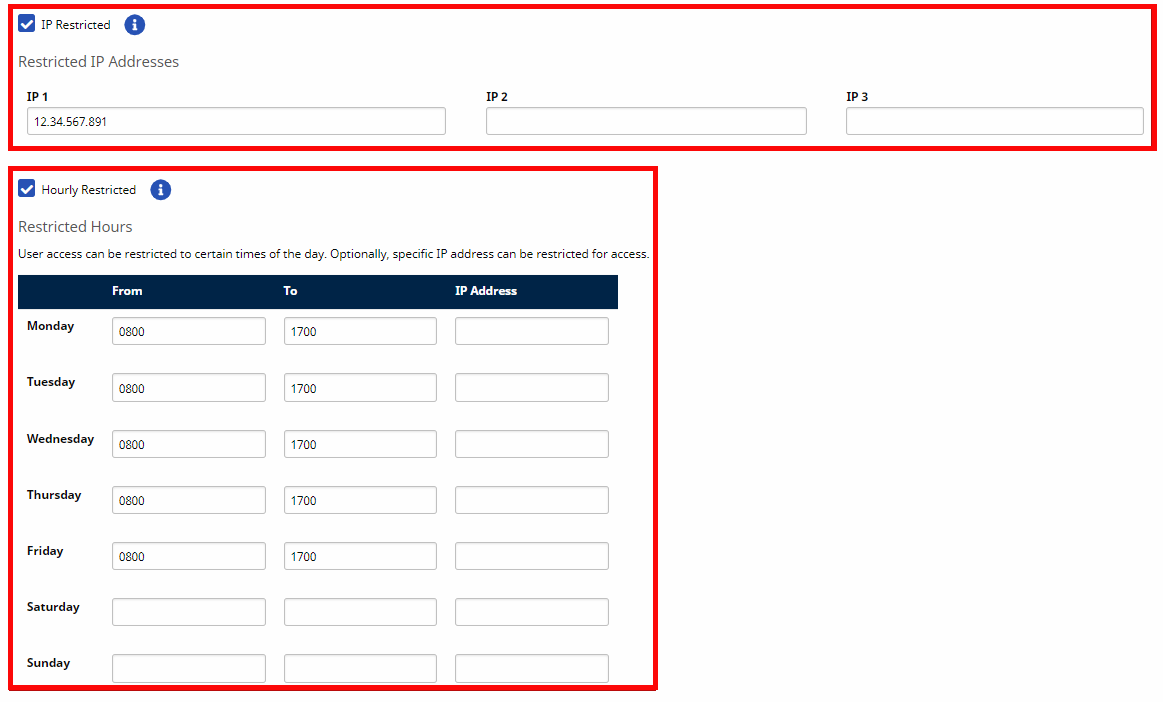
Access can be restricted by IP Address and/or Hourly Restricted (on a schedule of days and time ranges). Select one or both options. These restrictions are optional.
Select
To...
IP Restricted
Open the IP Address fields to restrict access using an IP address. Up to three IP addresses can be entered for a user.
Hourly Restricted
Open the schedule fields. Specify the time ranges on the days (Monday to Sunday) for a user to access the system. A valid IP address for each day of the week can also be added.
-
Select other permissions specific to the user such as Pending Placement Notifications, Grant Access to Reporting Tool, and Accept Unspecified Office Placements.
-
The Office Setup section is used to assign offices to the user. Click Add to assign the Primary office and specify functionality such as Coordinator, View Open Cases for, and Can Override OT Limit for the office. For example, the image below shows that this user is the Coordinator in the Hope & Care Providers Office, able to view all Open Cases for the selected Coordinator. This user can also Override OT Limits for that Office.
Additional offices can be added with assigned functions. Only one Office can be the designated Primary at a time. Once a Primary office is selected, functionality in other offices is limited.

The Operations Worklist Setup section is used to assign worklists to the user and allow the user to assign tasks and/or manually close tasks for selected worklists.
-
Click the Save button to create the new user account. The user receives an email with a temporary password to log in to the system.
-
The system generates an email sent to the user with instructions and a temporary password to log in to the system. Provide the user with their username (login) name. For security purposes, the email does not include this information.
-
Go to Admin > User Management > User Search.
-
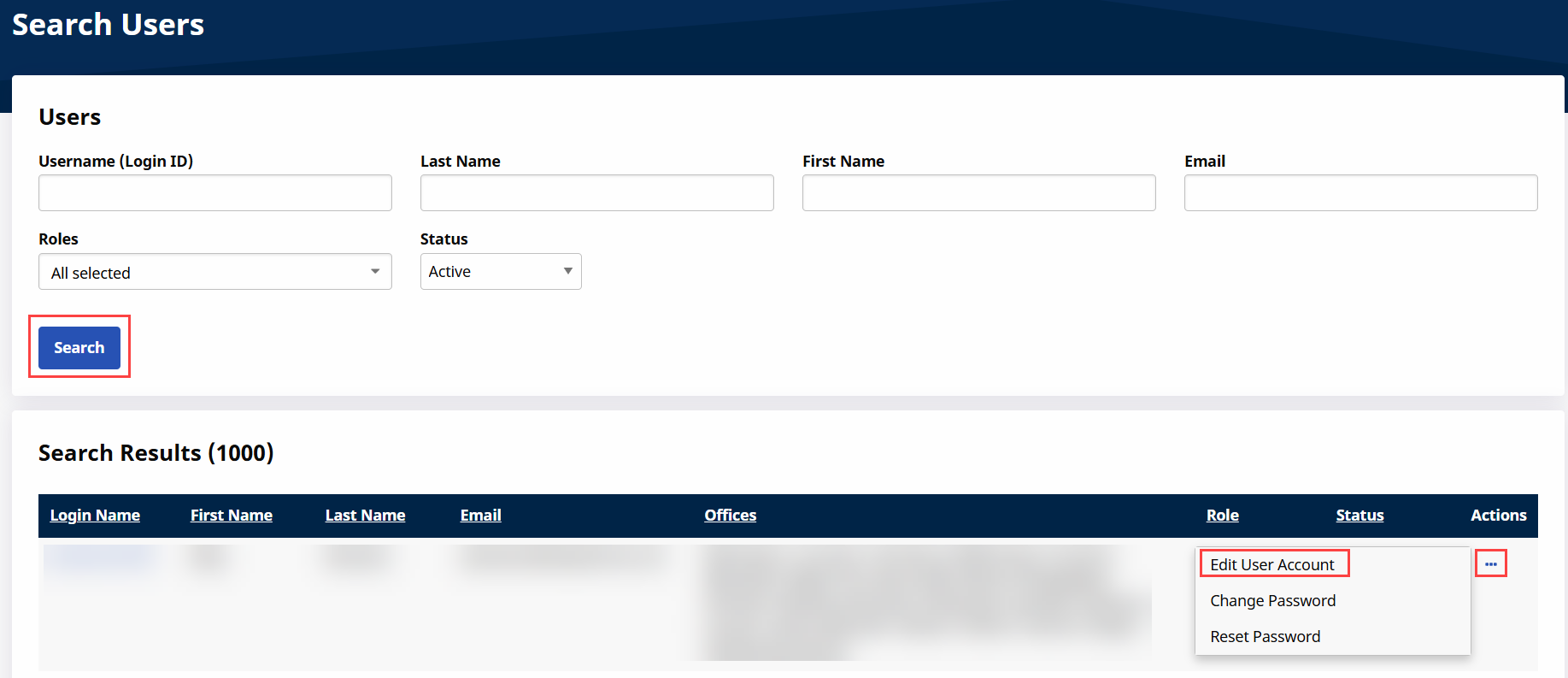
The Search Users page opens, apply filters and click Search.
-
Locate the user from the Search Results. Under the Action column, click the Ellipsis... and select Edit User Account.
-
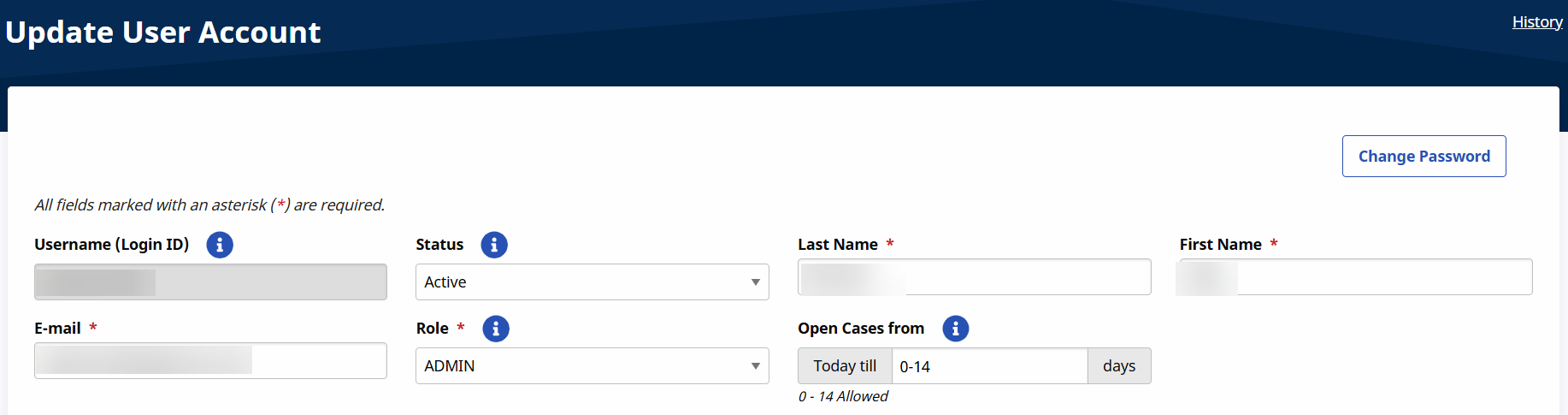
The Update User Account page opens, displaying the User's information along with the Office Setup, Clinical Setup, and Operation Worklist Setup sections. Update the necessary information and click Save.
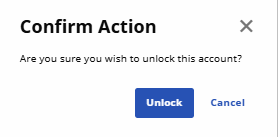
Accounts that are locked display with a Lock icon next to the user’s status.
To unlock the user account, click the Ellipsis... under the Actions column and then select Unlock Account.

On the Confirm Action window click Unlock a Success message displays at the bottom of the page.
-
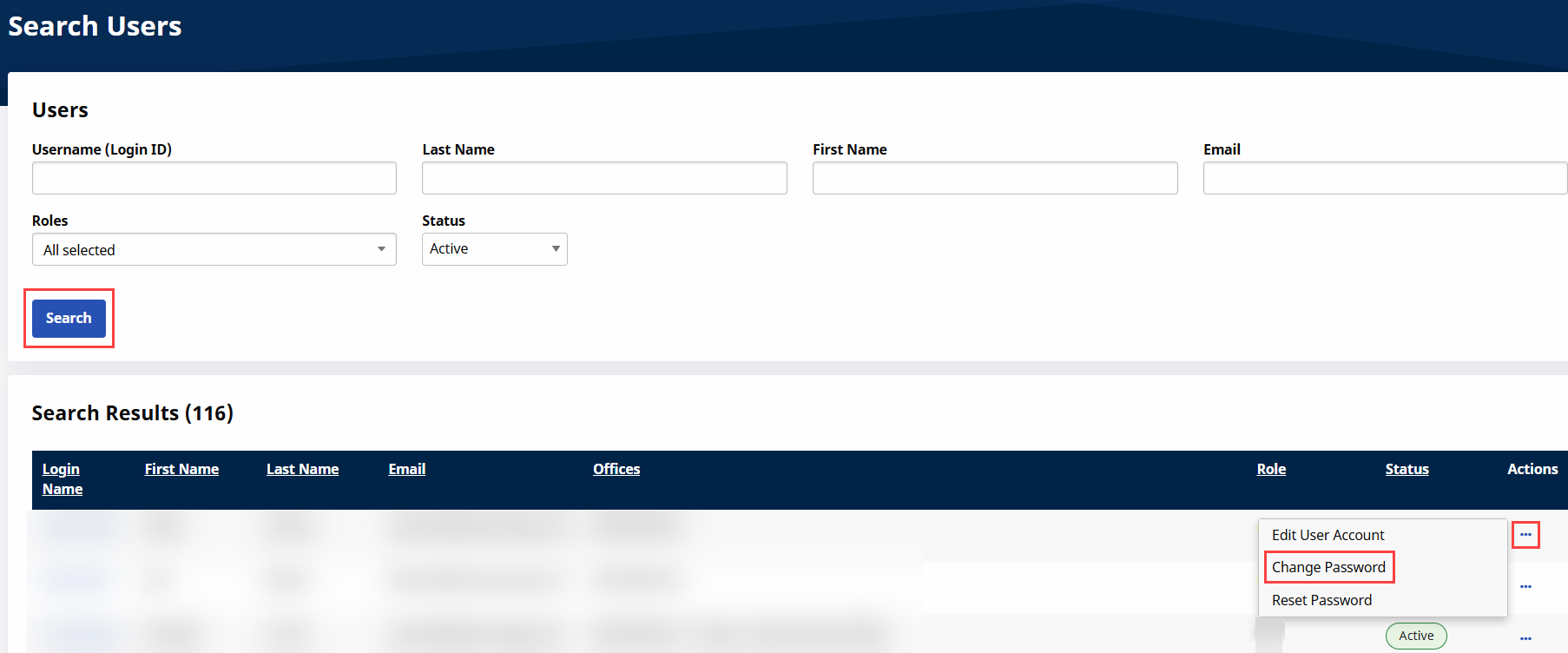
Go to Admin > User Management > User Search.
-
The Search Users page opens, apply filters and click Search.
-
Locate the user from the Search Results and click the Ellipsis... under the Actions column.
-
Select Change Password, the Change Password window opens.
-
Enter the New Password and Confirm New Password and click Save.
A Password Strength information section provides password requirements with a Password Strength bar to help you create a strong password with password criteria.
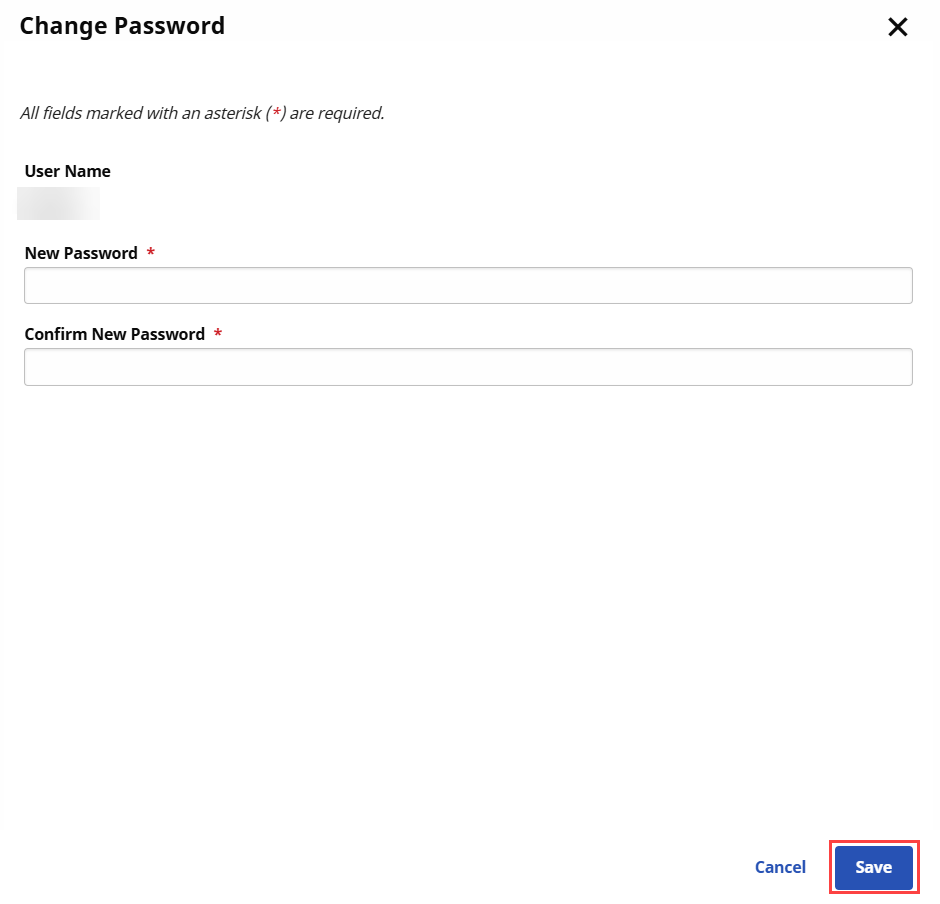
A Password Changed successfully message appears.
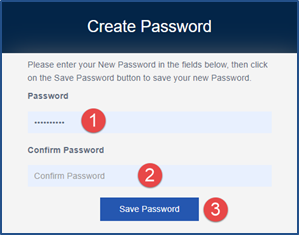
When an Agency Admin creates a New User Account, a Create Password process is generated by the system once the new profile is saved. The following examples demonstrate the steps for users to Create a Password.
The User receives the Create Password email with link and instructions. Click the Create Password link to be routed to the Login screen.
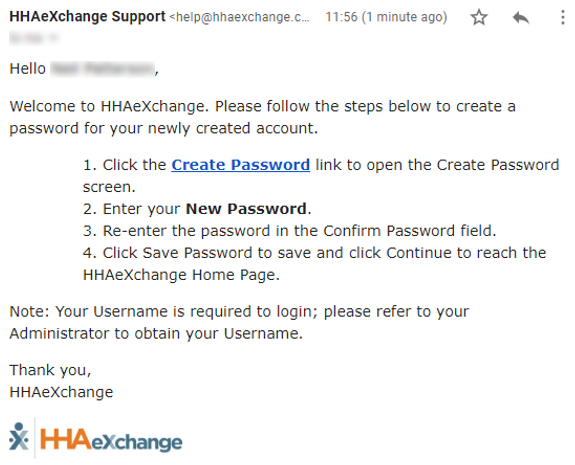
The image on top illustrates a standard Create Password Login page. The image following that illustrates the Login page for Agencies configured to require Terms and Conditions.
On this screen, the user:
-
Enter a Password;
-
Re-enter the password in the Confirm Password field; and
-
Click Save Password to continue.
For Agencies configured to require Terms and Conditions, the Create Password Login page contains an extra link and step. On this page, the user:
-
Enter a Password;
-
Re-enter the password in the Confirm Password field;
-
Select the required Accept Terms and Conditions checkbox; and
-
Click Save Password to continue.
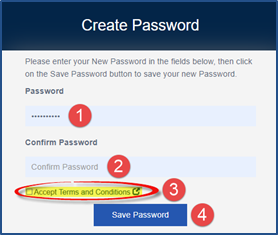
The system guides the user with instructions and password requirements.
Refer to the Self-Service Password Reset for further guidance.
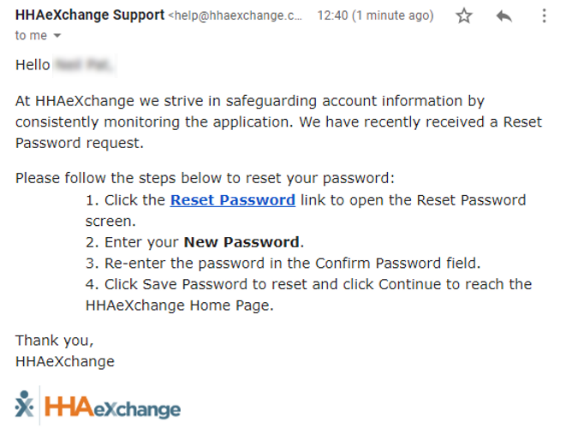
Agency Admins can initiate a Password Reset or change the password for any Agency user for various purposes, typically for security measures (for example, if credentials are compromised). Instead of providing a password for the user, the automated process prompts the user to reset the password after the initiation from the Agency Admin.
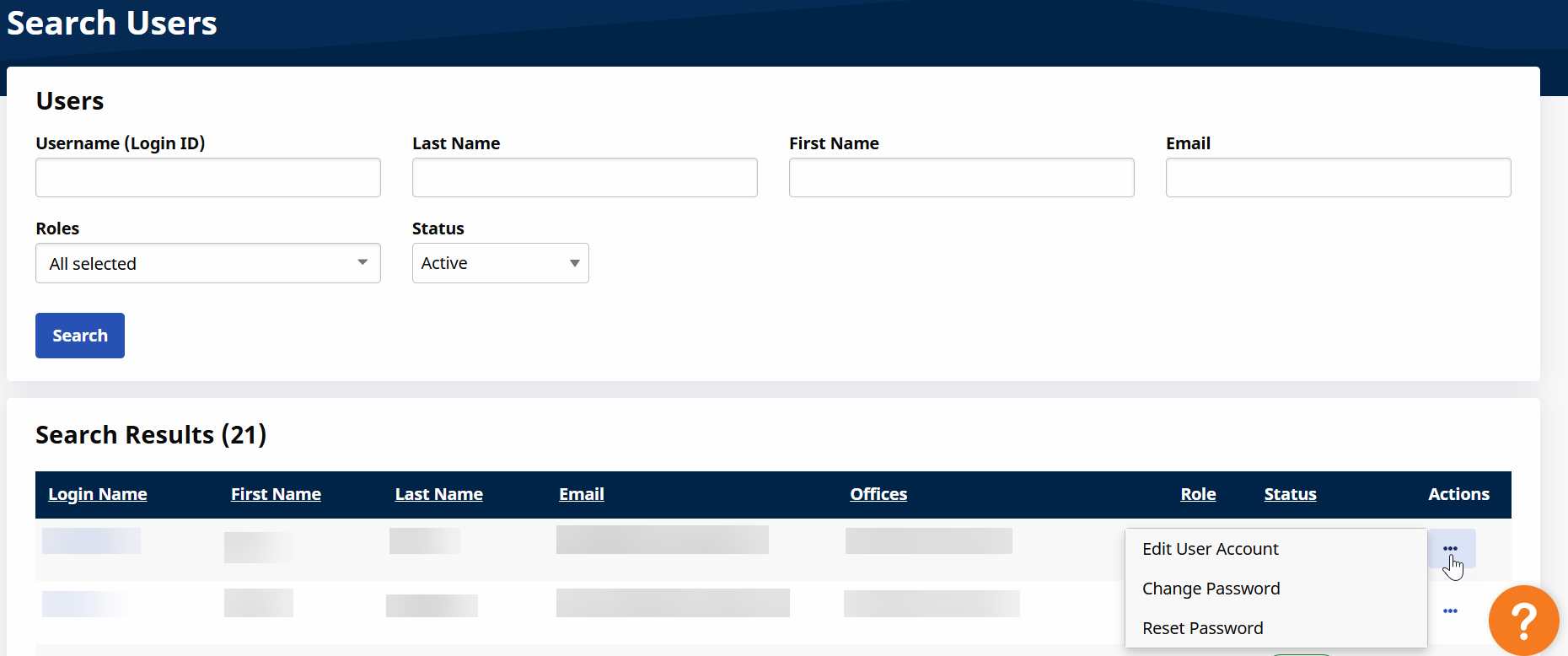
A Password Reset can be initiated under Admin > User Management > User Search. Search for the appropriate User and click the three dots at the end of their row.
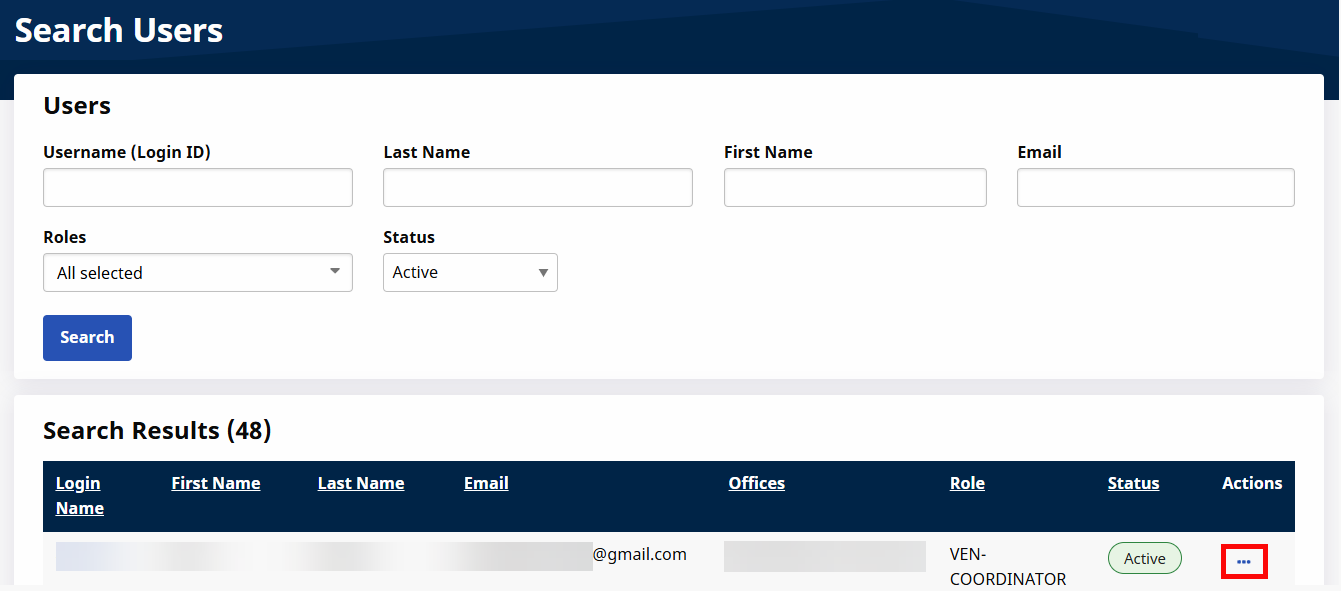
In the Dropdown Menu that opens, select Reset Password, and confirm the password reset in the following popup window by clicking the Reset Password button.
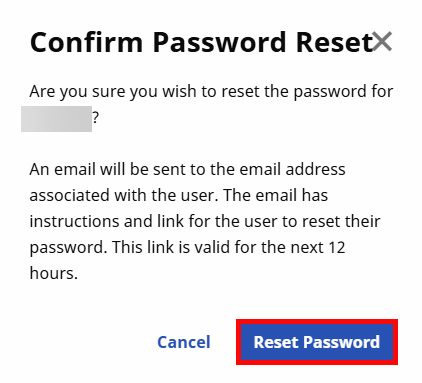
The User receives an email with instructions for resetting their password. No further action is required from the Agency Admin.
The Agency user receives an email with the link and instructions to reset their password. The User follows the prompts to reset their password accordingly.
Refer to the Self-Service Password Reset for further guidance.
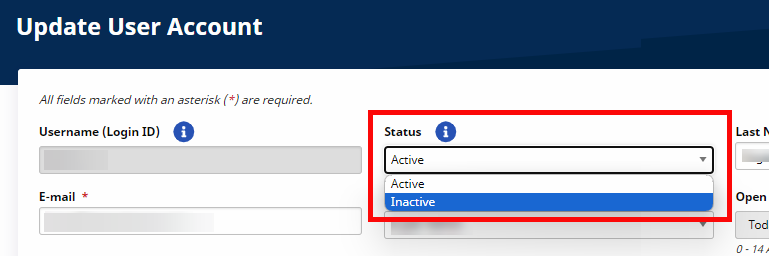
Only roles with the Inactivate Users permission can deactivate a user. For all other roles, the Status field is not available to edit.
-
Go to Admin > User Management > Search User.
-
Click the Edit link to access the Update User Account page.
-
From the Status field select Inactive.
-
Click Save. When saved, the user cannot access the system with their current credentials.
To search for a user in the system, enter the User’s First Name, Last Name, Login Name, Email address, Role, or Status to narrow a search or click the Search button to view all Users.
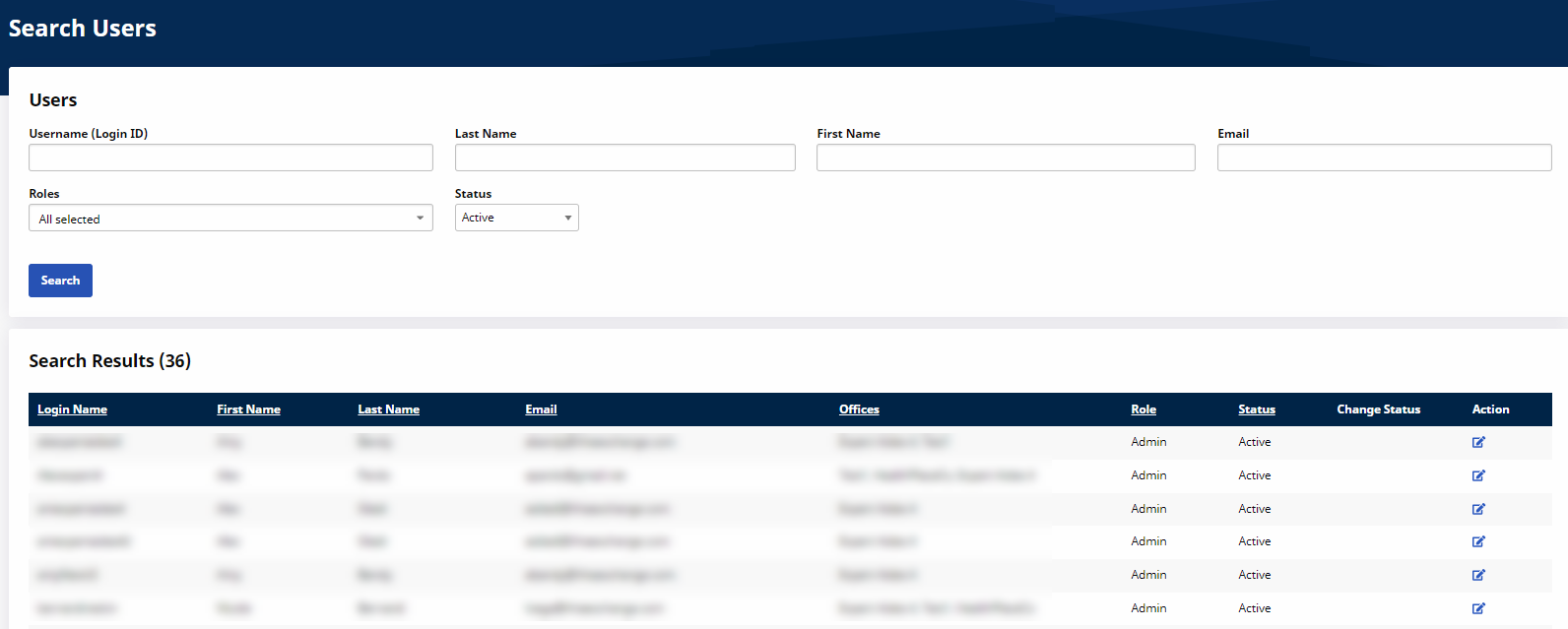
The Search Results include the following information per line item:
|
Column |
Description |
|---|---|
|
Login Name |
User's HHAeXchange login name. |
|
First Name |
User's first name. |
|
Last Name |
User's last name. |
|
|
The email address associated with the user in the HHAeXchange system. |
|
Offices |
All associated Offices the User is assigned to. |
| Role |
Role(s) assigned to the User. |
| Status | User Account Status (Active or Inactive). |
|
Edit |
Click the Edit icon to route to the Update User Profile page. |
| Action |
Click to quickly access the following features from this menu:
|
Permissions in the system are role-based; therefore, permissions are enabled for a role rather than for an individual system user. Functions, features, and modules are dictated by system permissions to include functionality within the Admin tab.
Available roles include Admin, Coordinator, and Collections Representative.
Roles can only be created by HHAeXchange.
Permissions are granted and modified via the Edit Roles feature in the User Management function under the Admin tab.
To assign or edit permissions for a role:
-
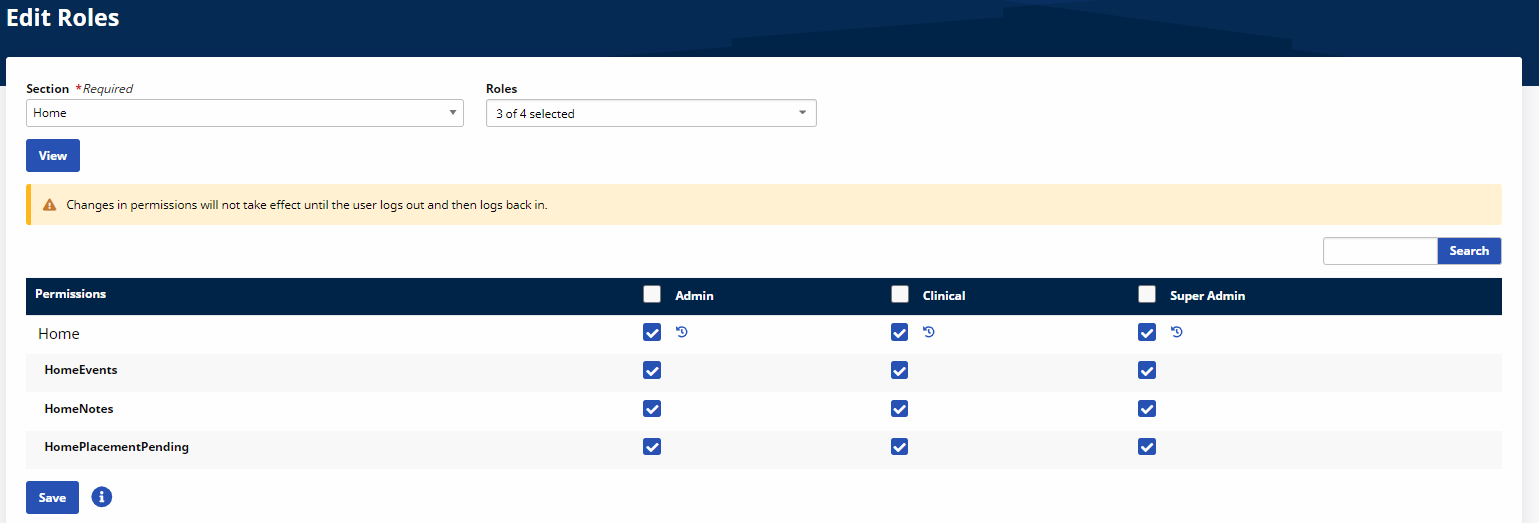
Go to Admin > User Management > Edit Roles.
-
Select the Office, Section and applicable Role(s) fields and click View. Multiple roles can be selected at a time to assign permissions. If a specific Role is not selected, the system displays all Roles for the Agency.
-
Select or deselect permissions according to role.
-
Click Save.
Permission changes take effect once the user logs out and logs back into the system.
Role permissions must be enabled to operate in the Cash Payment feature. Complete the following steps to grant permissions to a role.
-
Go to Admin > User Management > Edit Roles.
-
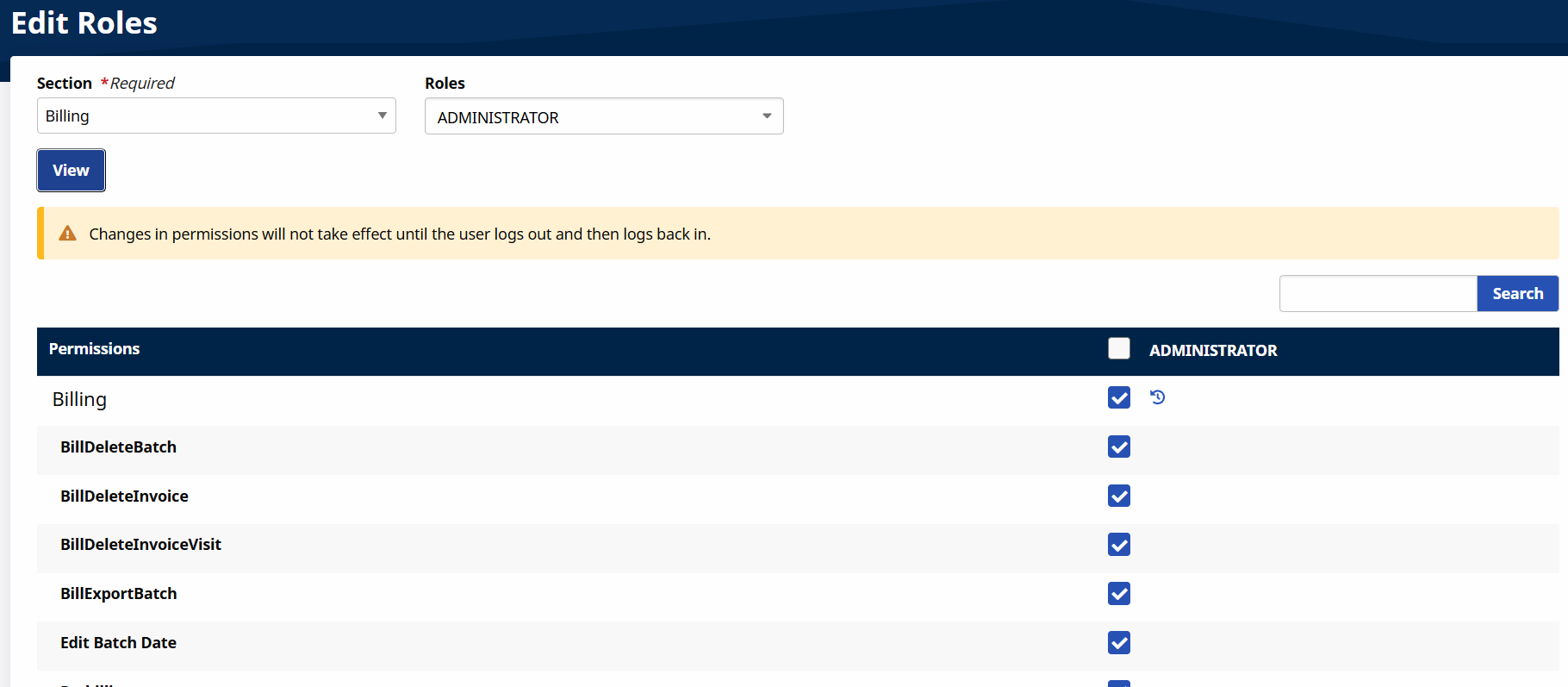
Select Billing from the Section field dropdown and applicable roles from the Roles dropdown field.
-
Select the View button to edit permissions.
-
Select Cash Payment as well as E-Remittance and Apply Payment, if/as applicable to the selected roles.
-
Select the Save button to finalize.
This feature is activated by HHAeXchange System Administration. Contact HHAeXchange Support Team for details, setup, and guidance.
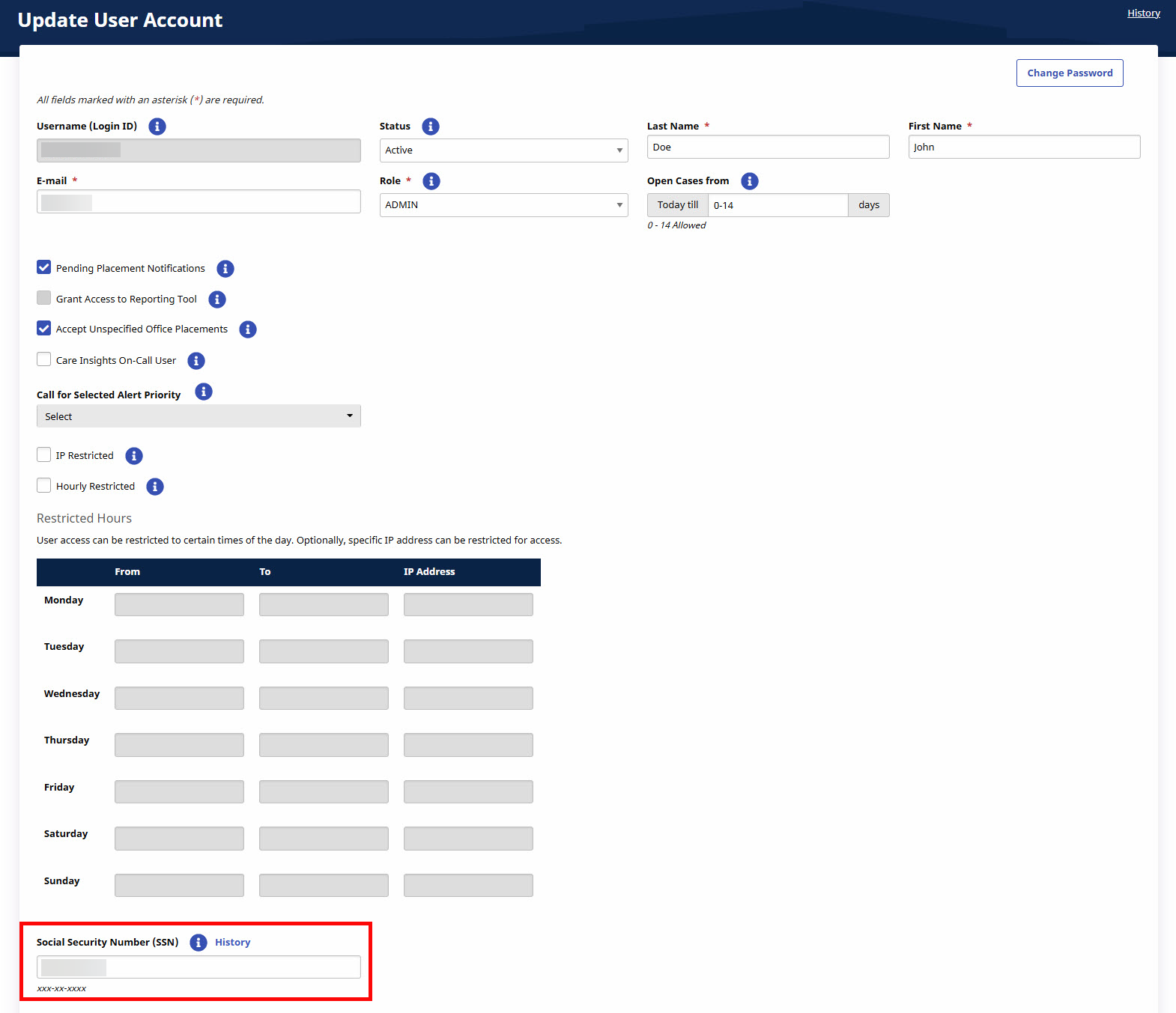
In the User Account page under User Management > New User or > Update User Account, Agencies can use the SSN field to capture a system user’s Social Security Number (SSN). This feature is used to track and validate a user’s SSN ensuring any duplicates are detected across the platform for Active and Inactive users. This functionality works similar to how a Caregiver SSN is tracked and validated in the system.
This function is not required by most Provider Agencies. Some markets require tracking a user’s SSN to detect duplication and fraud. If requirement is enabled, the SSN# field appears with a red asterisk; otherwise the field appears as optional. To view the history of the SSN for the user, click the H link to the right of the SSN# field. History is only maintained when the SSN# field is required.
If enabled, this functionality also applies to User Profiles imported into the system.
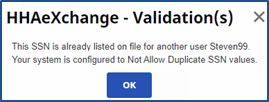
If a duplicate SSN is entered in the system, the system issues a validation message not allowing the profile to be saved.
This feature is activated by HHAeXchange System Administration. Contact HHAeXchange Support Team for details, setup, and guidance.
Providers can prevent duplication of email addresses in the system. When enabled, the system validates the user email addresses as unique across the entire platform when creating or editing a User Account under Admin > User Management > Update User Account. This applies to both Active and Inactive email addresses.
When a User attempts to create or edit a User Account using a current or former email address (Active or Inactive), the system issues a validation not allowing the duplicate email address to be saved.
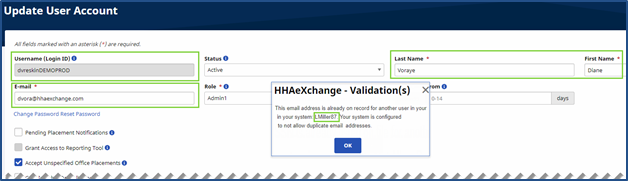
If enabled, this functionality also applies to User Profiles imported into the system.
Complete the following steps to unlock a user’s account if a user is locked out of their account.
If you are the Administrator and are locked out of your HHAeXchange account, another Administrator can unlock your account. If you are the only Administrator of your Agency, Submit a Ticket to unlock your account.
-
Go to Admin > User Management > User Search to open the Search Users page.
-
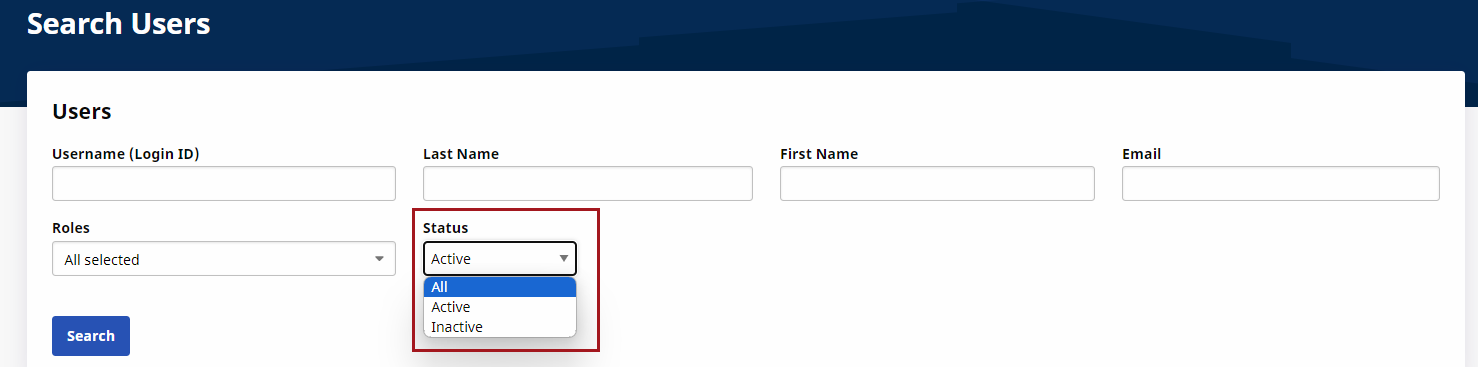
Use the search filter fields to search and locate the locked user account. Ensure to select the All option in the Status field. Click Search to generate results.
-
From the results, locate the user row. Click the edit icon under the Action column to open the Update User Account page.
-
On the Update User Account page, the Status appears as Inactive. Select Active to unlock the account.
-
Click Save to finalize.
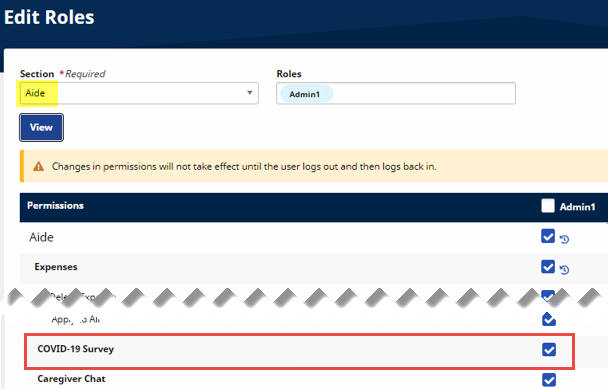
Upon opt-in, all system users have the COVID-19 Survey permission selected. To disable this permission for a system role, navigate to Admin > User Management > Edit Roles. Select Aide from the Section field and the applicable role from the Roles field.
Scroll to the bottom of the permissions list and deselect the COVID-19 Survey checkbox. Click Save to finalize.
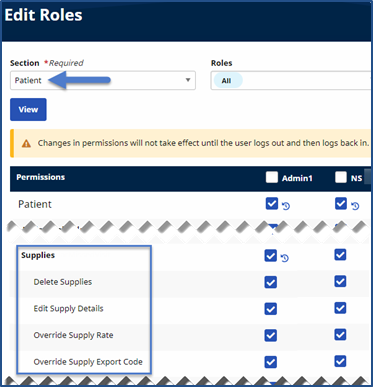
The following are the permissions needed to use the Supply feature.
|
Permission |
Description – Allows Users to… |
|---|---|
|
Override Supply Rate |
Edit the value in the Supply Rate field in the Add Patient Supply window. |
|
Override Supply Export Code |
Edit the value in the Export Code field in the Add Patient Supply window. |
|
Edit Supply Details |
Edit existing records on the Supplies page. |
|
Delete Supplies |
Delete existing records on the Supplies page. |
To activate these permissions, go to Admin > User Management > Edit Roles and select Patient from the Section field.