What setting do I select for the In-service Compliance Selection?
At a Glance
-
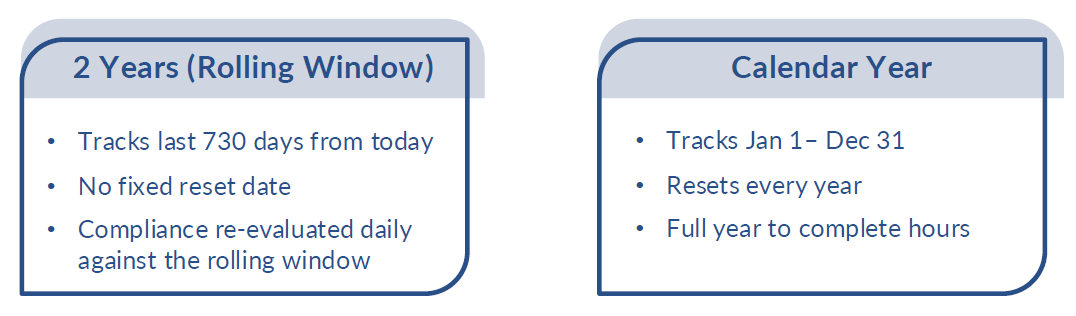
Setting Options: Choose Calendar Year or 2 Years
-
Default remains 2 Years (730 days)
-
Aligns compliance with state requirements
-
Changing this recalculates caregiver compliance immediately
Which Option Should You Choose?
| Option | Best For | What it Means | Example Scenario | Result |
|---|---|---|---|---|
| 2 Years (730 days) | Agencies using rolling compliance | Tracks last 730 days continuously |
|
|
| Calendar Year | Agencies with annual requirements | Resets Jan 1 each year |
|
|
How it Works
Where to Update the Setting
Path: Admin > Compliance Setup > General Setup Details > In-Service Compliance Window
What Happens When You Change It?
-
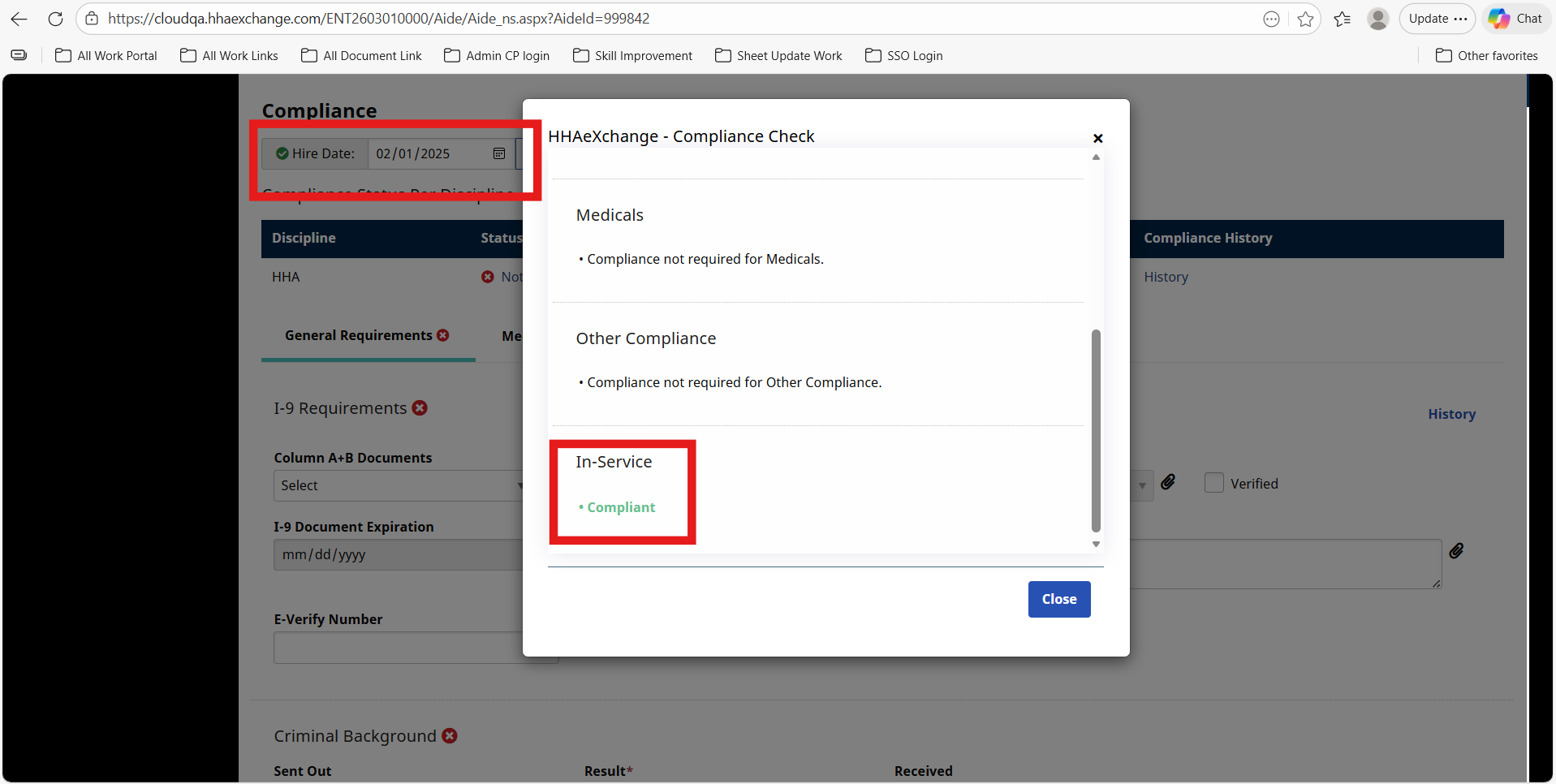
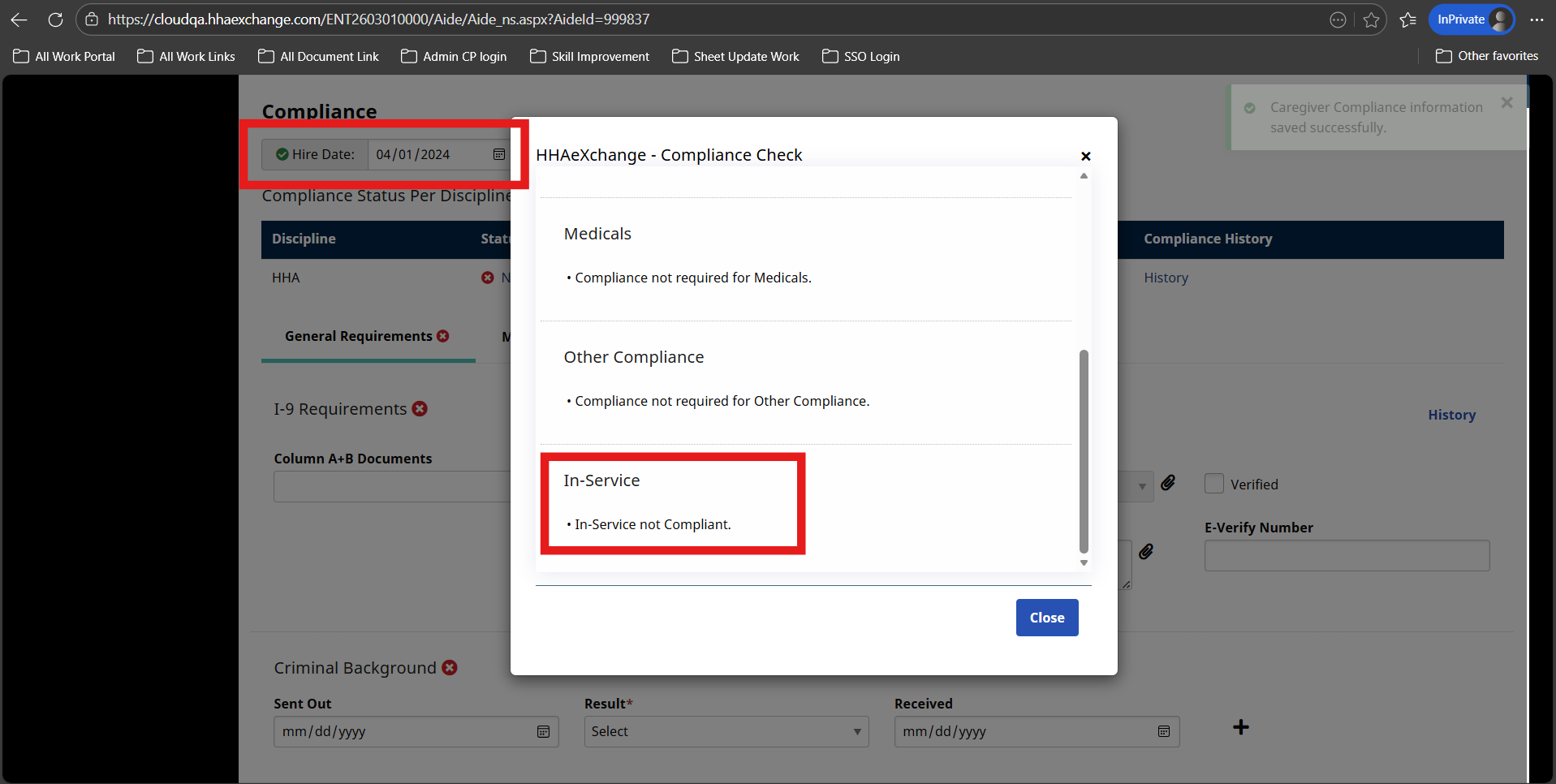
Compliance statuses are recalculated immediately, and some caregivers may fall out of compliance
-
Updates appear in Caregiver Profile Compliance tab
-
Impacts In-Service records and statuses
Before Making Changes
-
Confirm state or payer requirements.
-
Review caregiver training completion.
-
Align with internal teams.
-
Consult your Customer Success Manager if unsure.
Next Steps
-
Review compliance requirements.
-
Confirm your current tracking method.
-
Decide if a change is needed.
-
Update the setting.
-
Monitor caregiver compliance after the update.
View or download a PDF version of the In-Service Compliance Window Quick Guide.