837 Claim Files and Linked Contracts
Linked contracts using the 837 Invoice format must be manually exported from HHAeXchange. The following section covers this process, and how to review the 835 Remittance files sent by the contract or clearinghouse.

Linked Contracts that require billing submissions using the 837 Claim format must be manually exported. Complete the following steps to manually export.
-
Go to Billing > New Invoice Batch.
-
Generate a new invoice (claim) batch. Once processed, 837Claim files are automatically generated as Original claims.
-
Go to Admin > File Processing. Select the Claim Files tab.
-
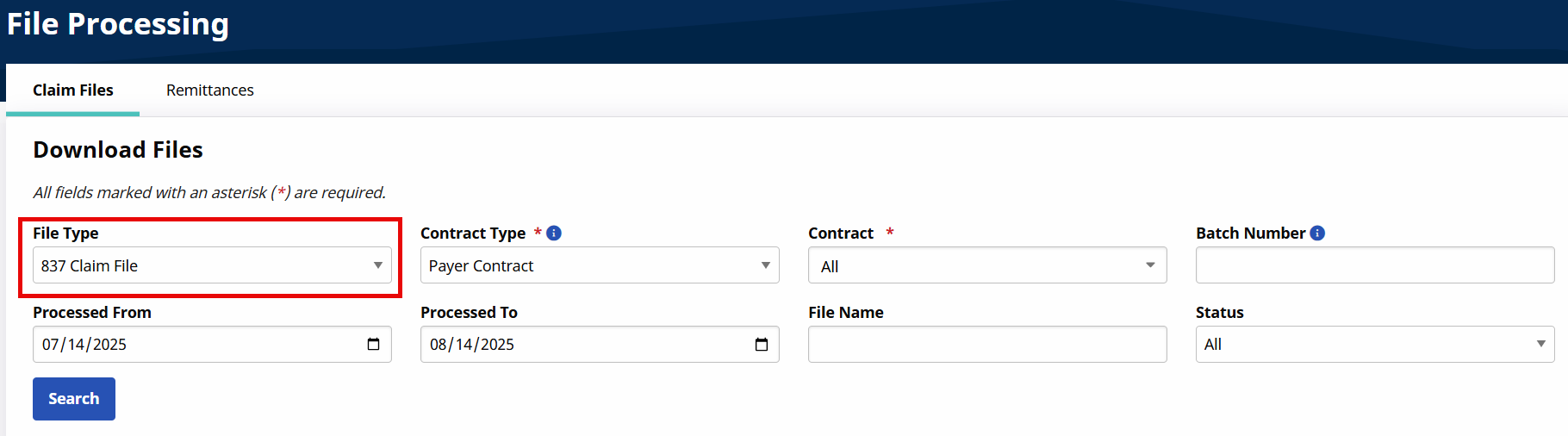
Select 837 Claim File in the File Type field, complete the required fields, and select the Search button.
-
The search returns all 837 Claim files generated by the Agency. Click the Export link in the rightmost column to download the claim file.
-
The 837 Claim file is ready to be sent to the appropriate clearinghouse or contract.
Linked contracts that require billing submissions using the 837 Claim format require manual export. Complete the following steps to manually export.
-
Go to Admin > File Processing.
-
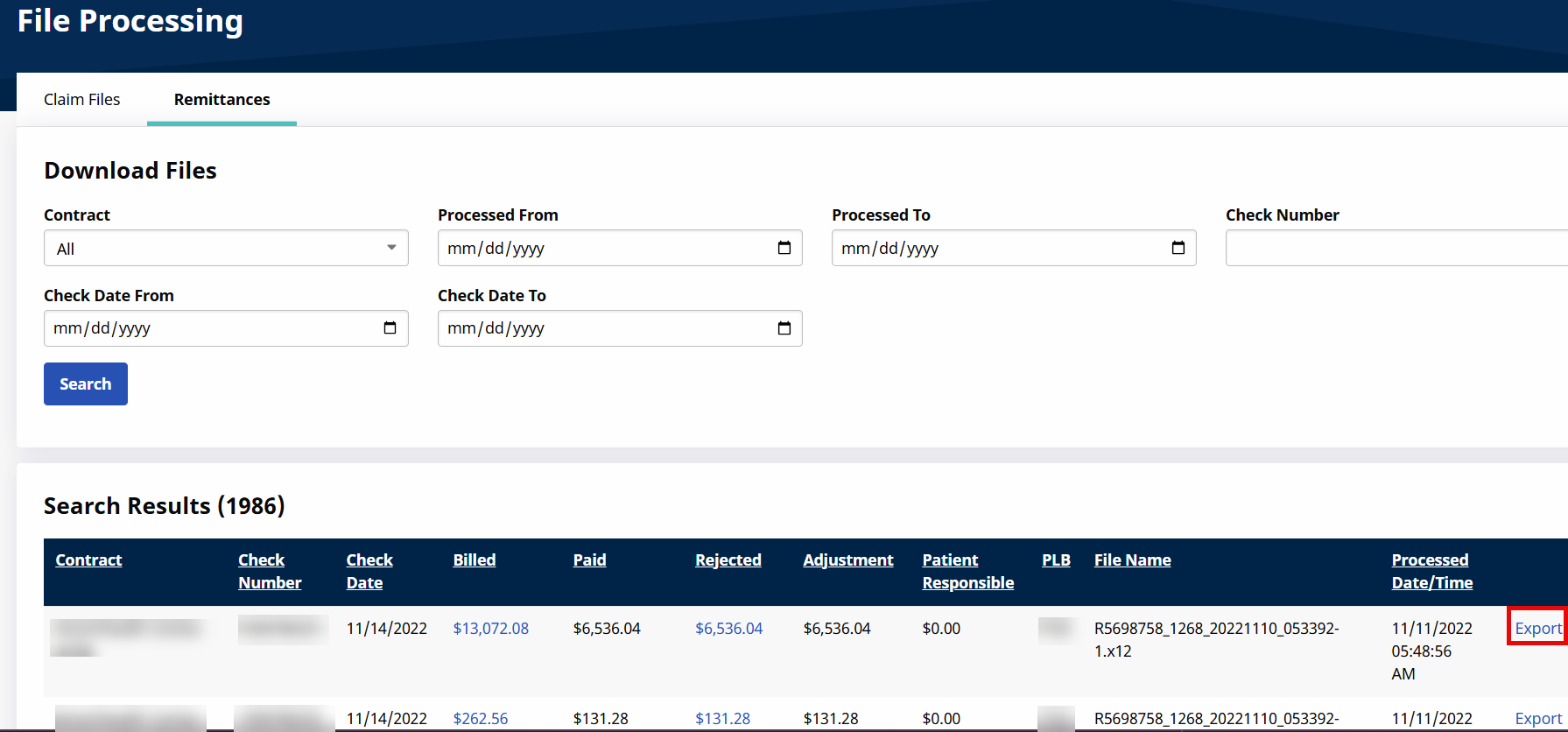
Select the Remittances tab and perform a search.
-
The search returns all 835 Remittance according to the selected search parameters. Click the Export link to download the file.
Claims that need to be adjusted or voided that are included in an 837 EDI file must be placed on “hold” to ensure that they are not automatically applied to a future claim batch. Complete the following steps to place a hold on a claim.
-
Go to the visit associated with the denied claim.
-
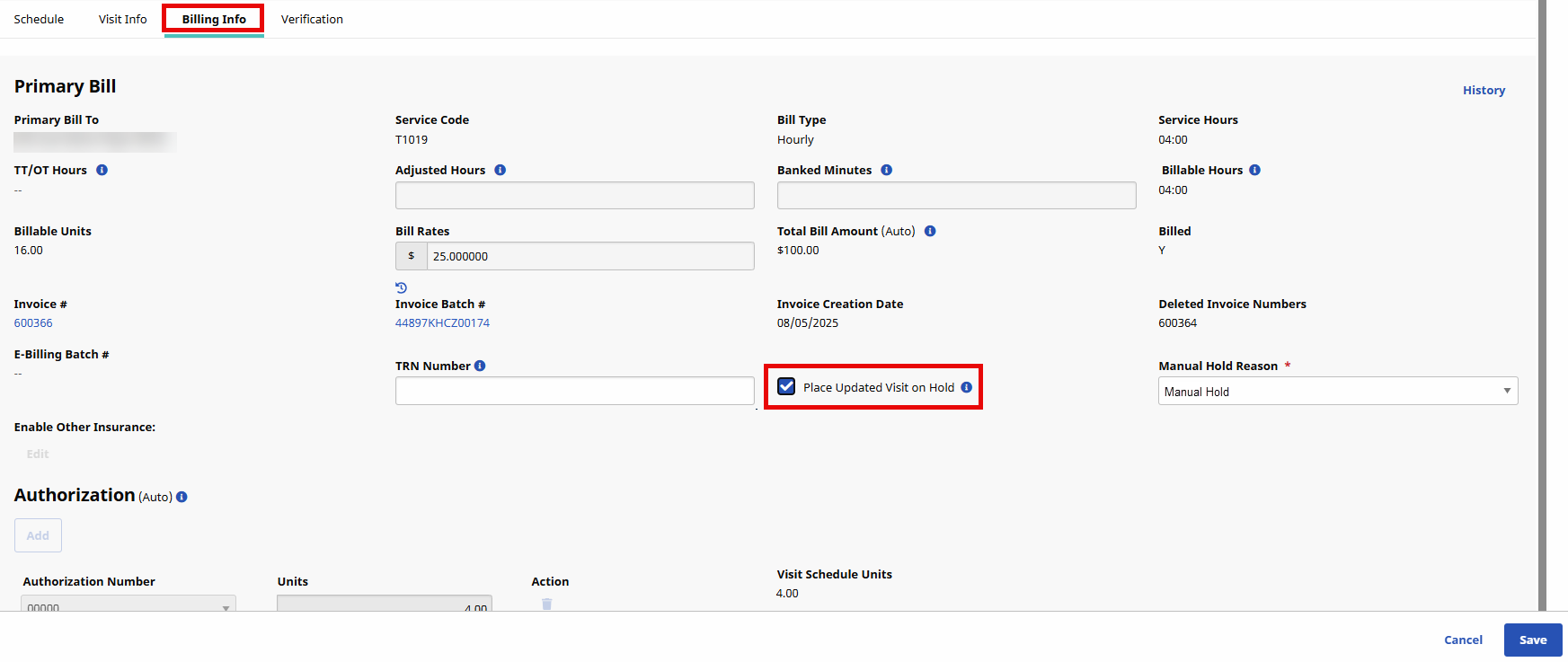
Select the Billing Info tab in the visit window.
-
Select the Place Updated Visit on Hold checkbox to stop the claim from being included in a new claim batch.
-
Select a Manual Hold Reason. This value is associated with the claim when searching on the Billing Review exception page.
Values for this field are generated via the Reference Table Management function.
-
On the Claim Submission Type field, select whether it is an Original, Adjusted, or Voided claim.
-
Enter the required TRN Number field for Adjusted or Voided claims.
-
After the corrections are applied, deselect the Place Updated Visit on Hold checkbox and Save.
-
The claim is now ready to be included in a new batch.
Each time a claim is included in a new batch, the reference number is recorded by the E-billing Batch # field on the Billing Info tab. Click the reference number to navigate directly to the claim batch.