Request Additional Time or Missed Visit Travel Time - Provider
Caregivers don't always work to the minute of an authorized visit. Sometimes they travel to a home and the member isn't there. Other times they stay longer to help the member get to an appointment or to finish care that took more time than expected. Additional Time and Missed Visit Travel Time give your agency an official way to ask the payer to approve that time, so you can bill for it once it's approved.
Why it Matters
Instead of absorbing that time as a loss, you can request payment for the time through a documented process. Your captured EVV stays accurate, because you request the time separately rather than editing visit data to add it.
When to Use It
-
Missed visit travel time: Your caregiver traveled to the member's home, but the member wasn't home or declined service. The visit was missed, but the travel was real work, and your agency can request payment for it.
-
Additional time on a completed visit: The caregiver stayed beyond the planned visit, for example, to take the member to an appointment or to give more help than expected.
Your payer may enable additional time requests, missed visit travel time requests, or both. The feature is for non-skilled visits and is not available for internal contracts.
Requirements and Best Practices
-
For a missed visit travel time request, mark the visit as missed. Use this only when the caregiver actually traveled for the visit—not when the visit was cancelled in advance and no travel occurred.
-
For an additional time request, the completed visit must have confirmed start and end times.
-
Finalize the visit details before submitting. Changes to visit time, contract, service code, caregiver, call link, or missed/not-missed status while a request is open may cancel the request.
-
Use this process for billing. Do not alter captured EVV simply to add the extra time.
How to Submit a Request
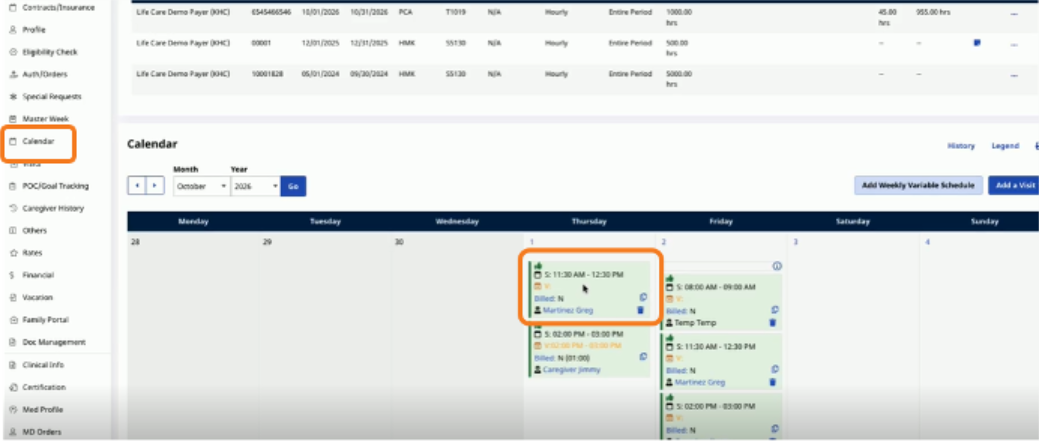
1. Open the visit. From the patient calendar, select the applicable visit, then open the Visit Info tab.
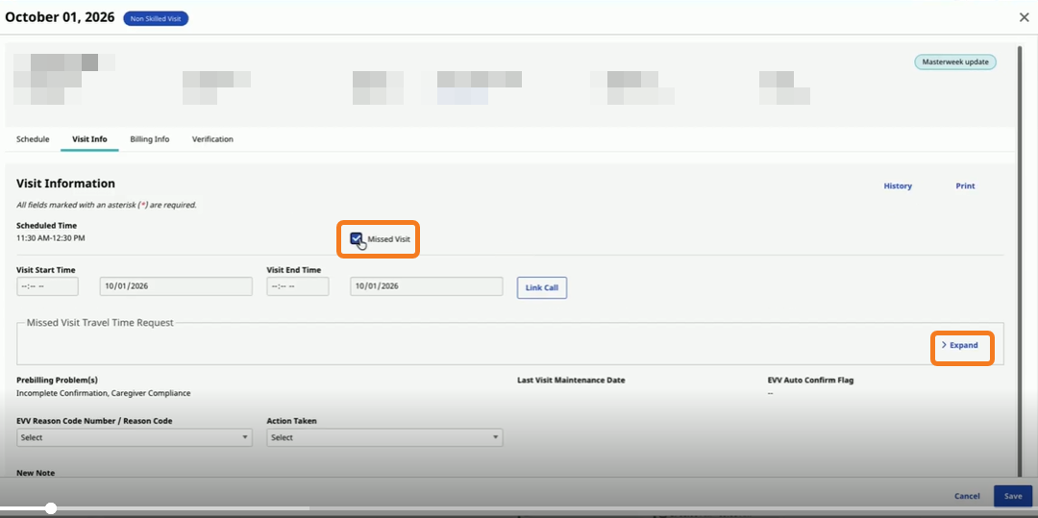
2. Choose the request type. For a missed visit, select Missed Visit and click expand from Missed Visit Travel Time Request. For a completed visit, expand Additional Time Request.
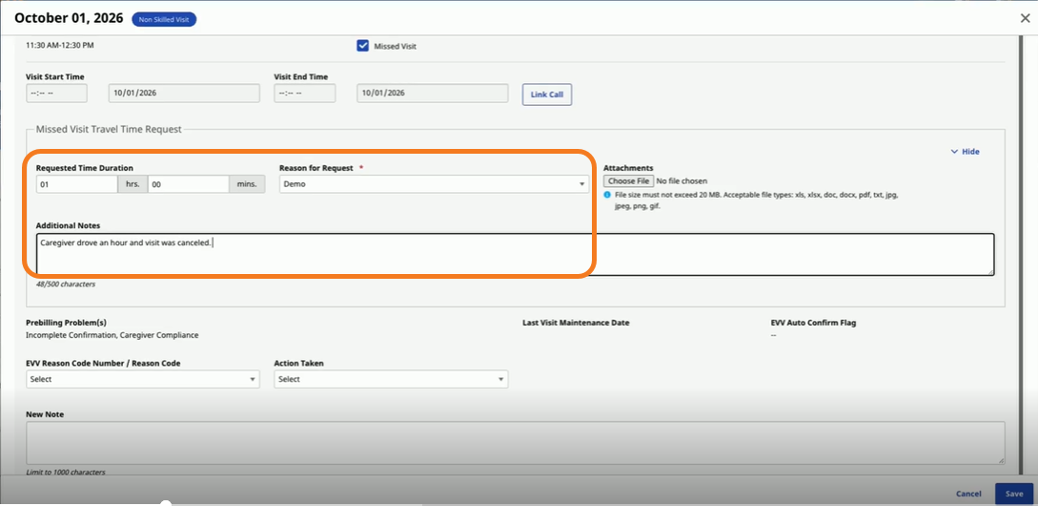
3. Enter the request. Enter the Requested Time Duration and select the applicable reason from Reason for Request dropdown. Add a clear note describing why the time is being requested. Attach supporting information when appropriate.
For missed visits, the EVV Reason Code also needs to be selected and add a note for the reason for a missed visit.
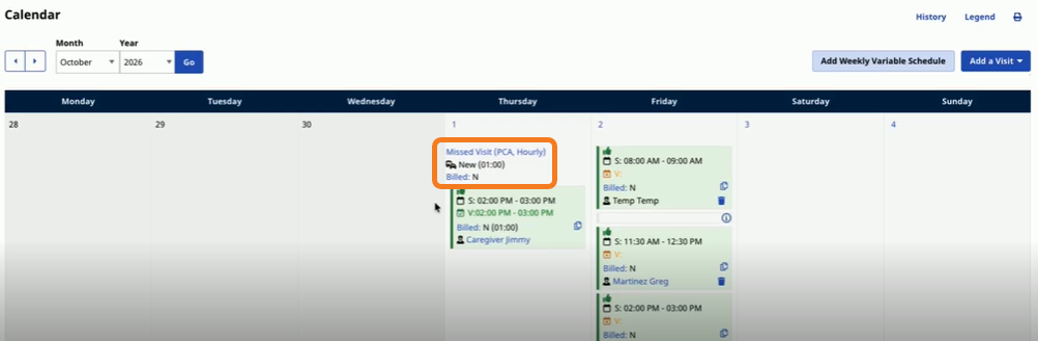
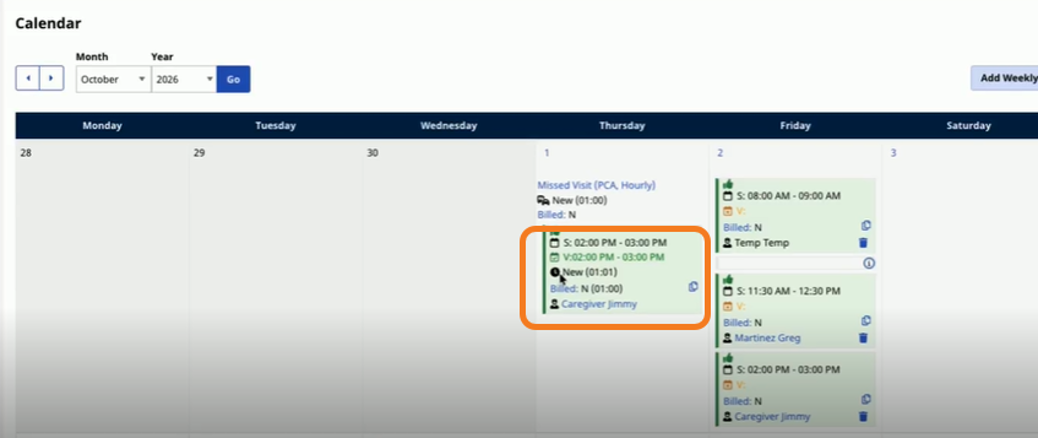
4. Save the request. The request is sent to the payer for review. A missed visit travel time request displays with a travel icon; an additional time request displays with a clock icon.
How to Review Payer Responses
Use the Events area to monitor the request. You can also configure automatic email notifications to receive updates about missed visit travel time requests without repeatedly checking the Events page. See Set Up Automatic Email Notifications below.
The status tells you whose action is required:
-
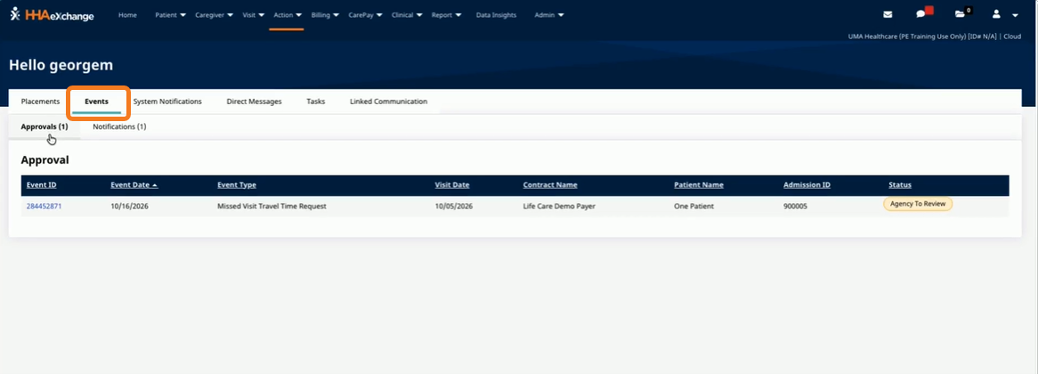
Navigate to the Home screen and click Events tab.
| Status | Where to Find | What it Means and What to Do |
| Approved | Patient Calendar > Visit | The payer approved the request, and the system creates a separate visit for the approved time. Bill that visit as you would any other. Important: The payer controls whether approved time counts against the authorization. If it does, you need an authorization that covers the time. If not, you can bill it without one. The request is finalized. |
| Denied | Events > Notifications | The payer denied the request. Do not bill this time. The request is finalized. |
| Agency to Review | Events > Approval | The payer requested more information. Open the event, add the requested details, and resubmit—or cancel the request. |
| Payer to Review | Patient Calendar > Visit | You submitted the request and the payer is reviewing it. No action is needed. |
| Canceled | Patient Calendar > Visit | The request was canceled, either by you or automatically after a visit change. It stays on the visit for reference and adds no billable time. Only the confirmed service hours are billed. |
Set Up Automatic Email Notifications
Providers can configure automatic email notifications to receive updates when the payer reviews a missed visit travel time request. This allows designated recipients to stay informed without continuously checking the Events page.
To configure automatic email notifications:
1. Navigate to Admin > Office Setup.
2. Search for and select the applicable office.
3. Locate the Automatic Emails section.
4. Find the following notifications:
-
Travel Time Approved
-
Travel Time Denied
-
Travel Time in Review
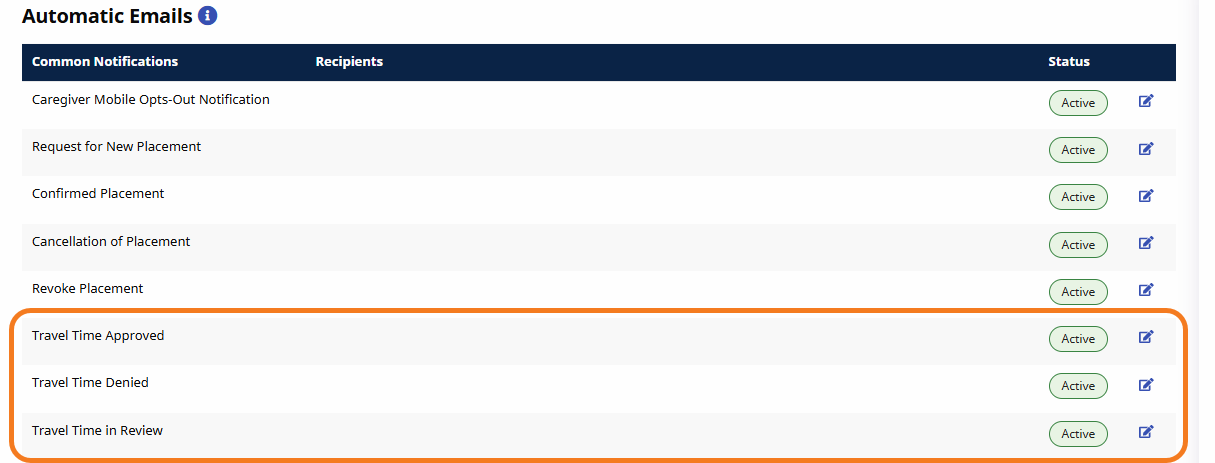
5. Select the Edit (pencil) icon next to the notification you want to configure.
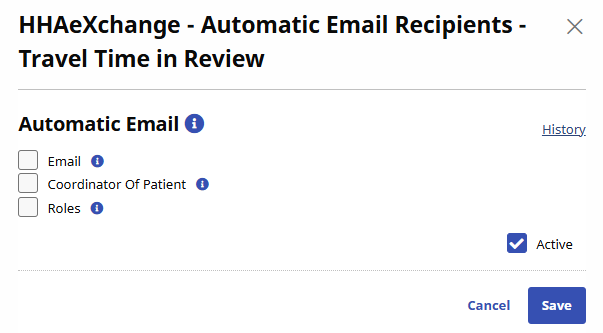
6. In the Automatic Email Recipients window, select the appropriate recipient option(s): Email, Coordinator Of Patient, or Roles.
7. Confirm Active is selected, then click Save.
8. Repeat for each notification you want to enable.
Automatic email notifications supplement the Events page. Continue using Events to review the payer's decision, provide additional information when requested, and confirm whether time is approved for billing.