Payments & Refunds Adjustments
The Adjustments feature under Billing > Cash Payment > Payments & Refunds is used to close out an open balance for an invoice without affecting the overall payment balance amount.
Generally, adjustments are entered when a payment is less than the invoiced amount, and the full payment amount is not expected. For example, when a $20 payment is made for a $40 invoice, an adjustment of $20 is entered to close the balance and list the balance as $0.
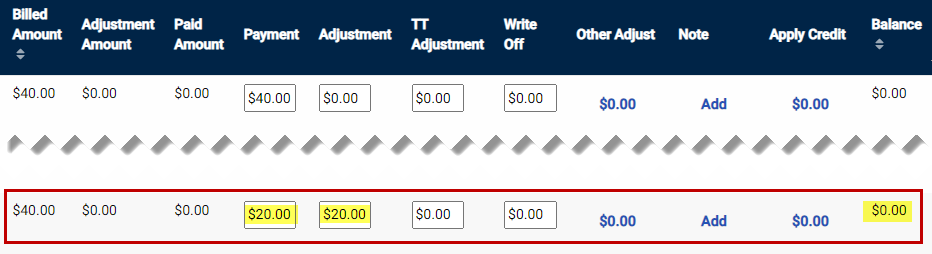
In HHAeXchange, all adjustments work the same way. Values entered are used to close the invoice balance without using money from the available payment balance. Logging adjustments under a category allows an Agency to classify and report on different adjustments.
Adjustment, TT Adjustment, and Write-Off are default fields in HHAeXchange. Select the Other Adjust link, which allows adjustment amounts to be tagged with custom Adjustment Reasons (configured through the Reference Table Management feature).

Complete the following steps to adjust a cash payment.
-
Go to Billing > Cash Payment > Payments & Refunds. From the Payments & Refunds tab use the search filters and/or select the Search button.
-
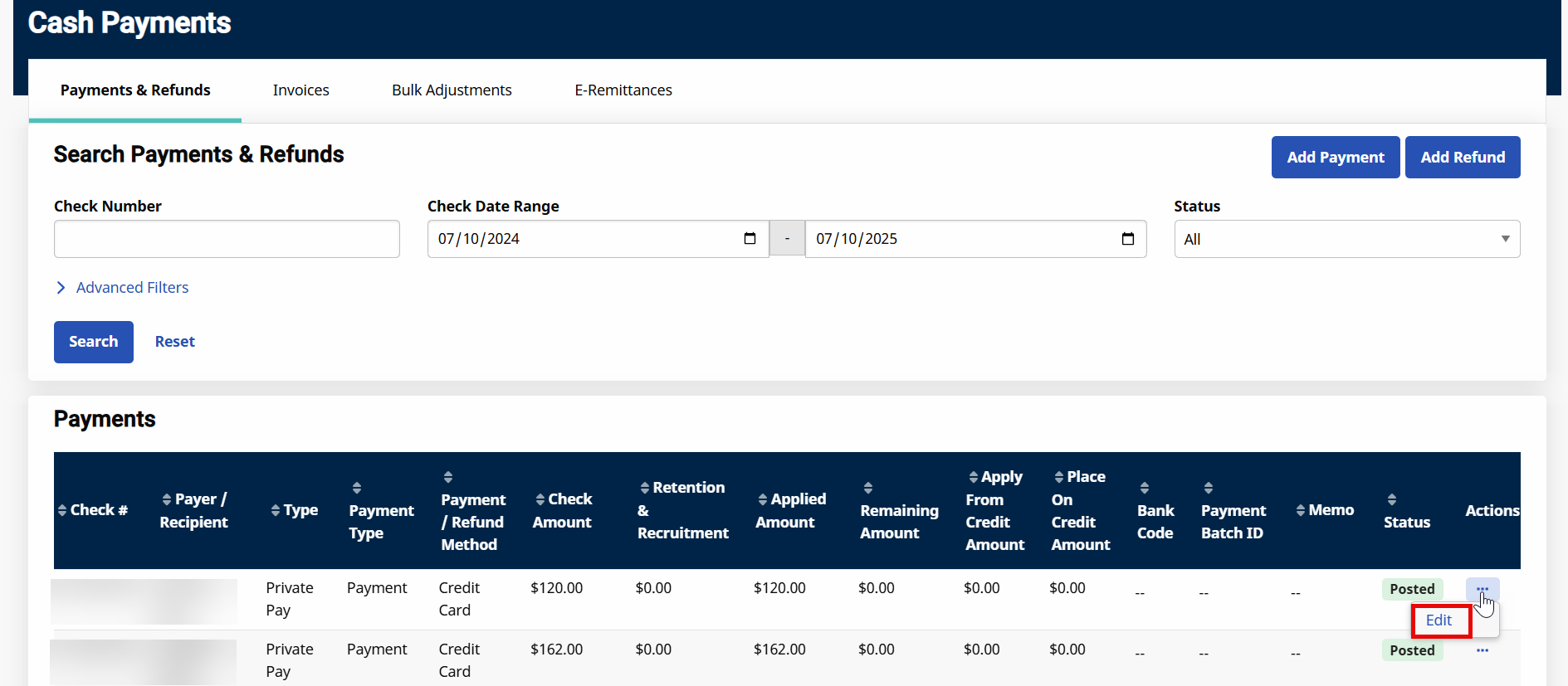
On the search results, select the Ellipsis… under the Actions column for the selected item, and then select Edit.
-
The Payment Info or Refund Info page opens. Review or modify payment or refund as needed.
-
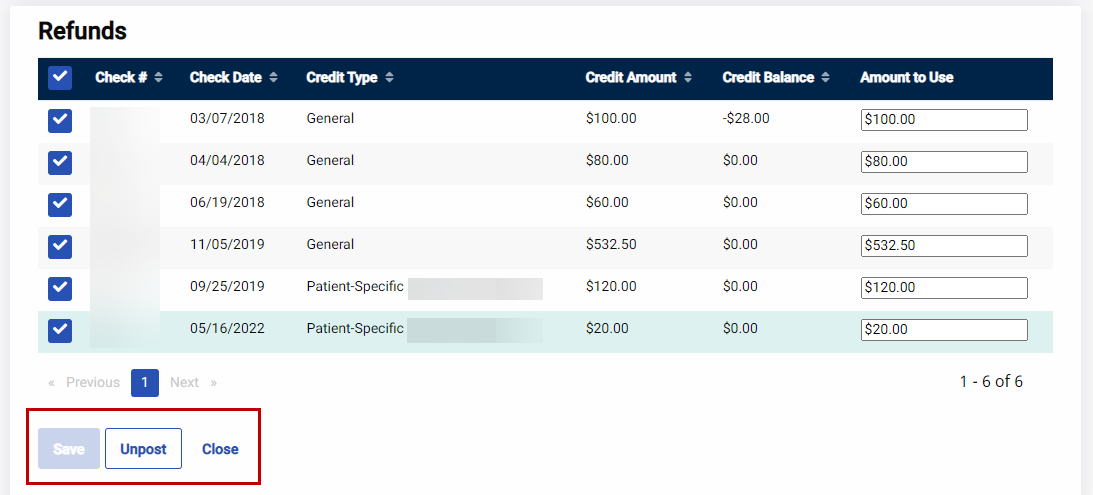
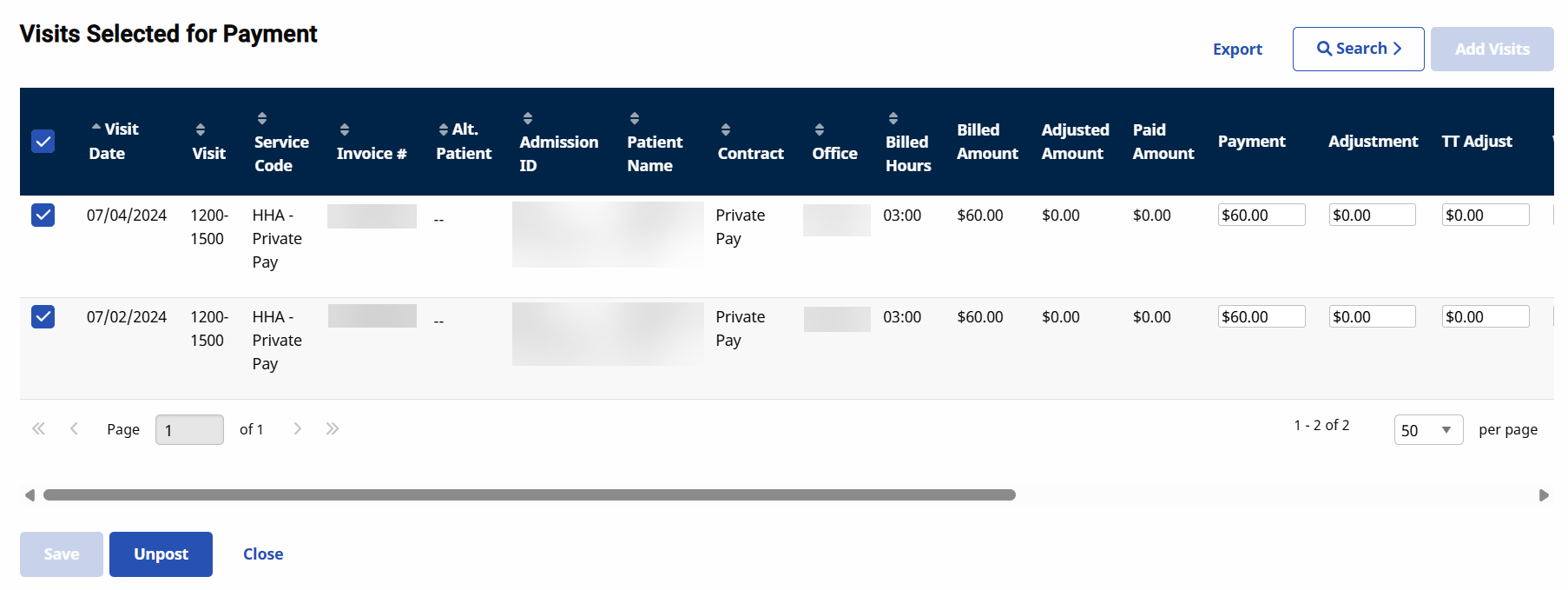
To modify either the Refund or items applied to the refund, select the Unpost button.
-
To add a payment enter payment information, and then select the Unpost button.
-
-
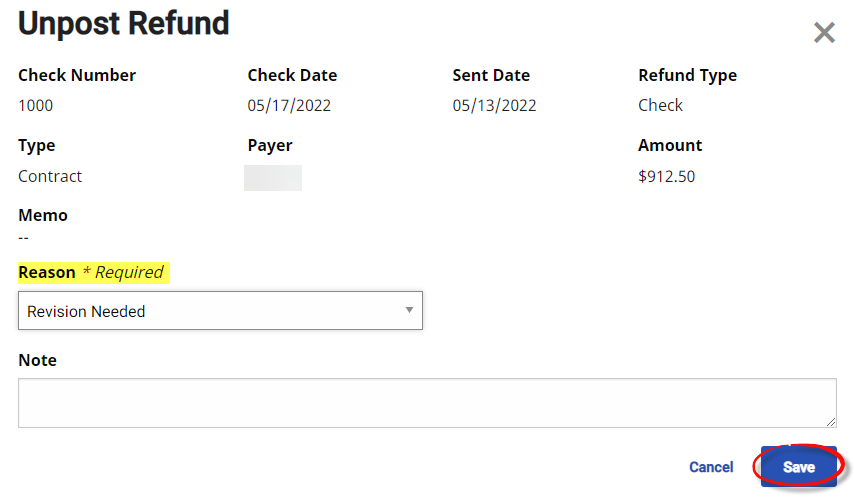
The Unpost Refund window opens. Select a Reason value from the dropdown. Select Save to continue.
-
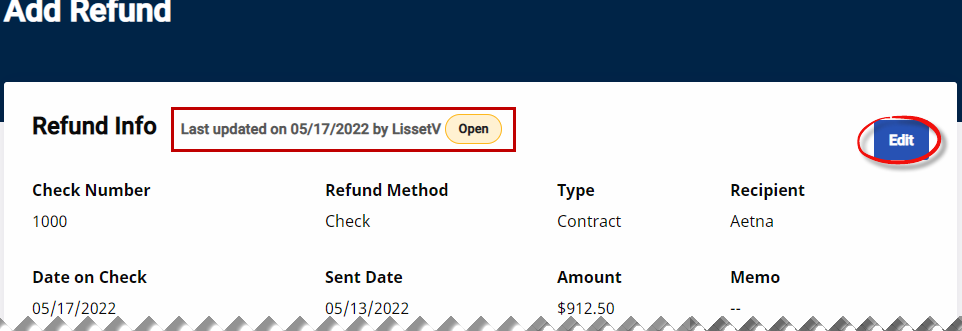
The Status changes from Posted to Open. In the Refund Info or Payment Infosection, select the Edit button to make edits to the refund itself.
-
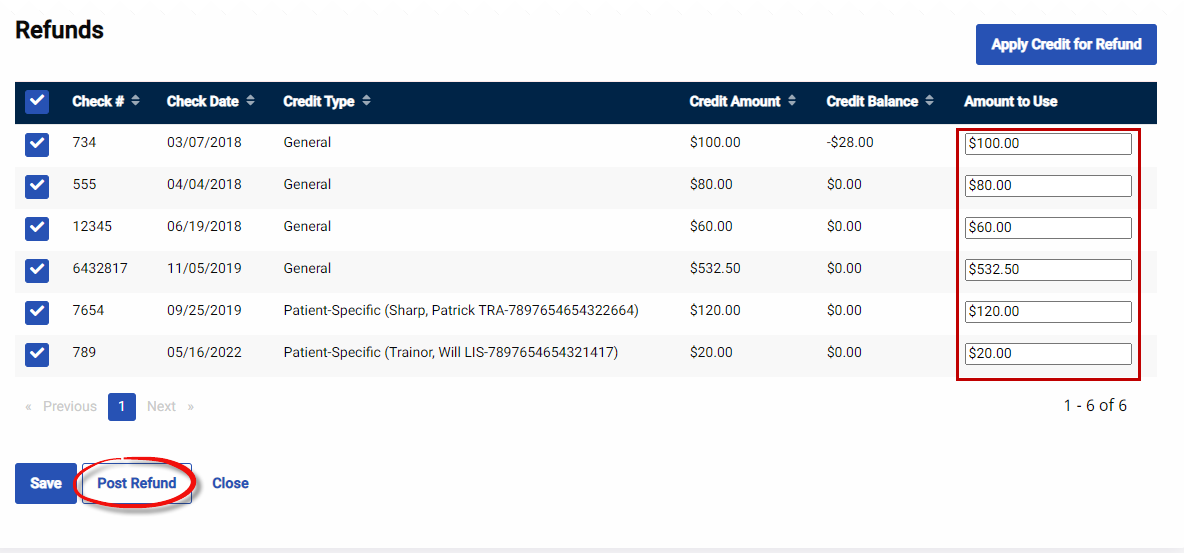
To make edits to the items within the refund, either enter modifications in the respective fields or remove items within the refund. Once complete, select the Post Refund button to repost.
Once a payment or refund has been updated, they must be re-posted.
Credit refers to extra money received in a payment that is typically retained by an Agency to cover balances of future invoices. Credit payments can be adjusted under Billing > Cash Payment > Payments & Refunds. For example, if an Agency invoices a Payer $1,000 and receives a remittance of $1,200, the Payer may request for the extra $200 be placed on credit and used to pay a future invoice.
When converting income from a payment to credit, the amount converted is deducted from the Balance Amount of the payment. Follow the steps below to add or use Credit in HHAeXchange.
-
Go to Billing > Cash Payment > Payments & Refunds.
-
On the Payments & Refunds page, search for the Payment. Once located, select the Ellipsis… under the Actions column of the applicable row. Select Edit from the menu.
-
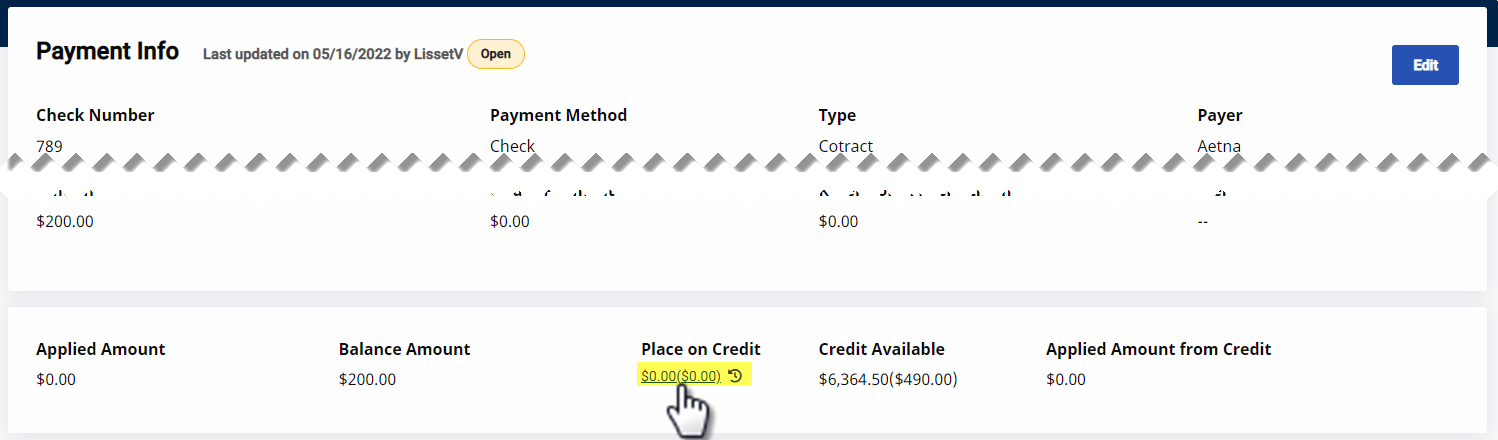
In the Payment Info section, select the link under the Place on Credit field.
-
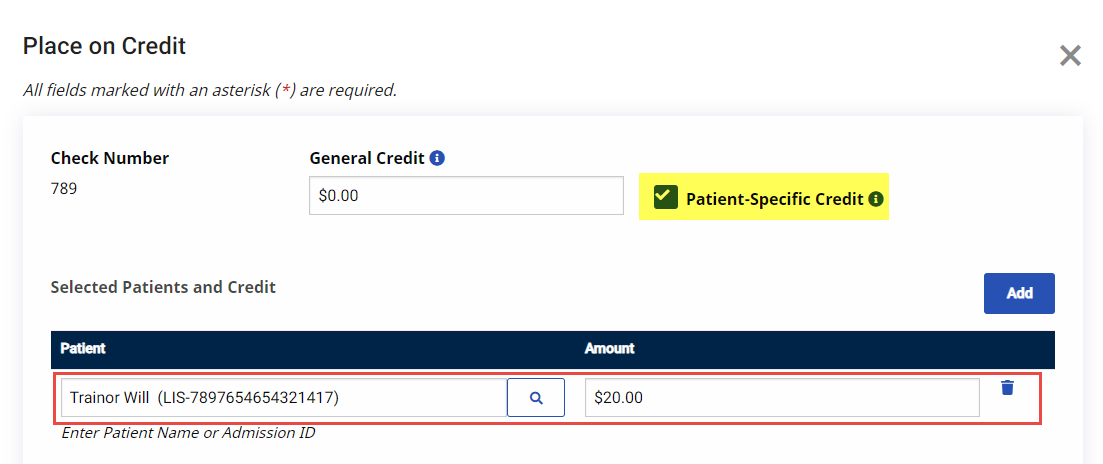
The Place on Credit window opens. Select the option to either apply the credit as a General Credit or as a Patient-Specific Credit.
-
Select General Credit to cover the balance of any visits authorized by the Payer in a future payment.
-
Select Patient-Specific Credit to apply to visits scheduled for a specific Patient. When selecting Patient-Specific Credit, HHAeXchange prompts to search for the Patient and to enter the credit amount in the Amount field.
-
-
Select the Save button at the bottom of the window to save.
HHAeXchange differentiates between General and Patient-Specific Credit by placing the latter in parenthesis. The total amount of the payment placed on Credit (General + Patient) displays next to it.

The Place on Credit field displays funds converted to Credit from the current payment and is unavailable for use, while the Credit Available field displays credit from past payments and is available for use.
-
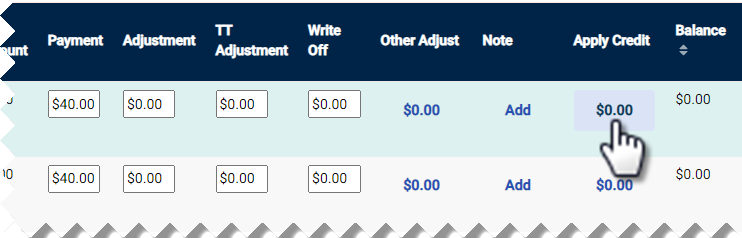
To apply existing credit to a visit, select the link in the Apply Credit column.
Applying Credits does not impact the Balance Amount of the current Payment, but it affects the balance of the visit. When Credit is applied to a visit, it is reflected on the Available Credit field.
If a Payer provides a paper (non-electronic) explanation of payments, then this information is added manually to the Cash Payment page under Billing > Cash Payment > Payments & Refunds. To manually log payments, enter the summary details of the payment, then apply the payment to individual invoices which have been processed in HHAeXchange.
Even if the Payer provides a Remittance (an electronic explanation of payments), any discrepancies between the Billed Amount and the Remittance received need to be adjusted manually. HHAeXchange only automatically processes if the remittance lists the invoice as paid in full. Invoices which have been denied or received partial payments must be logged manually.
Complete the following steps to enter a manual payment.
-
Go to Billing > Cash Payment > Payments & Refunds.
-
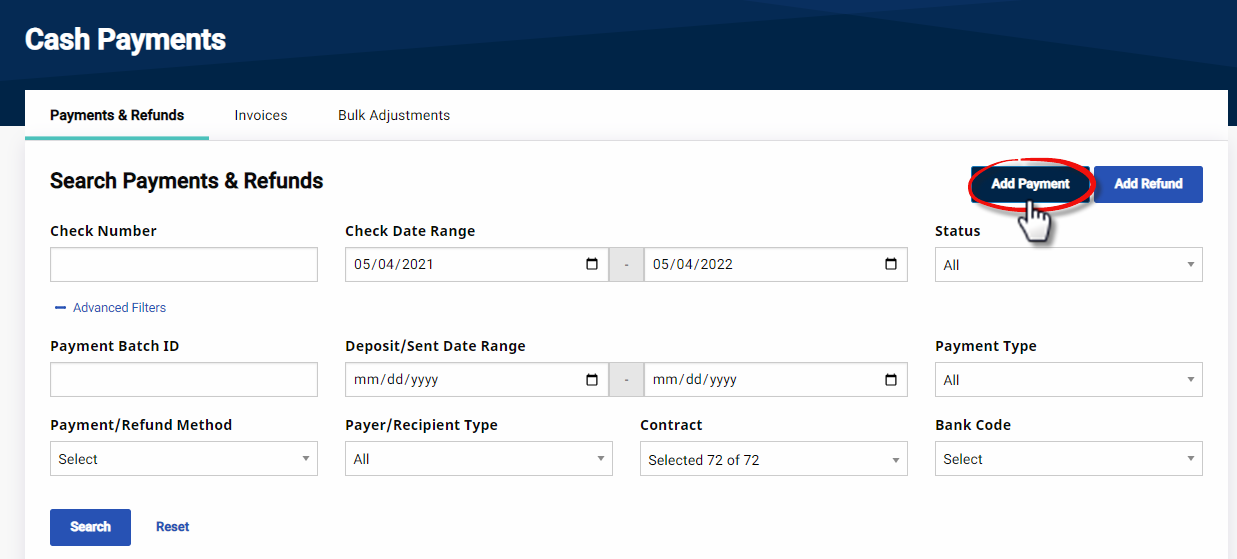
The Payments & Refunds tab opens by default. Select the Add Payment button.
-
On the Add Payment/Payment Info window, complete the required fields. Select the Save button to continue.
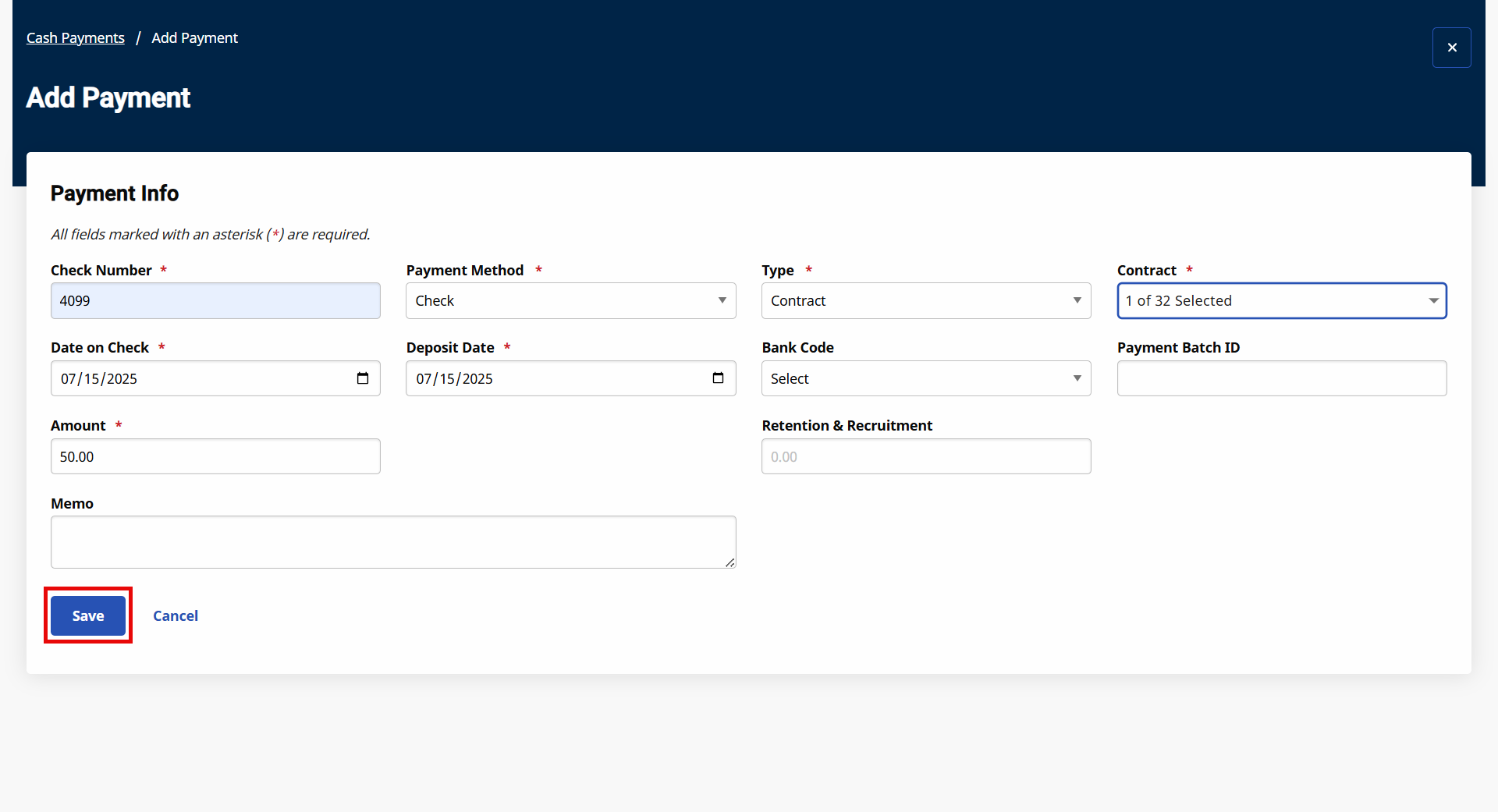
When entering payment info from a Contract, HHAeXchange prompts users to select a Payer; whereas a Private Pay payment requires the Patient’s Admission ID.
The Retention & Recruitment field is used to record any funds sent with the payment which may be used by your Agency to improve working conditions for existing Caregivers and/or to attract new employees. The value entered in this field is deducted from the overall Amount.
-
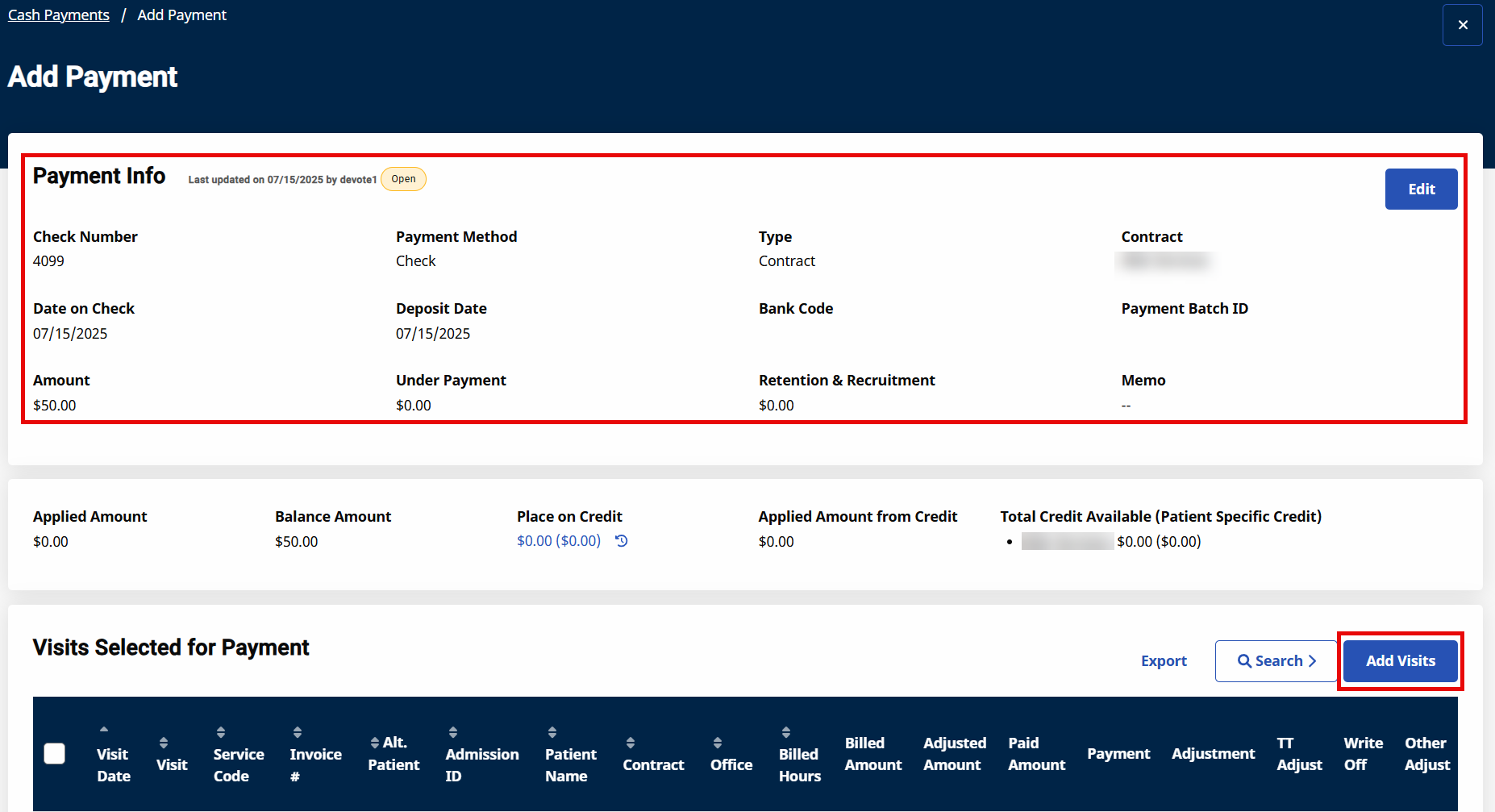
The payment information appears on the header of the page. From here, select the Edit button to update the Payment Info or scroll to the Visits Selected for Payment section to apply visits to the payment. Select the Add Visits button.
-
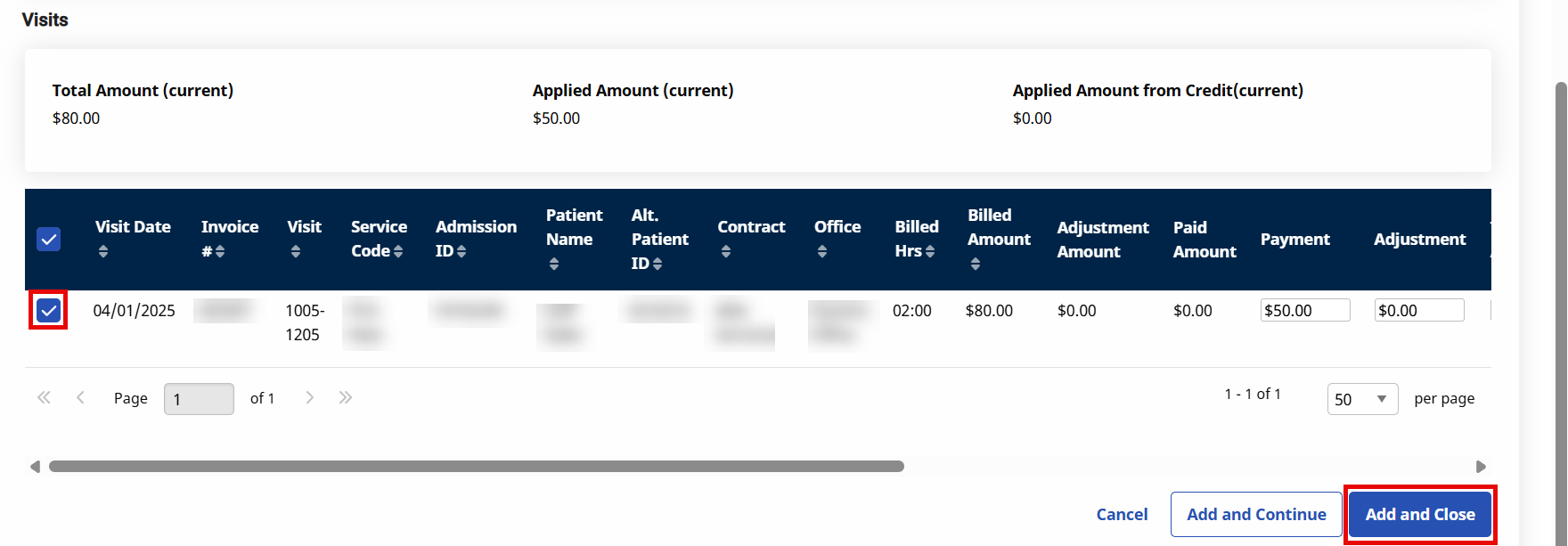
The Add Visits for Payment window opens. Use the search filters to locate visits and/or select Search to generate results. From the search results, select the visits to apply payment to and select the Add and Close button.
-
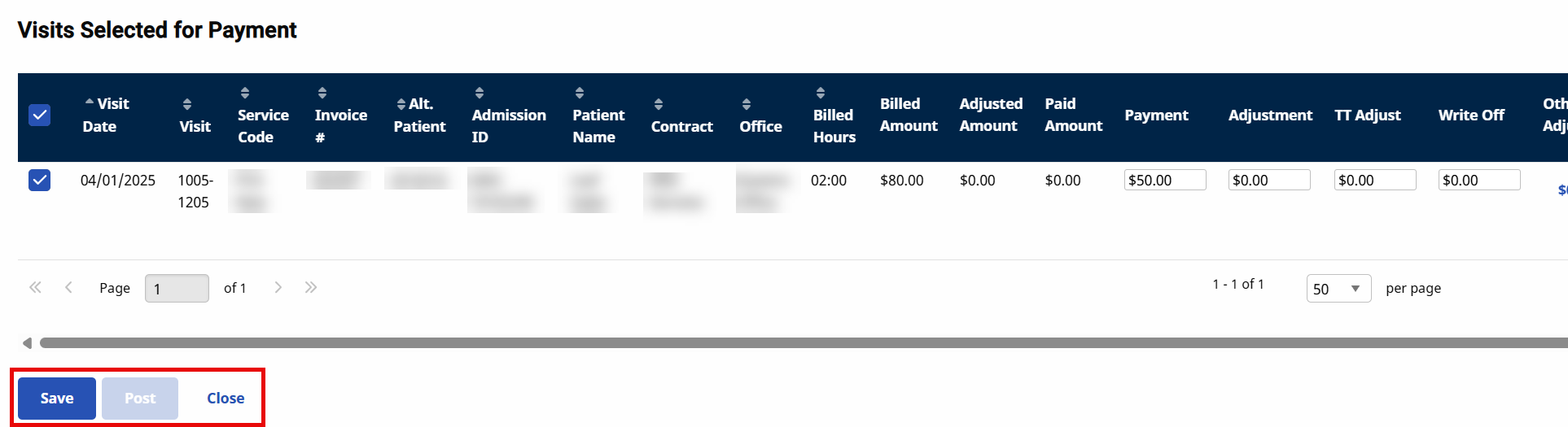
In the Visit Selected for Payment section, there are several options per line item to include Payment, Adjustment, TT Adjustment, Write-off, or Other Adjustments. To apply the full payment to the visit, select the checkbox to the left of the Visit Date column.
-
Above the search results, review the Applied Amount, (payment previously applied to the visit(s)), the Balance Amount (remaining balance), and the Applied From Credit, (amount applied from existing credit).

-
Once complete, select Save to save changes and continue adding visits select the Add Visits button. To apply payment to the selected visits, select the Post button to finalize.
To post a payment, the Balance Amount must be zero.
Refunds are processed when a Contract requests a credit reimbursement, or to return a security deposit when a Private Pay Patient cancels their service. Follow the steps below to log a refund.
-
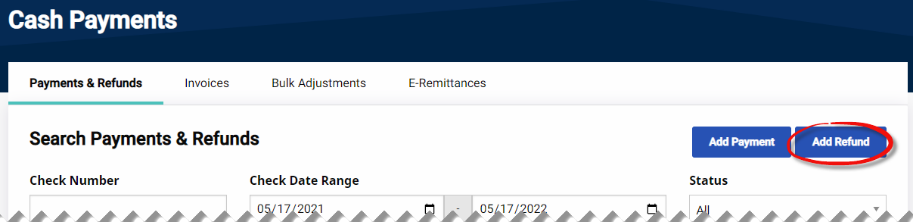
Go to Billing > Cash Payment > Payments & Refunds. Select the Add Refund button in the Payments & Refunds tab.
-
The Add Refund/Refund Info window opens. Enter the required fields as well as other pertinent refund information. Select Save to continue.
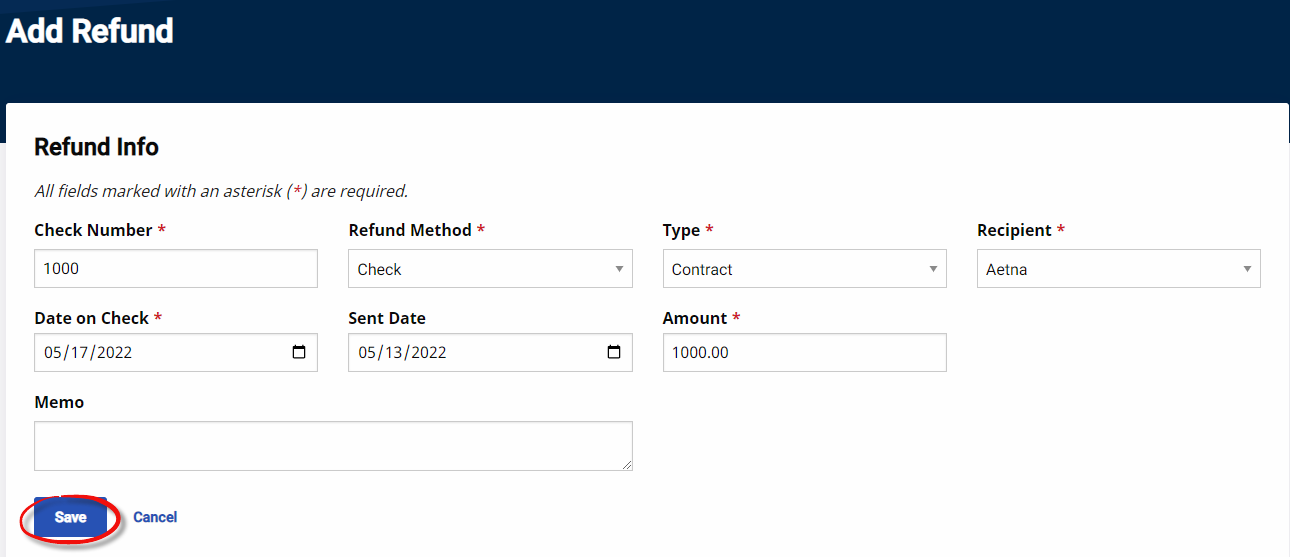
When entering refund information for a Contract, select the Payer as prompted by HHAeXchange; for a Private Pay refund, enter the required Patient’s Admission ID.
-
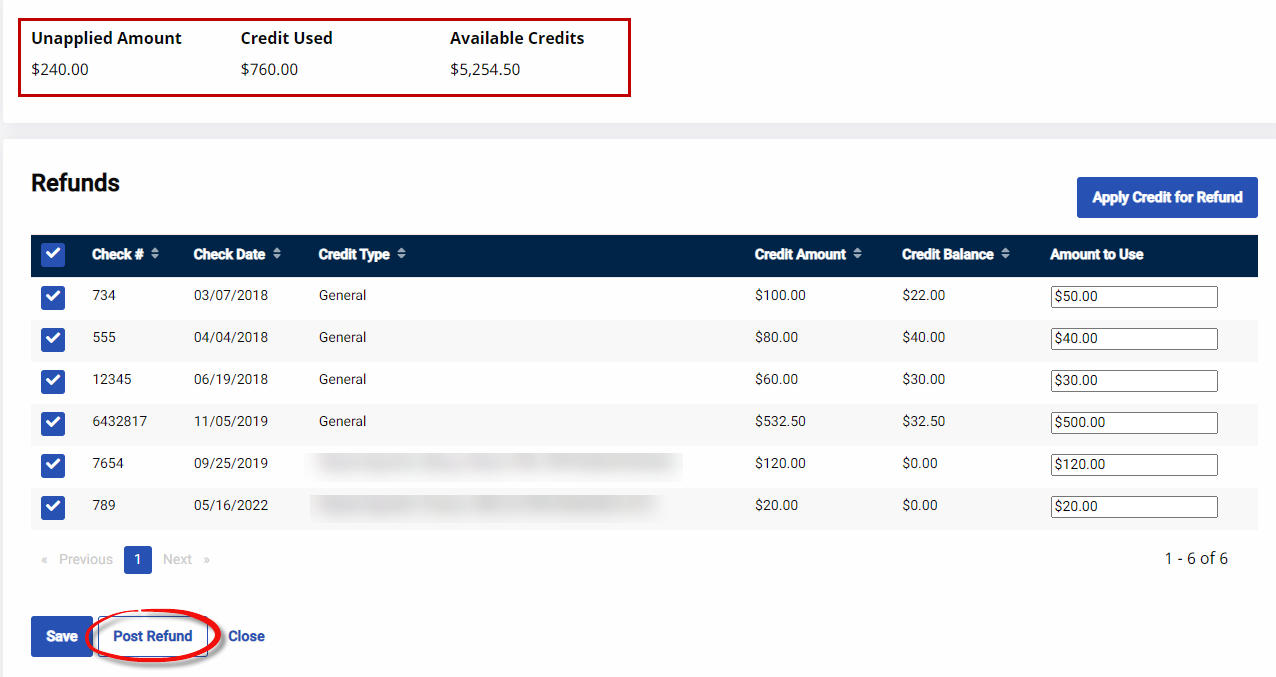
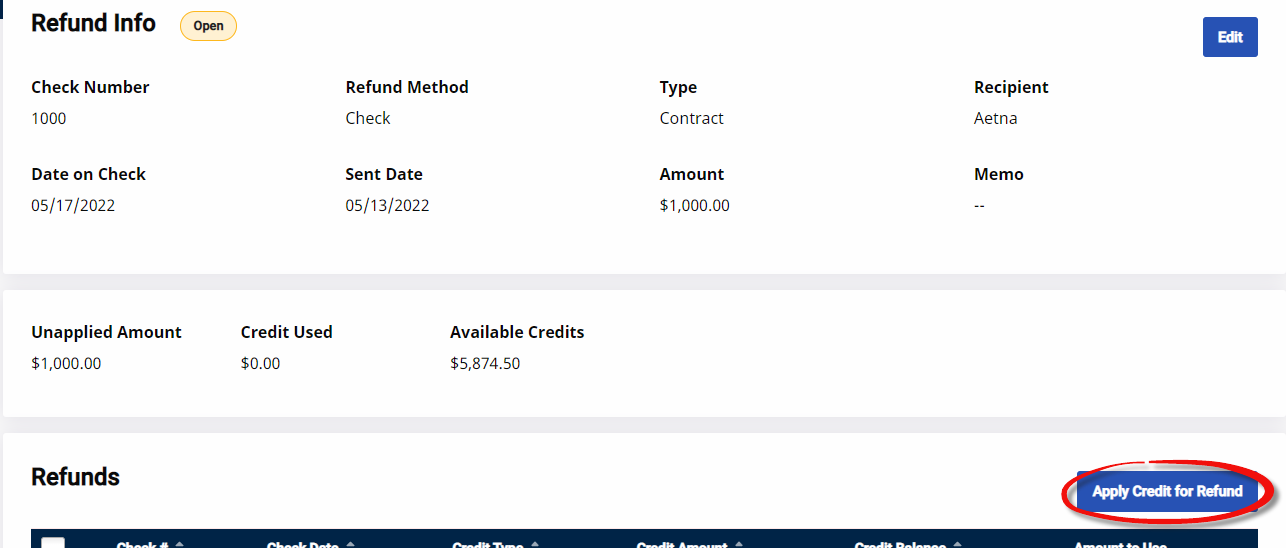
The Refund Info page opens with the summary of the entered information. Select the Apply Credit for Refund button to apply the credit to the appropriate Payer.
-
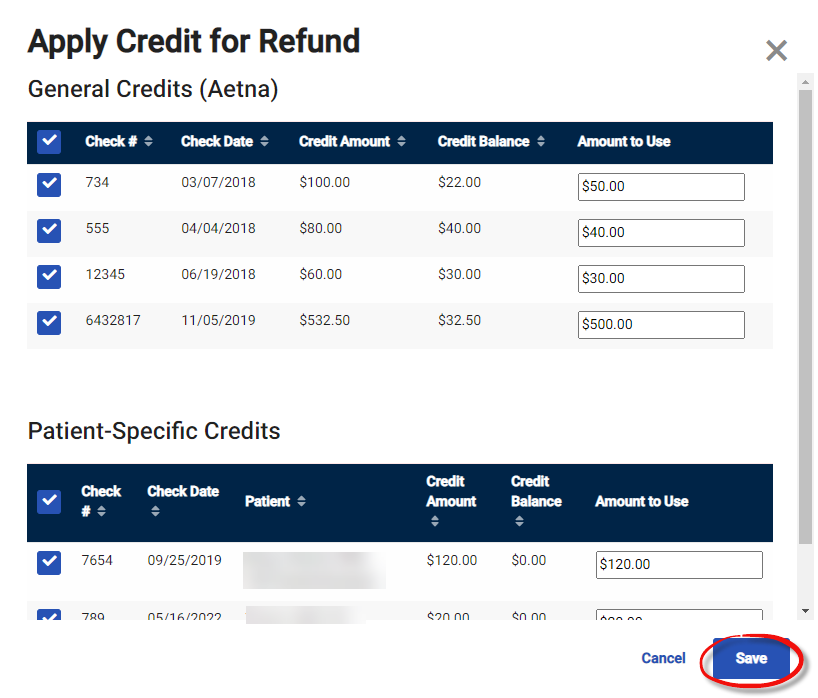
The Apply Credit for Refund window opens. Select which credit to apply or from which Check or Patient to take the credit from. Select Save.
-
Once saved, a quick-view summary shows how much of the credit was applied as well as any remaining credit balances. All applied refunds appear under the Refunds section. Select Save to save the information and continue processing refunds or select the Post Refund button to finalize.
Credit refunded is no longer available once refunds have been logged into HHAeXchange. All Unapplied Amount must be used to Post the refund.