Billing Process for UPR Linked Contracts
This section covers each phase of the Billing Process for UPR Linked Contracts.

-
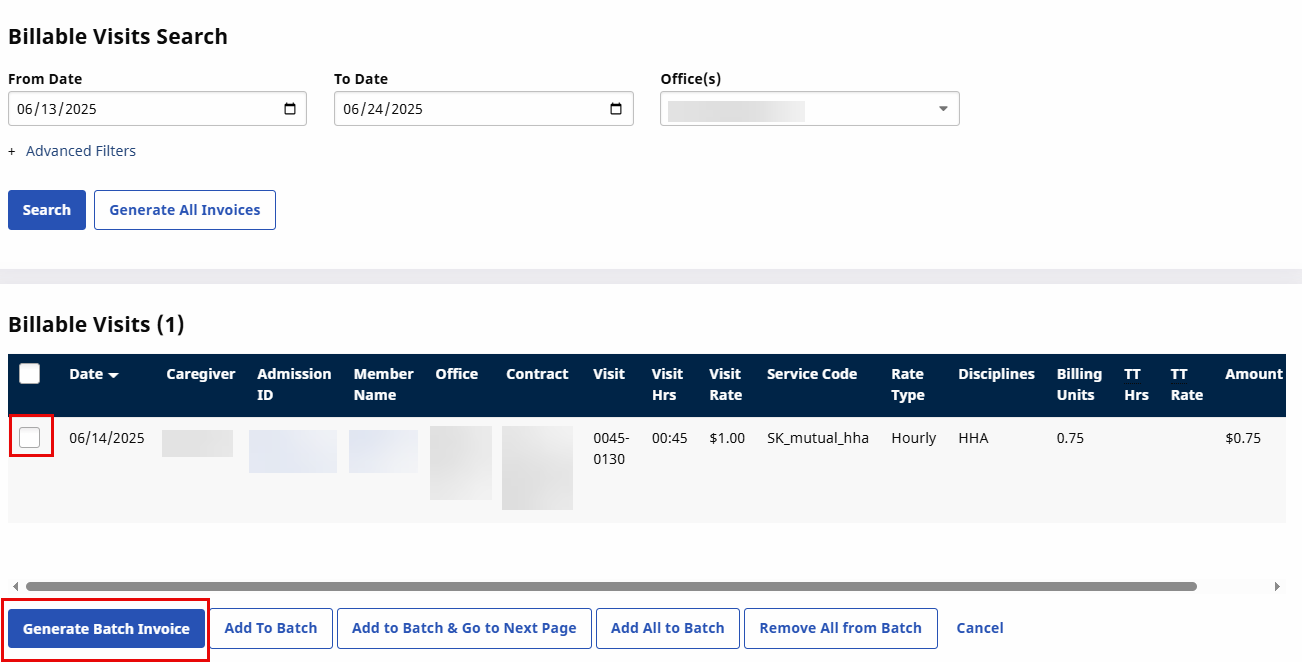
Go to Billing > New Invoice - (Internal) to generate a New Invoice Batch. Search for a specific visit using the filters or Click Search to generate all results.
-
Select the visits to invoice and click the Invoice Batch button.
-
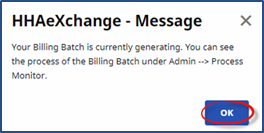
The system alerts that the Billing Batch is generating. Click OK to continue.
-
Go to Billing > Electronic Billing > E-Submission Batches to generate a New Batch Claim.
-
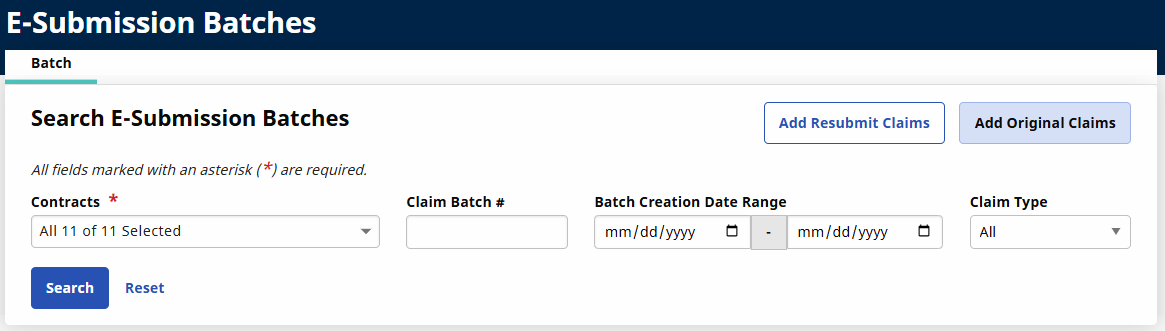
On the Original Claims E-submission Batch page, select the UPR Linked Contract from the Contract field and click the Add Original Claims button.
-
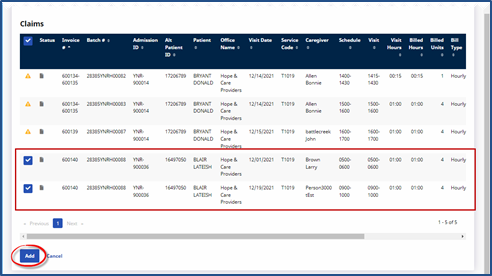
On the Claim Search page, select the batch(es) to submit and click the Add button.
-
The claims appear on the Original Claims E-submission Batch page. Click the Save Batch & Send button to send the claims to the SFTP to be picked up by the Payer system via the overnight process.
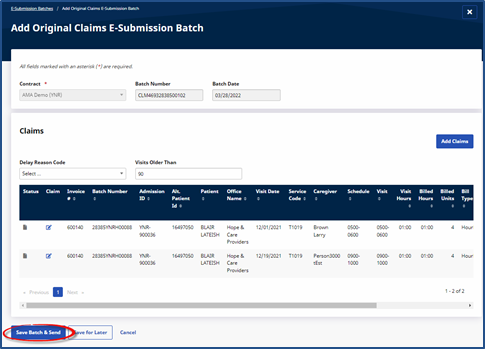
Using the Save button only creates the claims batch but does not send to the SFTP. Refer to Phase 3 for further instructions.
-
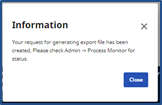
The system alerts that the export file is generating. Click Close to continue.
-
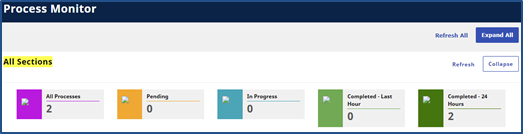
(Optional) Go to Admin > Process Monitor to view the progress of the submission. Expand the Billing section to view. The file can either be in Pending or Completed status.
-
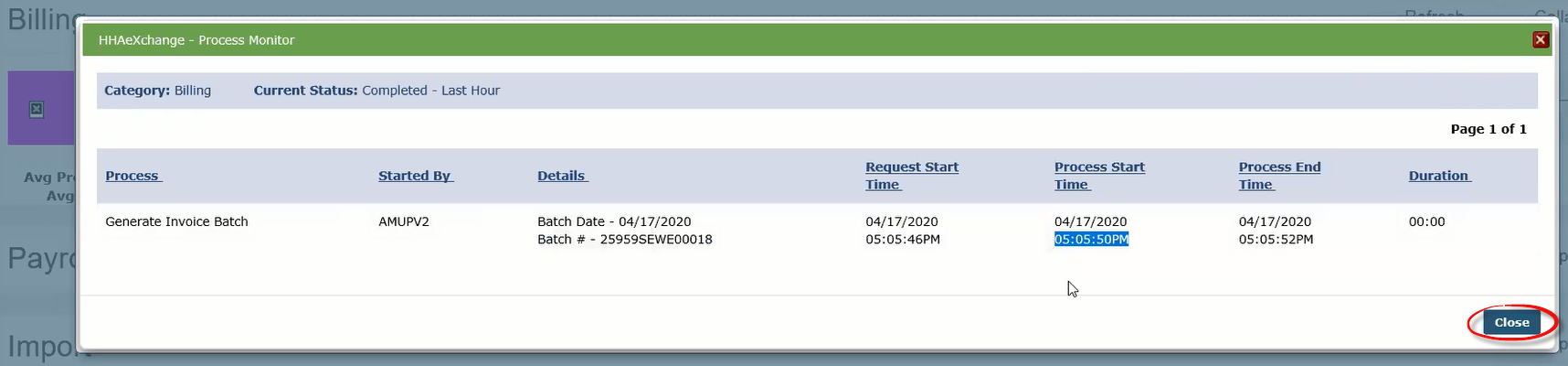
In this case the file displays as Completed. Click the Close button to exit.
The final step (optional) in the billing process is to review the claims batch. Follow the steps below to review claims batches.
If claims are saved but not sent, follow the instructions below to Send the claims batch.
-
Go to Batch Search window under Billing > Electronic Billing > E-Submission Batches to review the claims.
-
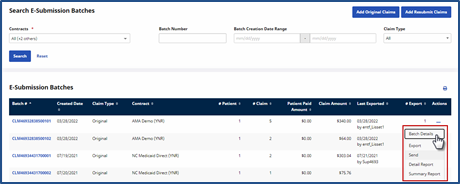
On the E-Submission Batches page, select a contract from the Contracts field and click the Search button to search for batches. On the Search Results, locate the batch and click the Ellipsis… under the Actions column for a list of menu options to include Batch Details, Export, Send, Detail Report, and Summary Report.
-
Select the Send option to manually send a claims batch to the SFTP.
Rows without a Send option indicate an Internal Contract. If the batch has been submitted to the SFTP, then the Send option appears unavailable to select. If the Send option appears available, then the claim has not been sent.