Billing Diagnosis Codes
There are two Diagnosis Codes categories: Billing Dx Codes and Clinical Dx Codes.
| Diagnosis Code Type | Definition |
|---|---|
|
Billing Dx Codes |
Diagnosis Codes are assigned by the HHAeXchange system when the Invoice is generated; if the contract is configured to require a Primary Dx Code for billing. Billing Dx Codes can be entered in one of three places to include: Patient Authorization page, Patient Contract page, and in the Billing/Collections tab under the Contract Setup page. |
|
Clinical Dx Codes |
Diagnoses Codes entered on the Patient Clinical Info page, which appear on the Patient MD Orders. |
Billing Dx Codes must be entered into the HHAeXchange system prior to generating an invoice. The system assigns a Billing Dx Code at the time of Invoice generation. The Billing Dx Code can be set in the sections highlighted below, with the system determining which Dx code to assign for billing based on the priority level.
|
Priority |
Page |
Description |
|---|---|---|
|
Highest |
Patient Authorization |
If provided, then the system uses the Billing Diagnosis Code(s) set on the Patient’s Authorization Page for billing purposes. |
|
Secondary |
Patient Contract |
If no Dx code is set on the Patient’s Authorization page, the system searches for a Patient Diagnosis Code Override on the Patient’s Contract page. |
|
Default |
Agency Contract Level |
If no Dx codes are set at the Patient level (Patient Authorization page or Patient Contract page), then the system defaults to values set at the Agency Contract level (Default Billing DX Code). |
The following sections provide step-by-step instructions on how to set the Billing Dx Code in each area of the HHAeXchange system.
If the Billing Dx Code is not set before generating an invoice, or is changed after invoice generation, then the invoice is held in Billing Review with a Missing Primary Diagnosis Code exception. In this case, the invoice must be deleted and re-generated after the Billing Dx Code is entered.

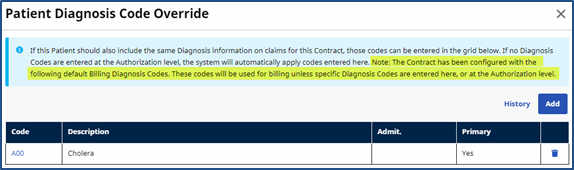
When adding a Patient Diagnosis Code Override, the system alerts that the associated Contract has been configured with a Default Billing Diagnosis Code (as seen in the following image). These codes are used for billing unless specific Diagnosis Codes are entered in this window or at the Authorization level.
The Default Billing Diagnosis Code(s) is listed in the table underneath the message. Nothing appears if the associated Contract does not have a default code set.
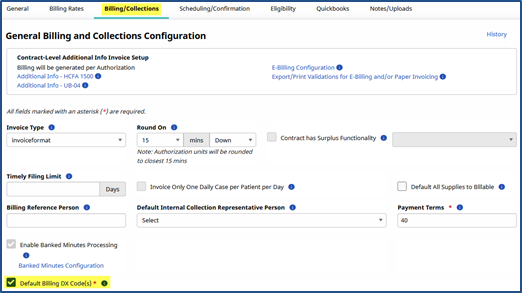
Agencies may set a contract-level billing DX code using the Default Billing DX Code(s) field. The system assigns this the default code unless there is a higher priority DX code assigned at the patient level.
-
Go to Admin > Contract Setup > Search Contract.
-
Enter search parameters and then select Search. Open the contract from the search results.
-
Select the Billing/Collections tab.
-
Select the Default Billing DX Code(s) check box.
-
Select Add to apply a default DX billing code on the diagnosis code table.
-
Once selected, a Diagnosis Code table opens. Click Add to apply a default Dx Billing Code.

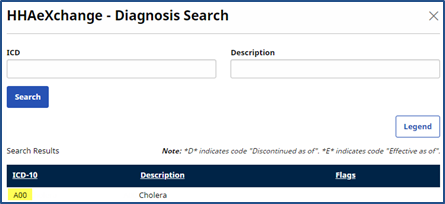
Search for the ICD 10 code in the Diagnosis Search window, select the code and then select Save.
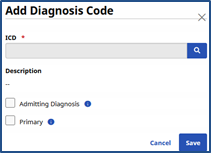
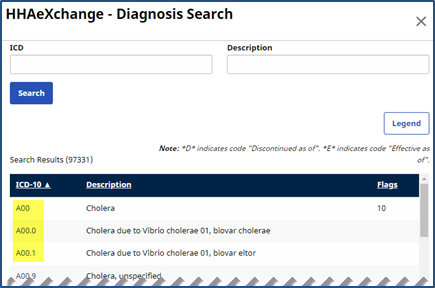
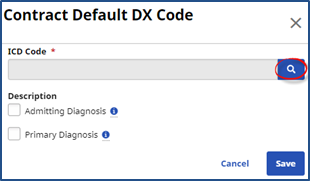
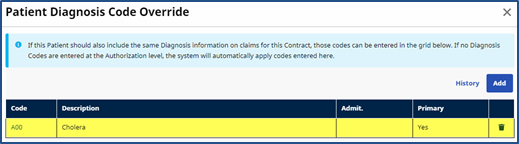 Note: By default, the system assigns the first DX code entered as the primary code. Users may manually designate the primary or admitting diagnosis code in the Contract Default DX Code window.
Agencies can set a Dx Code from the Patient Contract using the Patient Diagnosis Code Override field to associate Dx Codes directly to Authorizations.
DX codes entered on the Patient Contract page are second priority. If no DX code is set on the Patient Authorization page, the system searches for a Patient Diagnosis Code Override on the Patient Contract page.
Complete the steps below to set a Dx Code from the Patient Contract page.
-
Go to the Patient > Contract > Additional Options and select Patient Diagnosis Code Override from the dropdown.
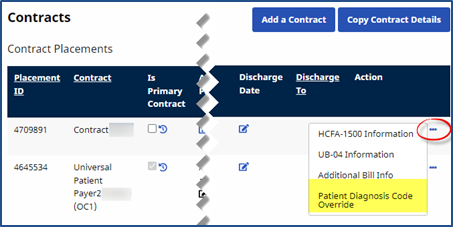
-
The Patient Diagnosis Code Override window opens. Click the Add button to apply an ICD code. The note displayed details how the system determines which Diagnosis Code to apply to an invoice.
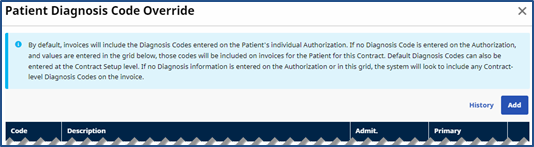
-
On the Contract Default DX Code window, select the Magnifying Glass icon to the right of the ICD field.
-
On the Diagnosis Search window search for and select ICD 10 Codes. To add an ICD Code, click the appropriate Code link.
-
The selected code appears.
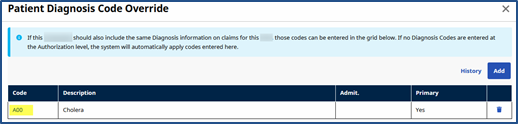
Agencies can set a Patient’s Authorization-Level Dx code using the Billing Diagnosis Code(s) field on the Patient’s Authorization page to associate Dx Codes directly to Authorizations.
DX codes entered on the Patient Authorization page receive the highest priority. This means the system assigns the DX code on this page for billing purposes even if the patient has one set on the Patient Contract page or at the agency contract level.
When adding a new Authorization, the Billing Diagnosis Code(s) field is available once a Contract is selected. Complete the following steps to apply a Dx Code in the Patient’s Authorization page.
-
Go to the Patient > Authorization to access the Billing Diagnosis Code(s) field.
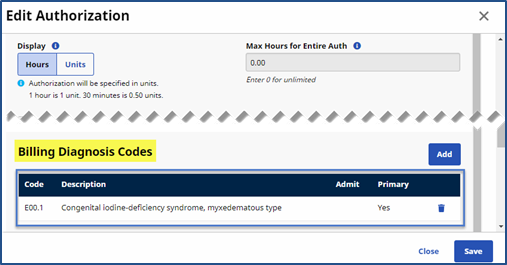
Dx codes already associated to the Patient from the Agency Contract or on the Patient’s Contract page are displayed in the Billing Diagnosis Code(s) field with respective note.
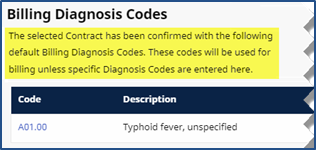
The information for Billing Dx Codes already associated to the Patient from the Agency Contract or the Patient’s Contract page is for reference purposes only. These Codes cannot be edited or deleted from the Patient’s Authorization page. If a new Billing Diagnosis Code is entered, then the notes and Codes are removed.
-
Click the Add button to apply a new Billing Diagnosis Code. This remove any existing Dx Codes.
-
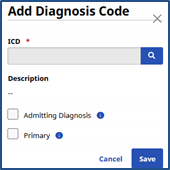
On the Authorization Default DX Code window, select the
 icon to the right of the ICD field.
By default, the system assigns the first Dx Code entered here as the Primary code. From here, Dx Codes can be assigned as the Primary or Admitting Diagnosis Code.
-
On the Diagnosis Search window search for and select ICD 10 Codes. To add an ICD Code, click the appropriate Code link.