Create a New E-Billing Batch
Visits that have been invoiced and reviewed can be included in an E-Billing Claim batch. Claim files can be compiled and exported from HHAeXchange and delivered electronically to the Contract or Clearinghouse.
Complete the steps below to export a claim.
-
Go to Billing > Electronic Billing (Non-Silverlight) > E-Submission Batches.
-
The E-Submission Batches page opens, click the Add Original Claims button to create a new batch.

-
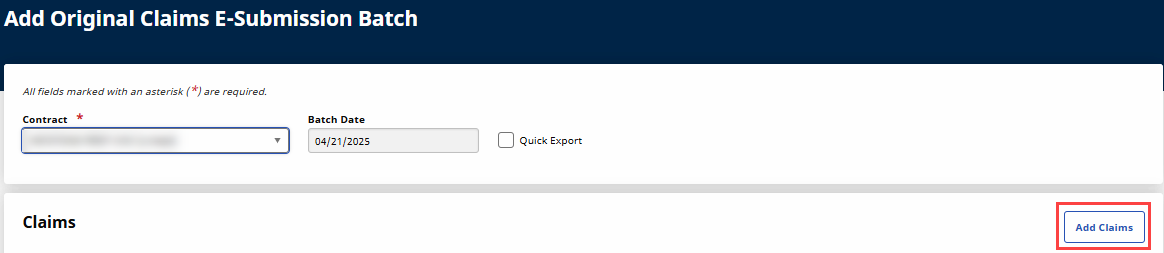
The Add Original Claims E-Submission Batch page opens. Select the Contract and click the Add Claims button to select specific invoices to include in the claim batch.
-
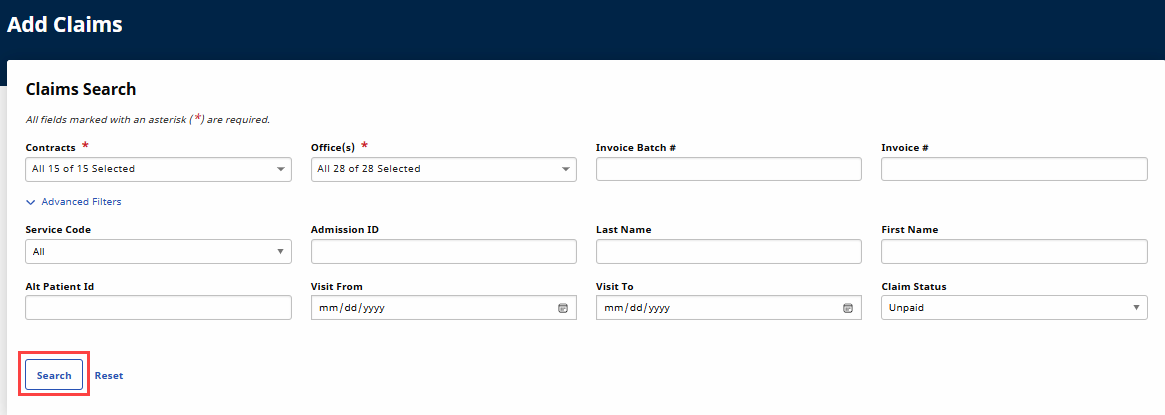
On the Claims Search window, use the filter fields to narrow an invoice search. Click Search to generate results.
-
The Claims Search page opens. Select the checkboxes for the invoiced visits to include in the claim batch, scroll to the bottom of the page, and click Add.
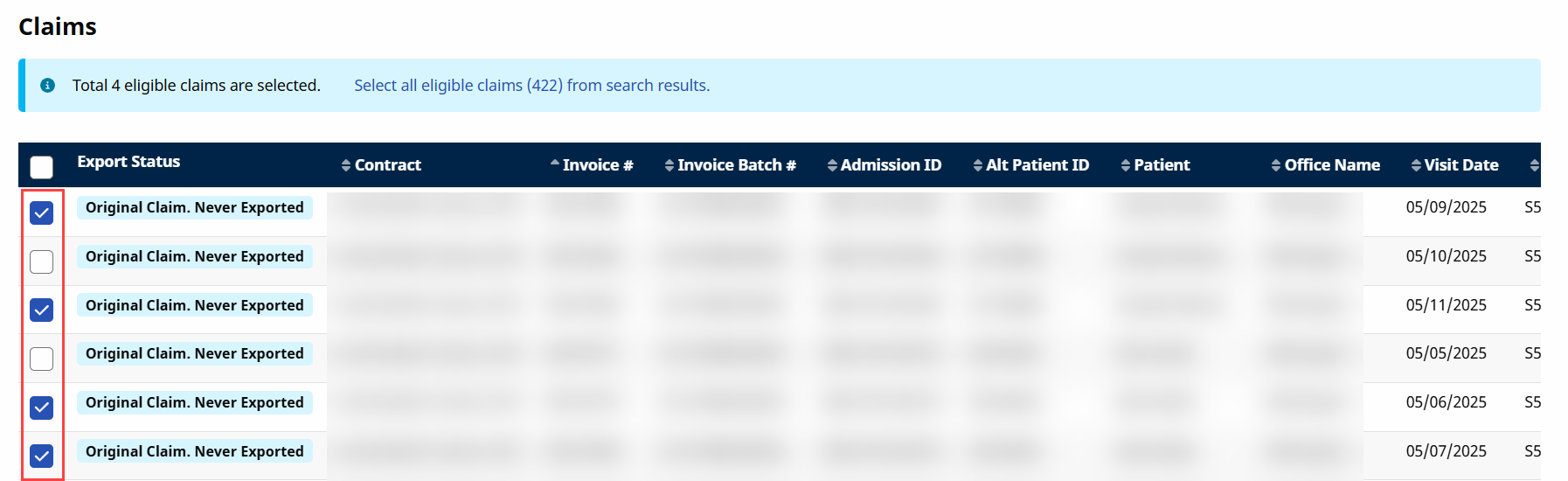
If a visit is held on the Billing Review Exception page, it displays an alert icon and cannot be selected until the exception is resolved. Hover over the Alert icon to display the reason for the hold.
-
The selected claims appear on the batch page. If any invoiced visits are subject to delayed invoicing, you must select a Delay Reason Code. Visits older than the value in the Visits Older Than field have the selected reason added to the claim file.
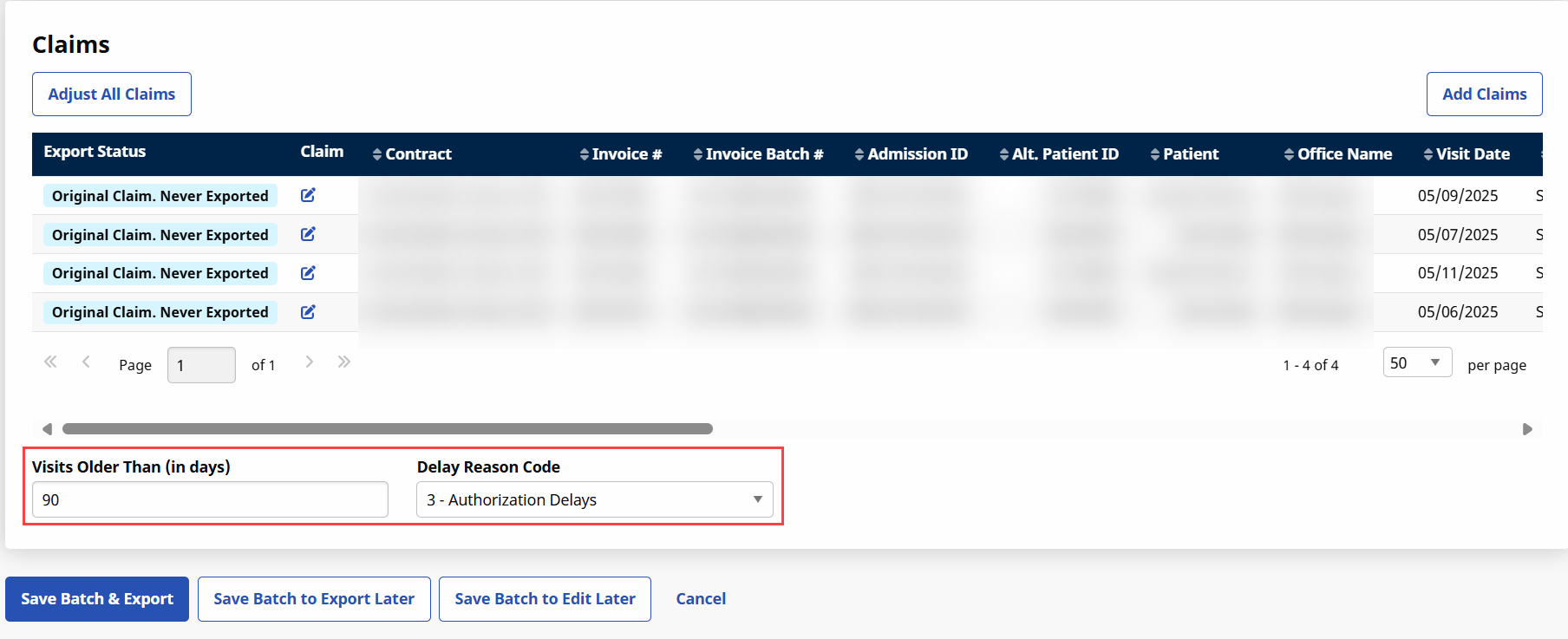
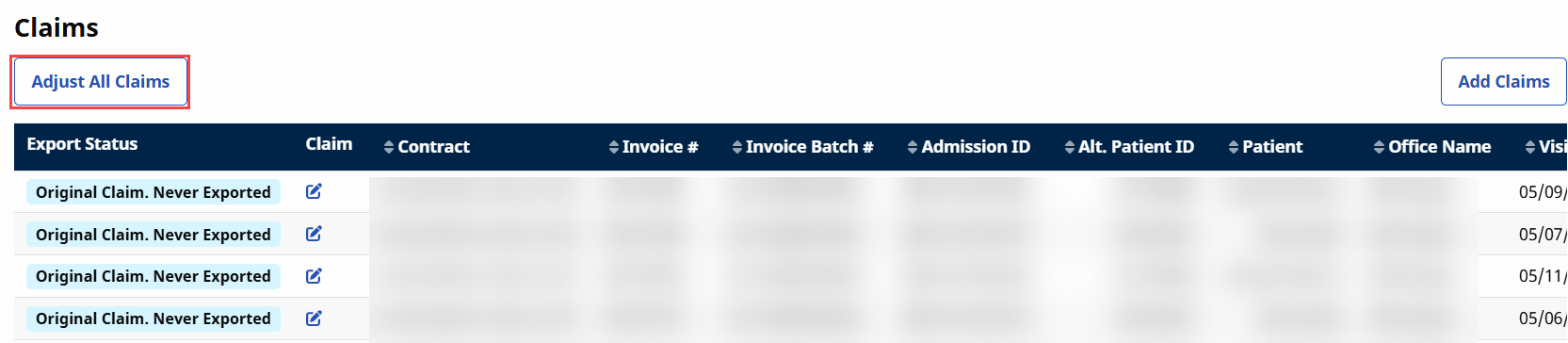
An Adjust All Claims button has been added to the Add Original Claims E-Submission Batch page to facilitate bulk claims adjustments. Functionality remains the same whether submitting original claims or adjusting claims.
-
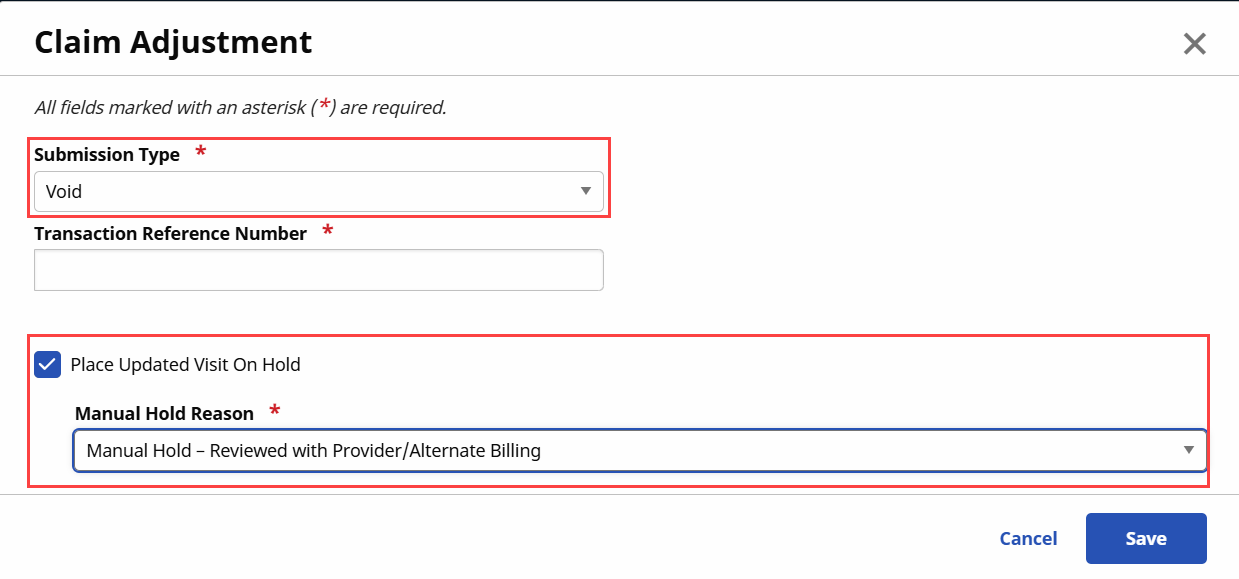
Click the Adjust All Claims button to open the Claim Adjustment window. Select the Submission Type (Original, Adjustment, or Void), and click Save.
Depending on the selected Submission Type, applicable fields appear to complete (specifically, when Adjustment or Void are selected).
-
To make adjustments on any of the selected claims, click the Edit icon
 in the Claims column. To remove a visit from the batch, click the Delete icon
  in the Actions column.
 Once all selections are finalized, click the Save Batch & Export button.
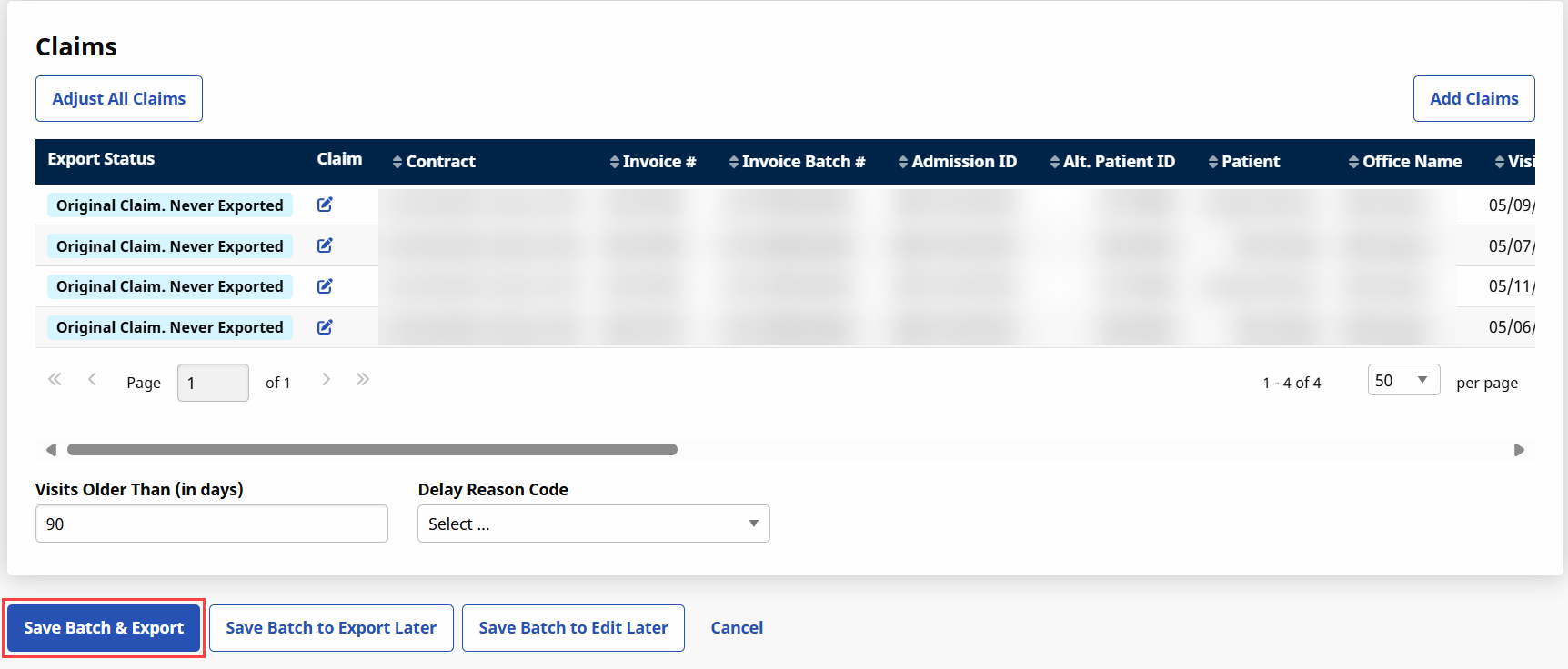
The system creates the batch and prompts the user to name the file and save it locally. This is the file to be submitted to the Contract or Clearinghouse.