E-Billing with Configurable Overrides
This feature is activated by HHAeXchange System Administration. Contact HHAeXchange Support Team for details, setup, and guidance.
The HHAeXchange system allows Agencies with multiple Offices to setup E-billing configuration fields at both an Agency and Office Level.

Once the E-Billing Configuration is activated, go to the Admin > Contract Setup > Billing/Collections tab and select the Enable Office Level E-Billing Configurations checkbox to set up overrides. If this option is not activated, then this checkbox (option) does not display in the Billing/Collections tab.
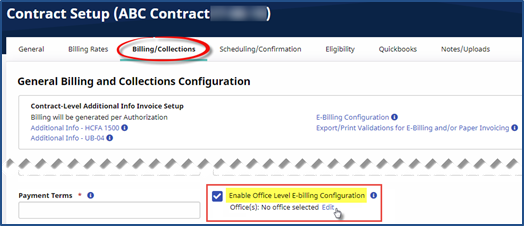
Once selected, the Office(s) field populates; otherwise the message No office selected is displayed. Click the Edit link to go to the E-Billing Configuration page to add or edit applicable Offices.
Once an Office Group E-Billing Configuration has been set, a list of groups and associated offices display to include the Group Start and End Dates. Click the Edit link to update as needed or to add new groups.
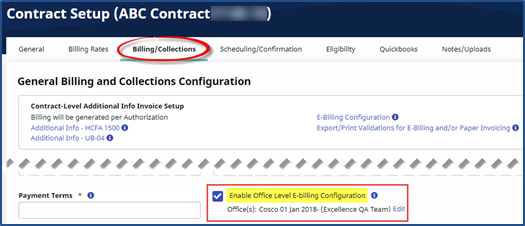
In this case, a Group is defined as a collection of Offices that have the same E-Billing override settings. To add or edit an Office Group Configuration, click the Edit link.
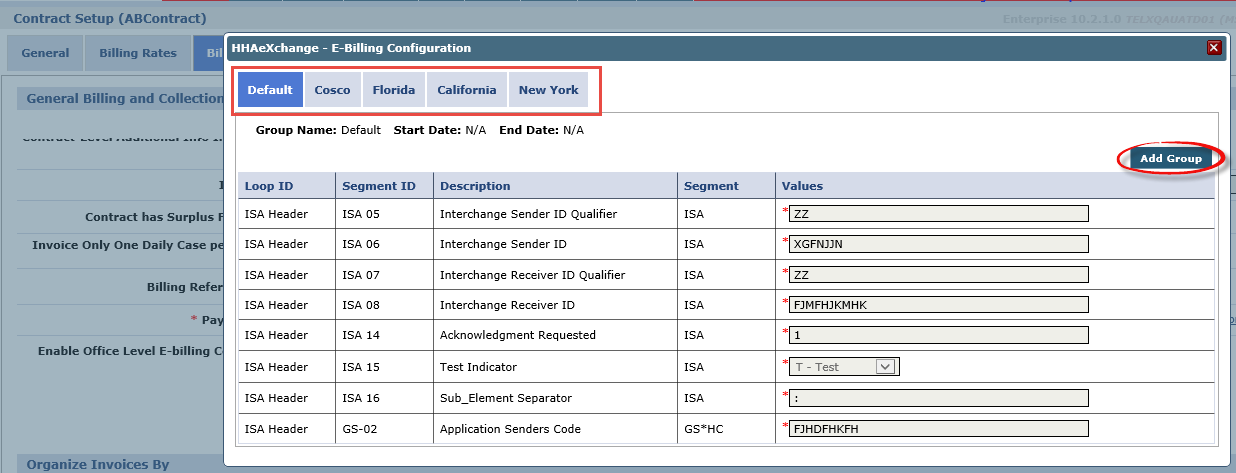
The E-billing Configuration screen opens with the Default tab selected. The Default tab contains the default settings for the Contract (fields serve as a template and are not editable). Default settings (values) are initially defined by System Administration in conjunction with an Agency. To add a group, click the Add Group button.
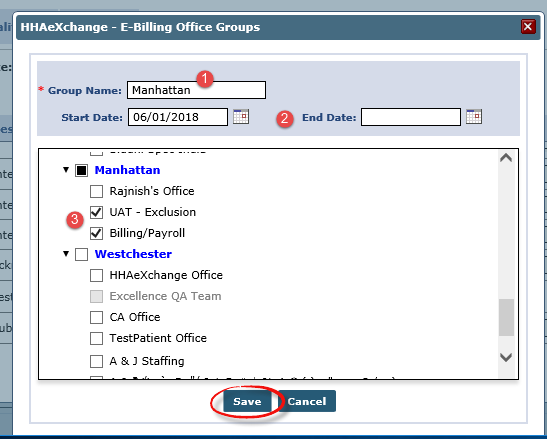
The E-Billing Office Groups window opens. Enter a Group Name in the required field. If applicable, specify Start and/or End Date, to specify a timeframe during which the E-Billing overrides should be applied. From the dropdown menu, select the applicable Offices which are part of the group.
Click the Save button to finalize. Click OK on the confirmation.
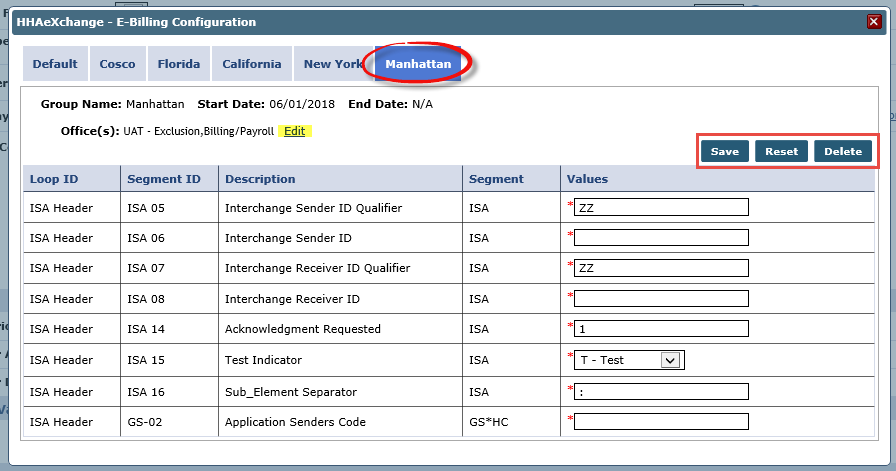
Once the Group is saved, it appears as a tab in the E-Billing Configuration window. In this example, a group named Manhattan has been created which includes 2 offices (UAT-Exclusion and Billing/Payroll) and has E-Billing override values to be used starting 6/1/2018 without any specified end date.
From this window the Values can be configured accordingly. In addition, the Office(s) as well as the Start/End Dates can be updated by clicking the Editlink. Click the Save button to save any changes. Click the Reset button to remove any applied changes and reload the last saved information (to include Values). To delete the Group, click the Delete button.
Contact HHAeXchange Support for questions regarding E-Billing values.
Go to the Batch Search page under Billing > Electronic Billing (Non-Silverlight) > E-Submission Batches to locate the E-Billing batches. There are two options to export claims/visits according to configured e-billing groups.
One can either 1) click the Batch Number link to view details and export or 2) select the Export option (under the Actions column) to export directly.
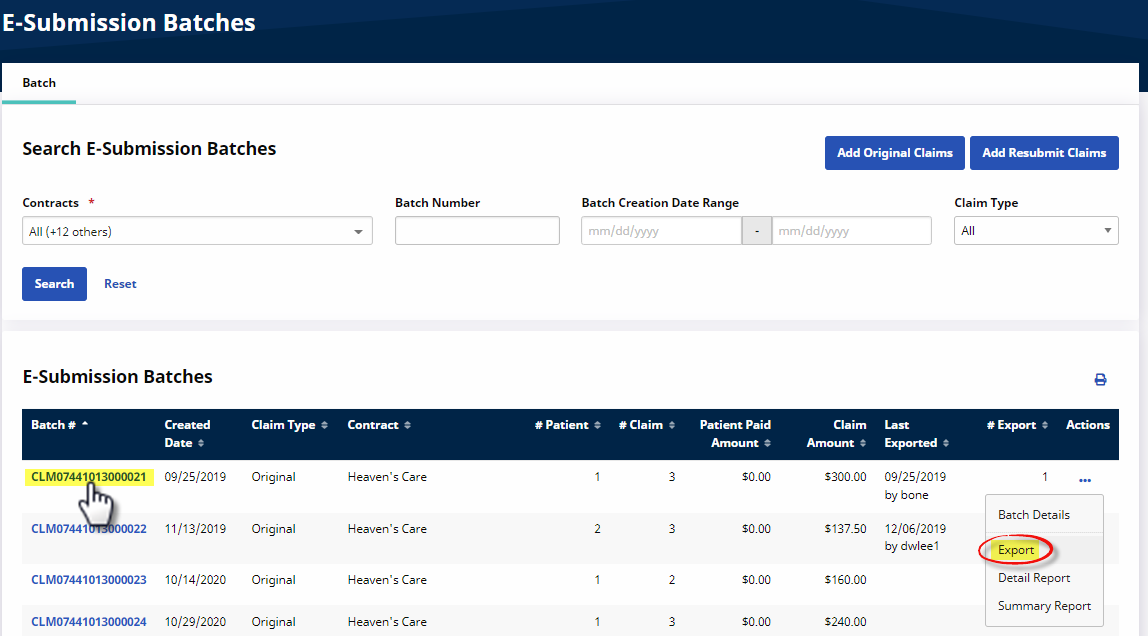
Click the Batch Number to view the Batch Details. Click the Export button to continue.
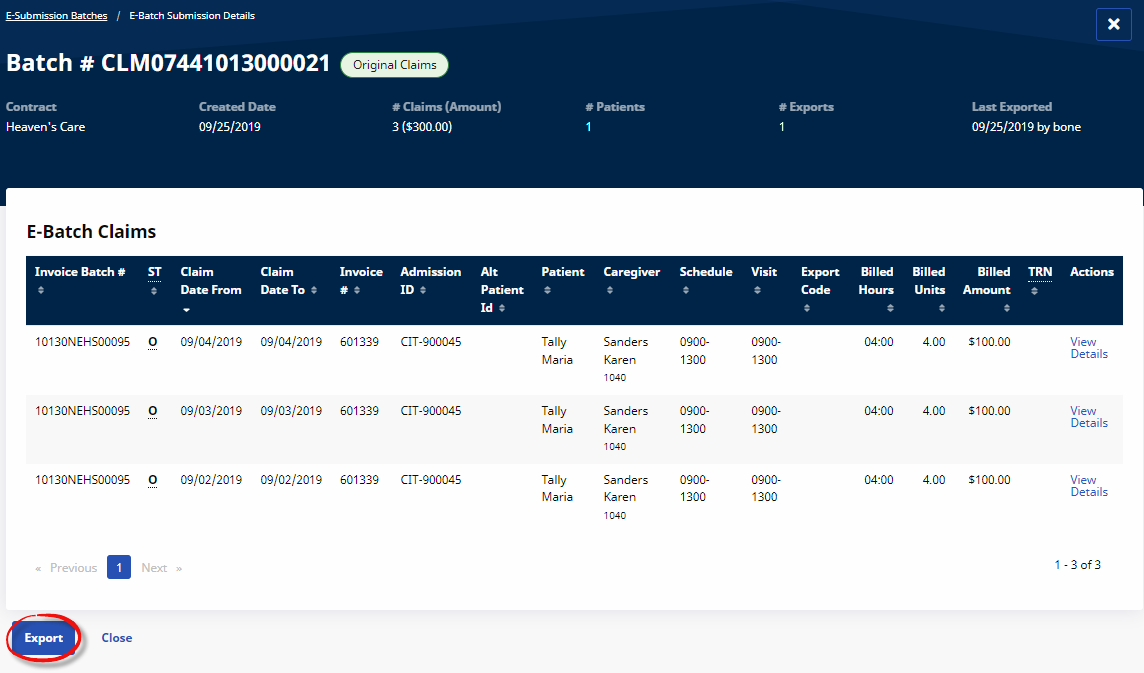
Click the Export button to open the Export E-Submission Batch Claim window, click the Download button to continue.
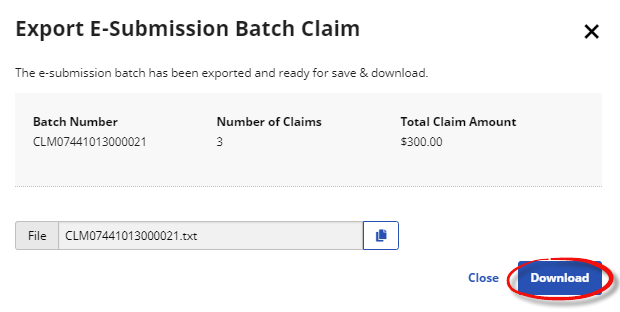
Additional files may appear available to download if there are other associated Office groups.
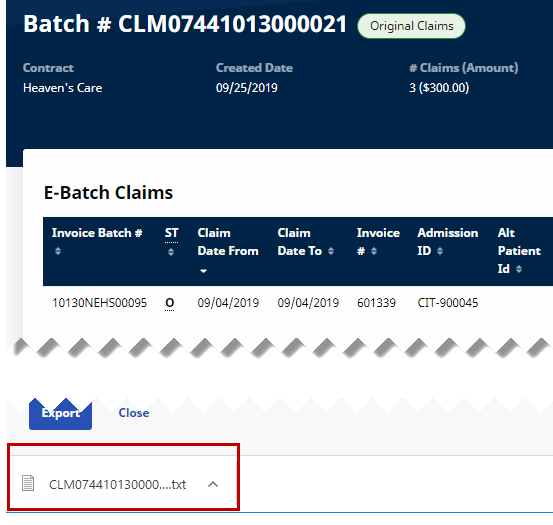
The downloaded file appears on the lower left side of the screen. Click the file and follow the system prompts to open the file.
To prevent accidentally deleting any Office E-Billing Configurations, the system has been set with a double-alert (warnings) in the Billing/Collection tab of Contract Page.
An Office E-Billing Configuration cannot be removed if the following conditions apply:
-
the Enable E-Billing Office Configurations checkbox is selected, and
-
there is data (visits) in at least one office configuration.
If the Enable E-Billing Office Configuration checkbox is deselected, then the system alerts with the following messages in respective order:
|
Warning |
Description |
|---|---|
|
1 |
This action Deletes all office configurations in addition to deactivating this feature. Are you sure you want to do this?
|
|
2 |
Confirmation. This action Deletes all office configurations. Are you sure you want to do this?
|
This feature is activated by HHAeXchange System Administration. Contact HHAeXchange Support Team for details, setup, and guidance.
The Mileage Event feature in the e-Billing and Cash Payment modules provide the ability to export mileage and post payments against new Mileage Events. Use this feature to create claims, resubmit claims and post payments against invoices with mileage. The following sections demonstrate how mileage is shown in the various applicable screens.
On the Cash Payment module, the Mileage feature is implemented in the following pages: Search Payment, New Payment, New Refund, Search Invoice, and Bulk Adjustments (same as visit).
Several Billing Review validation rules apply to Mileage, where required fields must include values (such as Patient Name, Patient Address, Caregiver NPI Number, etc.).
The following rules do NOT apply to Billing Review, but are used in Export process:
-
Bill all visits on the same day with the same Service Code in 1 claim (Medicaid Flag)
-
Bill the visits with same Patient, same Visit Date and same Export Code in one LX loop.
-
TRN Number Required
-
Require Delay Reason Code when visits in claim are older than limit.
After mileage is billed and E-billing roles are satisfied, mileage records display on the Claim Search page. From here, select and add/delete a Mileage Event to the original claim e-submission batch window (just like a service). The following image displays the various columns where mileage is indicated:
-
The Billed Hours column displays the number of miles
-
The Billed Units column displays number of units
-
The Billed Amount column provides the total billed amount
On the Resubmit Claims E-submission Batch page, mileage is indicated under the Schedule column. The functionality mirrors that of a visit; click the Edit icon  to edit mileage and resubmit as an Adjustment of Void.
Mileage may be placed on Manual Hold to stop it from being exported.
In the Collection Module (Action > Collection), Add TRN (link to add a TRN) and + (link to Add Notes) is displayed for Mileage Events.
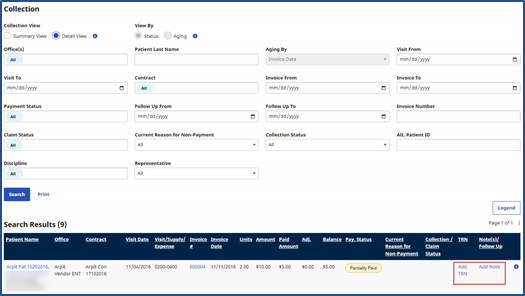
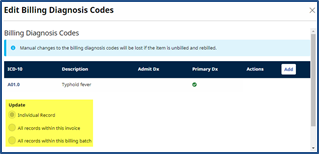
The Billing Diagnosis Code functionality applies to both Billing Diagnosis Update types and Validation rules (same as the Mileage functionality for visits).
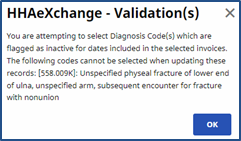
There are 3 options when updating a diagnosis including: update Diagnosis for one Individual record, All records within the invoice, or All records within the billing batch.