HCFA 1500 and UB 04 Invoices
The HCFA 1500 and UB 04 invoices are two of the most common invoice formats. Like all other invoices, information is pulled from Patient Profiles, visit, and billing information in the system and mapped to these invoice formats. Additionally, certain values can be overridden on the HCFA 1500 and UB 04 at either the Contract or the Patient level.

Complete the following steps to override invoice values at the Contract level.
-
Go to Admin >Contract Setup and Click desired invoice format link Additional Info HCFA 1500 or Additional Info UB 04.
-
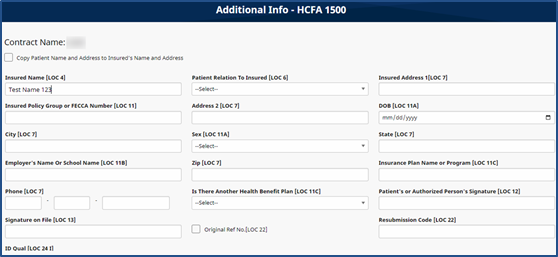
The selected Invoice window opens allowing one to override information based on the locator field number. In this example, Test Name 123 is set to print in Location 4 (Insured Name field) on all invoices for Patients under this Contract. If no fields are modified here, then invoices print with information pulled from the Patient record, or with no values at all.
To facilitate the process of completing the HCFA 1500 Claim Form, there are several areas within the system to enable users to populate certain fields. Users can edit the following HCFA 1500 fields directly from the system, from a Contract and/or Patient Level.
-
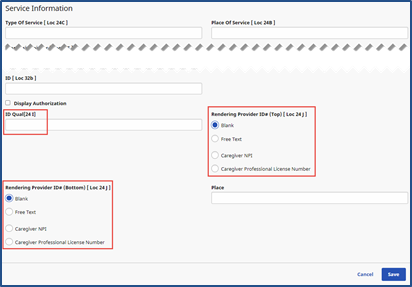
24I: ID Qual
-
24J(top): RENDERING PROVIDER ID #
-
24J(bottom): RENDERING PROVIDER ID #
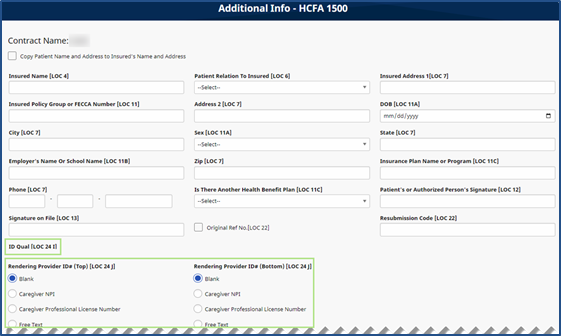
Go to the Billing > Collections tab of the Contract Setup page to access the Additional Info - HCFA 1500 page. As illustrated in the following image, three distinct fields are displayed as described on the table following the image.
|
Field |
Description |
||||||||||
|---|---|---|---|---|---|---|---|---|---|---|---|
|
ID Qual (LOC 24i) |
|
||||||||||
|
Rendering Provider ID # (LOC 24j) - TOP |
Updates top row of location 24 J. Select radio button options as follows:
|
||||||||||
|
Rendering Provider ID # (LOC 24j) - BOTTOM |
|
Complete the following steps to override invoice values at the Patient level.
-
Go to Patient > Patient Search and select the desired Patient.
-
Click the Contracts link in the Index.
-
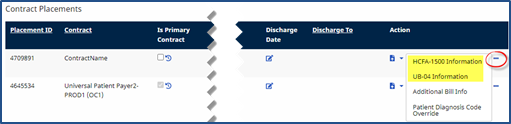
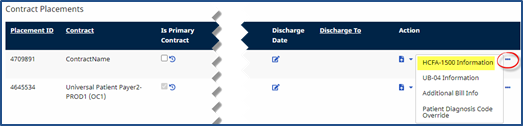
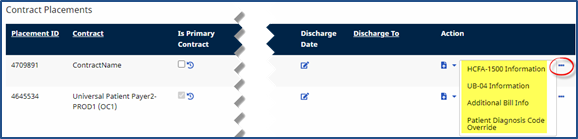
From the Contracts page, click the three-dot icon for the corresponding Contract to access the HCFA-1500 Information or UB-04 Information options to open similar locator modifiers. See Edit Invoice Information image above.
-
Edit the desired fields for the Patient and click Save.
Complete the following steps to modify HCFA 1500 Information on the Patient’s Contract.
-
Go to Patient > Search Patient > Contract to access a Patient’s HCFA 1500 Information.
-
From the Contracts section, click the three-dot icon for the corresponding Contract to access additional options and select HCFA-1500 Information.
-
The HCFA-1500 Information page opens. Under the Service Information section, the three fields described in the Contract Level section appear. Complete this section based on the options outlined in the previous section.
-
Click Save.
Although functionality is identical to that described above, these fields impact the Patient level and override any configuration made at the Contract level. The only exception is if Blank is selected at the Patient Level, which does not override Contract level configurations for something other than Blank.
Several agencies have requested that a specific date be automatically printed in the date fields on the HCFA 1500 and UB-04 Invoices. This modification allows Agencies to determine which date (such as Invoice Creation Date or Last Printed Date) is to be printed on these invoices, by Contract (as applicable).
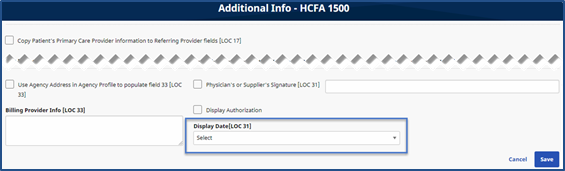
On the Contract-Level Additional Info Setup page there are HCFA 1500 options to select which date to display in LOC 31 on all invoices for the contract. The following image illustrate the options in the Display Date [LOC 31] field to include None, Invoice Creation Date, or Last Printed Date.
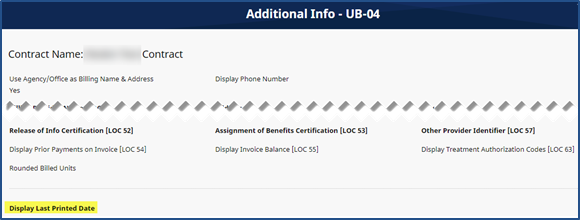
On the Contract-Level Additional Info Setup page there is a UB-04 option to select which date to display in the CREATION DATE field.

There is no LOC designator on the paper invoice for this field.
The Display Last Printed Date field is located above the LOC 50 box (or below the LOC 52 box) as shown in the image below with the options of: None, Invoice Creation Date, and Last Printed Date.
On a Patient’s Contract page, click the three-dot icon for the applicable Contract to access additional options.
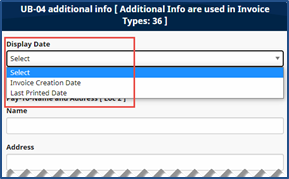
For example, select the UB-04 Information option to open the Additional Info window. The Display Date field is a dropdown menu with options to Select, Invoice Creation Date, or Last Printed Date.
Linked Contracts can set a default printing format which can be changed (to a different one) when desired. The Invoice Type field in the Billing/Collections tab is enabled to select options based on the billing setup.
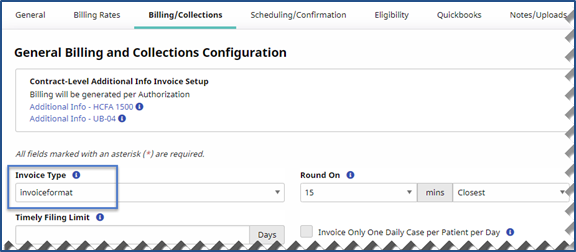
Selecting a different Invoice Type impacts the formatting of invoices printed for visits under the selected contract. Available options are those which an Agency has selected. Additional invoice formats can be added by System Administration by contacting HHAeXchange Support Team.
The person listed in the Billing Reference Person field is the Contract’s primary point of contact at for billing-related queries. This information may display on certain printed invoice types.
For Providers who use paper invoices, the TRN Number is added to the HCFA 1500 and UB-04 forms. The TRN Number is pulled from either the Collections level or the Invoice level. If the TRN Number exists in both places, then the TRN Number at the Invoice level is used.
To ensure that the exact TRN Number is added in the paper invoice, it is recommended to verify and update the TRN Number in the Invoice Detail page under Billing > Invoice Search > By Invoice to locate the Invoice. On the Invoice Details page, click the Edit icon to the right of the Payer Reference Number field and enter the TRN Number in the text box. Click Save to finalize.
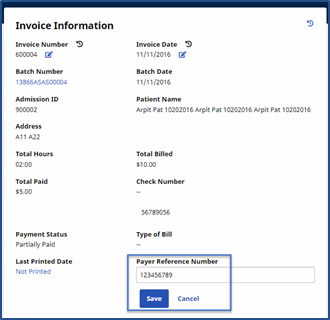
To enter in the Collection page under Action > Collection click the Add TRN link under the TRN column from the respective Invoice row.
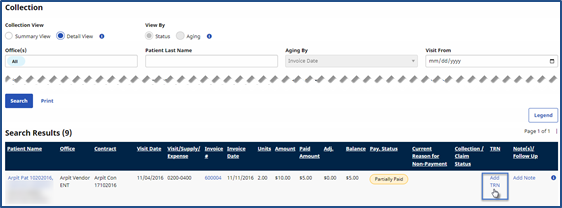
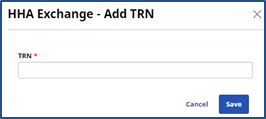
On the TRN window, enter the TRN Number in the TRN field.