Invoice Visits
This section covers the process of invoicing visits and the mechanisms within HHAeXchange to ensure invoices contain accurate export information (which may be unique for each Contract).

The New Invoice – (Internal) function is used to generate invoices for visits authorized by Internal Contracts only. Linked-Contract invoicing is covered in the following section.
To prevent claim rejections on ANSI 837 files, it is recommended that no more than 50 visits are included on one invoice.
Complete the following steps to generate new Internal invoices.
-
Go to Billing > New Invoice - (Internal).
-
Use the search filters to locate the visits to be invoiced. Leave the From Date field blank to pull in all prior visits which are eligible for invoicing. Click Search.
-
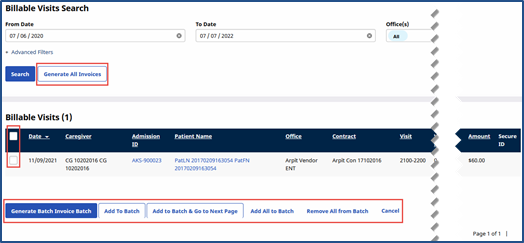
The Search Results generate according to selected search filters. Use the checkboxes to select the visits to be invoiced.
-
Click the Add to Batch & Go to Next Page button to save all selections on the current page and go to the next (if applicable). Click the Add All to Batch button to select ALL visits in the search results.
-
Once all selections are established, click the Generate Batch Invoice Batch button. Click the Generate All Invoices button for the system to invoice every visit returned in the search results.
-
The system alerts that the batch is generating. Review processing status from the Admin > Process Monitor page.
The New Invoice Batch function is used to generate Invoices for Linked Contracts. The New Invoice – (Internal) function operates the same as the Internal (above) with reduced search capabilities.
To prevent claim rejections on ANSI 837 files, it is recommended that no more than 50 visits are included on one invoice.
Complete the following steps to generate new Linked invoices.
-
Go to Billing > New Invoice Batch.
-
Use the search filters to locate the visits to be invoiced. Leave the From Date field blank to pull in all prior visits which are eligible for invoicing. Click Search.
-
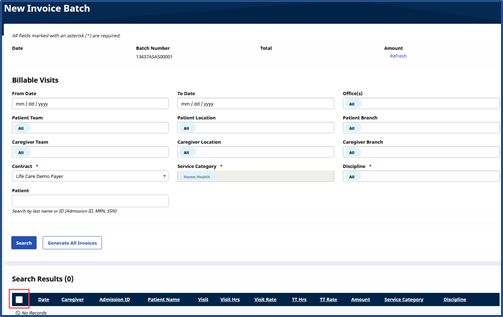
The Search Results generate according to selected search filters. Use the checkboxes to select the visits to be invoiced.
-
Click the Add to Batch & Go to Next Page button to save all selections on the current page and go to the next (if applicable). Click the Add All to Batch button to select all visits in the search results.
-
Once all selections are established, click the Generate Batch Invoice Batch button. Click the Generate All Invoices button for the system to invoice every visit returned in the search results.
-
The system alerts that the batch is generating. Review processing status from the Admin > Process Monitor page.
-
Go to Billing > Electronic Billing (Non-Silverlight) > E-Submission Batches
-
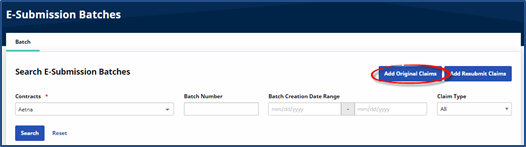
The E-Submission Batches page opens. Select all applicable Contracts and click the Add Original Claims button to create a new batch.
-
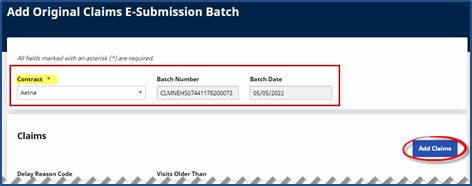
The Add Original Claims E-Submission Batch page opens. Select the Contract and the Batch Number and Batch Date fields automatically populate. Click the Add Claims button to select specific invoices to include in the claim batch.
It is not recommended to select the Quick Export checkbox. Using this function does not display the items that are on hold.
-
On the Claim Search window click the Search button to pull up billed claims. Select the Claim(s) to add to the batch. Click the Add button followed by the Close button when finished with adding claims.
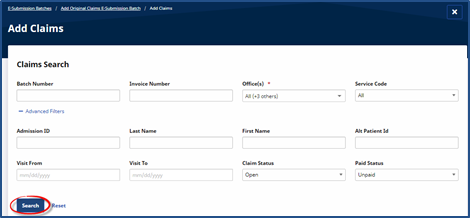
Line items displayed in gray are locked due to one or more On Hold Reasons. Hover over the locked claim to view the On Hold Reason or go to Billing > Billing Review to review all claims held by the system.
-
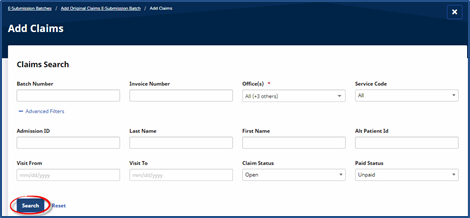
On the Claims Search window, use the filter fields to narrow an invoice search. Click Search to generate results.
-
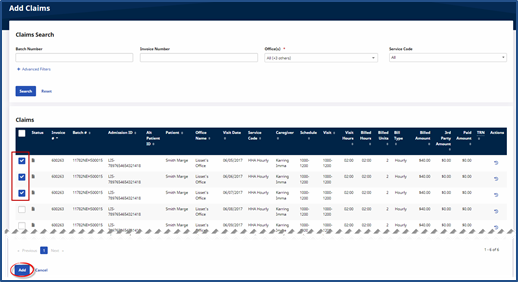
A Claim Search page opens. Use the left checkboxes to select the invoiced visits to add to the claim batch. If a visit is held on the Billing Review Exception page, it displays an alert icon and cannot be selected until the exception is resolved. Hover over the Alert icon to display the reason for the hold. Select the claims and click Add at the bottom of the page.
-
The selected claims appears on the batch page. If any invoiced visits require a Delay Reason Code due to delayed invoicing, select one from the corresponding dropdown. Visits older than the value in the Visits Older Than field have the selected reason added to the claim file.
To adjust any of the selected claims, click the Edit Icon
 and make updates. To remove a visit from the batch, click the Delete Icon
  . Once all selections are finalized, click the Save Batch & Export button.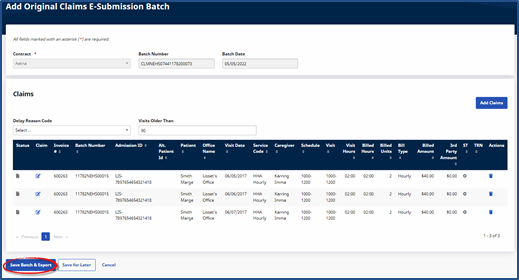
-
The system creates the batch and prompts the user to name the file and save it locally. This is the file to be submitted to the Contract or Clearinghouse.
On Hold Reasons are issues keeping the Claim from being submitted. The system holds these Claims because there is missing or incorrect information causing issues after the claim has been exported to a 3rd Party for review.
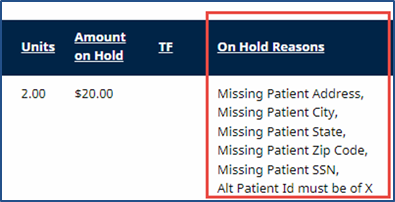
On Hold Reasons may vary from Contract to Contract, as each may have different export criteria. Both E-claims and Paper invoices may be held on this page if the required export criteria is not met.
-
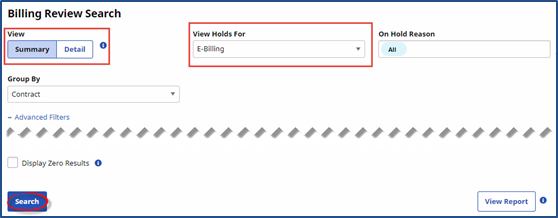
Go to Billing> BillingReview.
-
Select either Summary View or Detail View and E-Billing in the ViewHolds For field. Select Search.
-
If Summary View is selected, only high-level information is displayed.

-
If Detail View is selected, specific information is provided to include the On Hold Reasons.
