Prepare for Billing
There are various requirements and steps that must be completed to successfully bill using the HHAeXchange Provider Portal to include the following:
- Verify the E-Configurations (specifically, Taxonomy Code) are correct in HHAeXchange.
-
Confirm that the contract (Payer) and Service Codes exist in HHAeXchange and that rates are applied to those Service Codes.
-
Make sure that all Disciplines match the Patient, Caregiver, authorization, and Service Codes per visit.
-
A Diagnosis Code is required to bill a visit. Ensure the Patient has a Diagnosis Code.
-
All schedules must be fully confirmed before beginning the billing workflow.
Complete all items in this phase to prevent any billing holds and delays in the process.

Verify that the e-Billing configurations are correct in the system; specifically the Billing/Pay-to Provider (Taxonomy) Code.
-
Go to Admin > Payer Setup > Search Payer to locate and select the Payer. Select the Payer Name link.
-
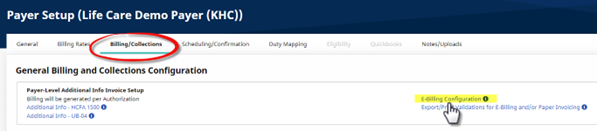
On the Payer Setup page, select the Billing/Collections tab.
-
Click the E-Billing Configuration link in the General Billing and Collections Configuration section to open the window.
-
In the E-Billing Configuration window, scroll to Segment ID PRV-03, described as Billing/Pay-to Provider Specialty Information, and verify that the correct code is listed in the Values column.

-
If the code needs to be added, corrected, or updated, then submit a ticket request via the Client Support Portal.
Confirm that the Payer and Service Codes are entered in the system in the Patient's Payers page.
-
Go to Patient > Search Patient to locate and select the Patient.
-
On the Patient Profile, select the Payers page.
-
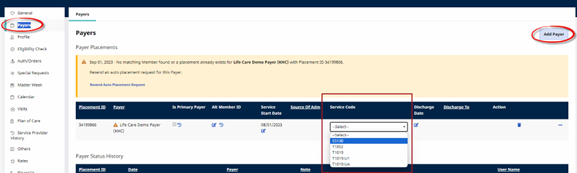
Confirm that the Payer is in the system with the proper Service Code. Click the Edit icon to add or edit the Service Code field.
-
To add a Payer, click the Add Payer button and complete the required fields.
Verify that rates have been applied to the Service Code, as follows:
-
Go to Admin > Payer Setup to locate and select the Payer.
-
On the Payer Setup page, select the Billing Rates tab.
-
To add a rate, click the Add Payer Rate button and complete the required fields in the Payer Rate window.
-
To edit a rate, find the service code and click the edit icon to open the Payer Rate window.
-
-
In either case, ensure to add the rate to all Plan Code fields below the billing Rate field (if applicable).
Check that the Discipline(s) match across the variables for the visit (Patient, Caregiver, authorization, and service code). The following image illustrates the Patient Visits page with PCA, under the Discipline column for the Patient.
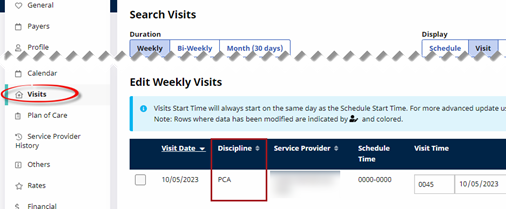
Assigned Disciplince(s) can also be checked in the Patient Profile, Caregiver Profile, and Authorization pages.
A Diagnosis (Dx) Code is necessary to bill in the system. Visits without a Dx Code are held in Billing Review until codes are added. Verify that a diagnosis code is entered in either the Patient Profile or in the Patient Authorization page for the applicable Payer. To add a Dx Code:
-
Go to Patient > Auth/Orders to open the Authorization page.
-
Click the edit icon for the applicable Payer.
-
On the Edit Authorization window, click the Add button in the Billing Diagnosis Codes section.
-
Enter or search and select the diagnosis in the Add Diagnosis Code window and save.
Ensure that all applicable visits are confirmed (with recorded Start and End times as well as other items such as Plan of Care (POC) requirements).