Private Payment Processing
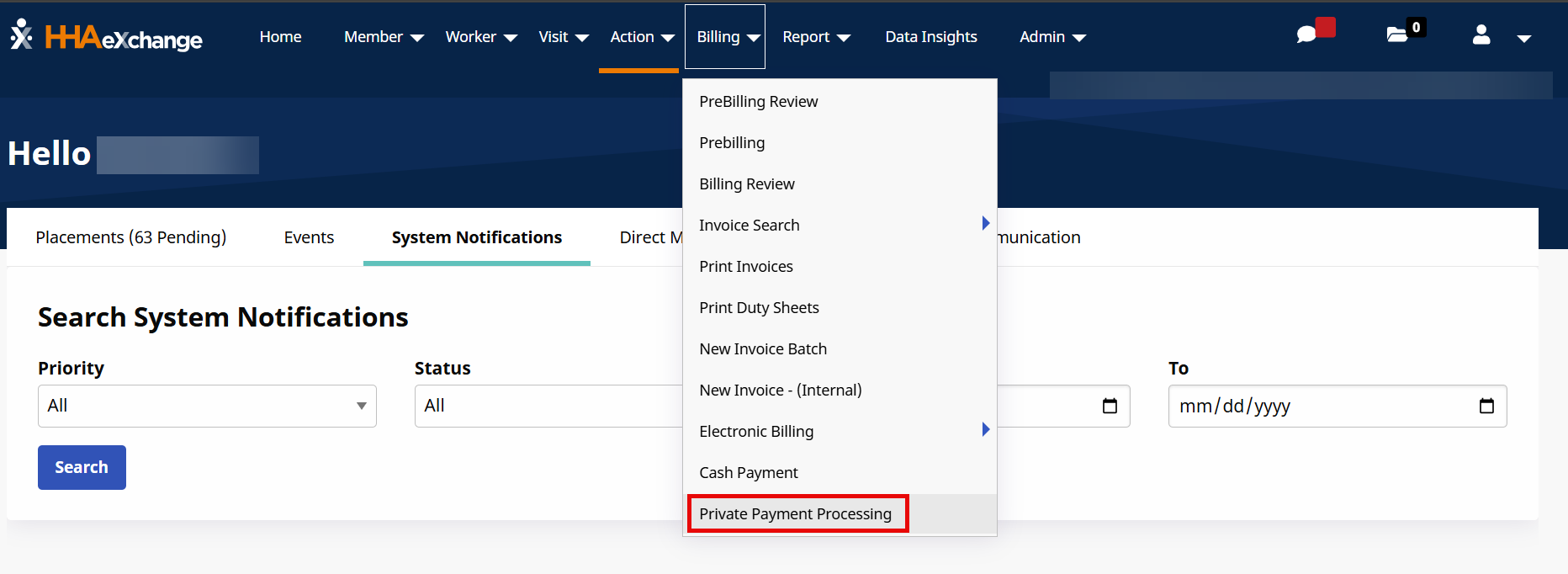
The Private Payment Processing feature under Billing > Private Payment Processing allows agencies to send and receive digital payments from patients or designated payers and manage all private payment activity in one place. This feature streamlines payment management with tools for invoicing, refunds, payment tracking, and account settings.
Supported Payment Methods:
-
Credit Cards
-
ACH - electronic transfer of funds between bank accounts
-
Select Digital Wallets
Key Benefits
-
Built-in compliance and data security.
-
Cost savings from efficient, integrated workflows.
-
Faster collections with real-time visibility into payment status.
-
Lower fees than traditional payment processors.
Invoices Tab
The Invoices tab allows you to review open invoices, paid invoices, and manage refunds.

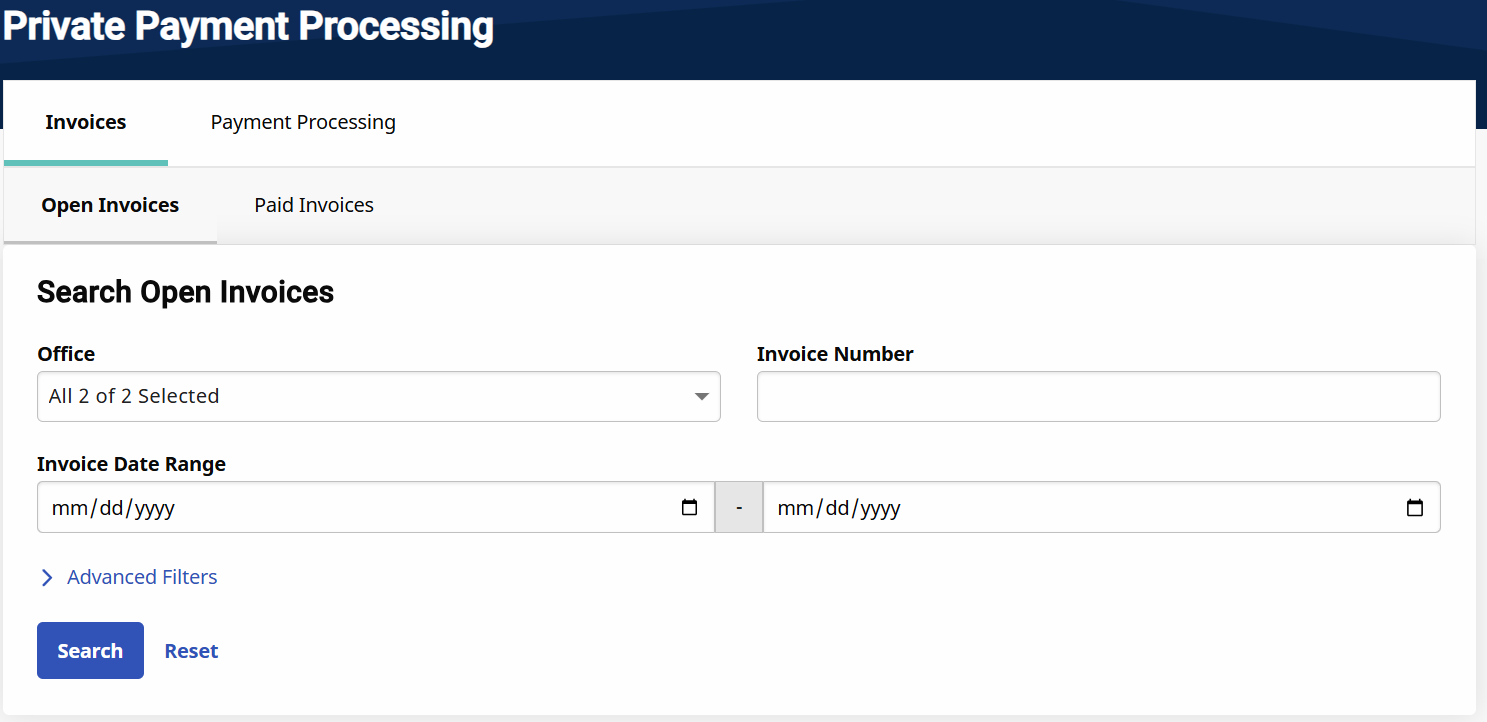
Search for open invoices on the Open Invoices tab. Enter search parameters and then select Search. Your open invoices display.
Review Open Invoice Results.
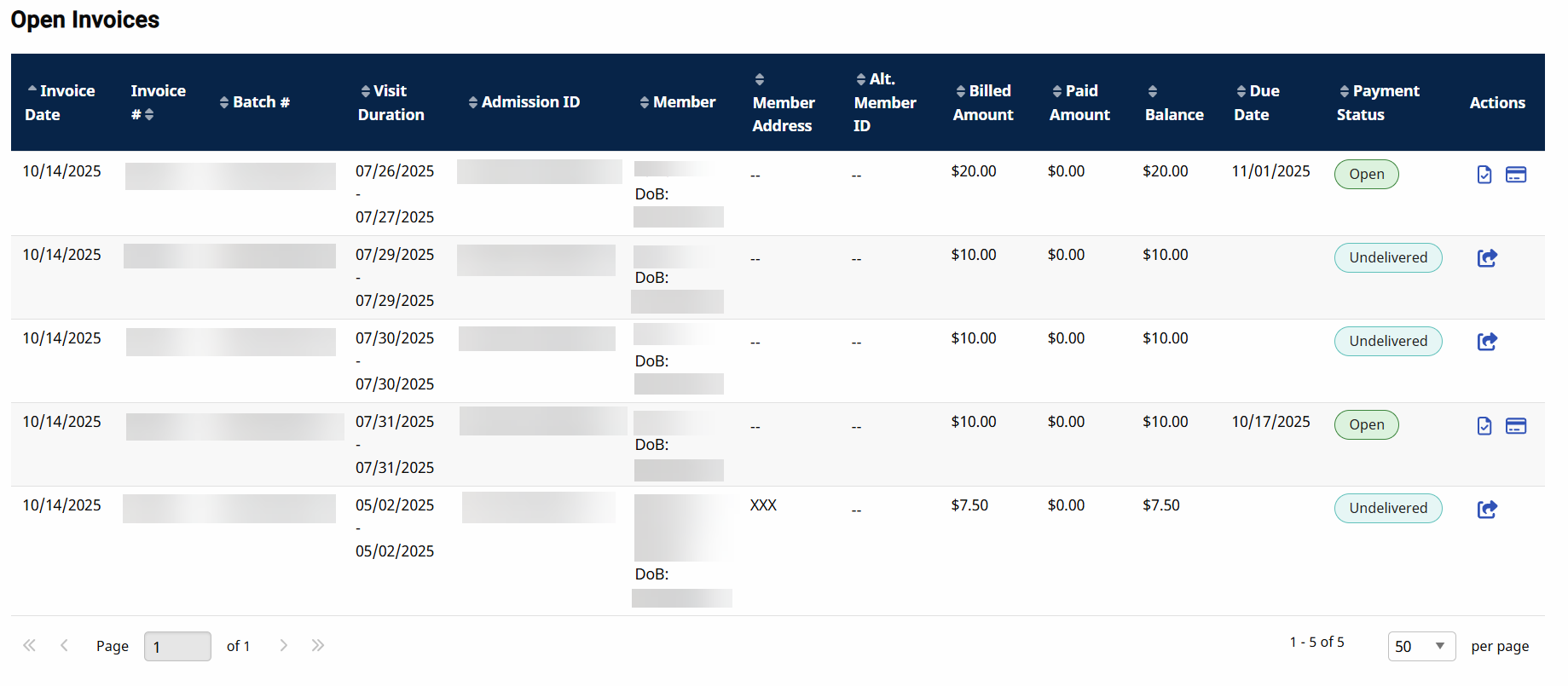
Actions Column:
| Action Option | Icon | Definition |
|---|---|---|
|
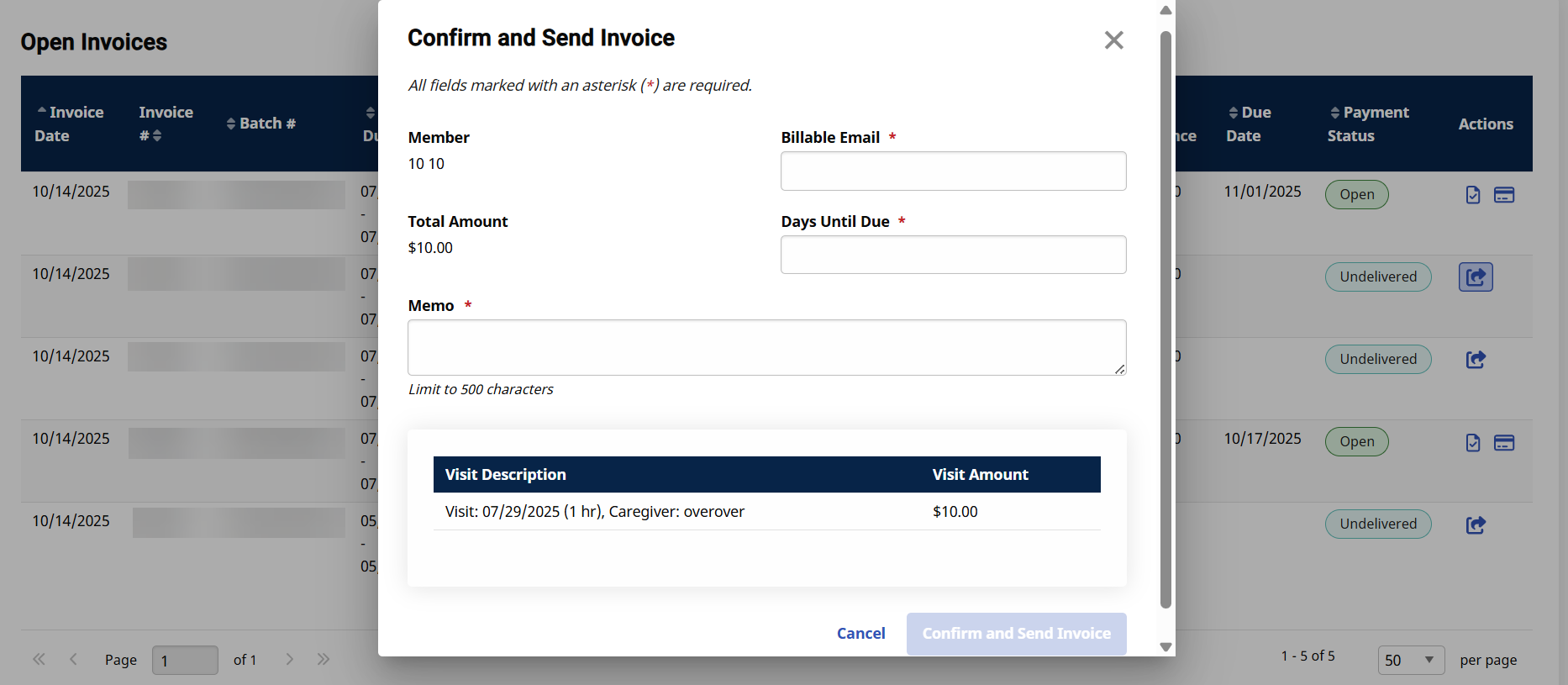
Confirm and Send Invoice |

|
Select to Confirm and Send the invoice.
|
|
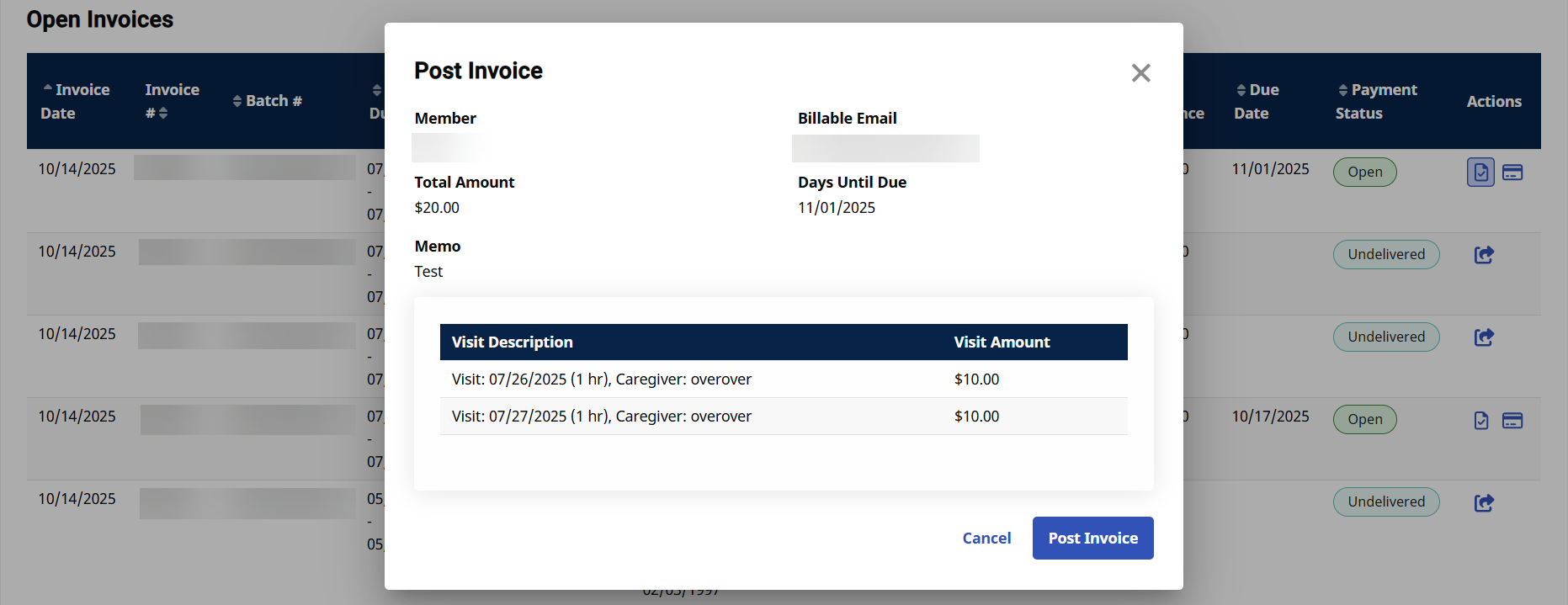
Post Invoice |

|
Review information and then post the invoice.
|
|
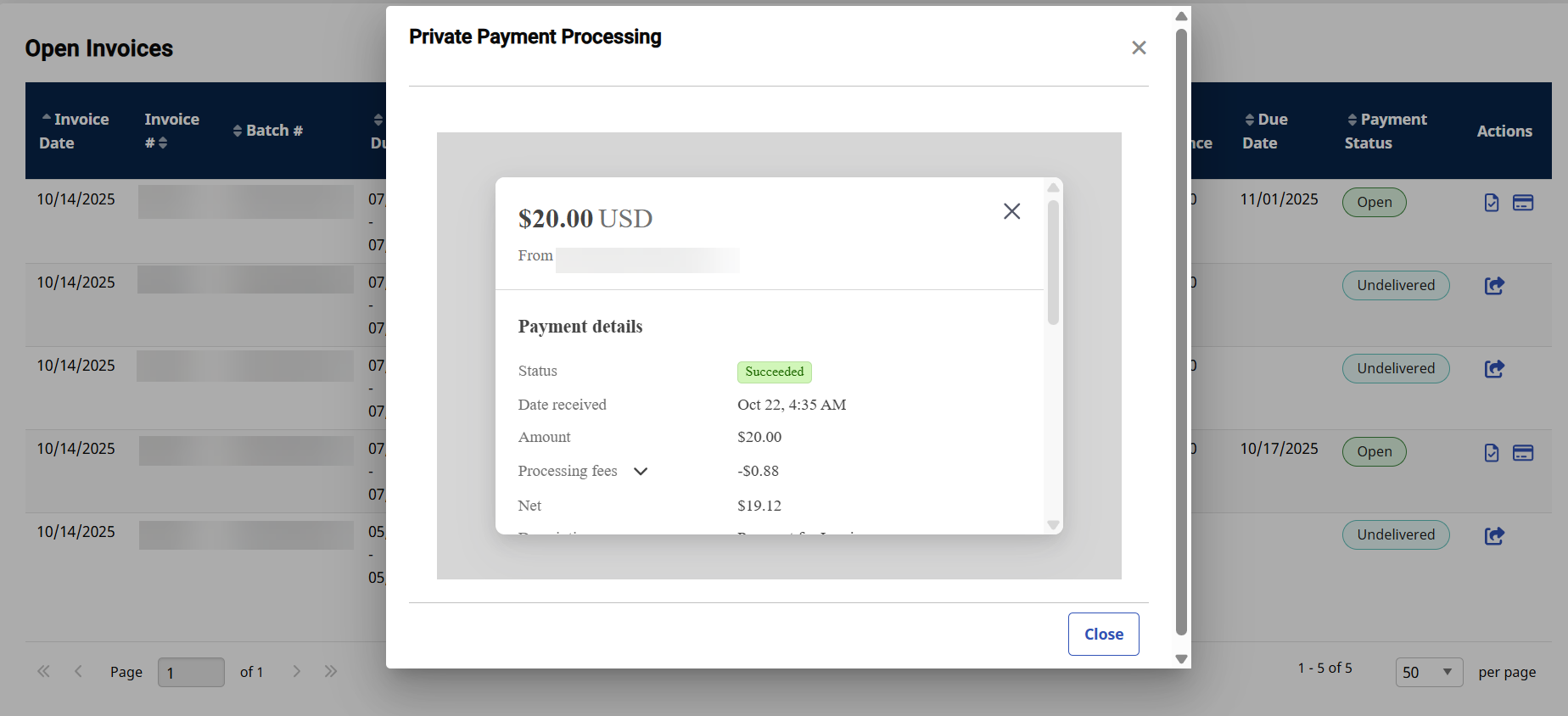
View Payment |

|
Select View Payment
|
|
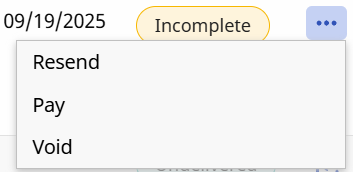
Ellipsis |

|
Resend - Resends an Incomplete invoice.
Pay - Select payment method, select the pay button,
Void
|
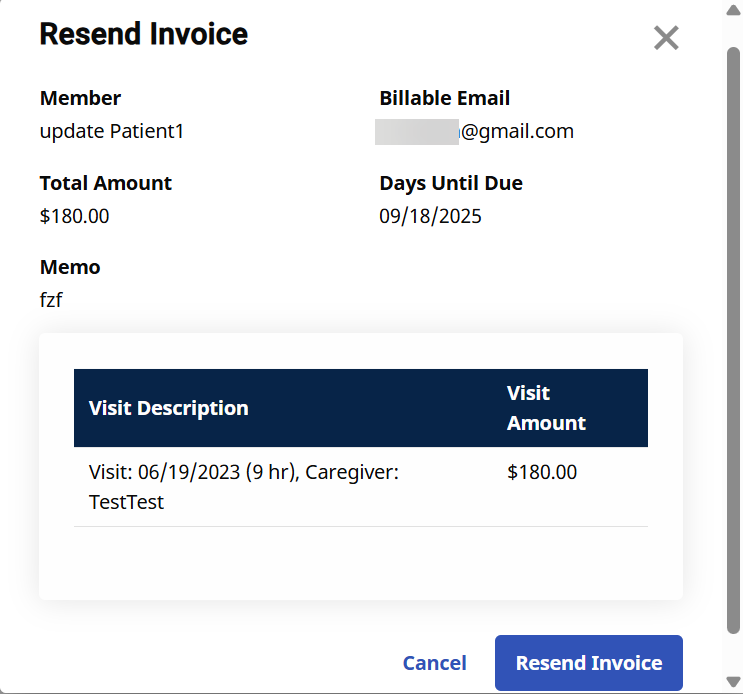
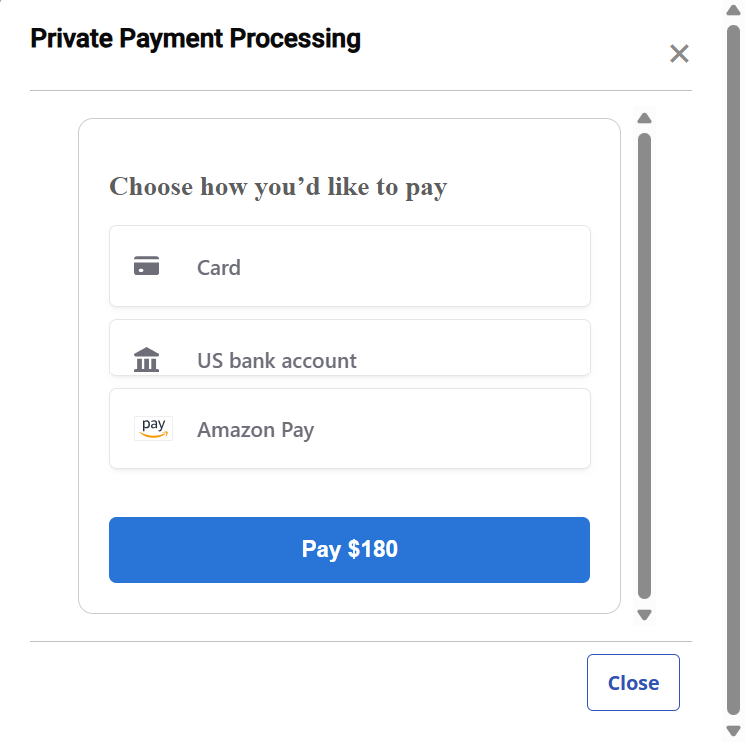
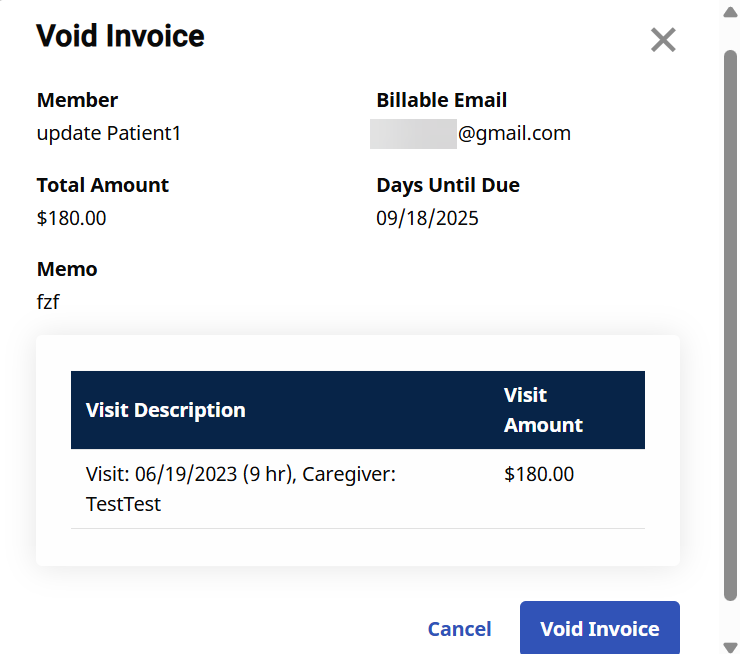
Search for paid invoices on the Paid Invoices tab. Enter search parameters and then select Search. Your paid invoices display.
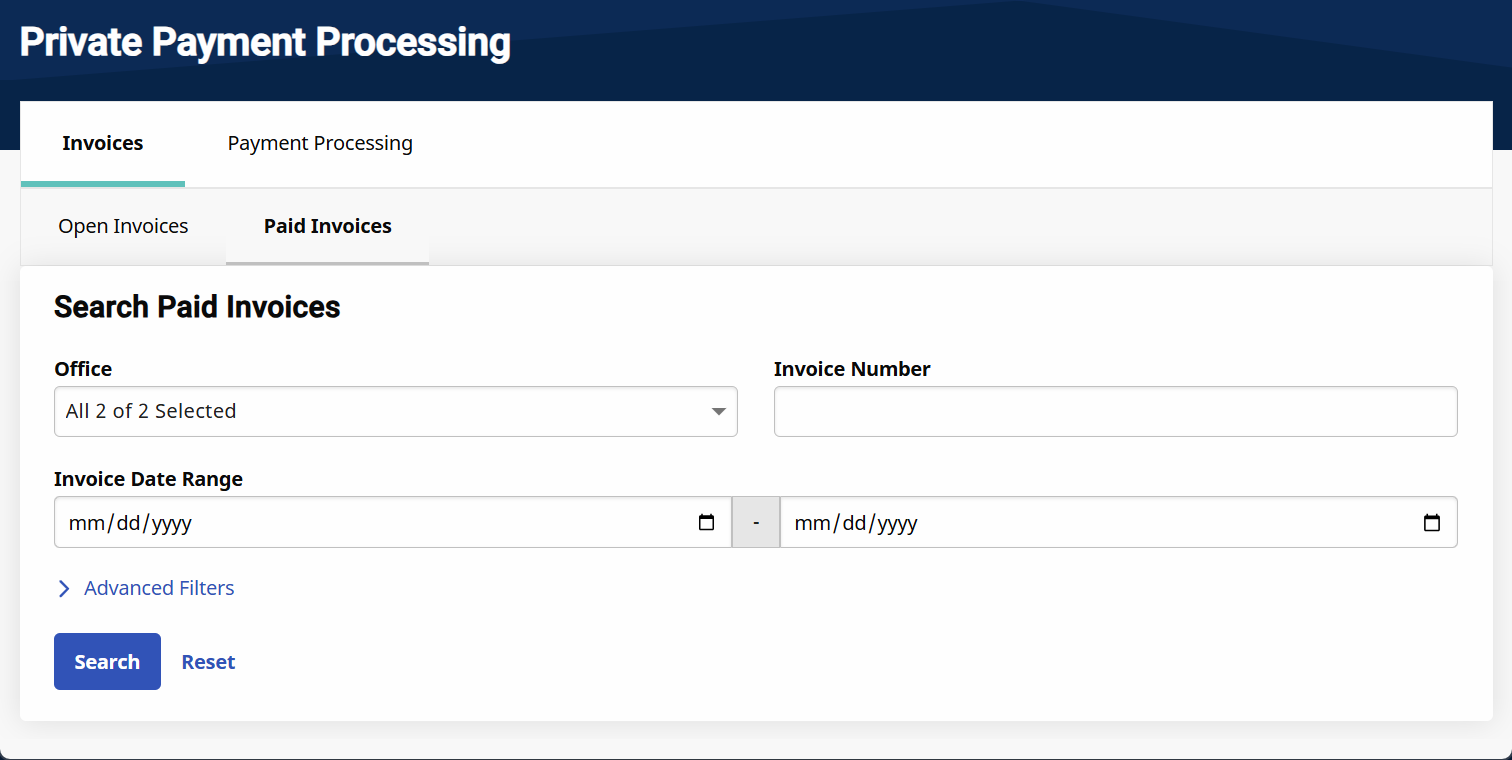
Review the Paid Invoice Results.
From the Actions column, click the Ellipses icon  and then select View to view the invoice information.
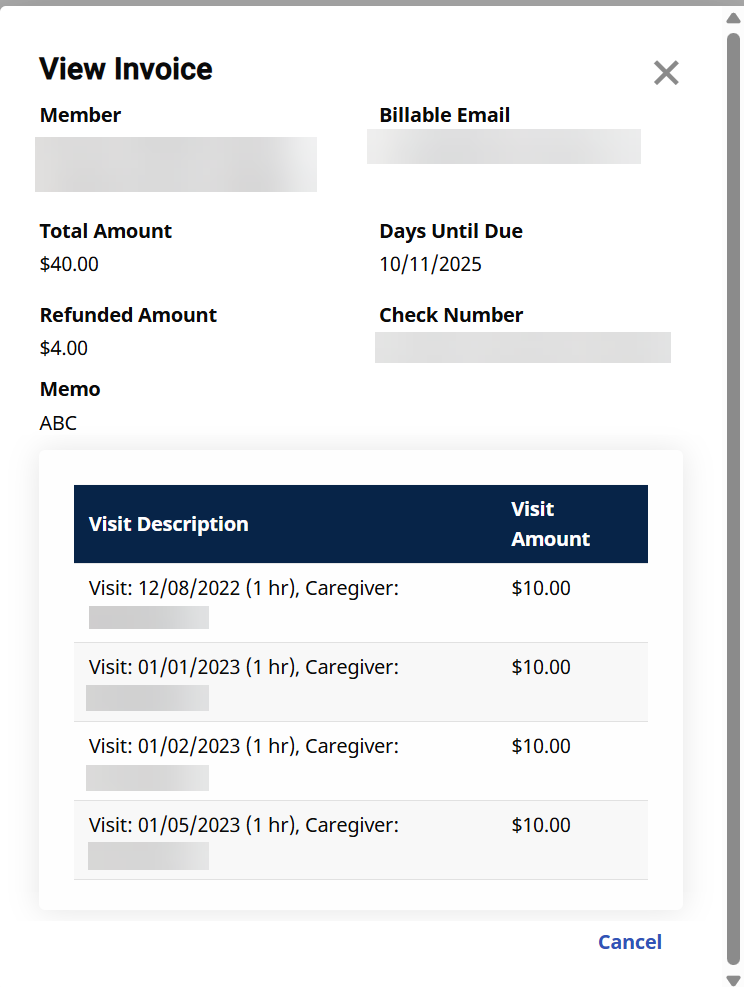
The invoice must be posted to issue a refund. The refund amount cannot be more than the total invoice amount.
-
From the Actions column, select the Ellipses icon
next to the invoice and select Refund to start the refund. 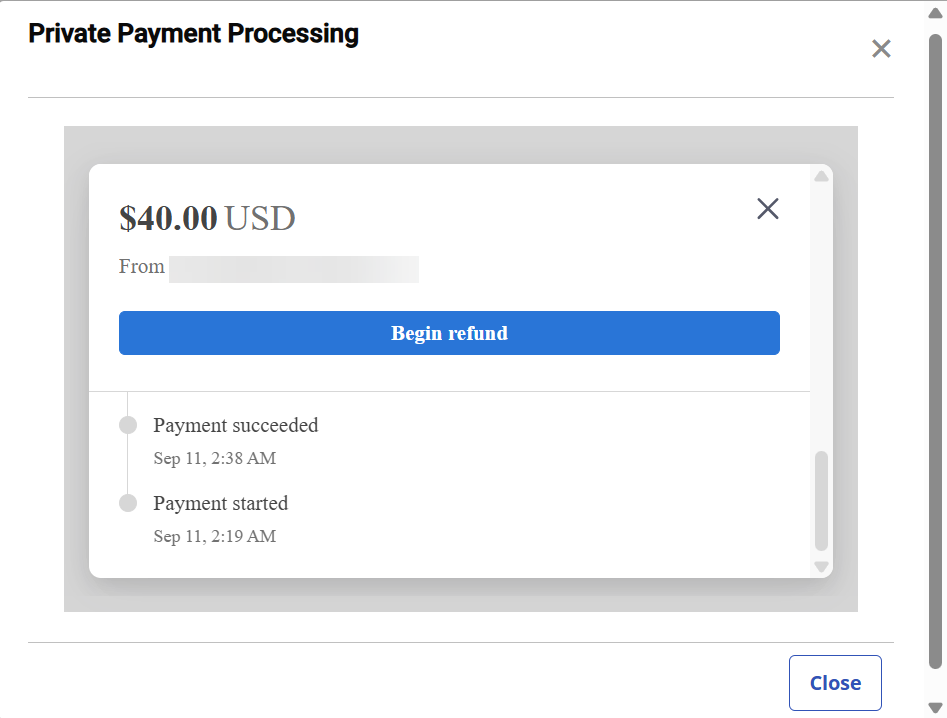
-
From the Private Payment Processing window, select Begin refund.
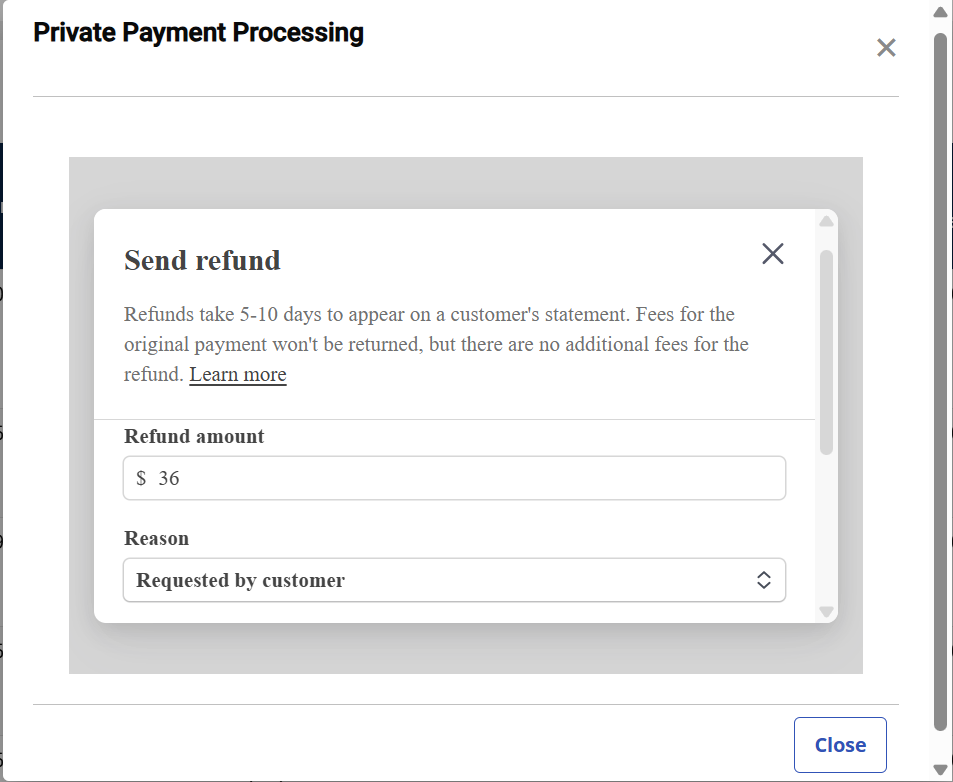
-
Complete the fields that display and then select Refund.
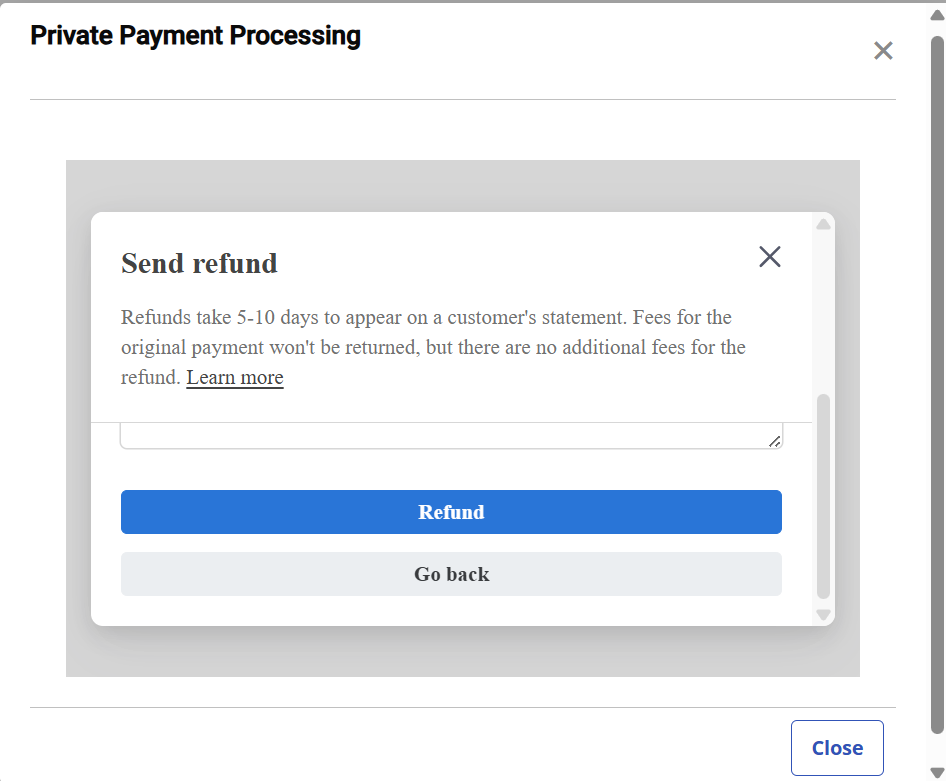
Payment Processing Tab
The Payment Processing tab includes information about Payments, Payout, and Account Settings.
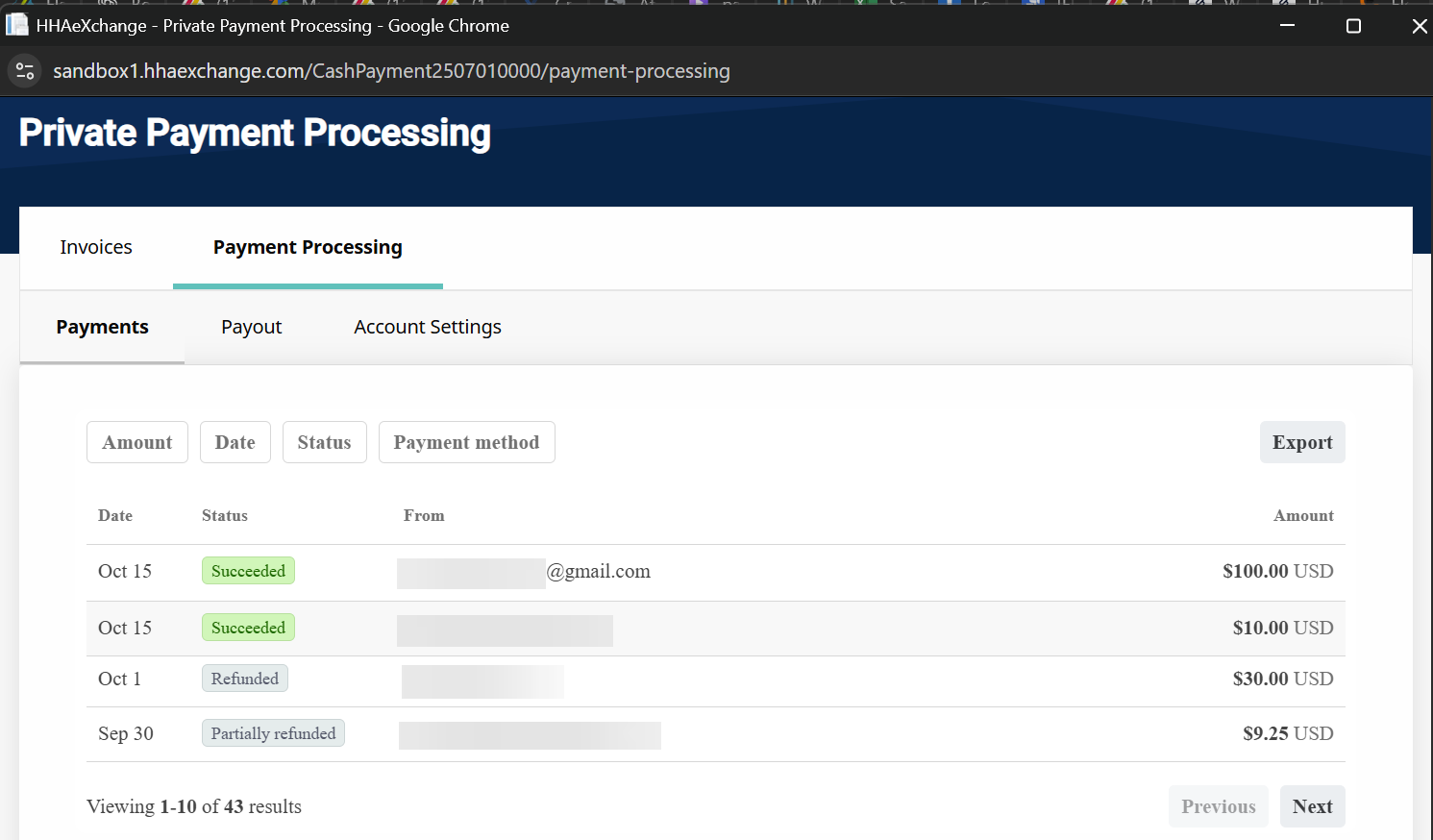
You can filter by the Amount, Date, Status, and Payment Method. Select the filter and then select apply. The Payments tab displays results based on the filter selected.
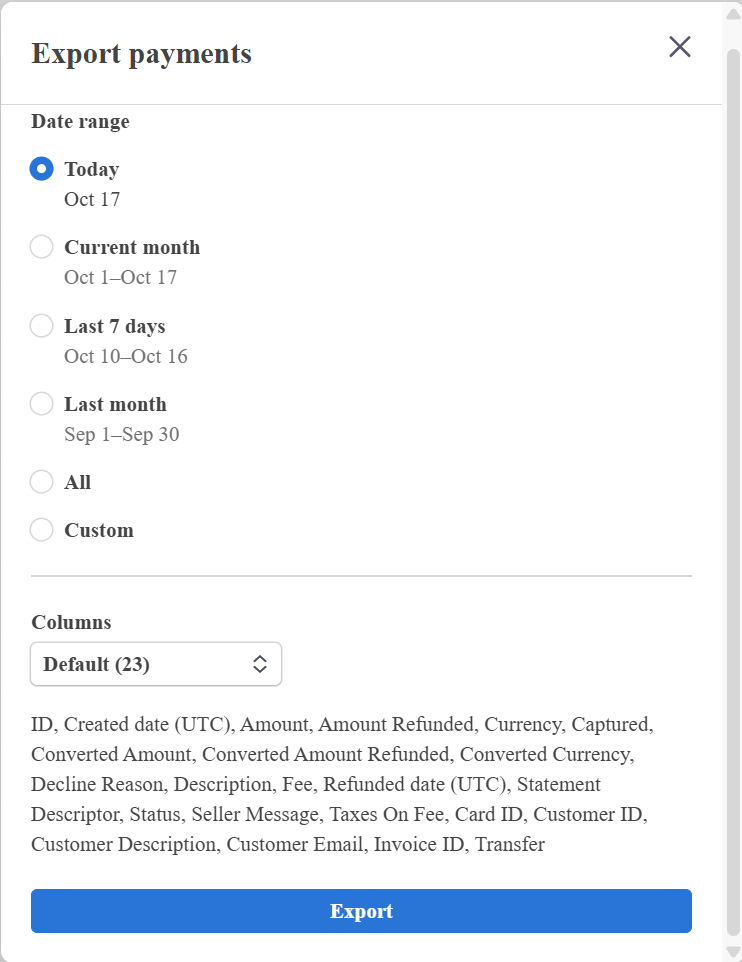
The Export button allows you to export payments based on the selections on the Export Payments window. Select the Export button. On the Export Payments window, select the Date Range and Columns fields, and then select Export.
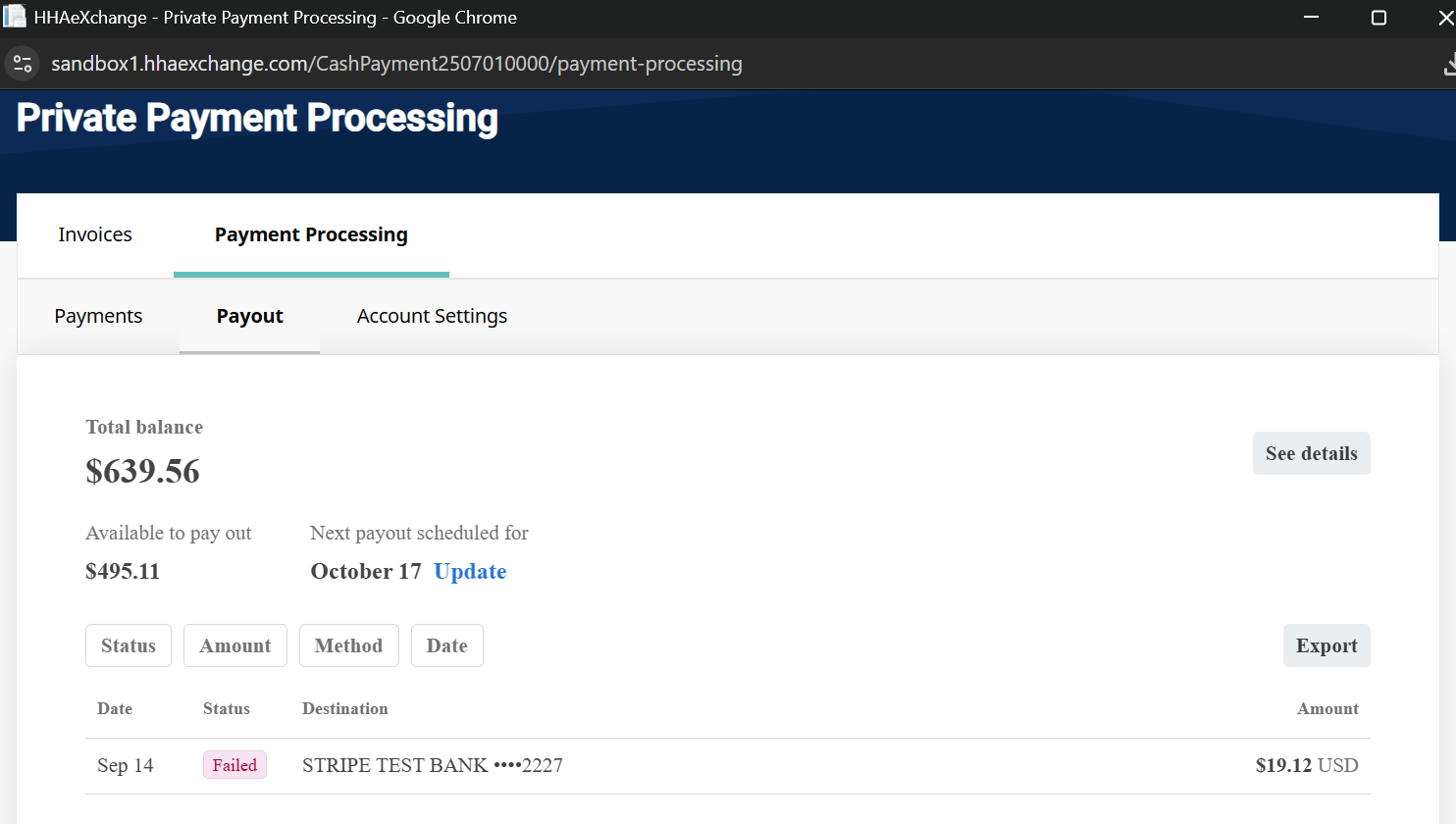
The Payout tab displays all current payouts for the Agency. You can change the cadence of your payouts and view the current balance available to be paid out in your account.
-
The Export button allows you to export payments based on the Export Payments window selections. Select the Export button. On the Export Payments window, select the Date Range and Columns fields, and then select Export.
-
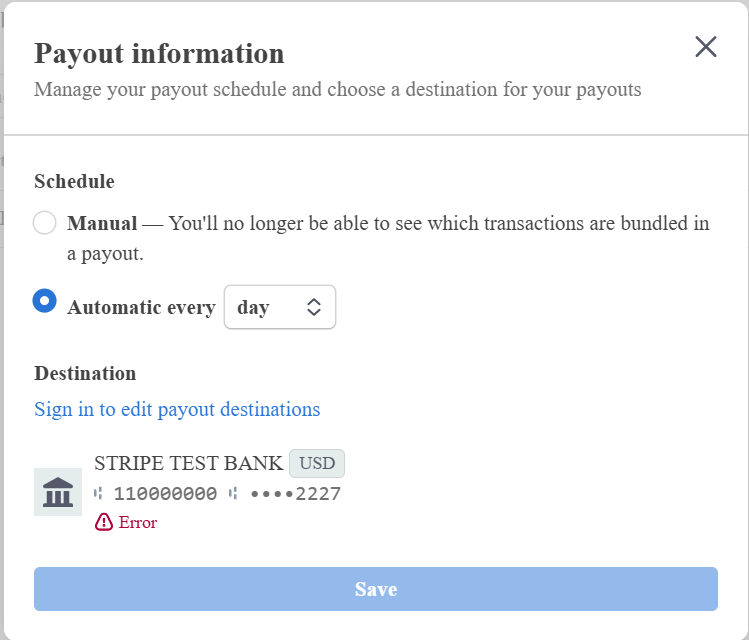
Select the Update button to open the Payout Information window. The Payout Information window allows you to manage your payout schedule and choose the destination for your payout.
-
Select the See Details button to view more details about your payout balance. From the Your Balance window, you can add to your balance, withdraw funds, and update your payout settings.
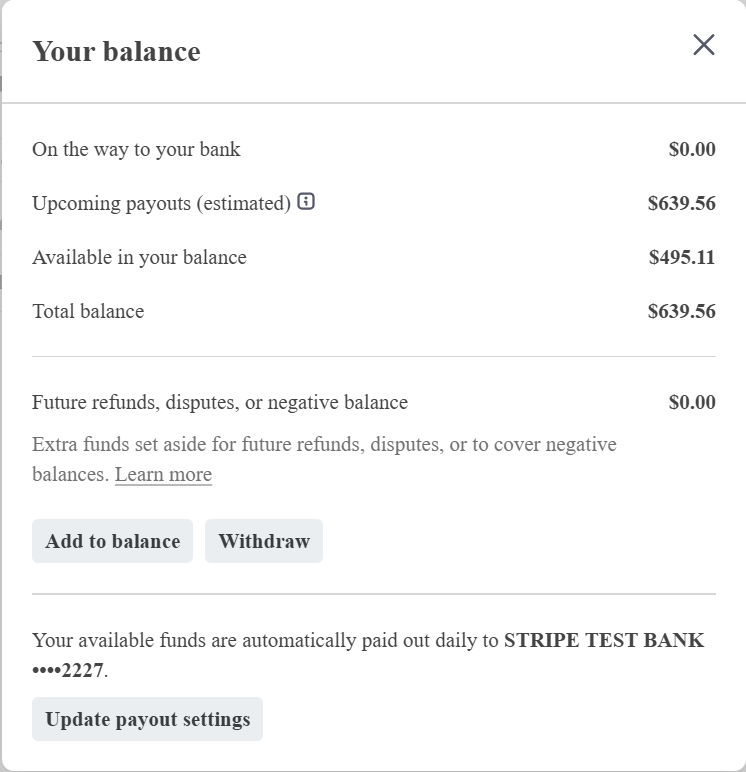
-
Select Withdraw to withdraw funds if available.
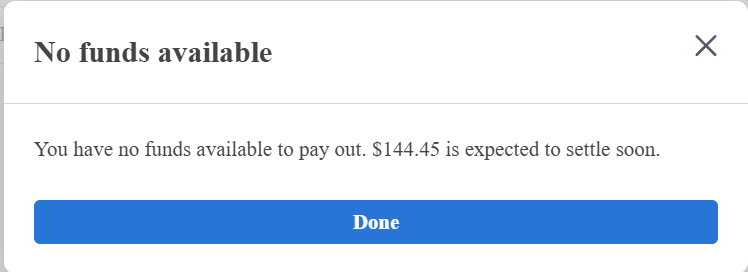
-
Select Add to Balance to cover negative balances. Enter the amount on the Add Funds window and then select Continue.
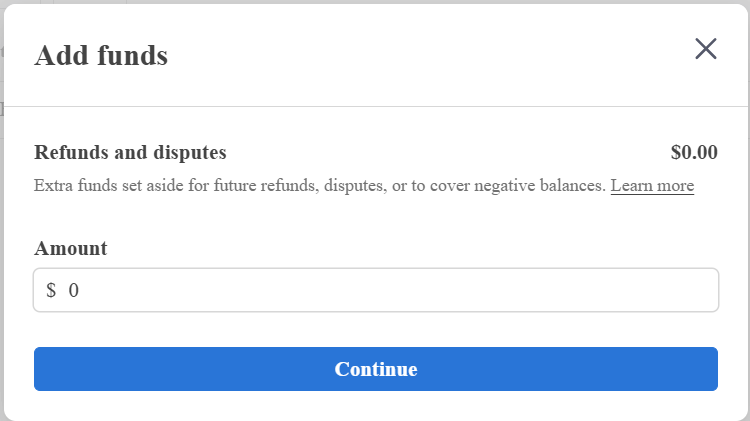
Confirm the Payment Method and account information, and then select Submit.
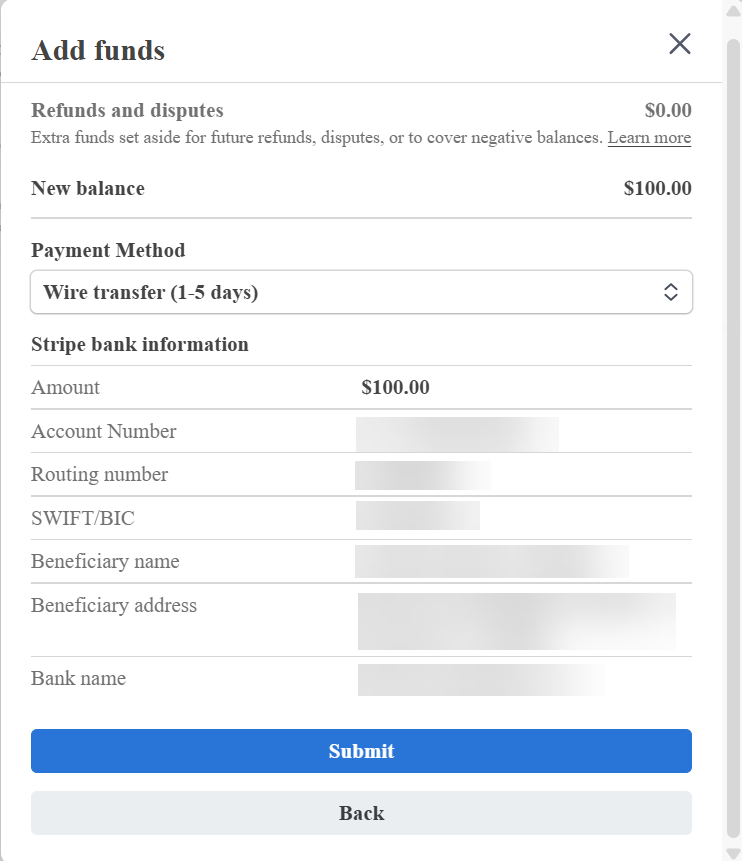
-
Select the Update Payout Settings from the See Details window to manage your payout schedule and choose the destination for your payout.
-
Select the payment from the Payout tab to review additional information about the payout. This includes the payment overview, summary, and transactions.
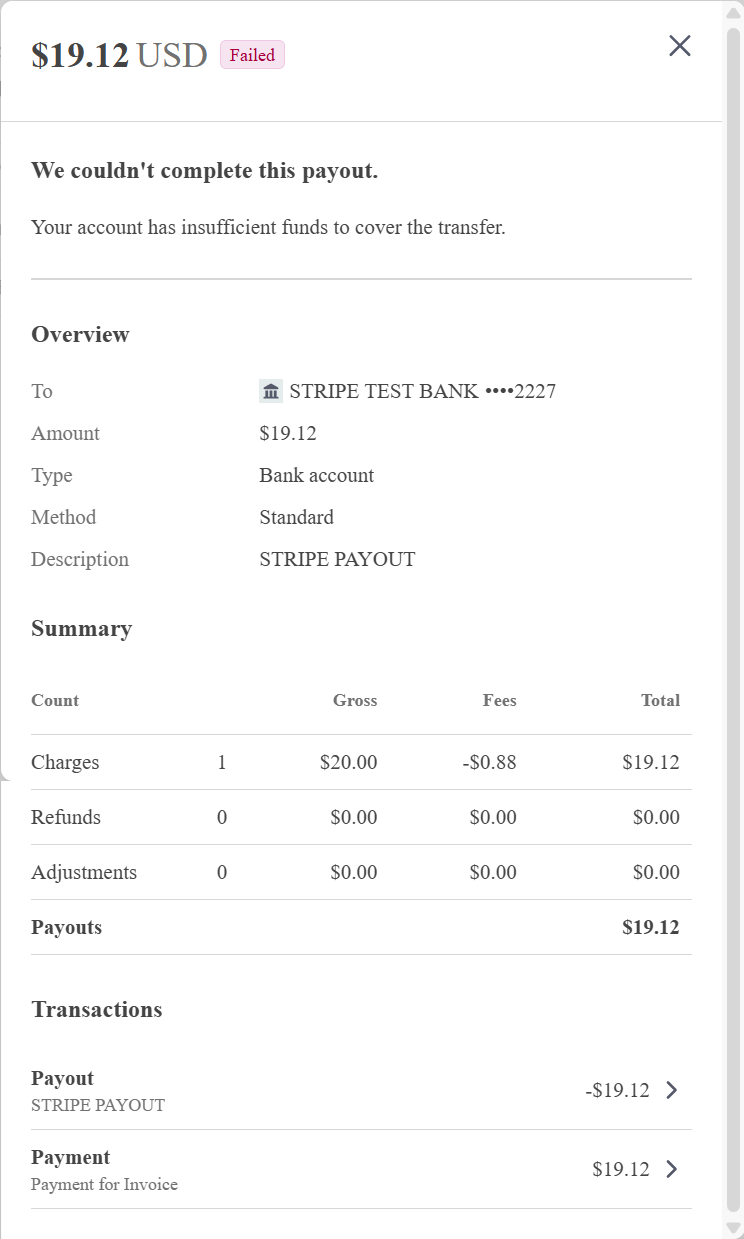
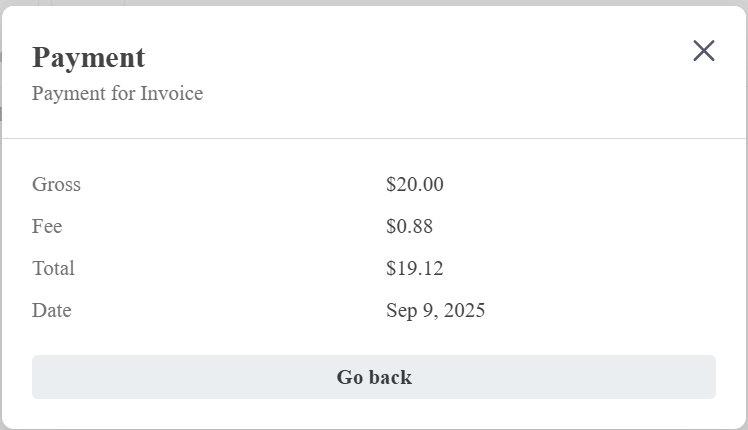
Select Payout or Payment under Transactions to see more information about the transaction.
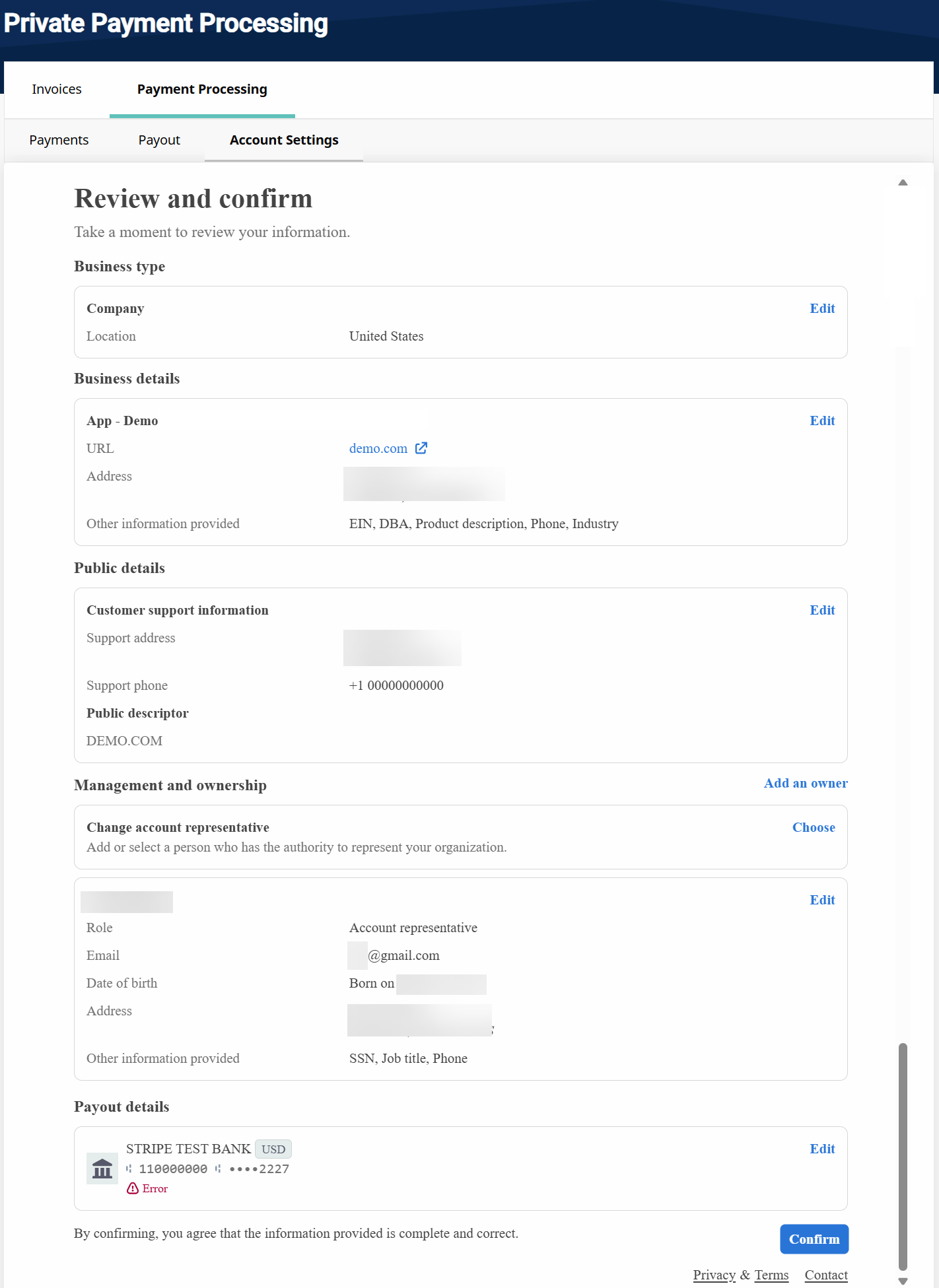
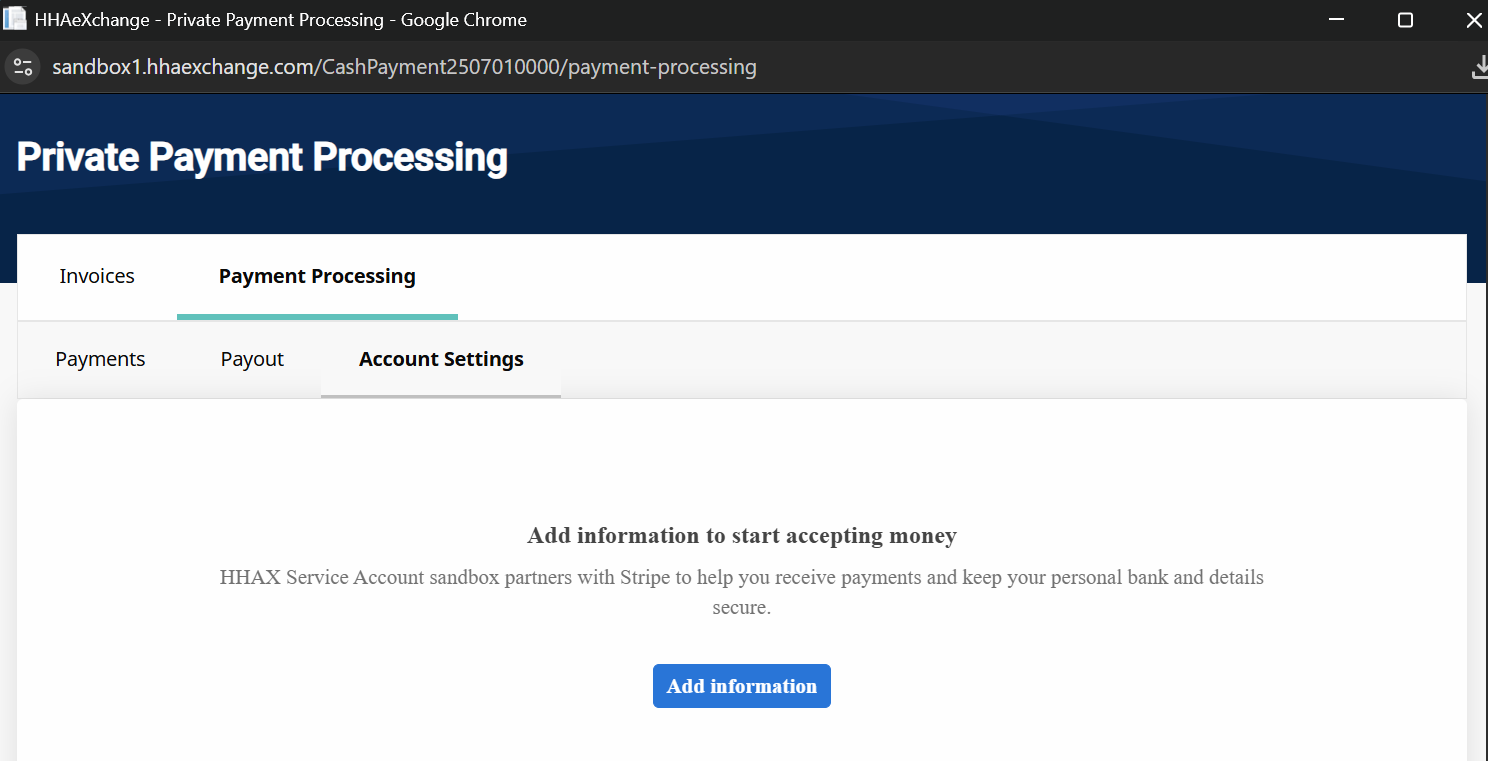
The Account Settings tab allows you to edit your Payment Processing information. Click the Add Information button to verify your account. Your account settings display.
Review and confirm your information is correct. Select Edit to update or correct your information and then select Confirm.