Resolve Missing Primary Dx Code Exceptions
The Diagnosis (Dx) codes are split into Billing Dx Codes and Clinical Dx Codes.
| Type | Definition |
|---|---|
|
Billing Dx Codes |
Assigned by the HHAeXchange System at the time of Invoice Generation, if the contract has been configured to require a Primary Dx code for billing. |
|
Clinical Dx Codes |
Codes entered on the Patient Clinical Info page, which appear on MD Orders. |
Billing Dx Codes must be entered into the HHAeXchange system prior to generating an invoice; this allows for the system to assign a Billing Dx Code at the time of Invoice generation. If no Dx code is provided, then a Billing Review Exception displays to indicate that the Patient is Missing Diagnosis information.
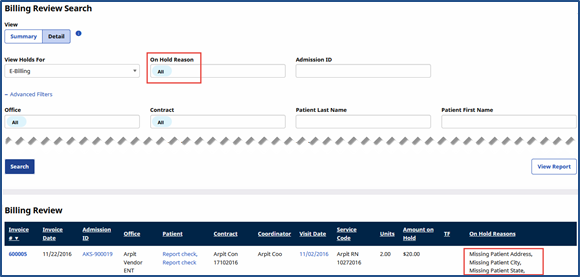
A Billing Dx Code can be entered at any time for the Patient; however, it is saved with the actual invoice at the time of invoice processing. To resolve this exception, the following must be completed.
-
Go to Billing > Invoice Search > By Invoice and search for the Invoice Number currently held in Billing Review.
-
Click the Delete icon
 and then select Delete Invoice from the options.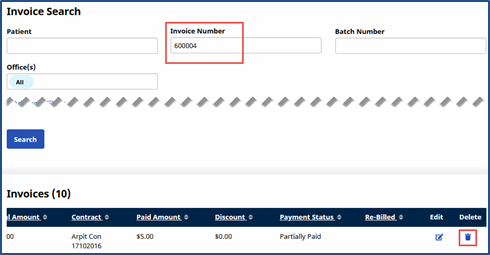
-
Enter the Billing Dx Information in one of the following areas, prior to re-generating an Invoice.
Once the Billing Dx Code information has been added to the Patient, the Billing Review exception Missing Primary Diagnosis Code no longer prevents the invoice from Printing/E-Billing.
Priority
Page
Description
Highest
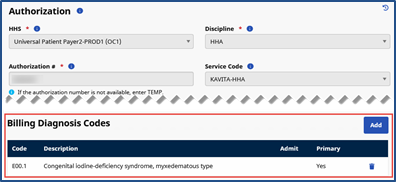
Patient Authorization
If provided, then the system uses the Billing Diagnosis Code(s) set on the Patient’s Authorization Page for billing purposes.
Secondary
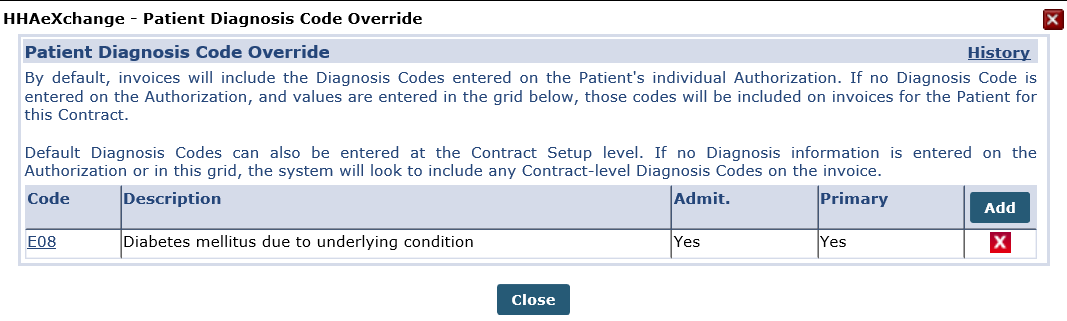
Patient Contract
If no Dx code is set on the Patient’s Authorization Page, the system searches for a Patient Diagnosis Code Override on the Patient’s Contract page.
Default
Agency Contract Level
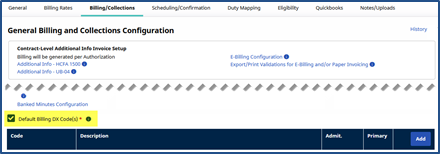
If no Dx codes are set at the Patient level (Patient Authorization Page or Patient Contract Page), then the system defaults to values set at the Agency Contract level (Default Billing DX Code).
-
To re-generate the Invoice, go to Billing > New Invoice–(Internal) page to select and re-invoice the batch as necessary.