Search for E-Billing Batches
After New or Resubmitted Claims have been created, batch details can be reviewed and re-exported if necessary. Complete the following steps to review records.
-
Go to Billing > Electronic Billing (Non Silverlight) > E-Submission Batches.
-
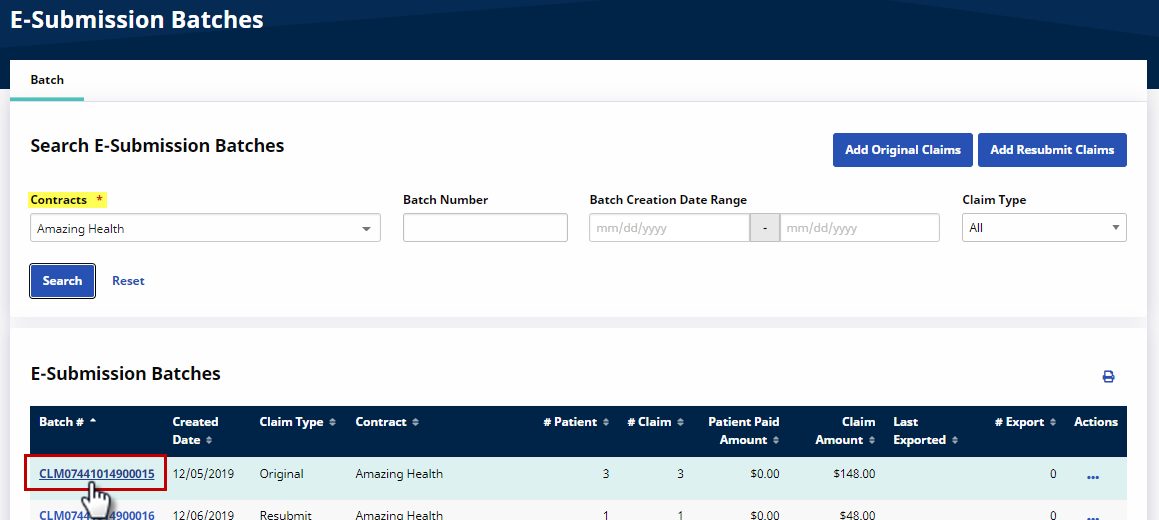
Select a Contract and a date range. Click Search.
-
On the Search Results, click the Batch Number link to view the claim(s) details within the batch.
-
Click the Export button to re-export the claim file.
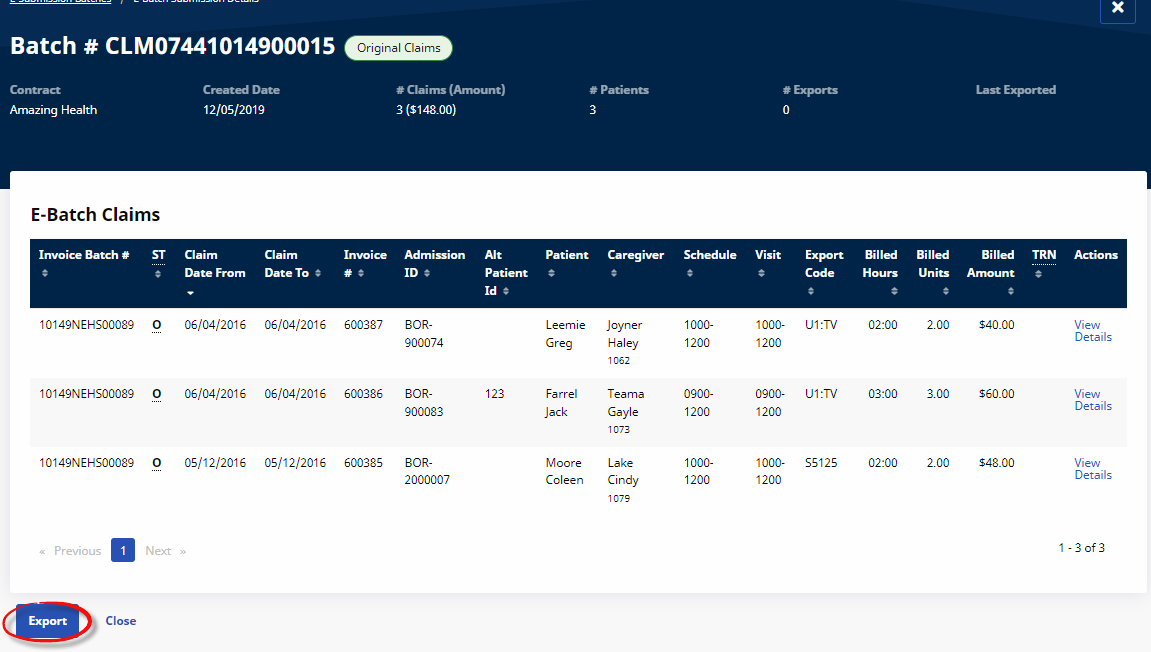
Re-exporting simply regenerates the claim file in case the original file was lost; does NOT change visit, billing, or batch status information.
-
Click the View Details link under the Actions column to view the E-Submission Batch Claim Details window for the visit.