Search and Edit Payments and Refunds
HHAeXchange maintains records of all payment and refund information entered in the Cash Payments page, under Billing > Cash Payment. Follow the steps below to search for a payment or refund.
-
Go to Billing > Cash Payment. From the Payments & Refunds tab, search for payments and refunds.
-
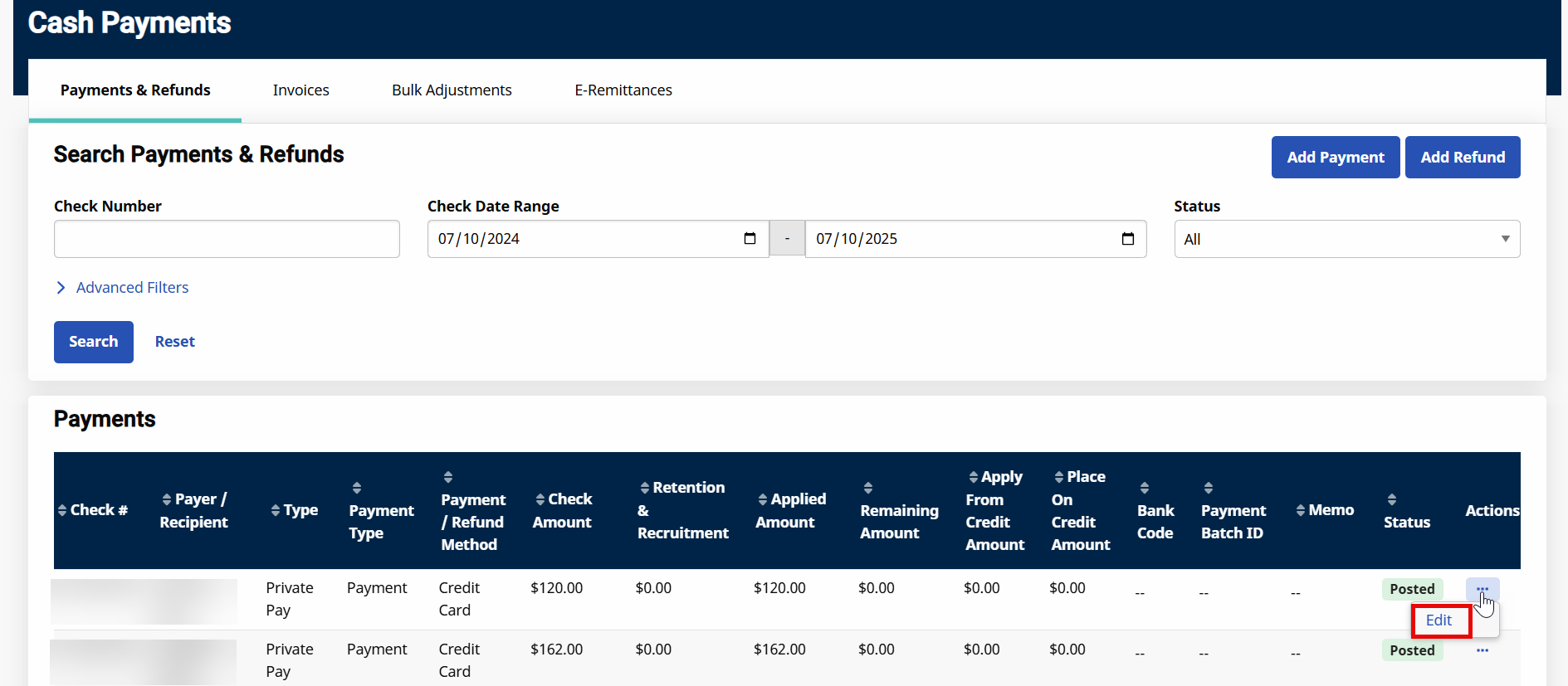
On the search results, select the three dots menu under the Actions column for the selected item and select Edit. For example, Refund is selected.
-
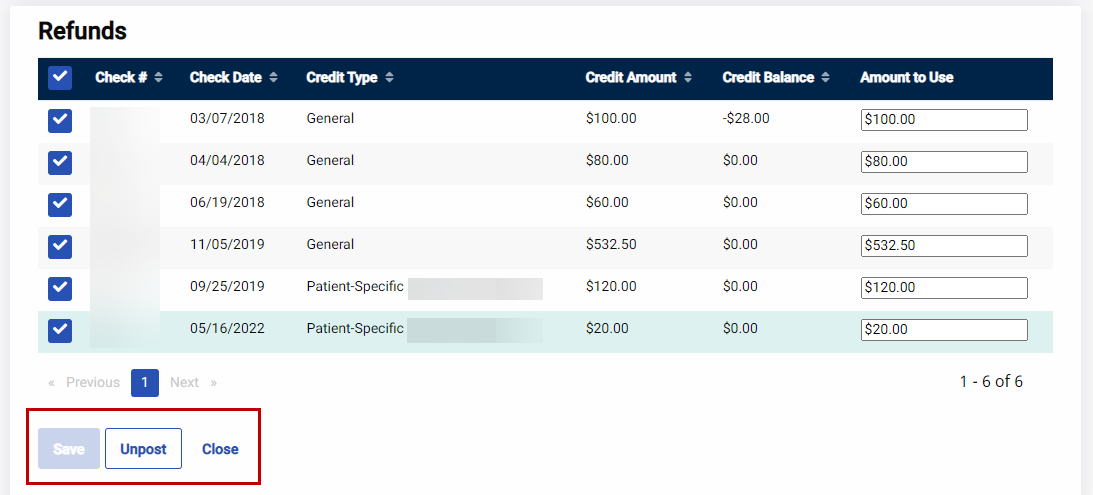
The Add Refund/Refund Info page opens. Review or modify payment or refund (if/as needed). To modify either the Refund or items applied to the refund, select the Unpost button.
-
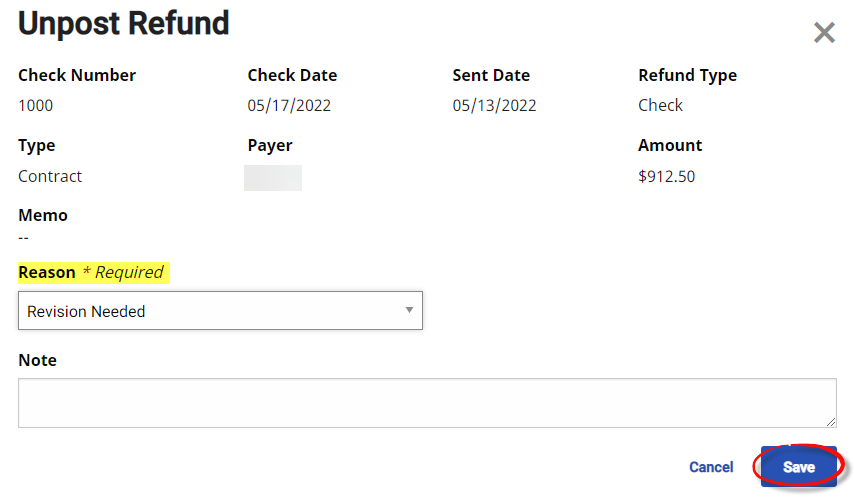
The Unpost Refund window opens. Select a Reason value (required) from the dropdown menu. Select the Save button to continue.
-
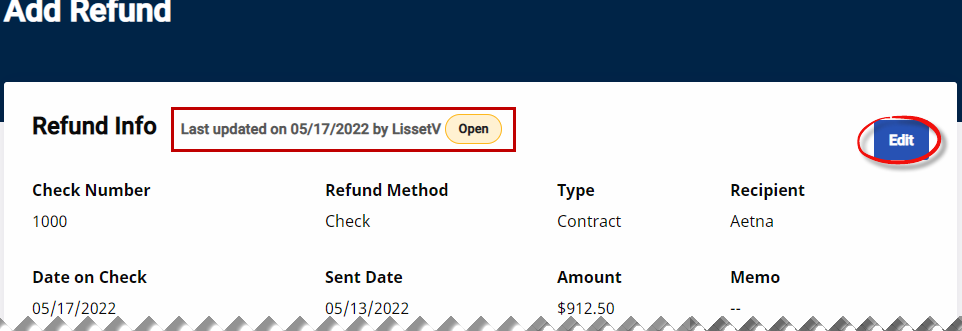
The Status changes from Posted to Open. In the Refund Info section, select the Edit button to make edits to the refund itself.
-
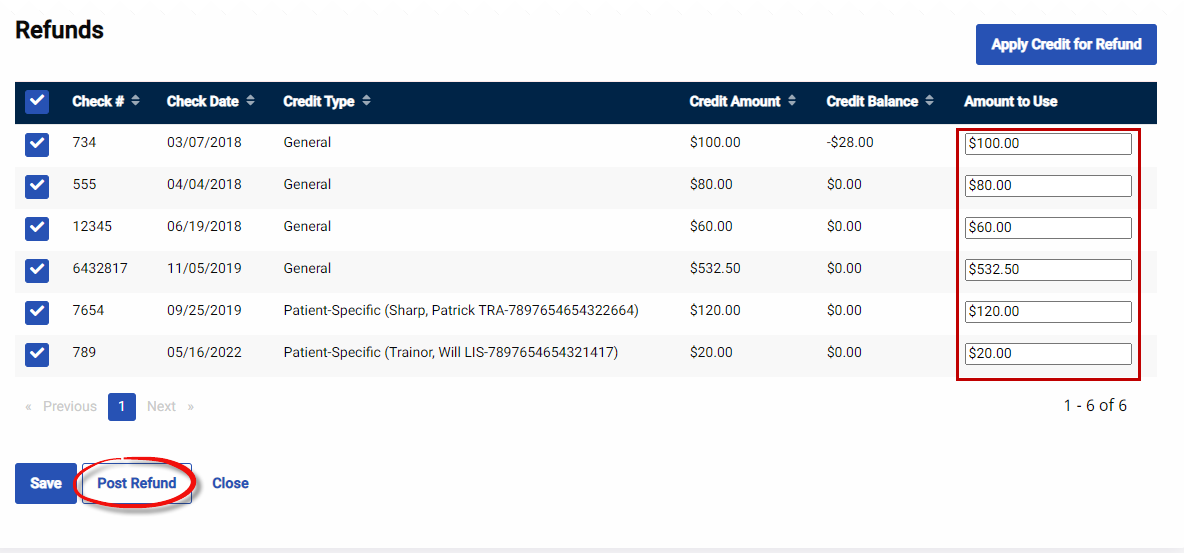
To make edits to the items within the refund, either enter modifications in the respective fields or remove items within the refund. Once complete, select the Post Refund button to repost.
Once a payment or refund has been updated, they must be re-posted.