Unbill a Visit
A visit can be unbilled if an error is discovered after it has been exported in a claim. Because these mistakes are typically clerical, they may not be detected by any of the system’s Exceptions pages. Once the error has been corrected, the visit can be rebilled. When applicable, a single visit or all visits in an invoice batch can be unbilled. Complete the following steps to un-bill a visit.
-
Go to Billing > Invoice Search.
-
Locate the visit, invoice, or batch to unbill.
-
From the Search Results page or Batch/Invoice Details page, click the delete icon
 to remove (unbill) the visit, invoice, or batch.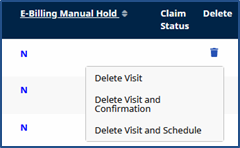
-
Select Delete Visit (Invoice or Batch) to unbill the record.
-
Select Delete Visit and Confirmation to unbill the visit, invoice, or batch and remove all visit confirmation information.
-
Select Delete Visit and Schedule to unbill the visit, invoice, or batch and delete all visit information (both schedule and confirmation).
-
-
When prompted, enter a Reason and Note explaining the deletion. Click Delete to finalize. Schedule and Confirmation details for any unbilled visits become available to edit.
-
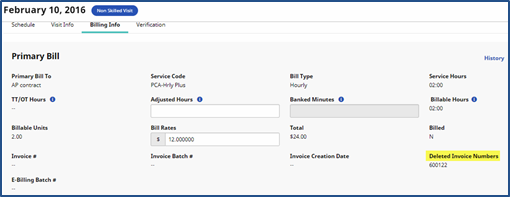
Once corrections have been applied to the visit(s), it can be re-billed. Refer to instructions in the Rebilling - Resubmission and Adjustments topic. The new invoice details and the Deleted Invoice Number display on the visit’s Billing Info tab.
When invoicing, running a payroll and then unbilling and editing visit details, a Payroll Adjustment is generated and applied during the next Payroll Batch.