Absence/Restriction Page
The Caregiver Absence/Restriction page under Caregiver > Search Caregiver > Absence/Restriction is used to track a Caregiver’s absences, paid time off (PTO) balances, or restrictions keeping a Caregiver from getting scheduled. This section covers how to add an Absence, how to designate an absence as PTO, and how to restrict a Caregiver from working with a specific Patient or Payer/Contract. To check absence settings and add absence reasons, see the Set Up New Office page.

Follow the steps below to add a Caregiver’s absence in the system under Caregiver > Search Caregiver > Absence/Restriction.
-
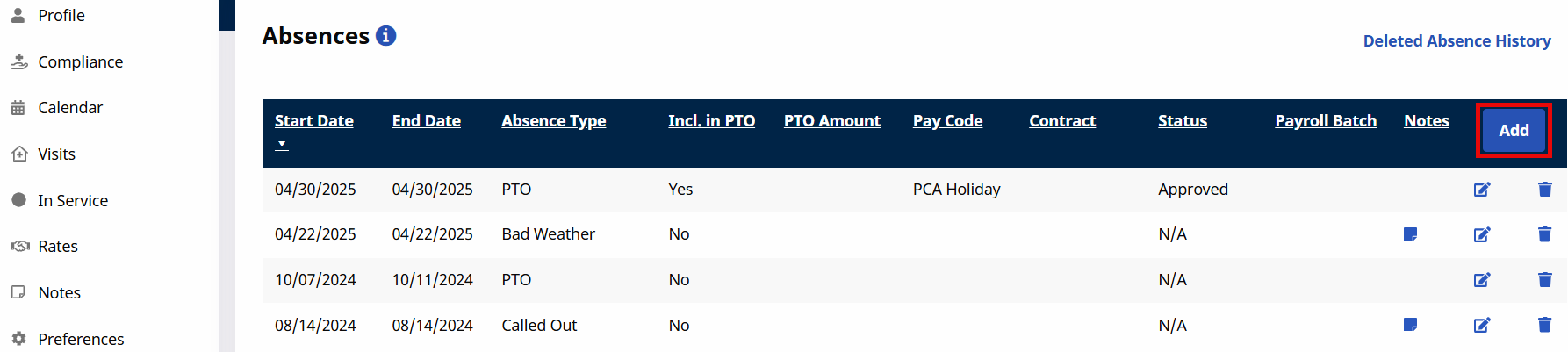
Click the Add button in the Absences section.
-
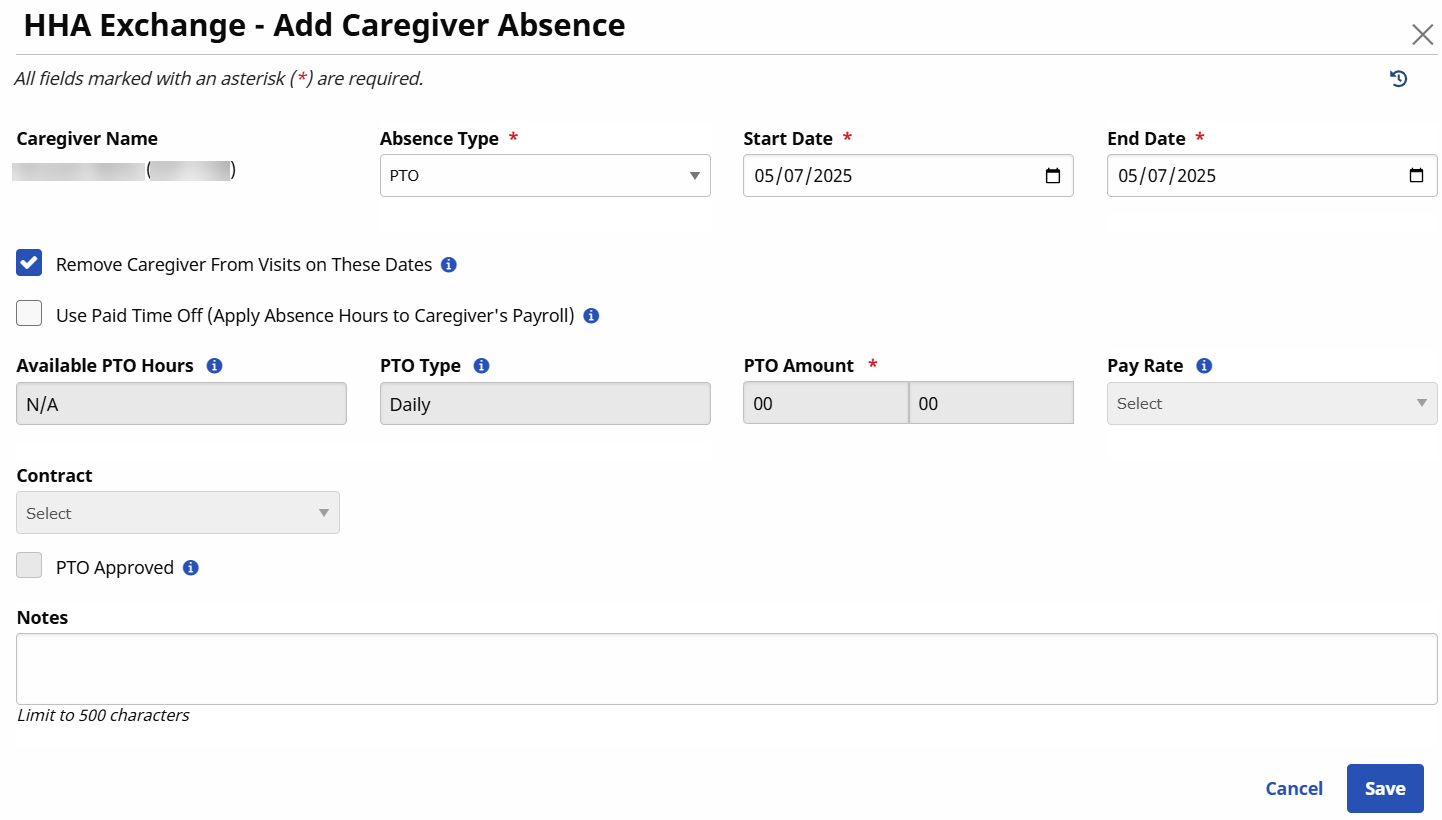
The Caregiver Absence window opens indicating the Caregiver Name and Code. Complete the required fields (as noted with a red asterisk).
Select the Absence Type, Start Date, End Date, and any other required fields. Select the Remove Caregiver from Visits on these Dates checkbox to remove the Caregiver from any visits assigned on indicated dates.
-
Click the Save button to finalize or proceed to the next steps to apply PTO to the absence.
If the selected Absence Type is linked to a Caregiver PTO Accrual Type, the Apply Absence Hours to Caregiver Payroll checkbox unlocks. If unavailable, the system alerts the user with the following message: Absence Type selected not configured for Paid Time off.
-
Select the Use Paid Time Off (Apply Absence Hours to Caregiver’s Payroll) checkbox to apply PTO and complete the required fields (denoted with red asterisks).
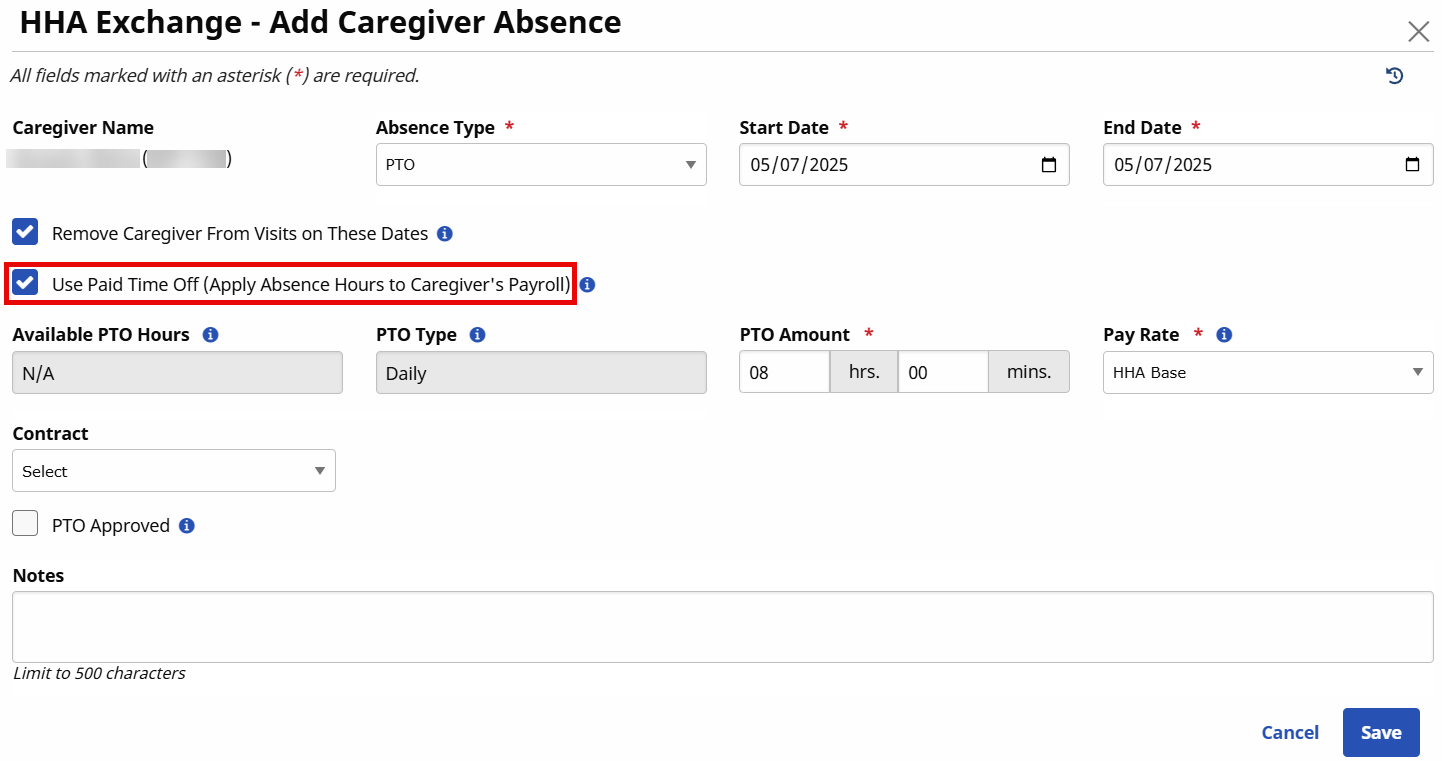
Field
Description
Paid Time Off Amount
Enter the applicable PTO Hours and Minutes to apply.
Pay Rate
Pay Rate associated with the PTO.
Contract
Select only the PTO applies to a Contract; otherwise leave unselected.
PTO Approval
Select the checkbox to authorize the PTO. If left unselected, the PTO is not included in the next payroll.
Notes
Enter any applicable notes (optional).
The Available PTO Hours field is for reference purposes only indicating the PTO type selected and the balance of hours available.
-
Click the Save button to finalize.
All absences and PTO are displayed in the Caregiver Absences section where records can be reviewed, edited, or deleted.

The Paid Time Off Accruals section under Caregiver > Search Caregiver > Absence/Restriction is used to track a Caregiver’s PTO balances. This section is for reference purposes only.

|
Column |
Description |
|---|---|
|
Accrual Type |
Values for these fields are generated using the Reference Table Management functionality. The Reference Table item Caregiver PTO Accrual Type designates different types of PTO. |
|
Accrued PTO Hours |
The amount of PTO hours the Caregiver has for each Accrual Type based on the imported payroll information. |
|
Date of Last PTO Import |
The date of the last data import from the Agency’s payroll provider. |
|
Pending PTO Hours |
The number of PTO hours that have been entered, but not yet included in payroll. |
|
Available PTO Hours |
The number of available PTO hours. |
The Paid Time Off Accruals feature, or PTO function, is NOT an internal accrual tracking process. This function works by importing accrual information (sent by your Agency’s payroll provider) and applying it to the payroll tracking function in the system. HHAeXchange is not responsible for the accuracy of payroll data originating from the 3rd party payroll provider.
Contact HHAeXchange Support Team for details, setup, and guidance.
The Restricted section under Caregiver > Caregiver Search > Caregiver Profile > Absence/Restriction is used to restrict a Caregiver from working with Patients under a specific Contract. Once a Restriction is placed, the Caregiver is removed from non-billed visits and cannot be scheduled to new visits (throughout the duration of the restriction).
Follow the steps below to add a Caregiver Restriction.
-
Go to Caregiver > Caregiver Search > Caregiver Profile > Absence/Restriction.
-
Click the New button in the Restricted section.

-
The Add Caregiver Restriction window opens. Complete the required fields (as denoted with a red asterisk).
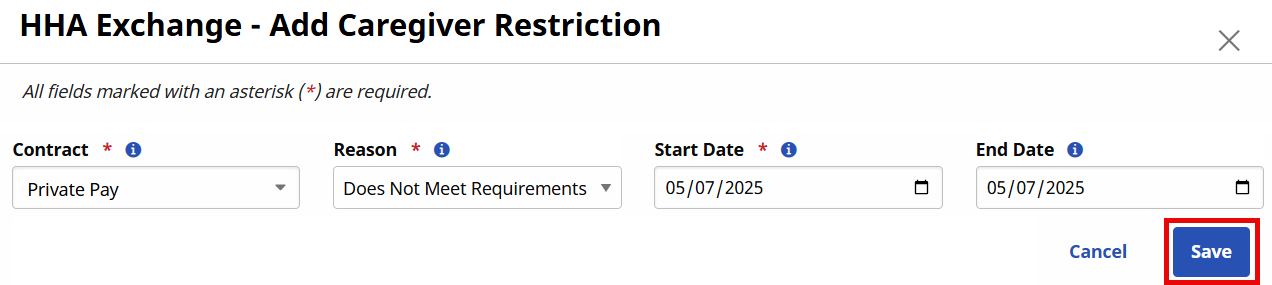
Field
Description
Contract
Select the Contract barring the Caregiver from working a case(s).
Reason
Reason the Caregiver cannot work visits schedule by a Contract.
Values for the Reason field are generated via the Reference Table Management function.
Start Date
Start date of the restriction.
End Date
End date of the restriction.
-
Click the Save button to finalize.
All Restrictions can be reviewed, edited, and deleted in the Restricted section. Additional restrictions can be added by clicking the New button.
