Add an Expense
-
Complete the steps below to add or review an Expense for a Caregiver.
-
Go to Caregiver > Search Caregiver and select the applicable Caregiver.
-
In the Caregiver Profile, select Expenses from the left navigation menu.
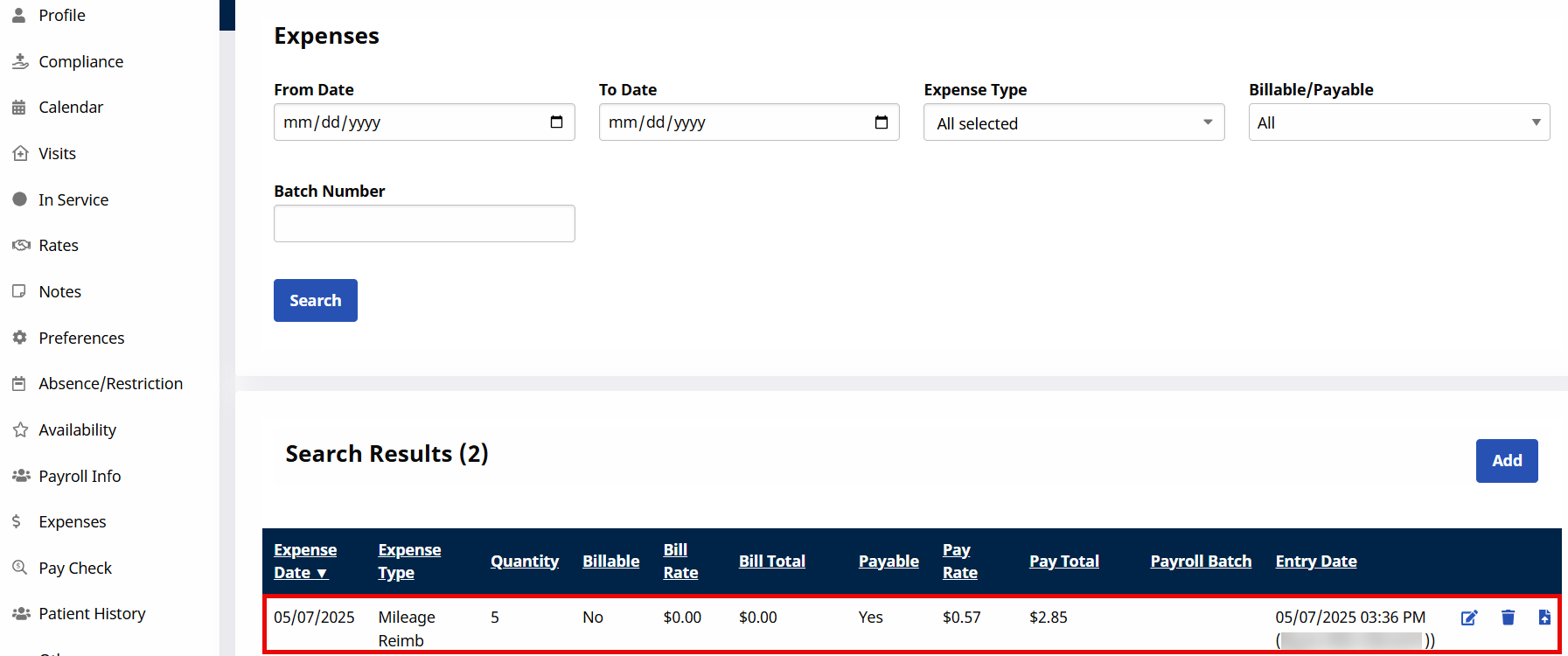
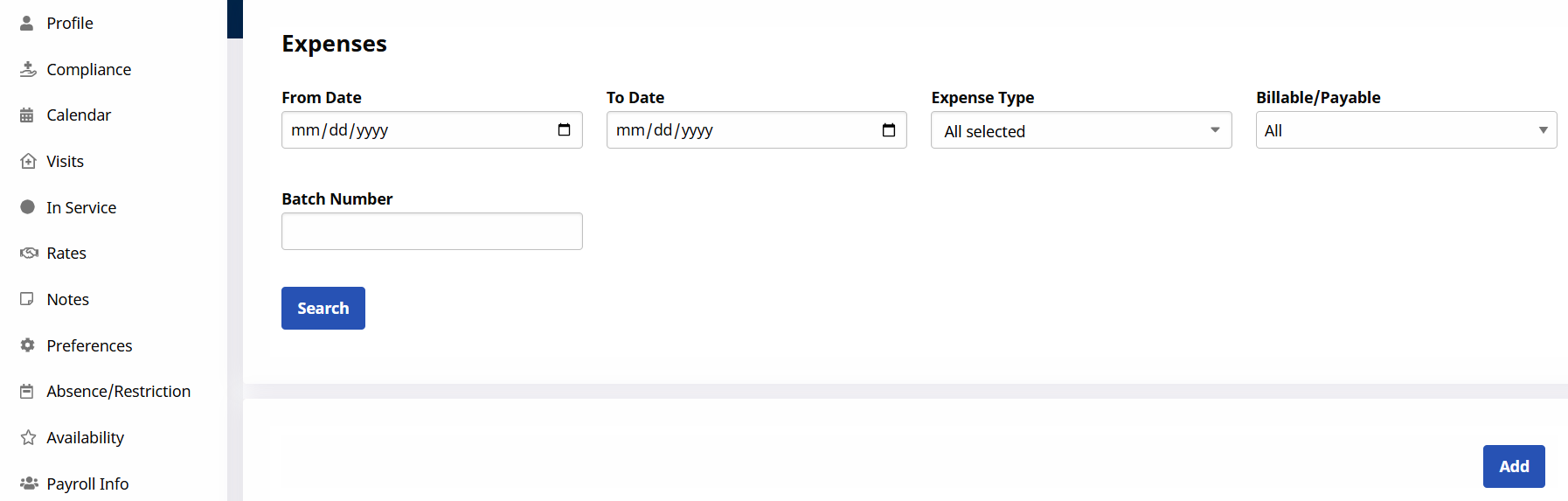
The Expenses page opens. Click the Search button to review Expense records applied to the Caregiver. Each record contains the expense details to include the following:
Expense Date
Expense Type
Quantity
Billable
Bill Rate
Bill Total
Payable
Pay Rate
Pay Total
Payroll Batch
Entry Date
-
Click Add to add a new Expense.
-
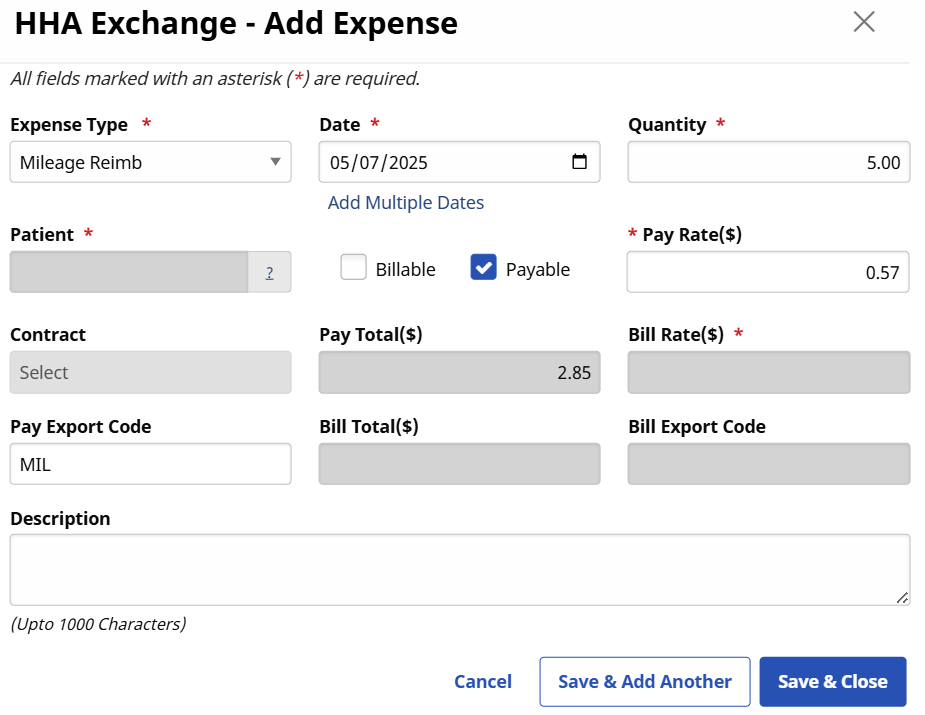
The Add Expense window opens. Complete the required fields denoted with a red asterisk.
Field
Enter the…
*Expense Type
(Required) The actual expense. Values in this dropdown are created via the Reference Table Management function.
*Date
(Required) The date the expense was incurred.
*Quantity
(Required) The number of units included in the expense.
The actual amount billed and/or paid is calculated by the Pay Rate and Bill Rate multiplied by the Quantity. When these values are entered, the Billable and/or Payable fields are automatically populated the with the information entered on the Add Expense Type window (refer to the previous section), except for the Patient and Contract fields.
*Patient
(Required) An Expense must be connected to a Patient to bill. Enter the Patient’s Admission ID in this field or use the ? to the right of the field to perform a Patient search.
*Pay Rate
(Required) Pay Rate per unit for the Expense.
*Contract
(Required) Select the applicable Contract to receive the bill for the Expense. This dropdown only contains Contracts that are connected to the selected Patient.
*Bill Rate(s)
(Required) Billing rate per unit for the Expense.
-
Click the Save & Close to finalize.
Once saved, the Expense is listed as illustrated in the image below.