Caregiver Search and Communications

This feature is activated by HHAeXchange System Administration. Contact HHAeXchange Support Team for details, setup, and guidance.
To better streamline Caregiver searches, all related features, including Availability Search and Case Broadcast, have been combined into one process. Search criteria is expanded, providing grid, map, and schedule views to display results in all communication options (Mobile message, text, email, and broadcast). This category covers features used in the Caregiver Search, Availability, and Communications features. In alignment with the Caregiver Search options, Providers can also communicate with Caregivers from generated searches.
Go to Caregiver > Search Caregiver (New) to access the Caregiver Search pages. Providers can search for Caregivers, check general caregiver availability, or search to fill a shift. Look at the specific sections in this topic to learn more about each option.
On the Caregiver Search tab under Caregiver > Search Caregiver (New) > Search Caregiver, use the filter fields (such as Office and Status and the Advanced Filters) to narrow a Caregiver search to include Team, Branch, Location, Discipline, Gender, Language, Date of Birth, SSN, Type, Caregiver, State, City, Zip, Compliance, and EVV Utilization. The Office field is required.
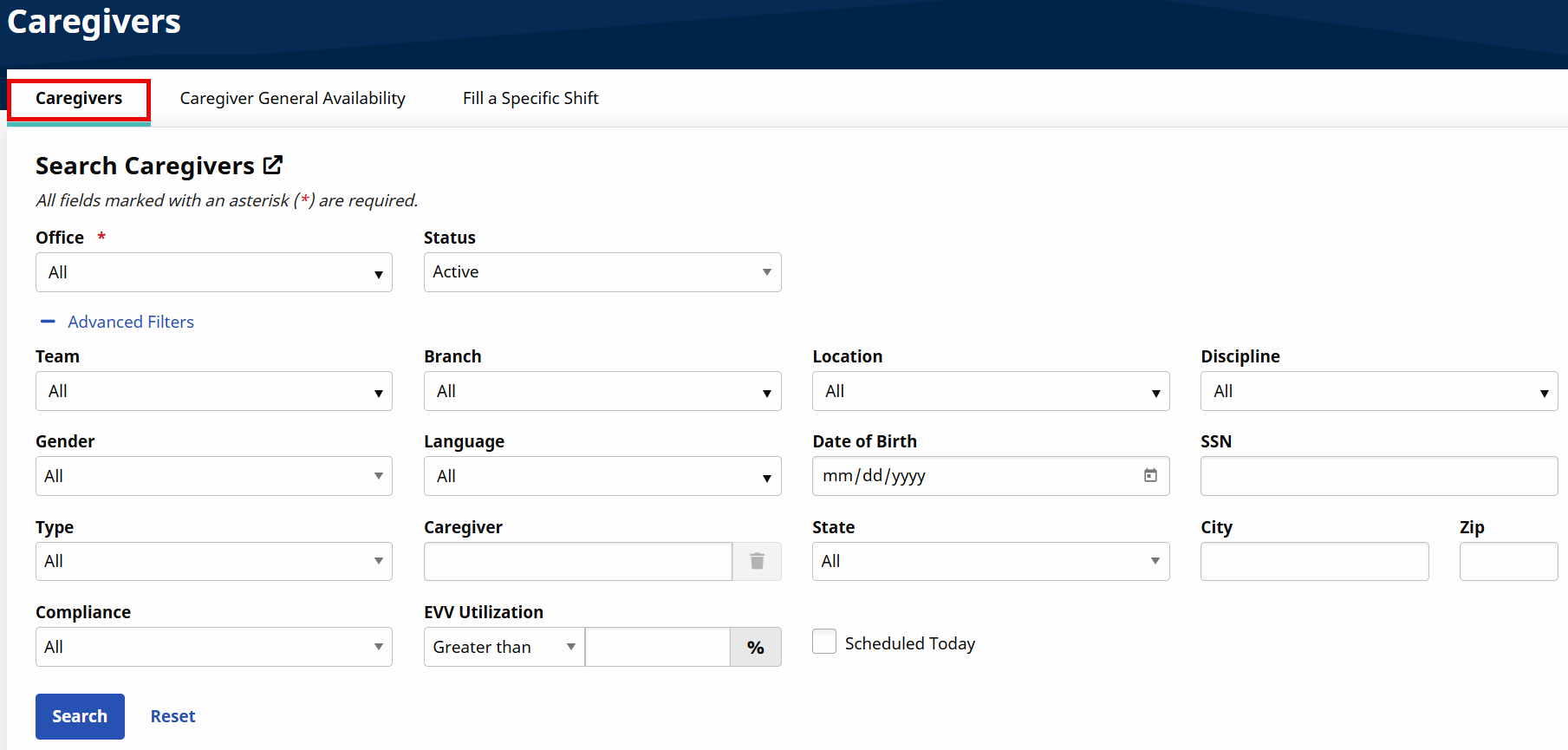
The State and City fields are auto-filled when a valid zip code is entered.
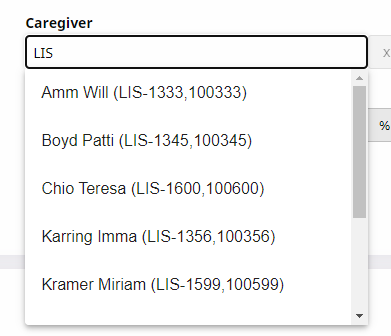
A Caregiver field's auto-suggest feature allows Providers to search for a specific Caregiver. Enter a Caregiver’s name or code to generate matching Caregivers.
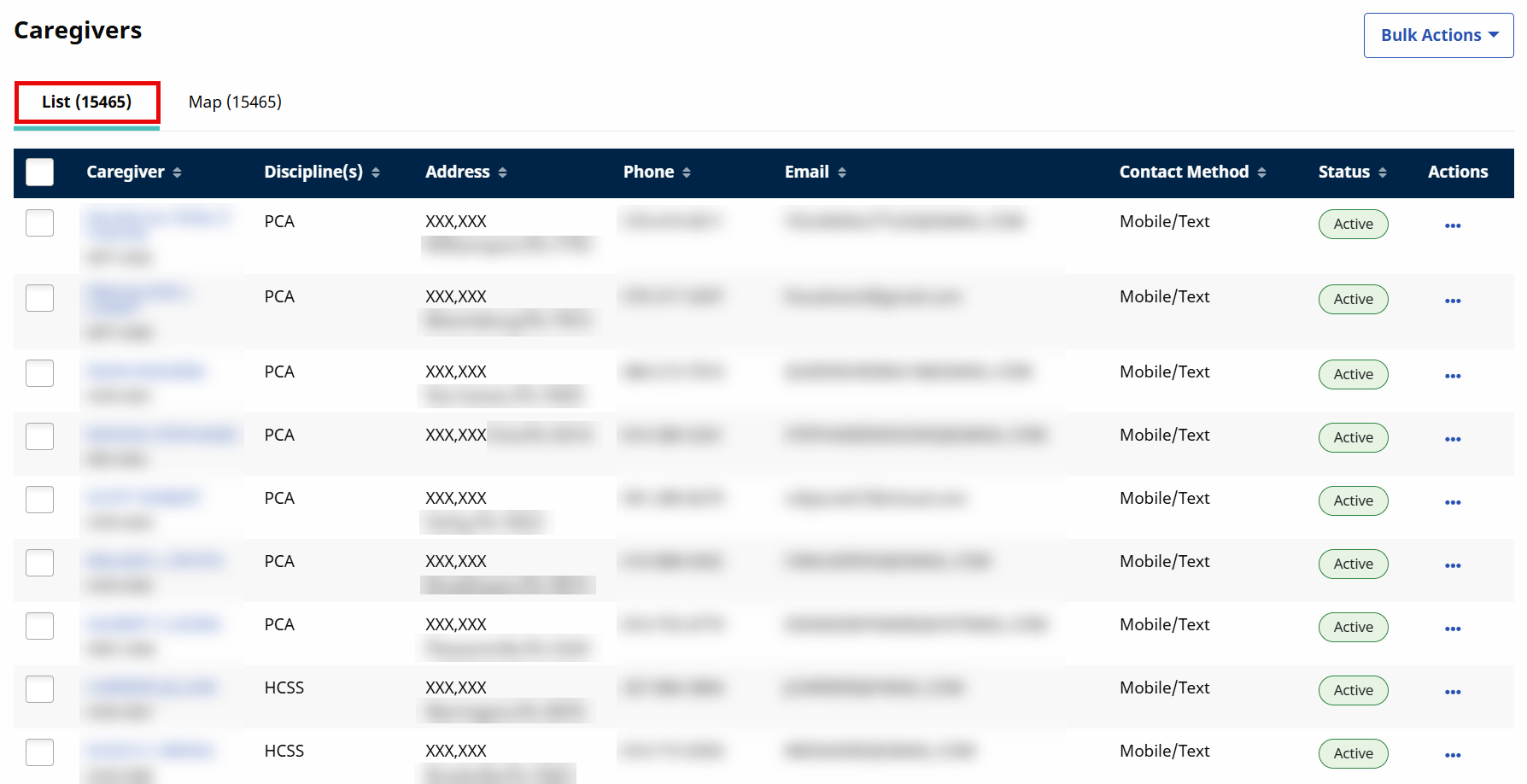
In the search results, List view is the default view offering details to include specific Caregiver information such as Caregiver name, code, Disciplines, Address, Phone, Email, Status, and Action.
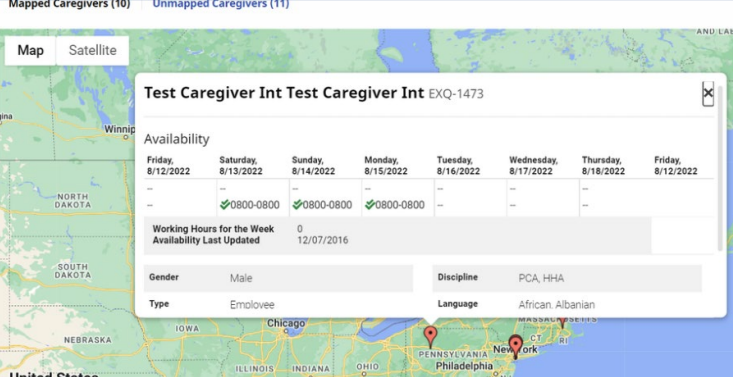
Select the Map view to see Caregivers according to their location. Caregivers appear as red markers. Select a marker to see a specific Caregiver’s availability information in a pop-up window, as seen in the following image. Information provided includes the Caregiver’s Scheduled Visits, In Service events, Absences, Working Hours for the Week (Preferred and Might Work), and Availability Last Updated, as well as their Demographics (such as Gender, Disciplines, and Language). This feature must be enabled before use.
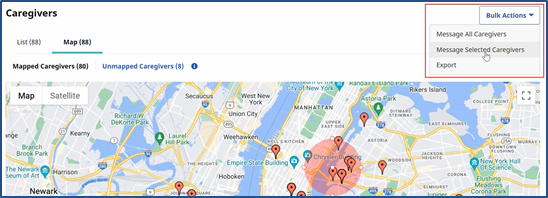
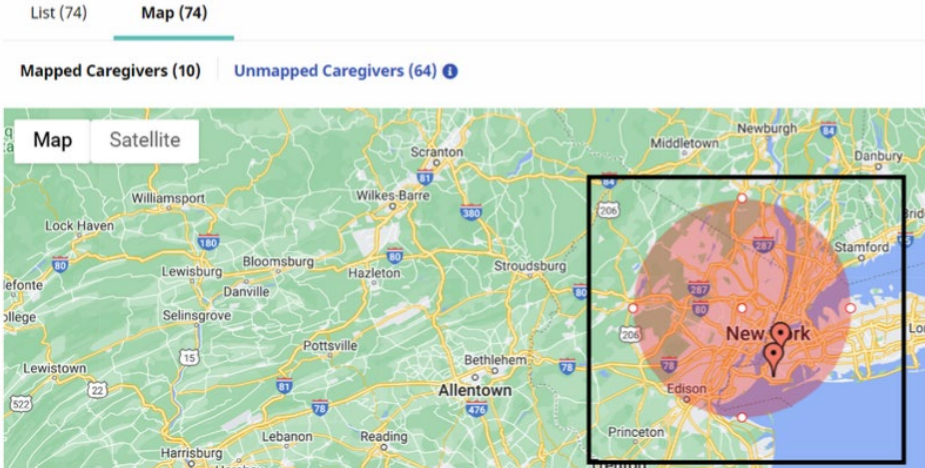
From the Map view, under Caregiver > Search Caregiver (New) > Search Caregiver, Caregivers can be selected and assigned. Press the Shift key and click the Caregiver Search option in the Map tab to select a pointed area. A circle with expansion points appears in the selected area.

Use the points to expand the area range to select multiple Caregivers in the map.
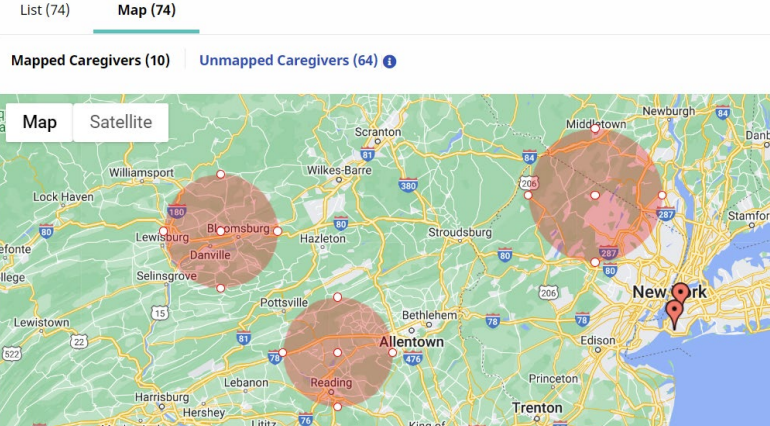
Multiple areas can be selected at a time.
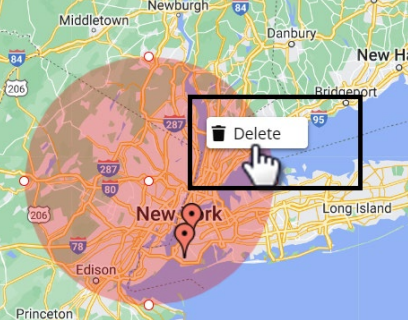
To delete a selected area, right-click the circle and select Delete.
Once Caregivers are selected from the Map, click the Bulk Actions button and select Message Selected Caregivers.