Caregiver Compliance Page
Caregiver Compliance refers to work requirements set by Contracts and Agencies. Compliance requirements may include updated medical records, a clean Criminal Background Check, or proof of Certification. Depending on an Agency’s settings, the HHAeXchange system may block the Caregiver from being scheduled if a Compliance requirement is not fulfilled. In some case, the system warns the scheduler of the issue.

The Caregiver Compliance page has been redesigned to facilitate the administration and management of this comprehensive piece.
Refer to the Caregiver Compliance to learn about the numerous components that have been streamlined and centralized focusing on each functionality based on Caregiver Discipline.
The Caregiver’s Compliance page is comprised of 8 sections where a Caregiver’s compliance requirements are documented and maintained. The following sections provide details per page section.
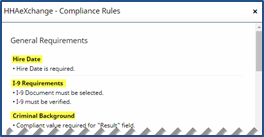
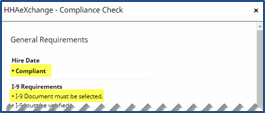
The Compliance section displays the various applicable Contracts for an Agency. Each line item specifies the Contract (Name), Compliance Status, and the corresponding Compliance Rules, Compliance Check, and Recalculate links per Contract.

|
Column |
Description |
|---|---|
|
Contract (Name) |
Name of Linked Contracts associated with an Agency. |
|
Compliance Status |
Indicates whether the Caregiver is Compliant or Not Complaint with the Agency or any Linked Contract requirements associated with the Agency. |
|
Compliance Rules link |
Click the link to review Compliance requirements for the Agency, or any Linked Contracts.
|
|
Compliance Check link |
Click the link to review the areas where the Caregiver needs to meet requirements to become Compliant.
|
|
Recalculate link |
Click the link to recalculate the Compliance Status based on new added information. |
HHAeXchange only tracks compliance for Non-Skilled Caregivers. Skilled Caregivers are considered complaint by default.
The Employment Authorization section on the Compliance page contains fields to record the Caregiver’s I-9 information and documentation as well as any references provided by the Caregiver. In the Criminal Background section, details and results are recorded on the Caregiver’s criminal background check.
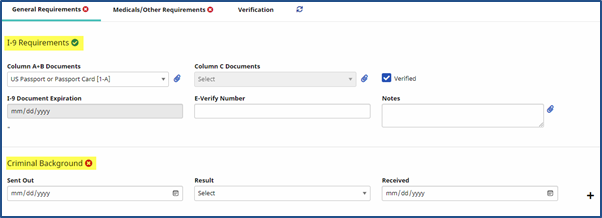
For items deemed Compliant, the I-9 Verified checkbox must be selected and the Result field for the Criminal Background check must be OK. To save edits or new information in this section, click the Save button in the Other Requirements section.
Fields and information in the Other Requirements section apply to Skilled Caregivers used for reference purposes. This information does not contribute to overall Compliance Status.

The Training School Details section is used to capture the Caregiver’s training school information. The following table provides instructions on adding or editing a Caregiver’s training school details.
-
Scroll down to the Training School Details section and click the Add button to add a new record or click the Training School name to update existing information.
To delete Training School records, click the Delete icon
 .
.
-
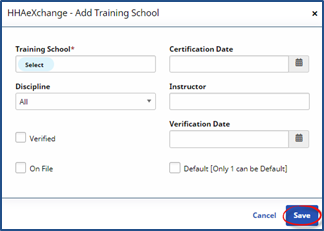
The Edit/Add Training School Details window opens. Complete the required fields denoted with red asterisks.
-
Click the Save button to finalize.
The Caregiver’s required medical records are captured and maintained in the Medical section. The following table provides instructions on adding, editing, and deleting a Caregiver’s medical details.
-
Scroll to the Medical section and click the Add button to add a new record; or click the Add All button to add multiple records at once.
To edit a record, click the Medical Name title to update existing information.
To delete Medical records, click the Delete icon
.
-
The Medical window opens. Complete the required fields (denoted with red asterisks) including: Subject, Date, Result and Expiration information. Enter Notes if/as necessary.
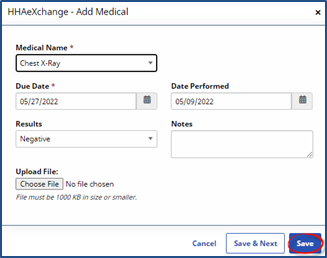
Medicals can be scheduled to automatically populate certain fields or give the user the option to enter details. The Subject field is configured in the Admin > Medical Setup section.
-
Once saved, the Medical record is listed.

If expiration is applicable, Medicals are highlighted in yellow when expiration is within 30 days of the expiration date. Those highlighted in red indicate that the expiration date is passed (overdue).

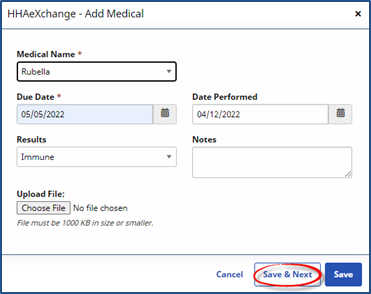
To enter multiple Medical records, click the Add All button (as referred to in the steps above). Under the desired Subjects enter applicable information in the available fields. Click the Save button to finalize.
The Other Compliance section is used to capture and track Caregiver evaluations and other miscellaneous compliance information (such as expiring compliance requirements). The following table provides instructions on adding, editing, and deleting a Caregiver’s evaluation and miscellaneous compliance details.
-
Scroll to the Other Compliance section and click the Add button to add a new record; or click the Save & Next button after creating a new record to continue to add more records.
To edit a record, click the Compliance Code title to update existing information.
To delete Medical records, click the Delete icon
.
-
The Other Compliance window opens. Complete the required fields (denoted with red asterisk) including: Code, CompletionDate, and Expiration Date. Enter Comments and Score, if/as necessary. Click the Save button to finalize.
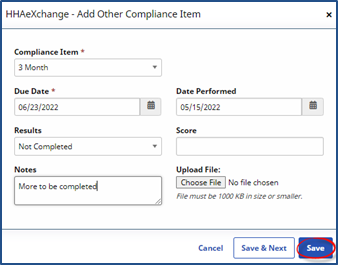
To enter unique Codes (types of evaluations or compliances) go to Admin > Reference Table Management and select Evaluations from the dropdown.
-
Once saved, the record is listed.

If expiration is applicable, records are highlighted in yellow when expiration is within 30 days of the expiration date. Red items are passed expiration date (overdue).
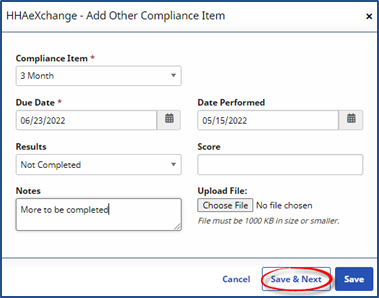
To enter multiple Other Compliance or miscellaneous records, click the Add button to first add a new single record (as referred to in the steps above). Enter the applicable information in the available fields. Click the Save & Next button to finalize the single record. Another Add Other Compliance Screen displays to immediately create another record and repeat the process.
This section covers the setup and maintenance of a Caregiver’s work schedule from the Caregiver Profile to include Availability, Preferences, and Absences/Restriction pages.
|
Page |
Description |
|---|---|
|
Availability |
The days, number of Hours, and/or number of individual visits within a day a Caregiver can or may be able to work. |
|
Preferences |
Specific working conditions a Caregiver prefers to work under. Preferences is used as a filter for the Availability Search function. |
|
Absences / Restrictions |
Any absences, scheduled Paid Time Off (PTO), or restrictions that may impede a Caregiver’s ability to cover a visit. |