Send a Message Via Caregiver Search

Go to the Caregiver Search page under Caregiver> Search Caregiver (New) > Search Caregiver to generate a Caregiver Search. The Search Results yield a list of Caregivers based on the entered search criteria. On the results, each line item contains the Caregiver Name (Code), Discipline(s), Address, Phone, Email, preferred Contact Method, Status, and Actions.
From the results, select the Caregivers to message. Selecting all per page only selects the Caregivers on the page (50 per page). Click the Bulk Actions button (located on the top-right section of the Search Results) and select Send Message.
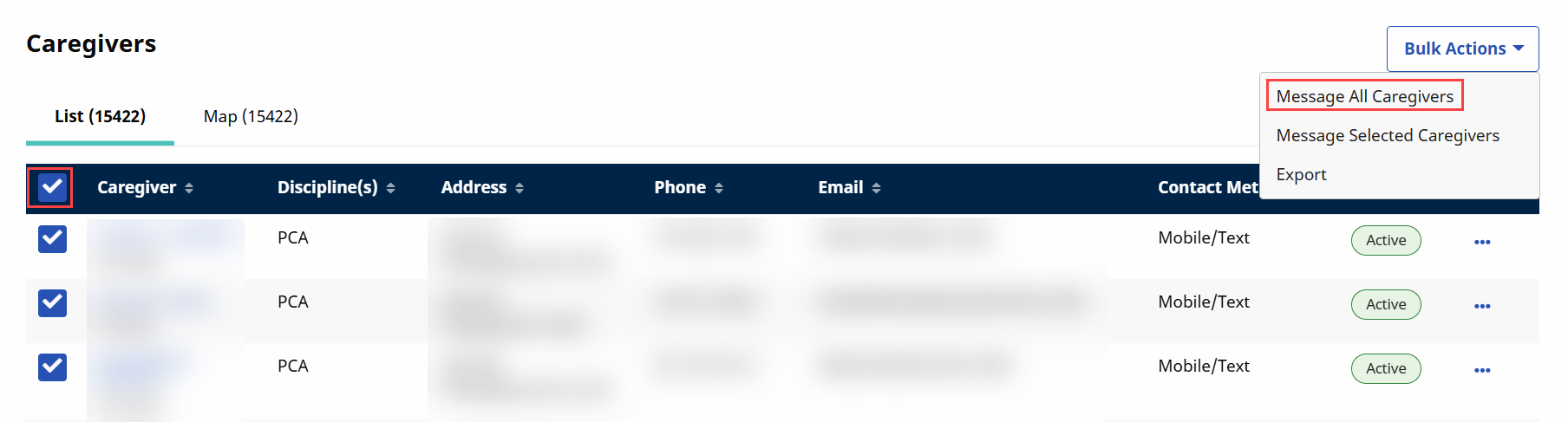
From the results, select the Caregivers to message. Selecting all per page only selects the Caregivers on the page (50 per page). Click the Bulk Actions button (located on the top-right section of the Search Results) and select Message All Caregivers.
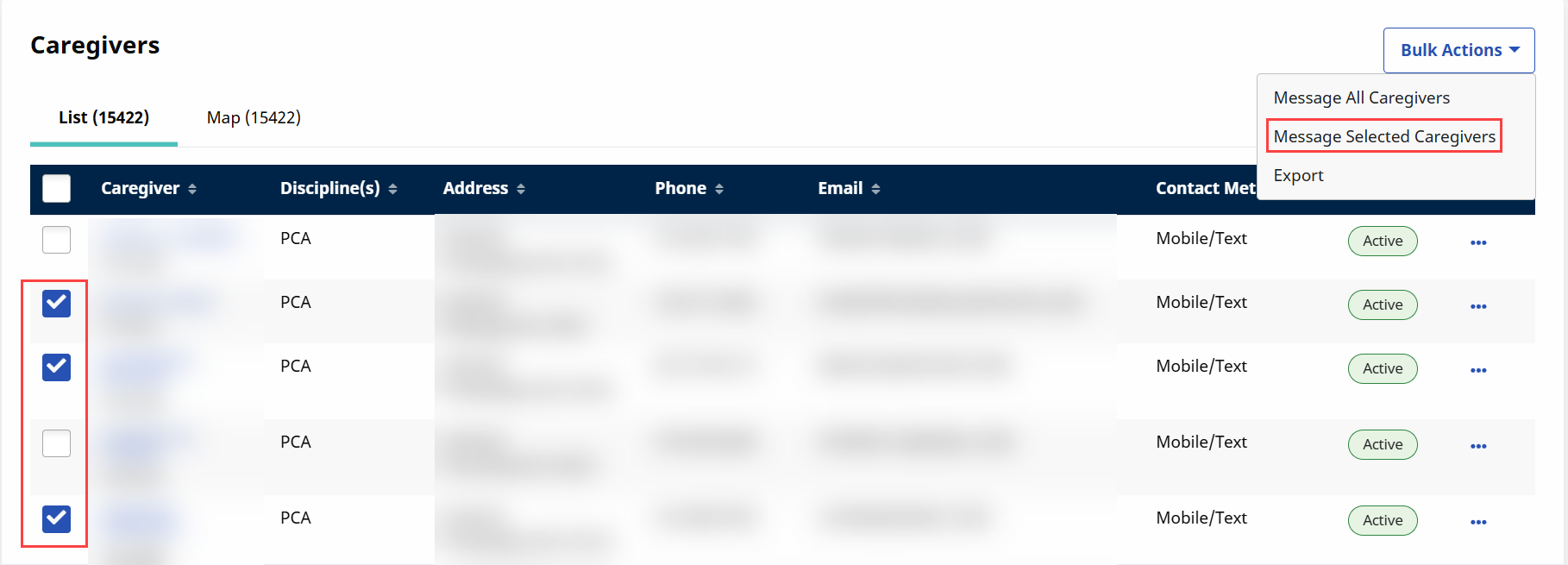
To message selected Caregivers on the search, select the Caregiver(s) on the page. Click the Bulk Actions button and select Message Selected Caregivers.
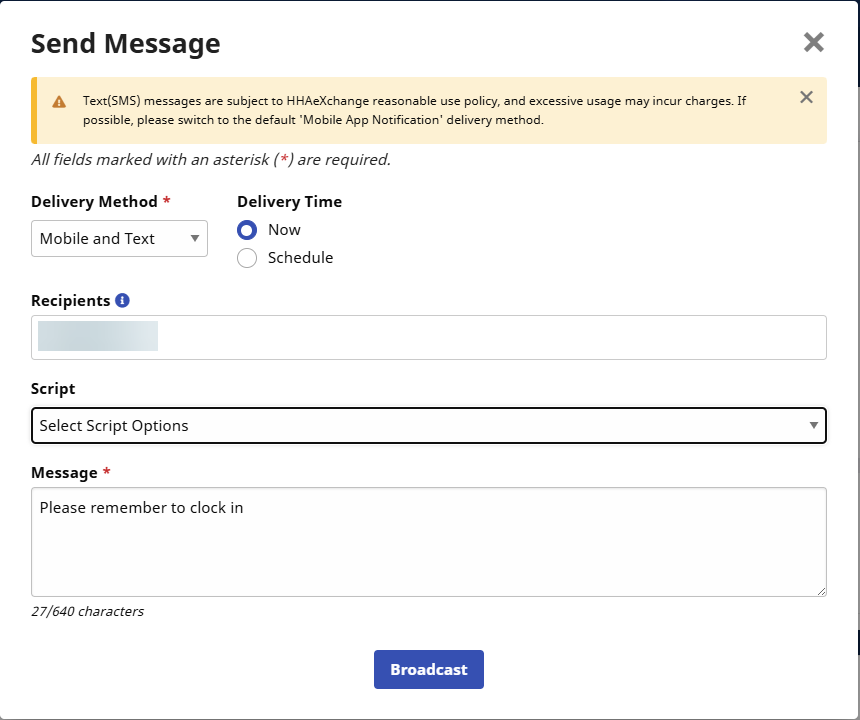
The Send Message window opens. When Message All Caregivers is selected, all Caregivers appear in the Recipients field. Select or enter the necessary information for the required fields: Delivery Method, Script, Message, and Priority.
In effort to prevent excessive use of text (SMS) messages resulting in extra charges to the Agency, it is recommended to select the Mobile App Notification option in the Delivery Method field rather than the Text (SMS) option.
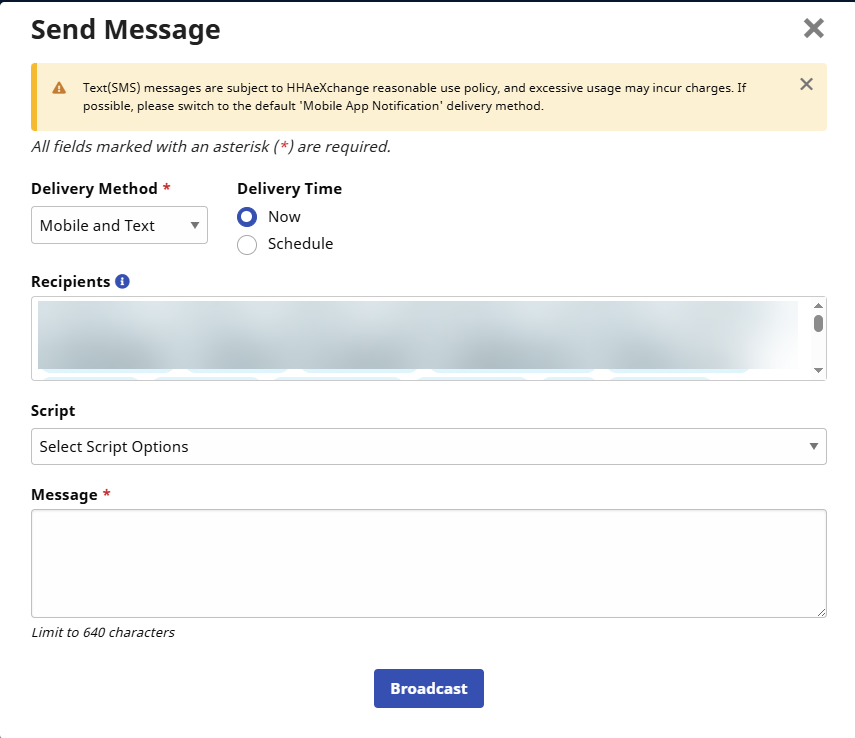
When Message Selected Caregivers is chosen, then only the selected Caregivers appear in the Recipients field. Controls display based on the selected Delivery Method. In this example, Email is selected; therefore, the Subject, Bcc and Attachment fields become available.