Create a Caregiver Travel Time Event
Travel Time records are associated with the Caregiver’s Primary Office and a user must have access to create, edit, delete, and copy a Travel Time record.
Complete the following steps to create a TT event.
-
Go to Caregiver > Caregiver Search to locate the Caregiver.
-
On the Caregiver Profile, select the Calendar page.
-
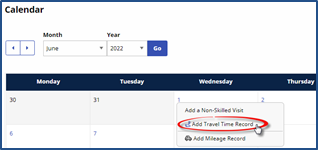
Click the date link and select the New Travel Time Record option.
-
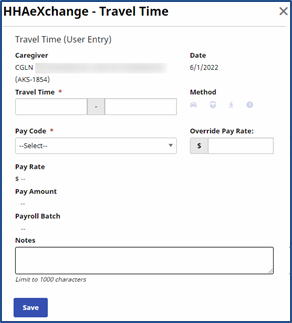
The Travel Time window opens. Complete the required fields.
-
*Travel Time: (Required) Specify the actual time the Caregiver began traveling to the visit and when they arrived. For example, if a Caregiver begins traveling at 1000 and arrives at 1100, enter 1000-1100 as the Travel Time. The system calculates this as 1 hour of TT.
-
*Pay Code: (Required) Select a Pay Code to apply to the TT.
-
Pay Rate: This field displays the hourly rate associated with the selected Pay Code.
-
Method: The travel Method uses Google Maps to calculate the average time it would take to travel between visits when Driving, using Public Transportation, or Walking. This functionality does not look at real time data to determine the travel time (for example, traffic conditions at the time of travel are not considered).
The Method field is only available when TT is entered via the Travel Time page. This field remains locked if TT is manually entered from the Caregiver Calendar. -
Override Pay Rate: Enter a custom rate for the TT in this field. Entering a value in this field overrides the set Pay Code. If an Override Pay Rate is added to a TT record, it is not reflected by the Pay Rate field. The Override Pay Rate is only available when entering or editing a TT record directly from the Caregiver Calendar.
Enter additional notes or comments if required.
-
-
Click Save to save the TT event.
-
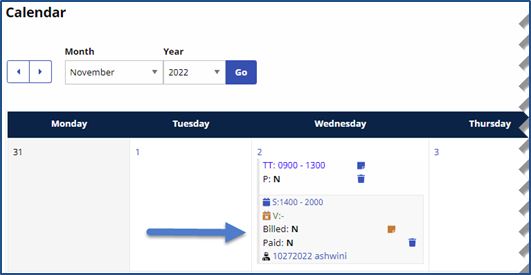
A record is generated on the Caregiver Calendar. The Hrs. column also reflects the new weekly total.