HHAeXchange Form Library
This feature is activated by HHAeXchange System Administration. Contact HHAeXchange Support Team for details, setup, and guidance.
HHAeXchange maintains a library of commonly used homecare forms (such as OASIS, HRA, and 3054). These forms are regularly updated to ensure they remain compliant and up to date, so your agency can use them as-is instead of building forms from scratch, saving time and effort.
The following forms are currently available:
| Form Name | Version | States |
|---|---|---|
| M27R | 7 | NY |
| OUTCOME ASSESSMENT INFORMATION SET VERSION E2 (OASIS-E2) | 2 | NY |
| 2065-A | 3 | All |
| PERSONAL EMERGENCY RESPONSE SERVICES (PERS) EVALUATION FORM | 2 | NY |
| M27T | 5 | NY |
| 2067 | 18 | TX |
| OUTCOME ASSESSMENT INFORMATION SET VERSION E1 (OASIS-E1) | 1 | -- |
| Attendant Orientation and Supervisory Visit | 20 | TX |
| 3052 | 17 | TX |
| PAS Individual Evaluation/Service Plan | 20 | TX |
| PHC Individual Evaluation/Service Plan | 26 | TX |
| 3054-S | 16 | TX |
| 3054 | 20 | TX |
| INH Employee File Requirements | -- | IL |
| 3599 | 18 | TX |
| Community Care Program Home Visit Record | 4 | IL |
| Annual HCA Evaluation | 4 | IL |
| Participant Satisfaction Survey | 3 | IL |
| Quarterly Conference Assessment | 4 | IL |
| New Ca | -- | IL |
To use a form from the HHAeXchange Form Library:
-
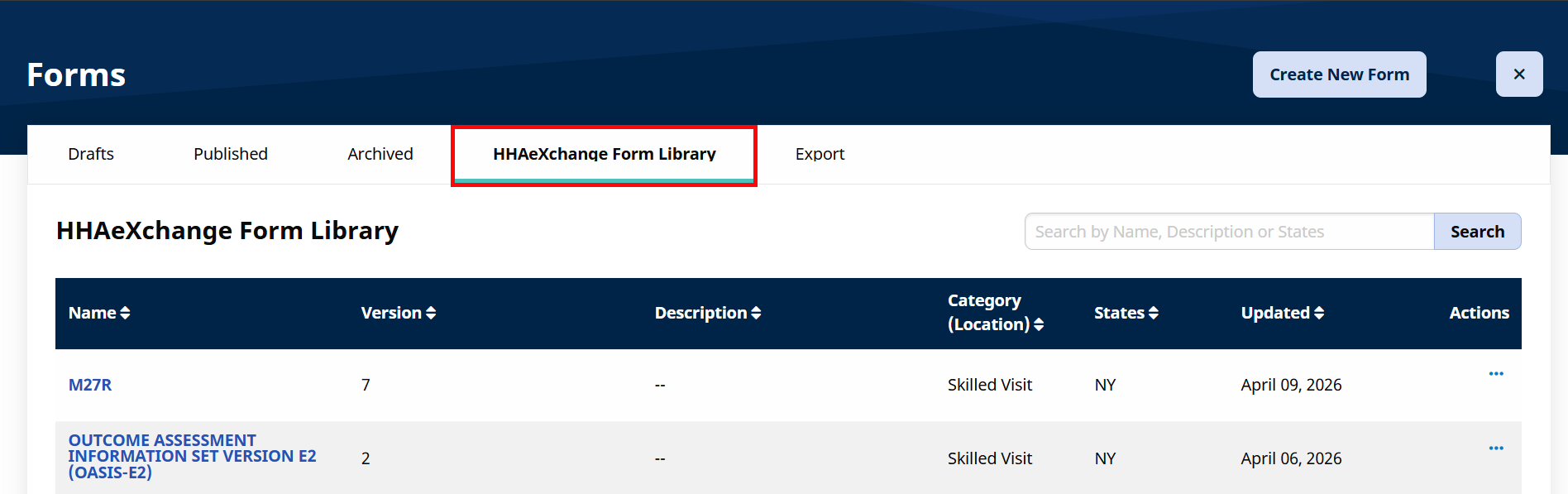
Go to Clinical > Form Admin.

-
Click the HHAeXchange Form Library tab.
-
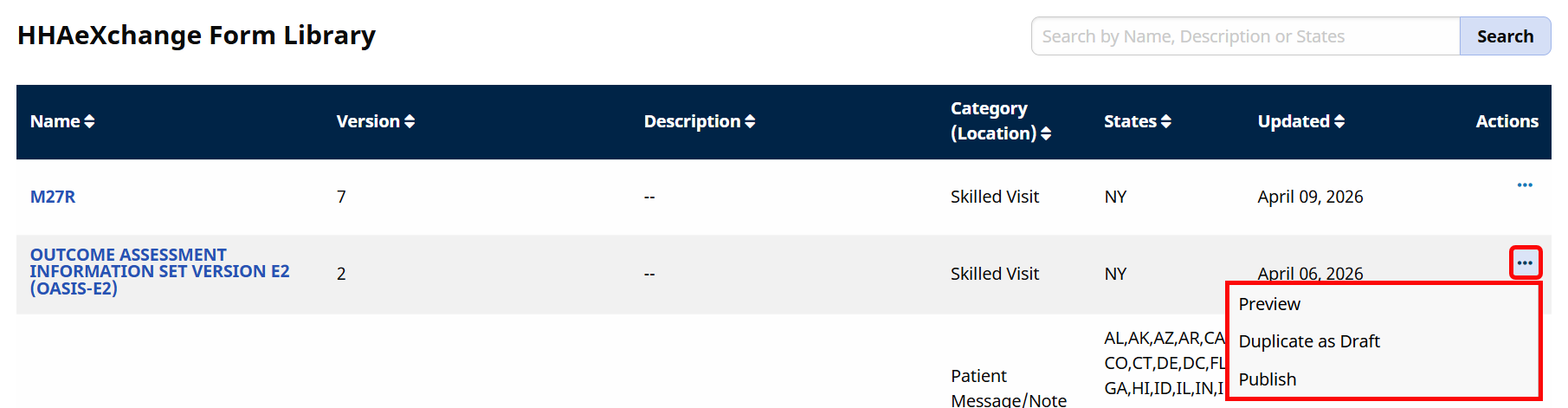
Click the Ellipsis in the Actions column for the form you want to use, then choose one of the following:
-
Preview – View the form before making changes or publishing.
-
Duplicate as Draft – Create an editable copy in the Drafts tab. Not available for all forms.
-
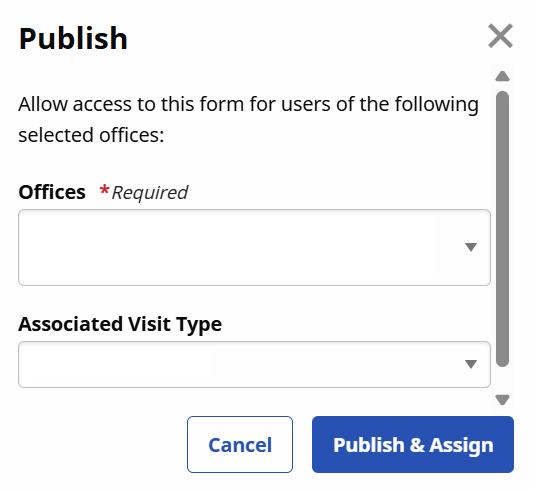
Publish – Make the form live and available for use. This opens the Publish window, where you select the Offices and Associated Visit Type for the form to be available. After making your selections, click Publish & Assign.
-