HHAeXchange Forms
This feature is activated by HHAeXchange System Administration. Contact HHAeXchange Support Team for details, setup, and guidance.
HHAeXchange Forms lets you create custom forms to collect information during visits. You can add questions, organize content, and control how and when fields appear, depending on your needs and level of experience.

There are multiple ways to create forms in the Forms module.
NAVIGATE TO: Clinical › Forms Admin › Create New Form
| Method | Recommended Use | Benefits | Limitations |
| HHAeXchange Form Library | Standardized forms such as assessments or other start-of-care documents | Fast deployment, auto-population, workflow support | May require modification to meet agency requirements |
| Custom Forms | Agency-specific requirements | Full customization using a range of dynamic components to capture data | Time-consuming to build |
| PDF Upload Forms | Uploading PDF files to create forms with limited, basic fields | Faster setup; preserves original layout | No auto-population of data available |
Use ready-to-use, standardized forms maintained by HHAeXchange — for example, Nurse Assessment, Nurse Supervision, M27T, and M27R. Forms can be previewed, saved to Drafts, or published directly from the Actions menu.
Certain Form Library templates are not modifiable. These forms will not have a Duplicate as Draft option, but can be published as-is.
Access the Form Library here.
Build a form from scratch using the full range of dynamic components described in Building Forms. To build a new custom form:
NAVIGATE TO: Clinical → Form Admin › Create New Form
| Step | Action |
| 1. | Create New Form |
| 2. | Select Form Type: Form |
| 3. | Enter Form Name and Details |
| 4. | Select Document Category |
| 5. | Configure Visit Type Mapping |
| 6. | Enable Auto Attach (Optional) |
| 7. | Configure Auto Attach settings |
| 8. | Assign Offices |
| 9. | Add Components & Auto-Population Fields |
| 10. | Preview and Test |
| 11. | Publish |
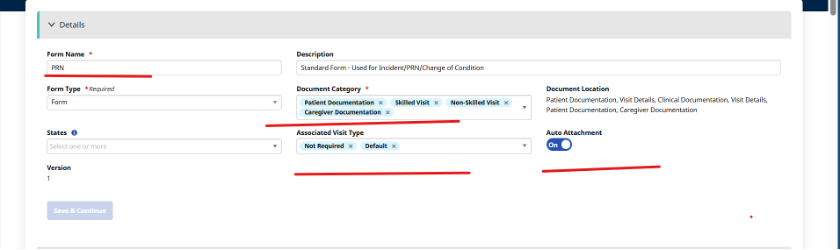
Forms remain in Draft status until published and assigned to offices. Once published, they become available based on configuration settings.
To create a form:
-
Go to Clinical > Form Admin.

-
Click Create New Form.
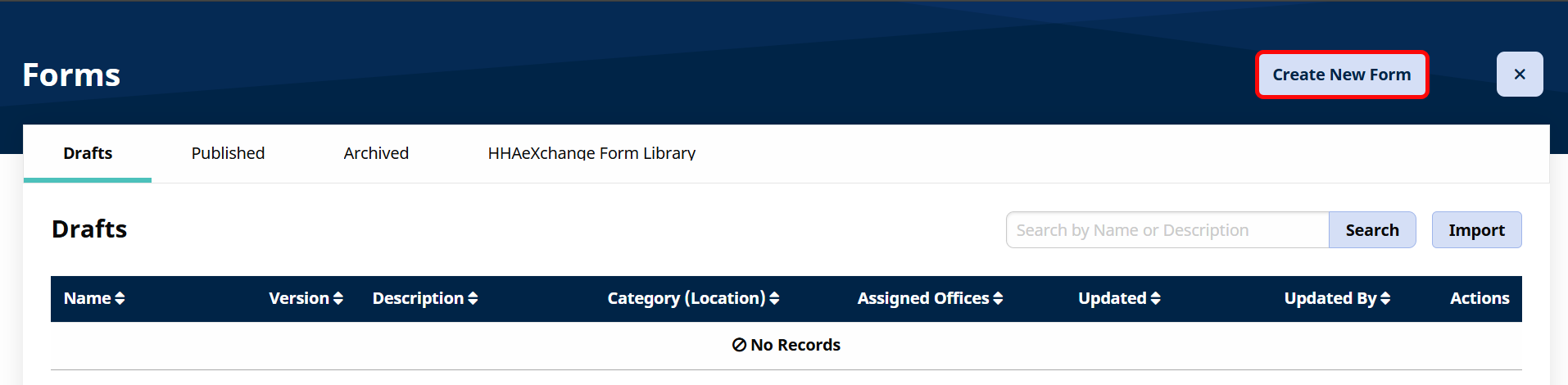
-
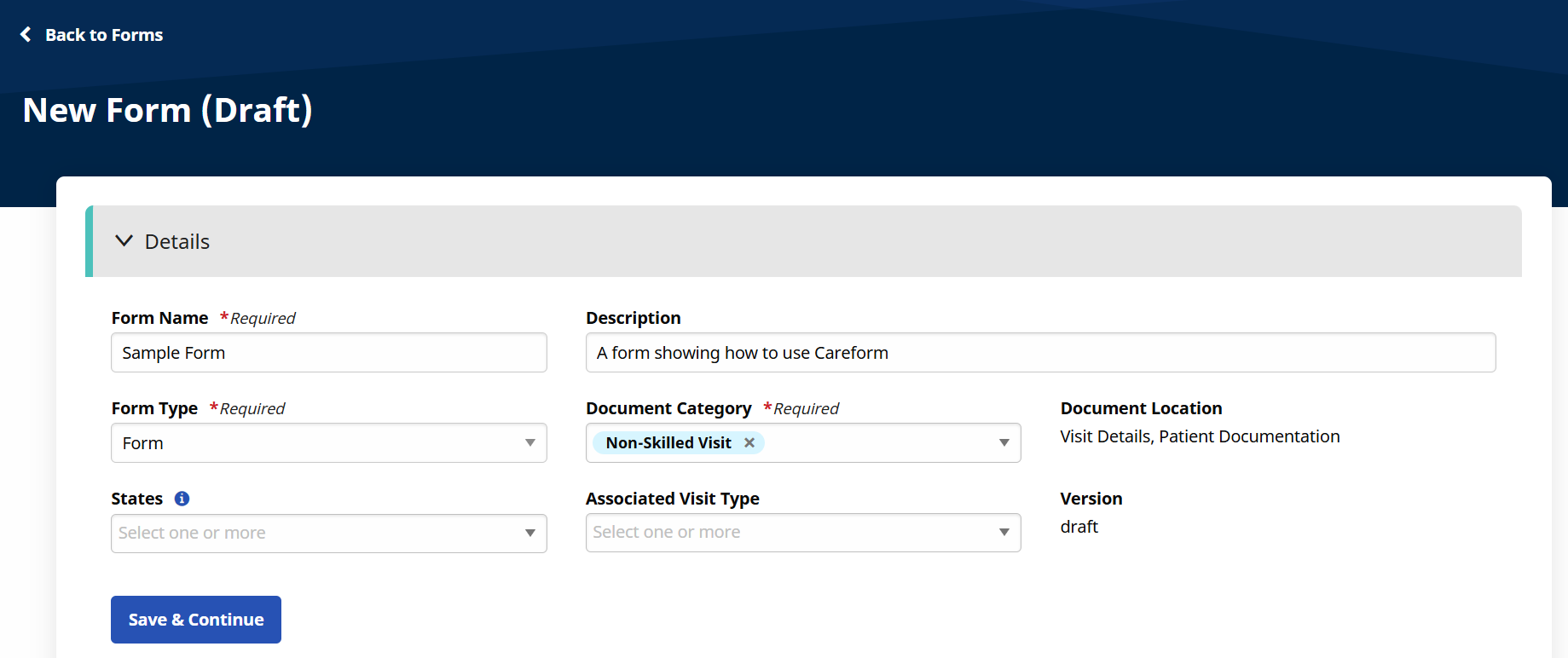
The New Form (Draft) page opens. Under the Details section, enter a:
-
Form Name (Required)
-
Description
-
Form Type (Required)
-
Document Category (Required)
-
States where the form is used
-
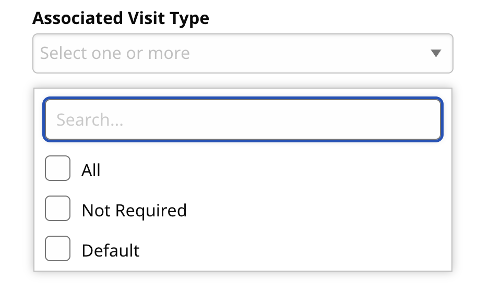
Associated Visit Type — This field appears if Skilled or Unskilled is selected under Document Category.
-
-
Click Save & Continue.
-
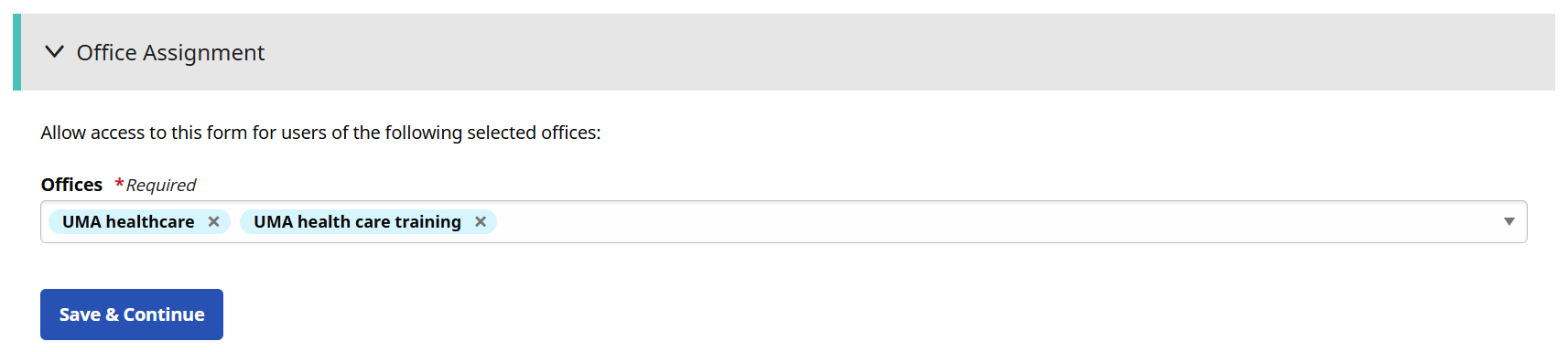
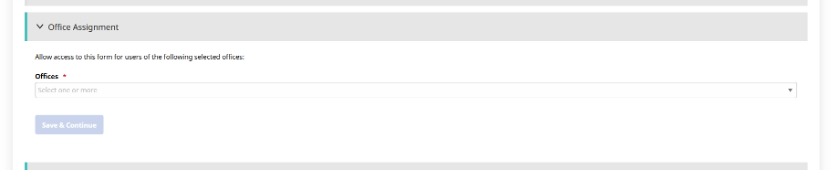
The Office Assignment section opens. Select the Offices where this form is used from the dropdown. Then, click Save & Continue.
-
The Form section opens. This is where you create your form.
Select the component you want to add to your form from the dropdown. The following components are available in the Basic Form Builder:
-
Text & Written Responses:
Question Type: Use when: Example: Sentence
You need a short written response.

Paragraph
You need a longer explanation.

-
Selection-Based Questions:
Question Type: Use when: Example: Single Select
The person completing the form should choose one option.

Checkbox (Single)
The person completing the form should choose one option.
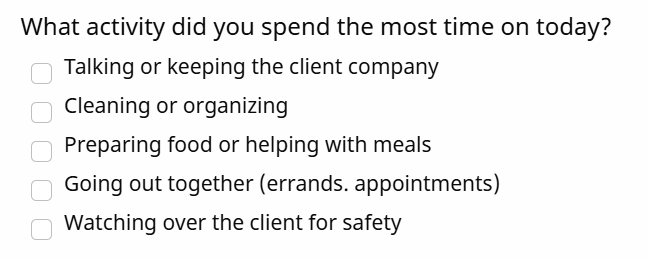
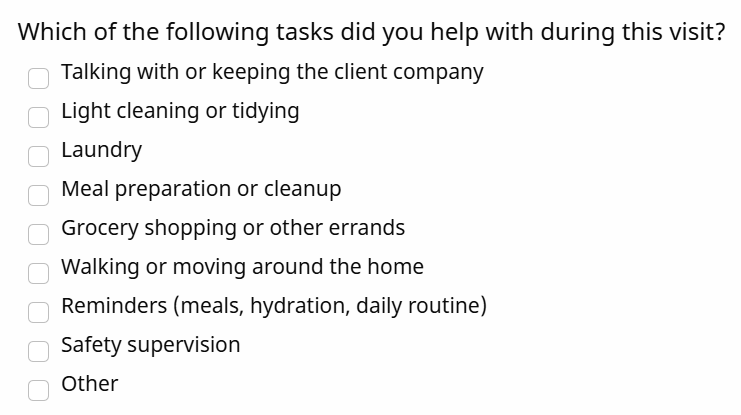
Checkbox (Multiple)
More than one option may apply.
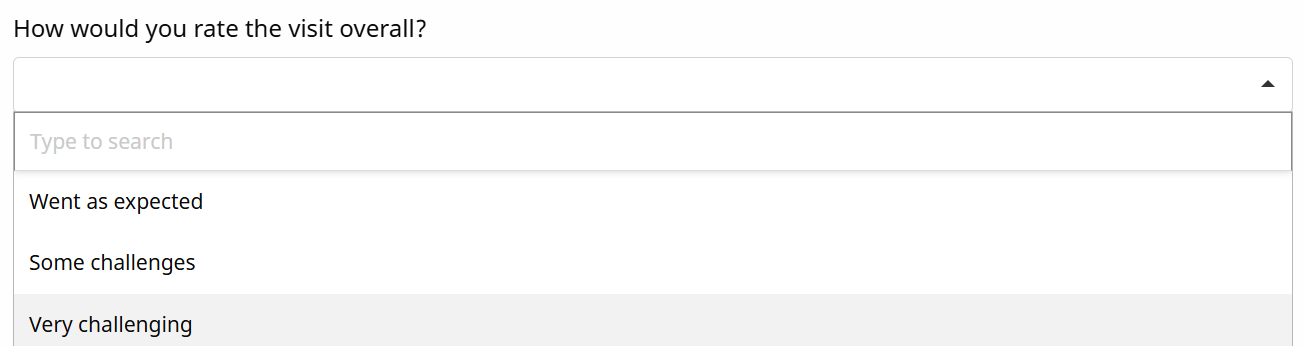
Dropdown
The person completing the form should choose one option, generally better for long lists.
-
Date, Time & Numeric Questions:
Question Type: Use when: Example: Date
You need a calendar date.

Time
You need a time of day.

Number
You need a numeric value.

Phone
You need a phone number.

- Clinical & Specialized Questions:
Question Type: Use when: Example: Non-Verbal Pain Scale
Recording observed pain levels

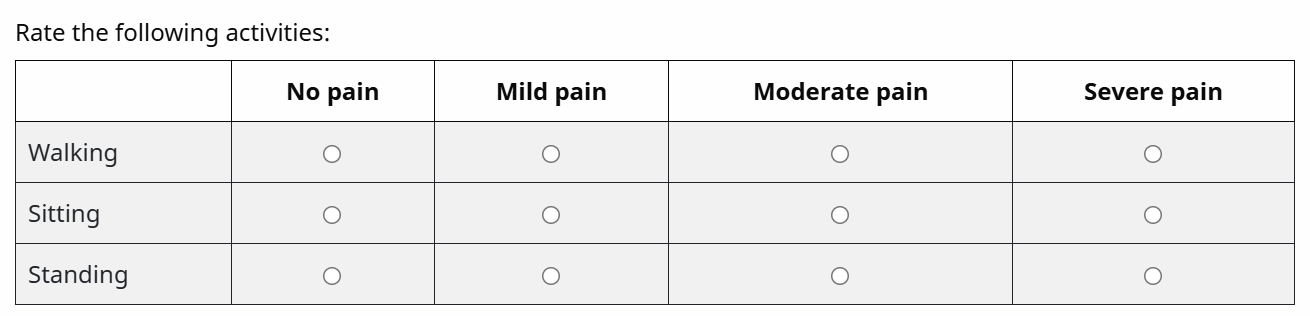
Survey
You need to collect one selection per row across multiple criteria.
Signature
You need to collect a signature.

- Form Content & Layout:
Component: Use when: Example: Rich Text Editor
You need to add instructions or information to the form.

Table
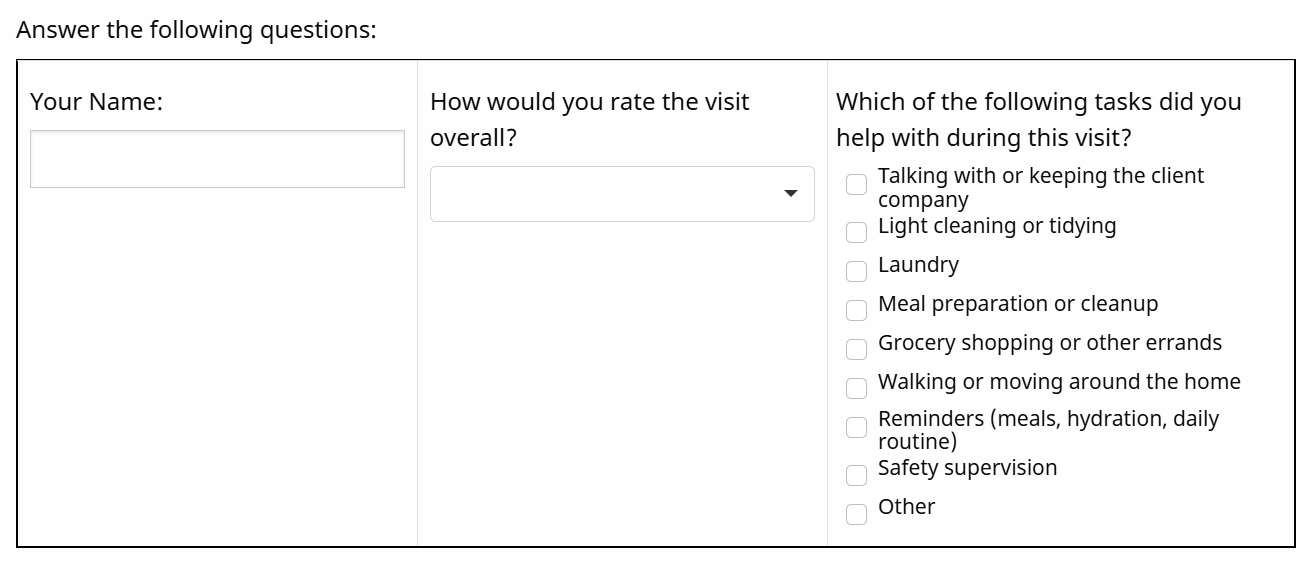
You want to add any of the questions above in the form of a table.
-
To make a question required, check the Required box.

-
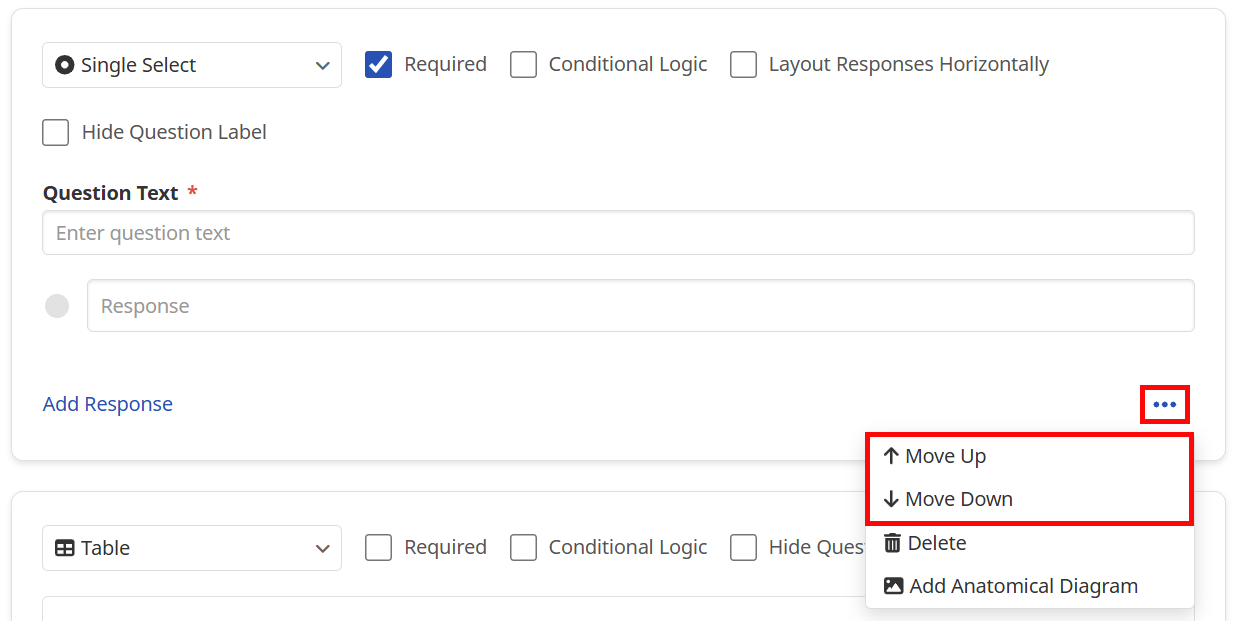
To move a component to a different place in the form, click the Ellipsis Icon and then select Move Up or Move Down.
-
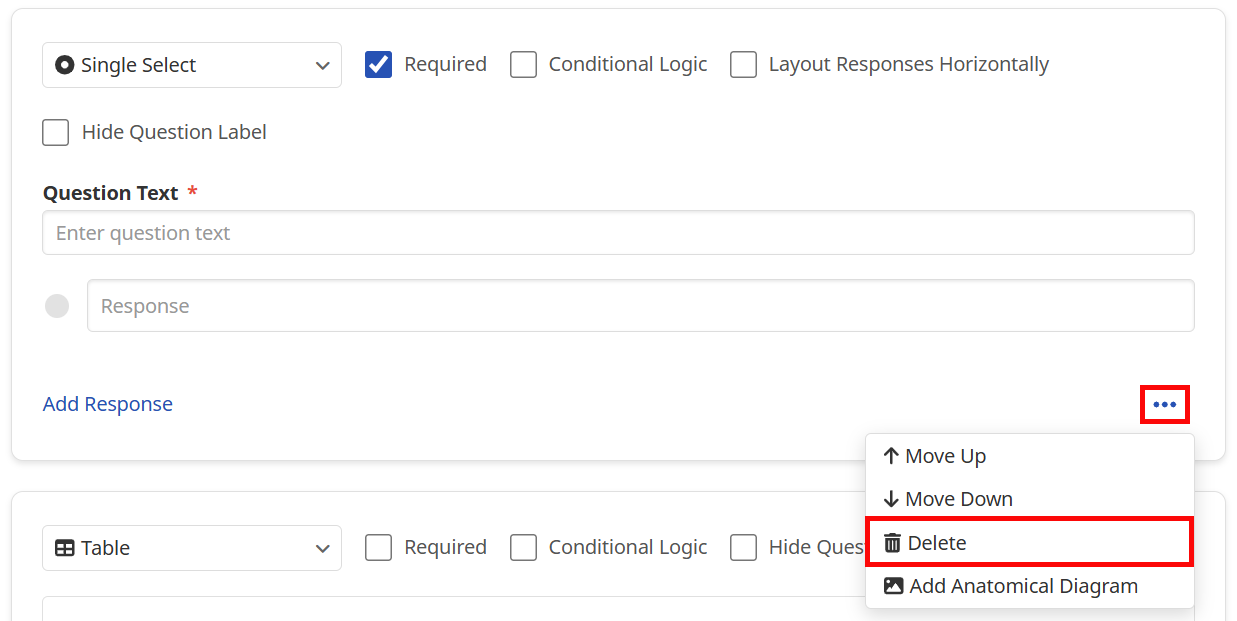
To remove a component, click the Ellipsis Icon and then select Delete.
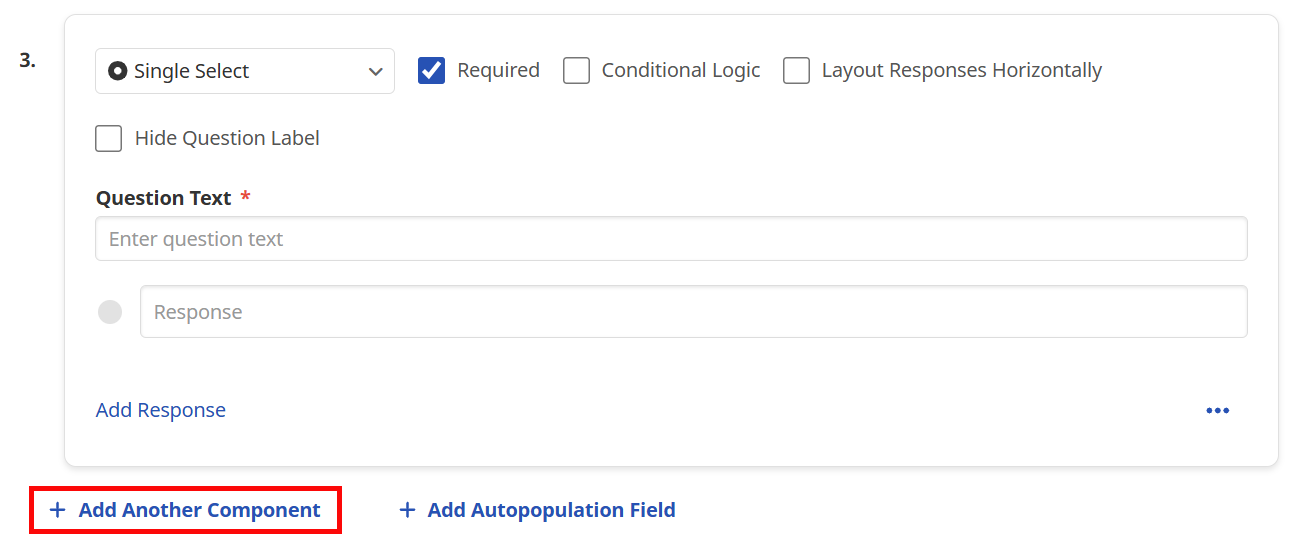
- To add another question, click on + Add Another Component at the bottom of the page.
-
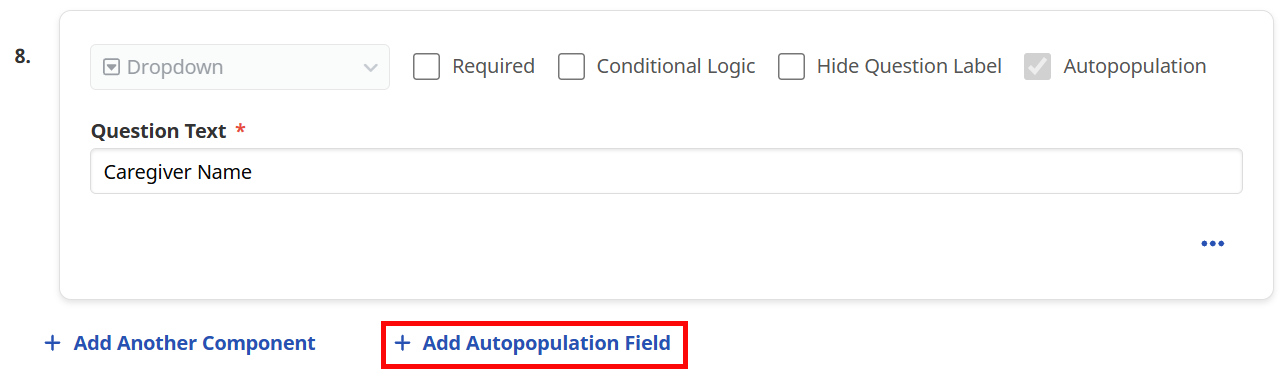
You can add a field that autopopulates information from the Patient Profile or Caregiver Profile by clicking + Add Autopopulation Field.
- Click Preview at the bottom of the page to view how your form will look to the person filling it out.
-
Click Save.
-
For agencies transitioning from paper documentation, uploading documents is a quick and easy way to convert them into digital forms. Digitizing high-volume forms improves reporting, automation, and workflow efficiency.
Uploading forms does not enable auto-population of fields.
1. Scan or print your document as a PDF. If scanning, the form must be digitized using a dedicated scanner — not a mobile phone app, as phone apps can corrupt the file.
2. Save the file locally.
3. Navigate to Clinical › Form Admin › Create New Form.
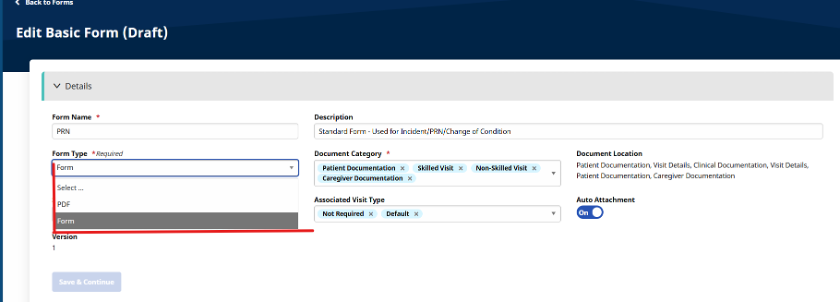
4. Select PDF in Form Details › Form Type.
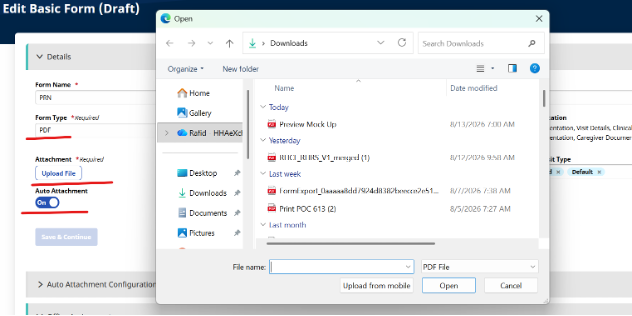
5. Upload the file.
6. Assign offices.
7. Drag and drop fields into the form.
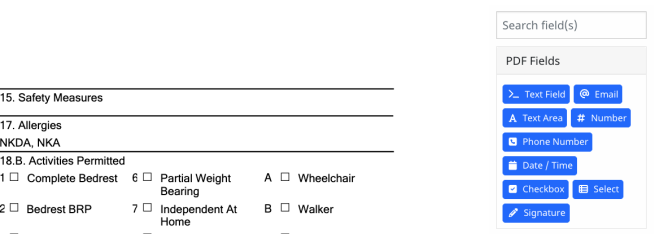
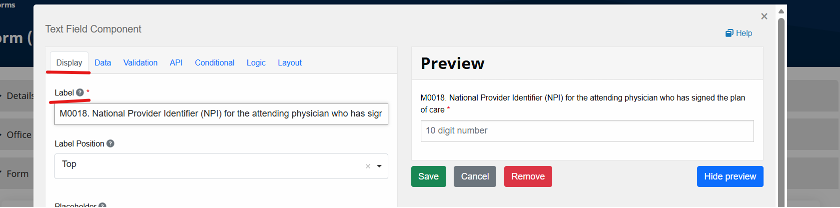
8. Under Display, update field labels — for example, rename a text field to “Case Name.”
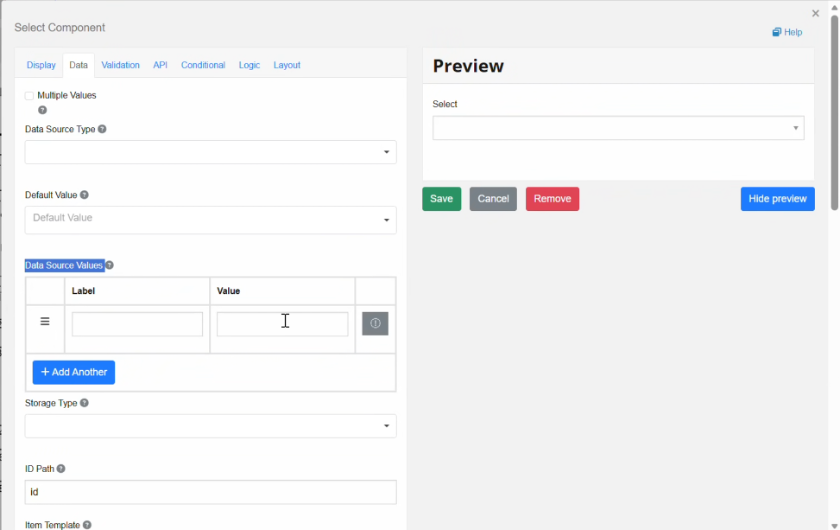
9. Under Data, define response options for single-select or checkbox fields. Multiple response options can be selected — for example, Patient Gender: Male / Female / Other.
There are a variety of components that provide flexibility for form building.
1. From a Draft, select a form › Actions › Edit.
2. Navigate to the bottom of the form page.
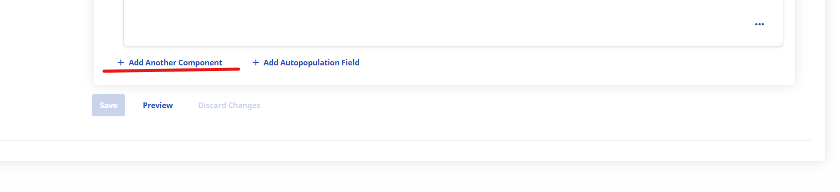
3. Click Add Another Component to select components to add to the form.
Below is a list of components and common use cases.
| Component Category | Components | Common Use Cases |
| Text Input | Text Field, Text Area | Notes, comments, instructions |
| Numeric Input | Number, Phone | Date of birth, SSN, vitals, quantities, scores |
| Selection Controls | Checkbox, Single Select, Multi-Select, Dropdown | Yes/No questions, predefined interventions and diagnoses |
| Date & Time | Date, Time, Day | Visit dates, certification periods |
| Specialized Components | Survey, Table, Non-Verbal Pain Scale, Anatomical Diagram | Surveys, risk assessments, screeners |
| Digital Signature | Signature | Acknowledgments |
| Auto-Population Resources | Patient, Caregiver, Payer, Medication, Authorization, Supplies, POC, MD Order | Automated field completion |
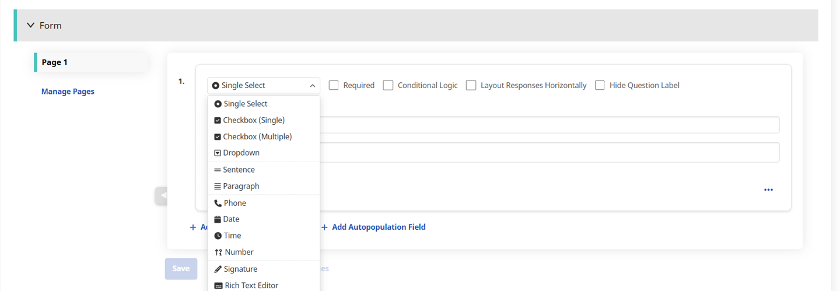
Component Reference
| Component | Purpose |
| Tex Field | Short and long text entry |
| Text Area | Extended narrative test |
| Number | Numeric data |
| Checkbox | Multiple selections |
| Select Boxes | Single or multiple selections |
| Select | Dropdown selections |
| Single Select | Radio button selections |
| Phone | Phone number capture |
| Date | Date entry |
| Time | Time entry |
| Day | Day selection |
| Survey | Assessment and scoring |
| Signature | Digital signature capture |
| Rich Text Editor | Display instructions and content |
| Columns | Multi-column layouts |
| Table | Structured data presentation |
| Resource Components | Auto-populated Enterprise data |
Auto-Population Reference Tables
Below is a list of sources and supported fields. Supported fields are subject to change; refer to the Forms module for the current list.
| Source | Supported Fields | Auto-Population Path |
| Patient | Name, Date of Birth, SSN, Gender, Medicare Number, Medicaid Number, Address, Phone, Admission ID, Primary Physician & Info, Patient ID, Nurse, Coordinator, Contract, Office Name & Info | Patient › Forms |
| Caregiver | Name, Primary Phone, Gender, DOB, Primary Office, Social Security, Employment Type, Office Name & Info | Caregiver › Forms |
| Payer | Name, Phone, Address, Fax | Payer › Forms |
| Medication | All active medications from the patient profile | Medication › Forms |
| MD Orders | DME & Supplies, Safety Measures, Nutritional Requirements, Functional Limitations, Activities Permitted, Mental Status, Prognosis | MD Order ⇄ Forms — data can sync from Forms to MD Order and vice versa |
| Authorization | All authorizations from the patient profile | Authorization › Forms |
| Supplies | All supplies from the patient profile | Supplies › Forms |
| Plan of Care | Selected POC from the patient profile | Plan of Care › Forms |
Document Categories
| Category | Purpose |
| Skilled Visit | Skilled nursing and therapy documentation. Stored in Patient Profile › Clinical Documentation. |
| Non-Skilled Visit | PCA/HHA documentation. Stored in Patient Profile › Document Management. |
| Patient Documentation | Patient-level records. Stored in Patient Profile › Document Management. |
| Caregiver Documentation | Employee-related forms. Stored in Caregiver Profile › Document Management. |
Visit Type Associations
Visit types are controlled via the Payer and Service Code setup and appear in the Visit Info once the visit is saved. Visit types are set up during implementation.
-
Select the correct visit type to ensure the form appears in the visit.
-
Selecting Not Required allows forms to be attached to visits with no visit type.
Auto-Attachment
Auto-attachment allows agencies to automatically attach forms to a skilled or non-skilled visit when the correct Payer, Service Code, and Visit Type match the form configuration.
Document Type and Description must be pre-defined so forms can be auto-attached to the visit — this can always be updated later.
-
Select the correct Payer, Service Code, and Visit Type.
-
Define the Document Type and Description.
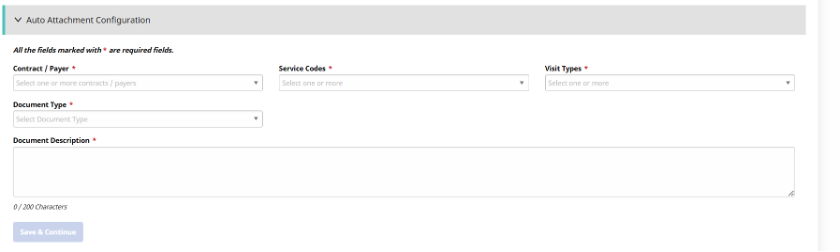
When configuring auto-attachment, ensure the payer, service code, and visit type combination is correct — otherwise the form will not attach to the visit.
Office Assignment
Ensure the form is assigned to the correct offices. Without an assignment, the form will not be available to complete in that office.
Adding Forms to Visits
Forms may be configured to appear in the following locations, depending on assigned configuration settings:
-
Skilled Visits
-
Non-Skilled Visits
-
Patient Documentation
-
Caregiver Documentation
-
Patient Notes
Once forms are published, you can manually attach a form to a visit or configure auto-attach for nurses and caregivers to complete.
Manually Attach and Complete a Form
Caregivers and nurses can complete forms in a visit via the patient profile.
1. Navigate to Patient Profile → Calendar → Visit (Skilled or Non-Skilled) → Visit Info → Documentation → Add Document, or via Patient Profile → Document Management → Add Document.
2. Click Add Document.

3. Define the Document Type.
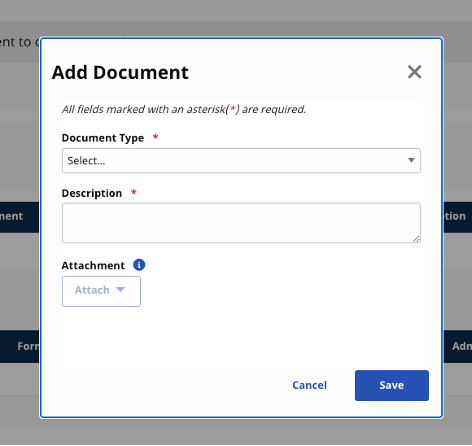
4. Define the Document Description.
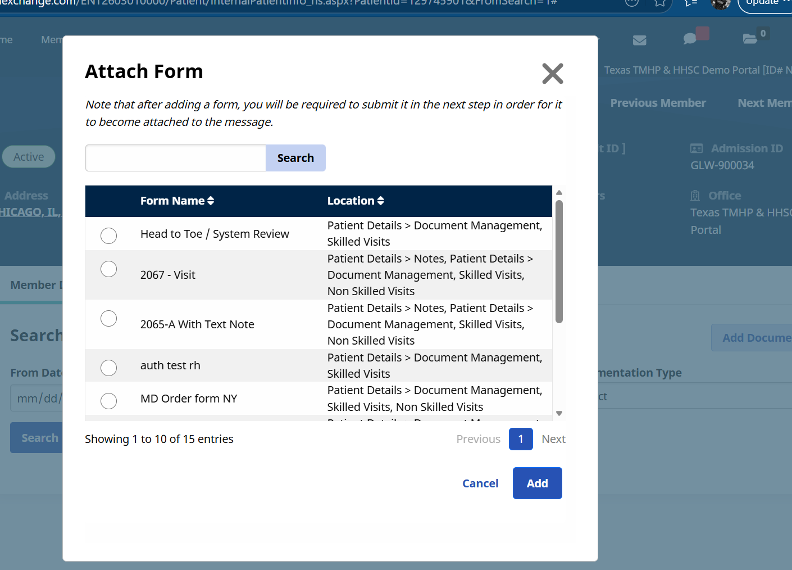
5. Click Attachment › Attach Form.
6. Select the form.
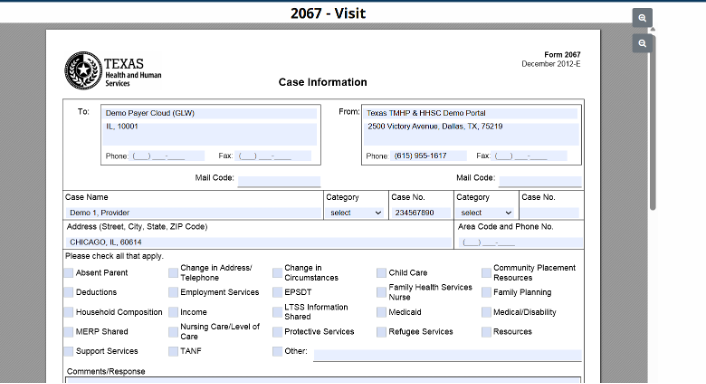
7. Complete the form.
When attaching a form to a visit, if the Add button is disabled, ensure all Document Submission Management permissions are enabled.
Completing Forms
Once forms are attached to a visit, they can be completed and stored in the system.
Forms automatically save approximately every two minutes to prevent data loss.
Form Statuses
The following describes the different statuses a form can be in.
| Status | Description |
| In Progress | Form is being completed. |
| Submitted | Form has been submitted. |
| Reviewed | Form as been reviewed. |
| Completed | Documentation process is complete. Non-skilled documents can only be marked as completed. |
Clinical Workflow
Care Coordinators can review submitted forms and documentation, and approve completed records via the Enterprise portal, as outlined in User Roles & Responsibilities.
Exporting Data
Once a form is saved, you can easily export form submission data.
NAVIGATE TO: Clinical → Form Admin → Export
Users can:
-
Select a form
-
Select patients or caregivers
-
Select a date range
-
Define other filters as needed
-
Export submission data to CSV
Printing Forms
Once a form is saved, you can easily print form submissions. The printed output mirrors how the form was created. Users can print forms from:
-
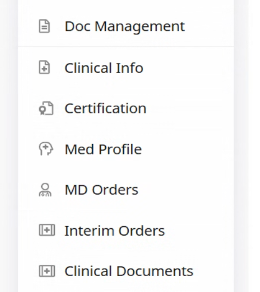
Patient Profile — skilled or non-skilled submissions. Navigate to Patient Profile › Document Management (non-skilled visits) or Patient Profile › Clinical Documents (skilled visits).
-
Clinical Menu › Document Management — provides a comprehensive view across all patients and submissions.
Document Management
BEST PRACTICE - Use Clinical Menu › Document Management to manage and review submissions across your entire caseload. Use Patient Profile to manage and review submissions for a specific patient.
To publish a form and make it available for use:
-
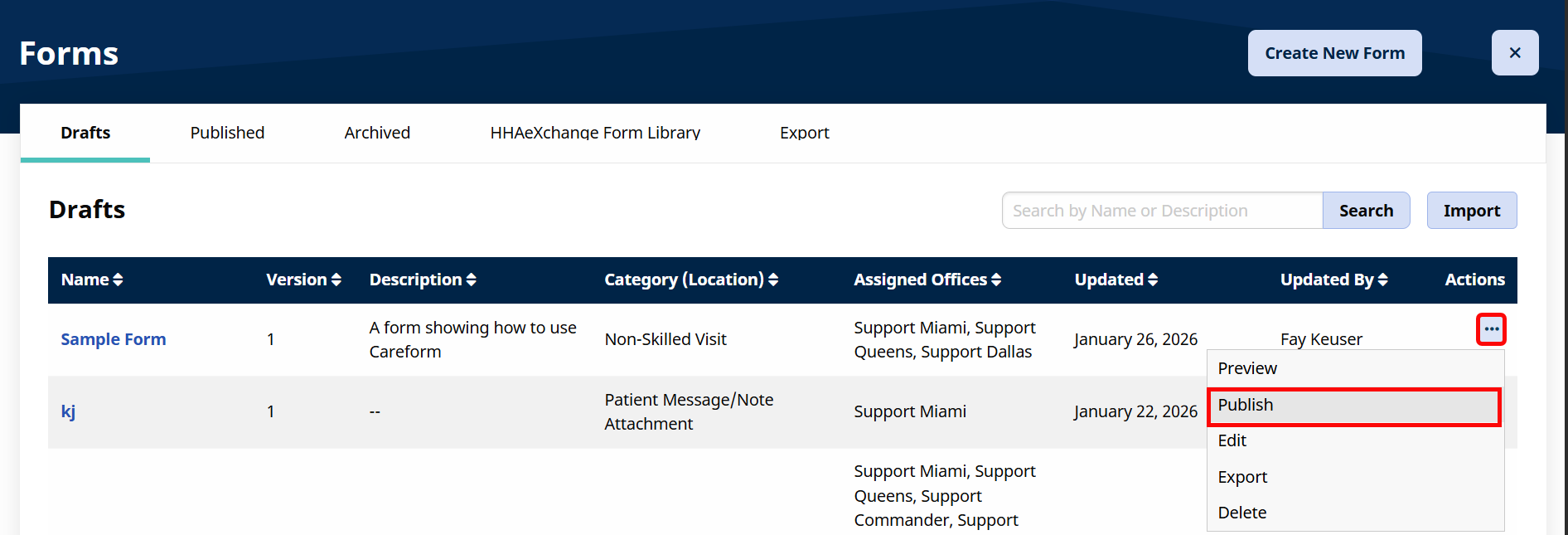
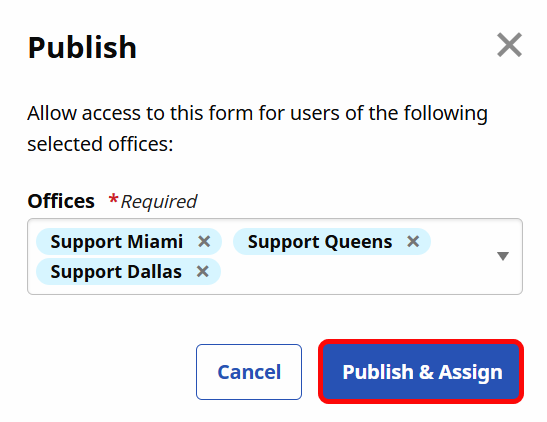
On the main Forms page, click the Ellipsis under the Actions column and select Publish from the dropdown.
-
Click Publish & Assign.
-
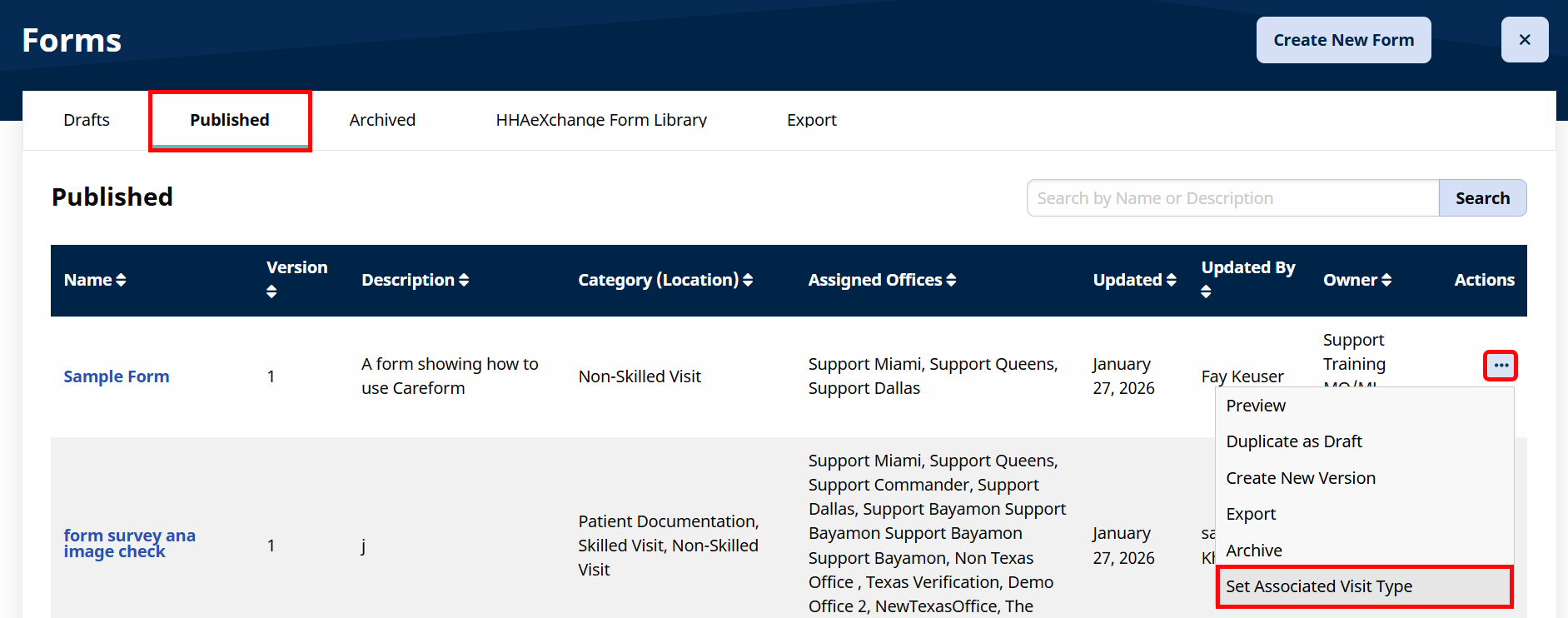
Click on the Published tab, click the Ellipsis under the Actions column and select Set Associated Visit Type from the dropdown.
-
Select one or more Associated Visit Type(s) from the dropdown and click Confirm.
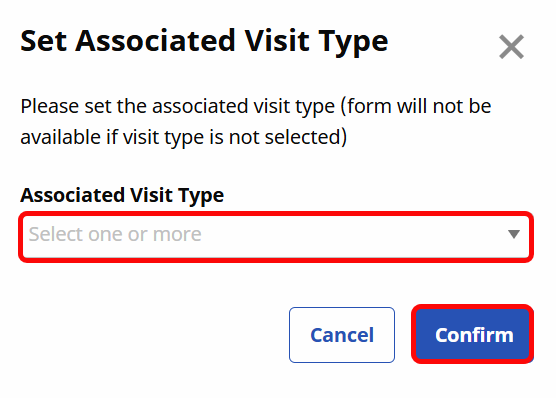
The form can now be launched from the associated Visit type and office.
The Multi-PDF Export feature allows agency administrators to export form submission data for multiple patients from a selected form into a single export package.
This feature is designed to simplify chart reviews, audits, compliance requests, and operational reporting by allowing users to retrieve form submissions across multiple patients without having to export records individually.
Multi-PDF Export helps agencies:
-
Prepare documentation for audits
-
Export patient form submissions in bulk
-
Support compliance reviews
-
Reduce time spent exporting records individually
-
Generate large documentation packages for operational needs
Access
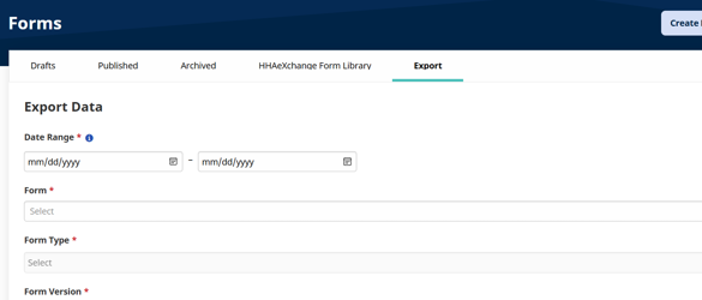
To access Multi-PDF Export, navigate to Form Admin → Export.
The Export screen allows administrators to define Search Criteria and Generate a Multi-PDF export.
Export Results
When using the Export feature, the export will include:
-
Form submissions matching the selected form
-
Submissions within the selected date range
-
Submissions for the selected patients
-
Data matching any additional filters applied
Step 1 – Navigate to the Export Screen
Navigate to: Form Admin → Export
Step 2 – Define Date Range
Select the desired date range for the export. The maximum date range allowed is 6 Months. If a date range greater than 6 months is selected, the export cannot be generated.

Step 3 – Select the Form
Choose the form whose submissions you would like to export. Only submissions for the selected form will be included in the export.
Do not change the Form Type selection and only change the Version filter if are looking submission data for a specific form version.

Step 4 – Select Patients
Select one or more patients to include in the export. Patient Selection:
-
Single patient supported
-
Multiple patients supported
-
No patient count limit
Users may export submissions for any number of patients matching the selected criteria.

Step 5 – Apply Additional Filters
If applicable, define any additional filters available on the Export screen. Examples:
-
Created
-
Fields (specific fields from the form template)

Step 6 – Generate Export
Select: Export > PDF
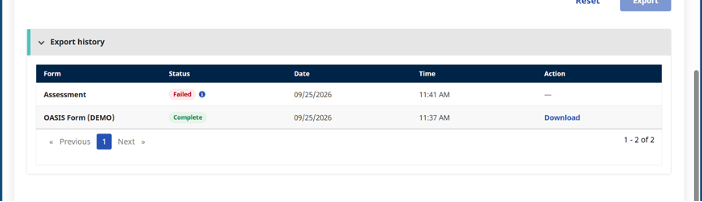
The system will compile all matching form submissions into a Multi-PDF export package available for download in the Export History tab.
Larger PDF packages will need extra time to process.
If the Download button is not available please check back in a few minutes for a download link.
Hover over the Status tooltip for more information as to why the export fails.
-
Use Smaller Date Ranges: Although up to 6 months is supported, smaller date ranges may improve processing time for large exports.
-
Verify Form Selection: Confirm the correct form is selected before generating the export to avoid exporting unnecessary records.
-
Filter Before Exporting: Apply filters whenever possible to reduce export size and improve performance.
-
Review Patient Selection: When exporting large groups of patients, verify patient selection carefully before generating the export.