Admin Office Setup Overview
Use the Office Setup page to configure individual Offices within an Agency. Every Agency must have at least one Office. This category covers the various sections of the Edit Office page.

The Mobile section of the Edit Office page allows users to change settings for Mobile Fixed Visit Verification and viewing open shifts. To update these settings, go to Admin > Office Setup to access the settings and choose New Office or Search Office. Click an office name link. The Edit Office page appears. Scroll down to the Mobile section and select the View open cases checkbox, as shown in the image below.
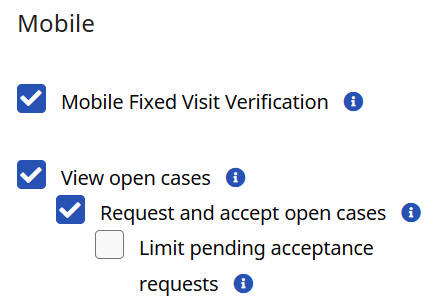
These settings determine the configuration for all new Caregivers who have a matching set of options on the Caregiver level.
| Field | Description (If selected…) |
|---|---|
|
View Open Cases |
Caregivers can see the section for Open Cases on their Caregiver Mobile App. Viewing open cases shows shift details to Caregivers. Request and Accept Open Cases must be selected to submit requests for these visits. |
|
Request and Accept Open Cases |
Caregivers can request cases marked as Open in the Mobile App. Requesting and accepting Open Cases allows certain Caregivers to submit requests for broadcasted shifts which are available to them. If View Open Cases is not enabled, then this option is not available. |
|
Open Case Acceptance: Request Limit Default |
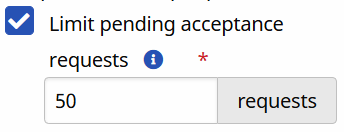
Once selected, this field requires a number between 1 and 9999. This number represents the maximum pending requests a Caregiver can have at one time. Canceled, rejected, and approved requests are not included in this number.
If selected, Caregivers have a limit on how many Open Requests they can place with the Office before the function is disabled. The Request and Accept Open Cases must be selected for this option to be available. |