Clock In and Out of Back-to-Back Shifts
Overview
Your agency may set up two or more visits in a row as consecutive shifts in HHAeXchange+. Each visit may still appear on a separate card in Schedule. Clock in at the scheduled start of your first visit and clock out at the scheduled end of your last visit. If you use GPS for electronic visit verification (EVV) at the patient’s home, check that the app shows Within Range when you clock in and out.
Why use it
You can move from one service to the next while staying clocked in. The app records the transition between visits, and you complete the required documentation for each visit.
Example: Two visits for the same patient
Let’s consider an example. You’re scheduled to provide Personal Care from 1:30 to 1:45 p.m. and Home Management from 1:45 to 2:00 p.m. for the same patient. The steps below show how to complete both visits with one clock-in and one clock-out.
Step 1: Start the first visit
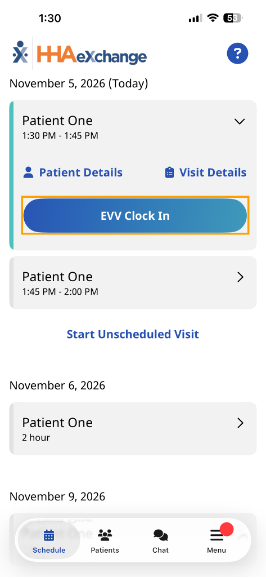
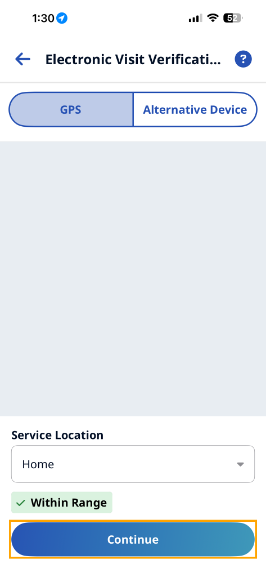
In Schedule, open the first visit and tap EVV Clock In. For GPS confirmation, check the Service Location and look for Within Range, then tap Continue. Follow any remaining prompts. If your agency uses an Alternative Device, follow the device prompts.
In this example, open the 1:30–1:45 p.m. Personal Care visit and tap EVV Clock In at 1:30 p.m.
|
First Visit with EVV Clock In |
GPS Confirmation. The map is masked. |
Step 2: Keep Working Through the Shift
Begin the next service at its scheduled start time and keep the clock running. The app can show a blue clock on both visit cards. If the next visit still asks you to clock in or you already clocked out early, contact your office for help.
In this example, switch from Personal Care to Home Management at 1:45 p.m. while staying clocked in.
At the handoff, keep the clock running.
Step 3: Finish at the End of the Last Visit
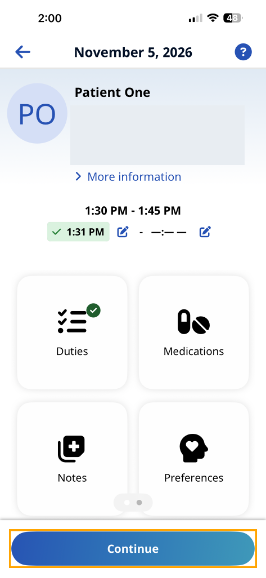
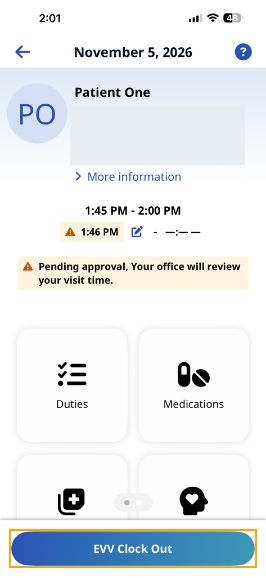
At the end of the last visit, return to Schedule and open the in-progress visit details. Complete the first visit’s required duties, questions or notes, then tap Continue to move to the next visit’s details. Complete the remaining documentation and tap EVV Clock Out on the final visit. Follow the GPS confirmation or other EVV prompts and complete any required signatures or consent.
In this example, finish Home Management at 2:00 p.m. Complete the remaining visit details, then tap EVV Clock Out on the 1:45–2:00 p.m. visit.
|
First visit Details. Tap Continue. |
Final Visit Details. Tap EVV Clock Out |
If the App Shows Clock In Again If the next visit still asks you to clock in during the shift, or you already clocked out early, contact your office for help recording the visits.
Check that both visits are complete
Return to Schedule and look for a green check on both visit cards. If a visit is still open or the app says your time is pending approval, contact your office for help.
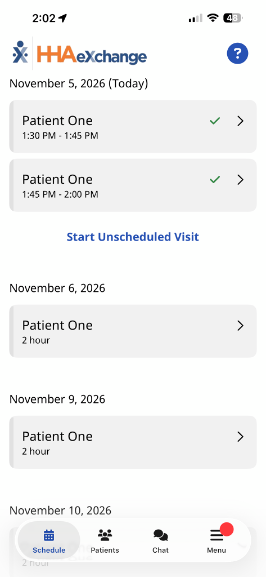
Green checks on both completed visits.