Alt EVV Workflow for Arizona Providers
Arizona requires patient confirmation for every visit. Review the following steps with your office staff and Caregivers so that they know how to capture the Patient signature or verification.

Before you begin collecting EVV data, you must have certain settings in place.
-
Go to Admin > Office Setup > Search Office and click on the office you would like to set up.
-
Under the Mobile section, make sure the Enable Alternate EVV Workflow checkbox is selected.
-
Below this, make sure the Require Timesheet if EVV linked to Visit w/o verification checkbox is selected.
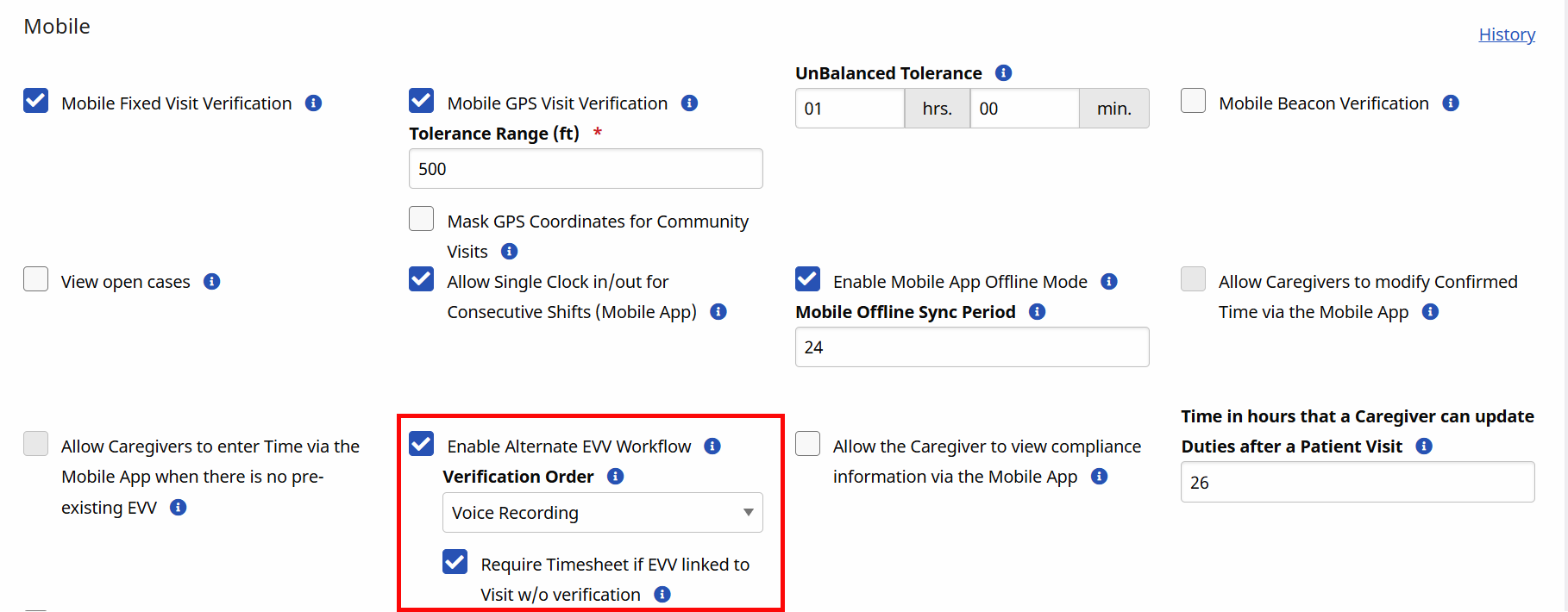
This ensures that if a Patient does not provide a signature, a timesheet will be required, which is a requirement of the state of Arizona.
If your Caregiver is using the Mobile App:
-
Upon clock out, the Mobile App prompts the Caregiver to have the Patient sign for the Visit.
-
If the Patient does not sign, a timesheet with a Patient signature is required.
-
If a timesheet is required, the Provider must confirm the timesheet in order for the EVV aggregation to pass the state requirements.
If your Caregiver is using IVR:
-
Upon clock out, the Caregiver is prompted to capture a voice recording of the Patient's confirmation after they enter the duty codes or task IDs.
-
If the Patient does not complete all their steps, a timesheet is required.
-
If a timesheet is required, the Provider must confirm the timesheet in order for the EVV aggregation to pass the state requirements.
This is the script of the IVR call:
-
Caregiver calls the IVR line.
-
IVR prompts: Welcome to HHAeXchange. Press 1 for call in. Press 2 for call out.
-
Caregiver presses 2 for Call Out.
-
IVR prompts: Enter your Assignment ID.
-
Caregiver enters Assignment ID.
-
IVR prompts: You have entered [Time and Attendance PIN entered by caregiver]. If that is correct, press 1 or press 0 to re-enter.
-
Caregiver confirms Assignment ID.
-
IVR prompts: Enter Duty ID.
-
Caregiver enters Task IDs for duties performed, one at a time. When they are finished (or if not recording tasks), they enter 000. The IVR continues to prompt until 000 is entered.
-
IVR prompt: The service performed was [discipline as per service code assigned to visit]. Press 1 to confirm; press 0 to deny.
-
Caregiver presses 1 to confirm service provided.
-
IVR prompts: Press 1 and hand phone to the patient for voice verification. Press 0 if the patient is not able to perform voice verification.
-
Caregiver presses 1 and hands phone to patient.
-
IVR prompt: The service performed was [discipline of service code assigned to visit]. Press 1 to confirm; press 0 to deny.
-
Patient presses 1 to confirm service.
-
IVR prompt: The visit started at [call in time], ended at [call out time], and lasted [duration of visit]. Press 1 to confirm, press 0 to deny, or press * to repeat.
-
Patient presses 1 to confirm.
-
IVR prompt: Please say your full name and today's date.
-
Patient records name and date.
-
IVR prompt: Press 1 to proceed, press 0 to hear recording, or press * to record again.
-
Step 19: Once the patient presses 1, the clock out ends and the IVR prompts: Your call has been registered successfully.
Patients cannot verify via FOB confirmation. Timesheets are required for FOB confirmation. The agency office staff must confirm the timesheet in order for the EVV aggregation to pass the state requirements.
You can confirm the patient verification on any Visit by checking the Verification Tab on the visit record.
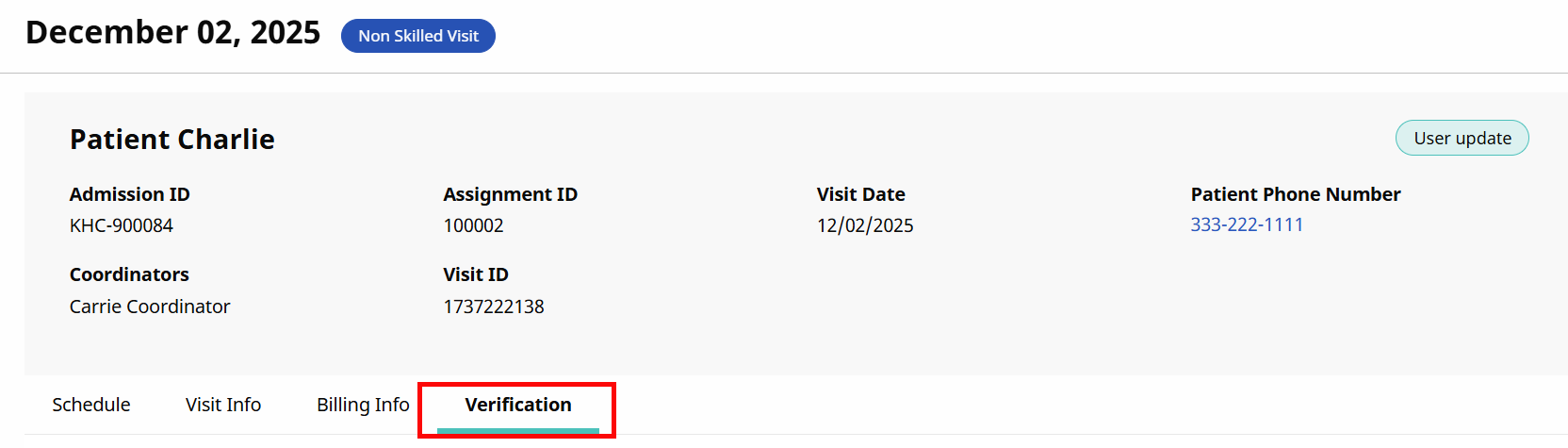
If the visit is not verified by the patient via mobile app signature or IVR voice recording, a signed timesheet is required for verification. This is why the setting was enabled in the first step of this help topic.
Time sheets can be confirmed on an individual Visit basis or in bulk per Caregiver.
-
Select the Visit on the Patient calendar.
-
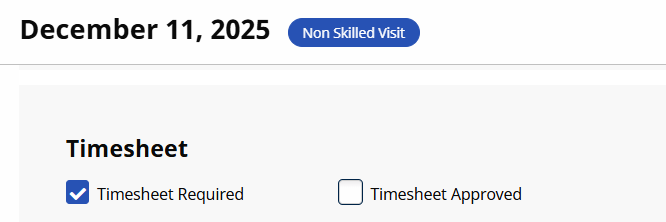
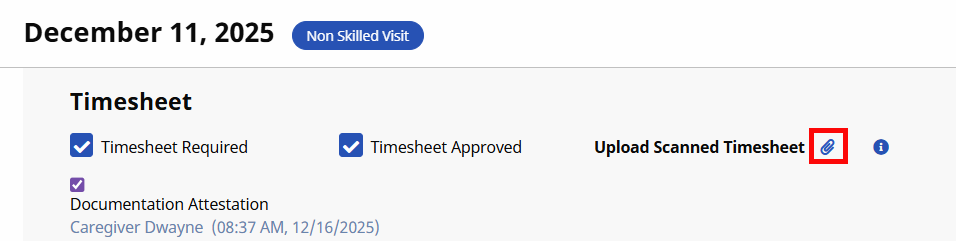
Select the the Visit Info tab of the visit, and scroll down to the Timesheet section. You the Timesheet Required checkbox is already checked.
-
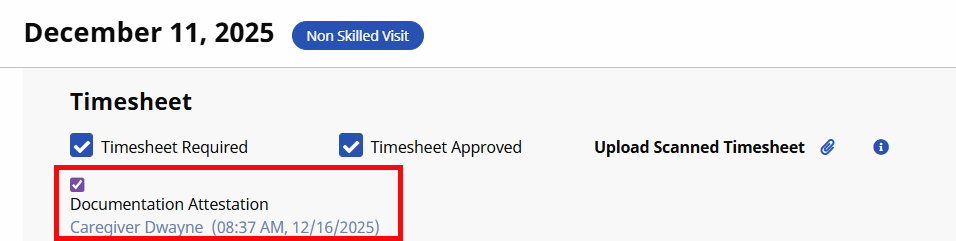
Select the Timesheet Approved checkbox. This makes the Document Attestation checkbox appear, which triggers the approval of the visit via EVV.
-
You can upload a copy of the timesheet by selecting the Attachment icon next to Upload Scanned Timesheet.
-
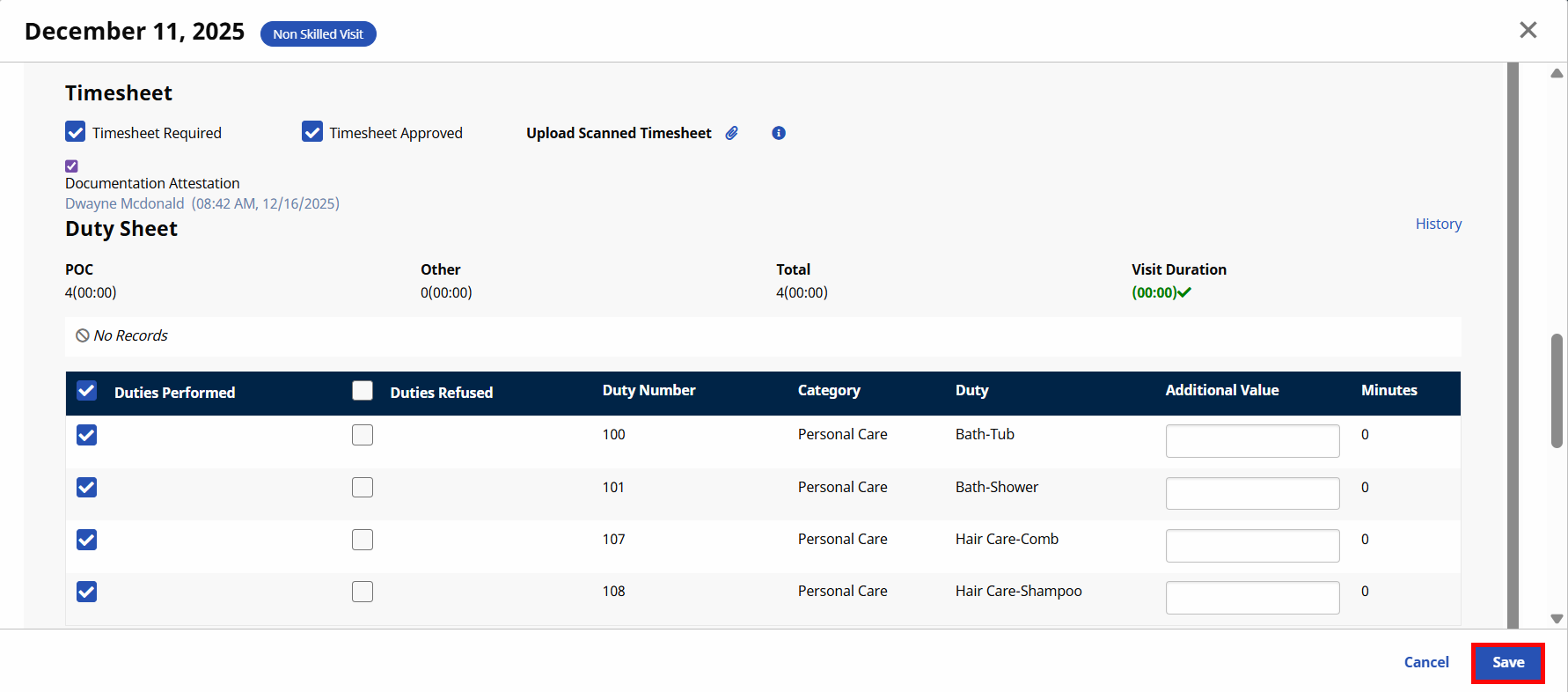
Select Save.
-
Go to Action > Confirm Timesheet.
-
On the Search Confirm Timesheet page, enter the Caregiver Name and select them from the dropdown.

-
Select the Week-Ending Date.
-
The Patient field auto-populates. If the Caregiver worked with more than one Patient, you can select the appropriate one from the Patient dropdown. Select Search.

-
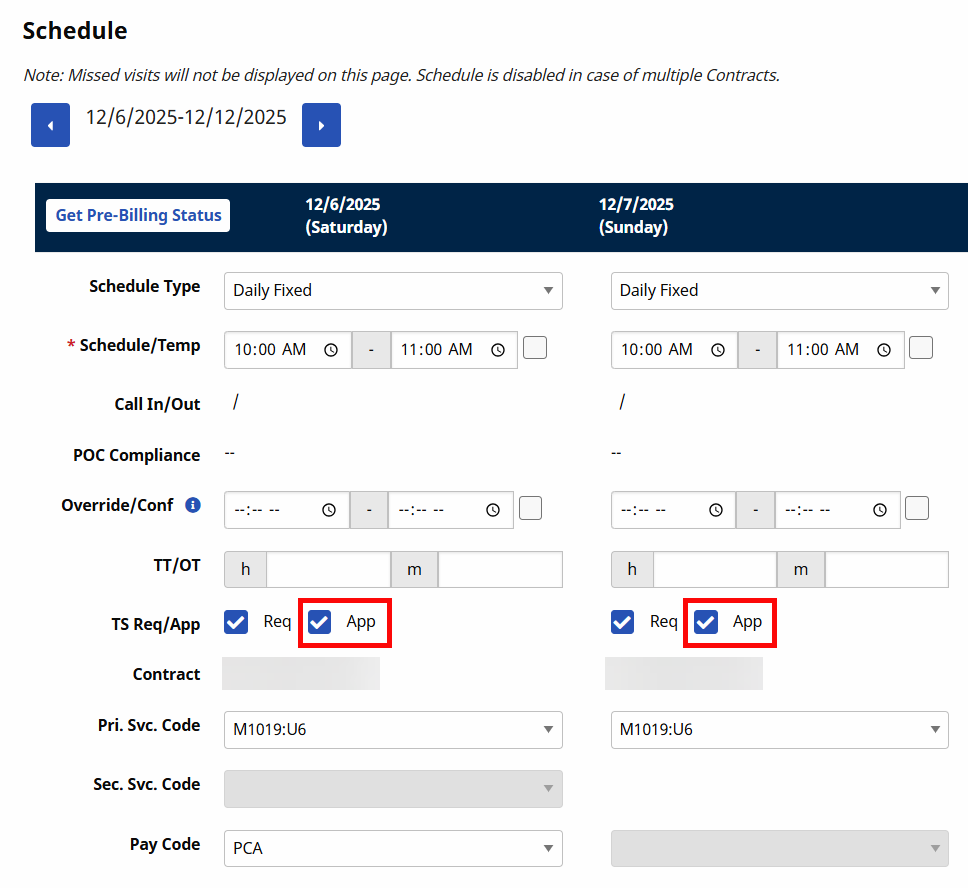
All Visits from that week are displayed. Select the App checkbox on the days for which you have a timesheet.
-
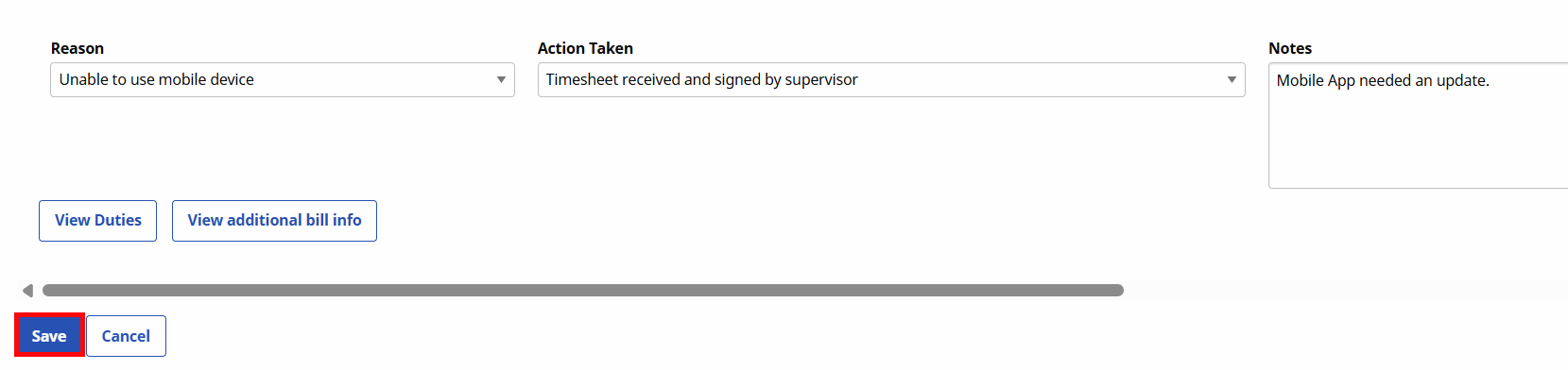
Scroll down and select the Reason for using a timesheet and the Action Taken from the dropdowns. Enter Notes if required. Select Save.
-
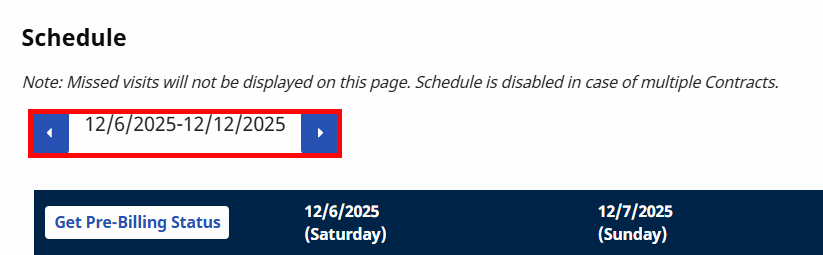
You can use the arrows under the Schedule header to go forward or back a week to approve multiple weeks at a time.
Repeat these steps for any Caregivers that are needed.