Authorization Blackout Dates
This feature is activated by HHAeXchange System Administration. Contact HHAeXchange Support Team for details, setup, and guidance.
Providers with enabled permissions can add their own Authorization Blackout Dates in addition to Payer assigned Authorization Blackout Dates on a particular Contract. Both Payers and Providers can simultaneously update their own Blackout Date information. In addition, Authorization Blackout Dates can overlap.
Visits cannot be scheduled during an Authorization Blackout Date regardless of who creates the Blackout Date.
Within the Patient Profile, click on Auth/Orders to view the Patient's Contracts. At the end of the Contract row, click the Ellipses under the Actions menu open the dropdown menu, and select View/Edit to open the Patient Authorization window.
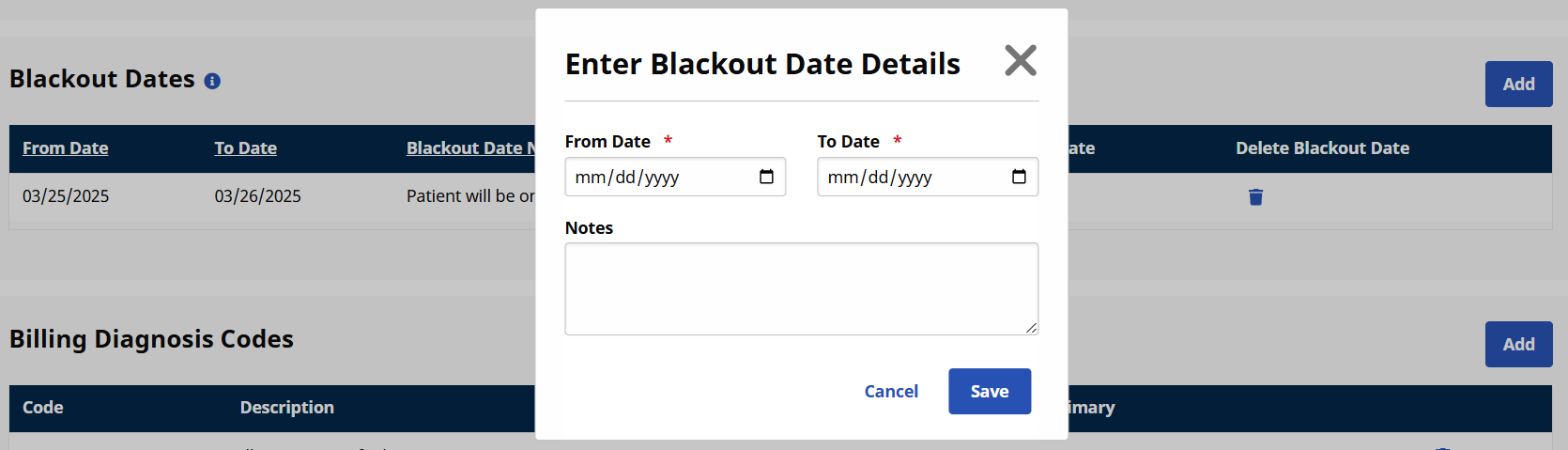
Under the Blackout Dates section, click the Add button to add a Blackout Date range or click the Edit icon to update existing information.

On the Blackout Date Details window enter or edit the From/To Date fields and click Save. Make sure to also click Save on the Patient Authorization window to save the changes.
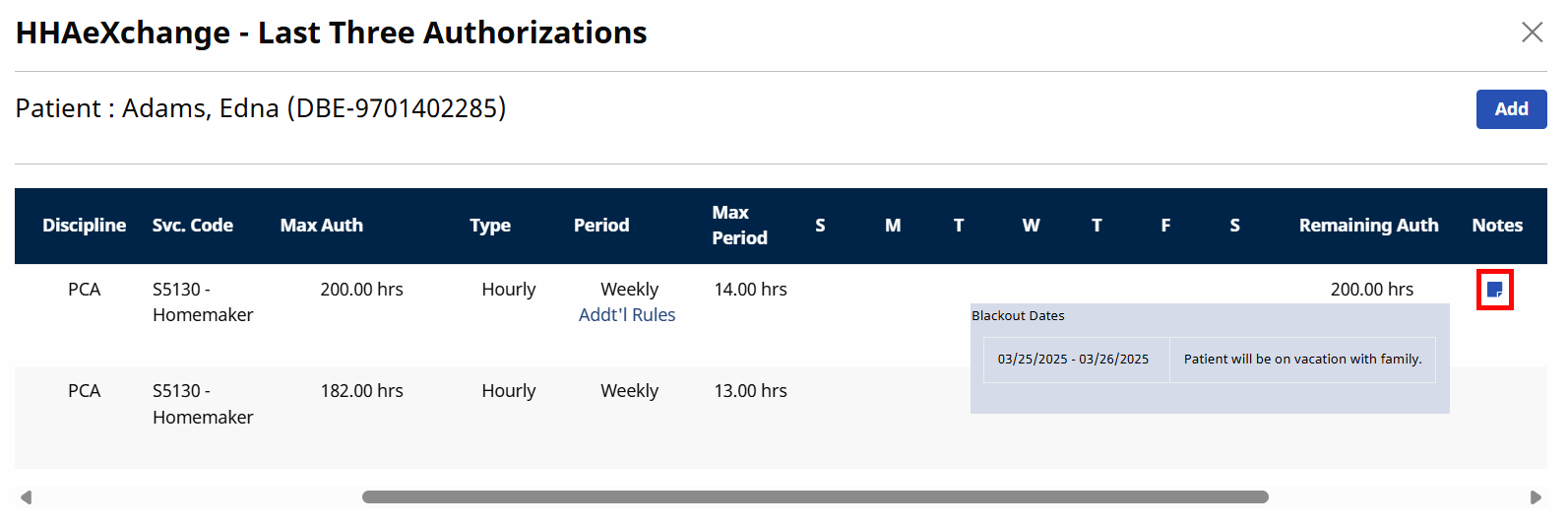
On the Auth/Orders page, hover over the Notes icon to view the Blackout Dates pop-up with information.

Authorization Blackout Dates can also be viewed (read-only) in the Patient Appointments page under Visit > Appointments. Click on the Patient's name, and then select View Authorizations from the dropdown menu. The Blackout Dates are found under the Notes column.