Cluster Visits Feature
The Cluster Service Type under Patient > Search Patient > General page involves servicing two or more Patients who have overlapping visits. The Patients receiving service must be linked prior to the visit for service to be scheduled. For example:
-
Patient A, B, and C are setup to receive Cluster service.
-
Patients A, B, and C are in the same Cluster.
-
Visits on Patient A, B, and C’s Calendar are scheduled at the same time with the same Caregiver.
-
Caregiver A is going to a group living facility to care for Patient A, Patient B, and Patient C.
To schedule Cluster visits, you need to create Contract Service Codes, run authorizations for all Patients, and then cluster 3 or more Patients together.

Cluster visits can only be scheduled with Service Codes assigned for this Service Type. Complete the following steps to create or edit Service Codes.
-
Go to Admin > Reference Table Management.
-
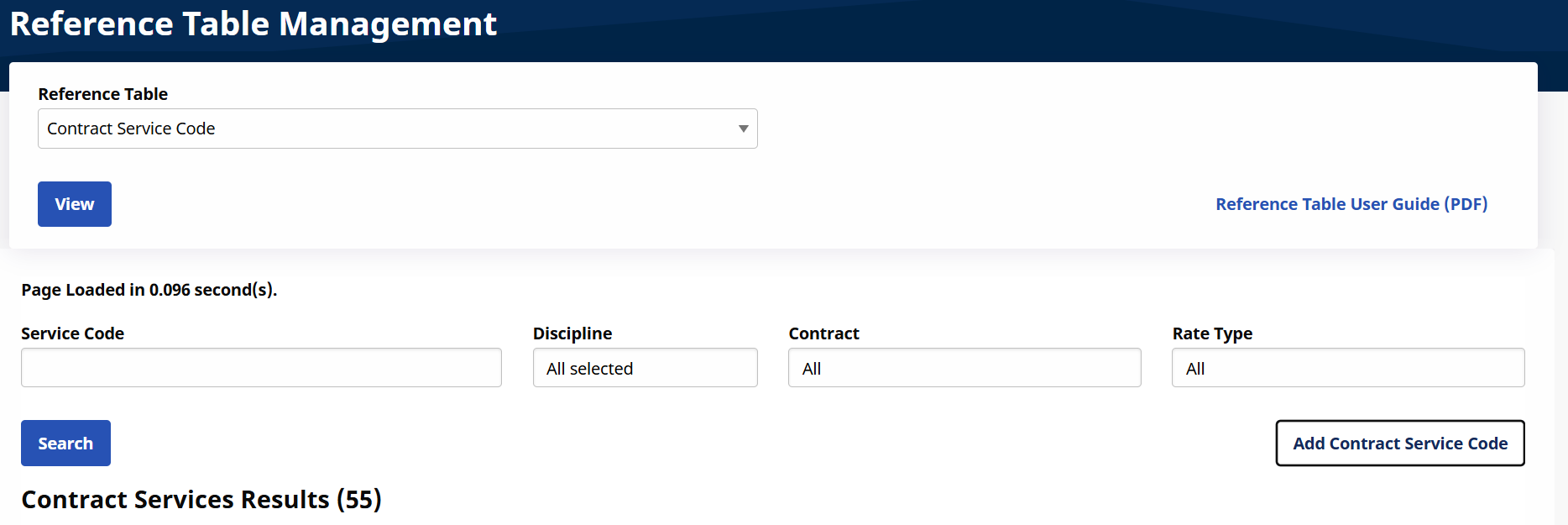
Select Contract Service Code under the Fiscal section from the Reference Table field. Click the Add Contract Service Code button to create a Service Code.
-
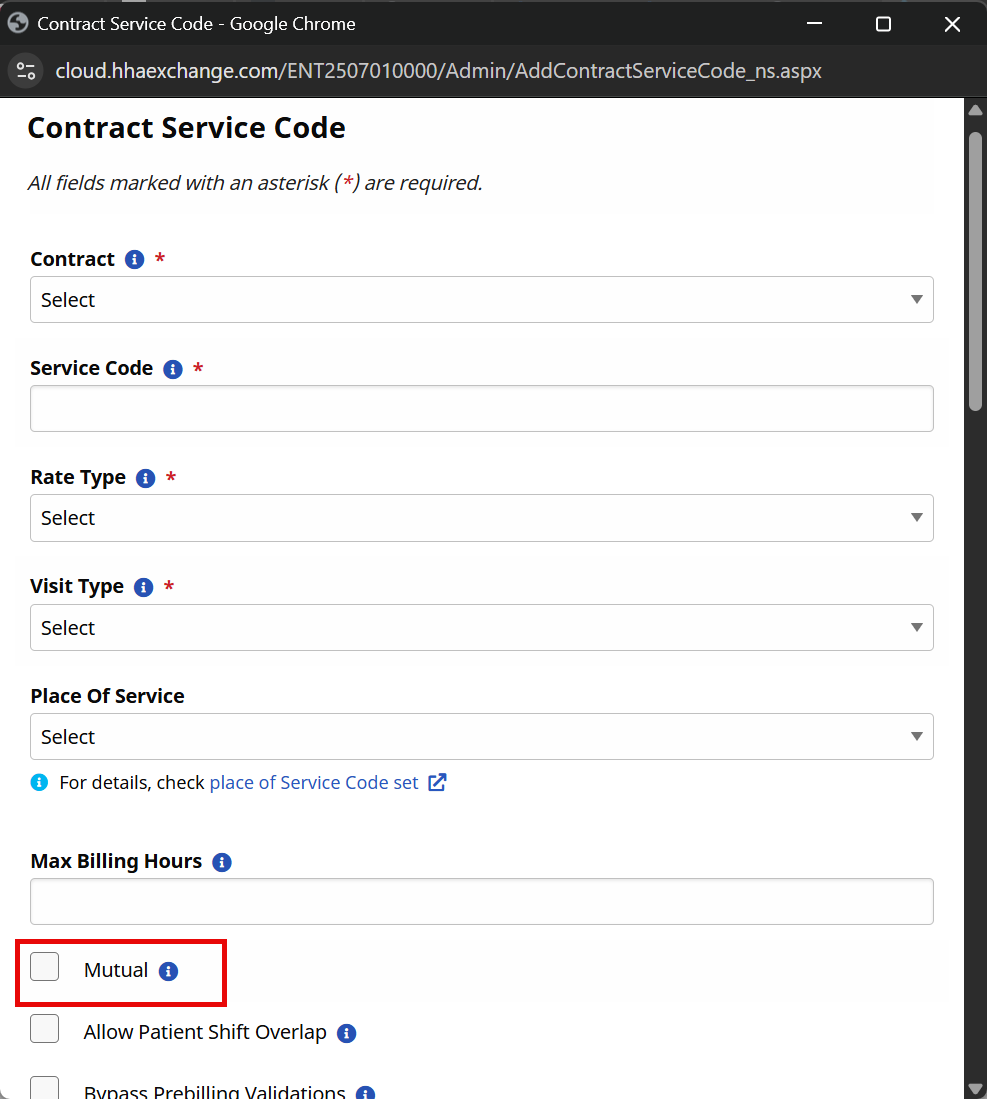
The Contract Service Code window opens. Complete all required fields. Select the Mutual checkbox and then select Save.
-
Go to Admin > Contract Setup > Search Contract and then select the Contract authorizing the visits.
-
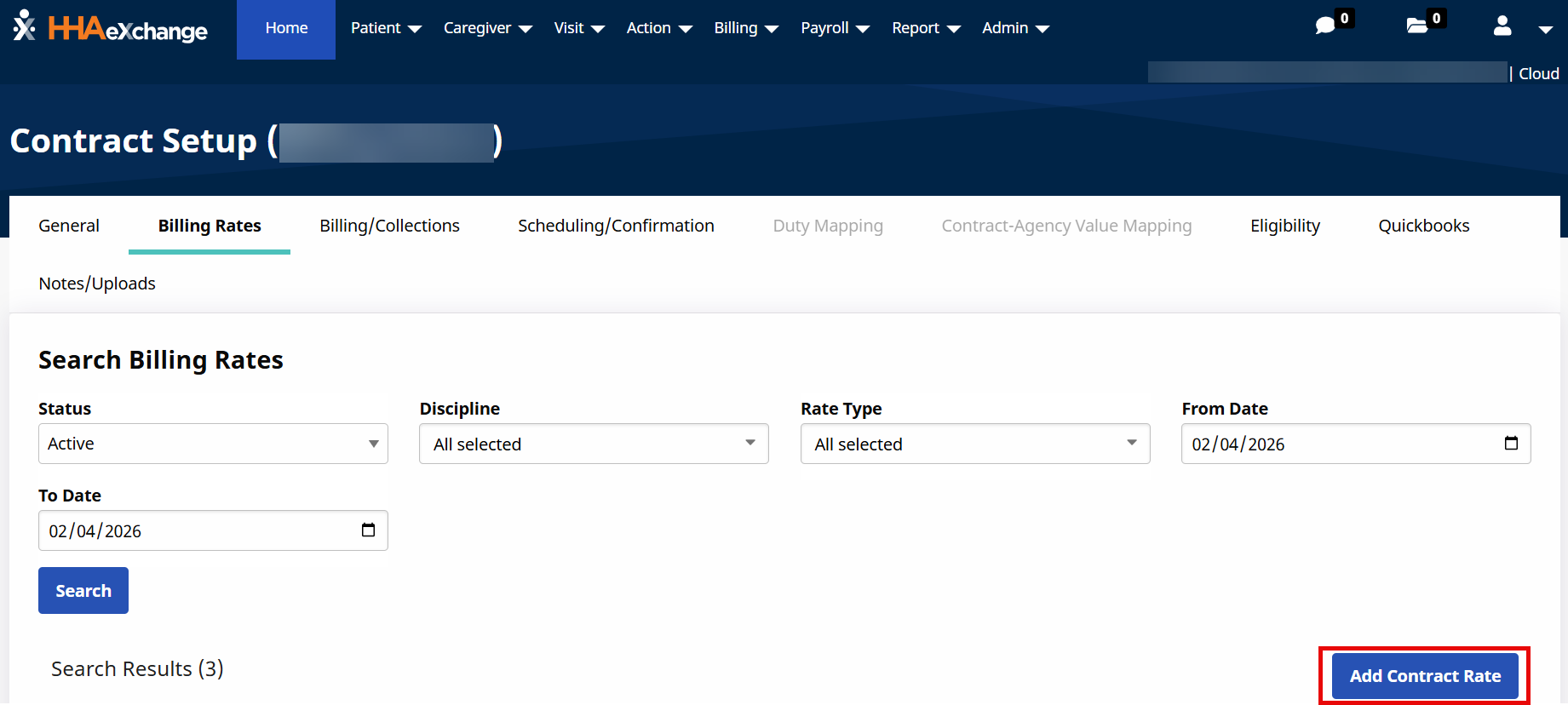
Go to the Billing Rates section and click the New Rate button to open the Contract Rate window.
-
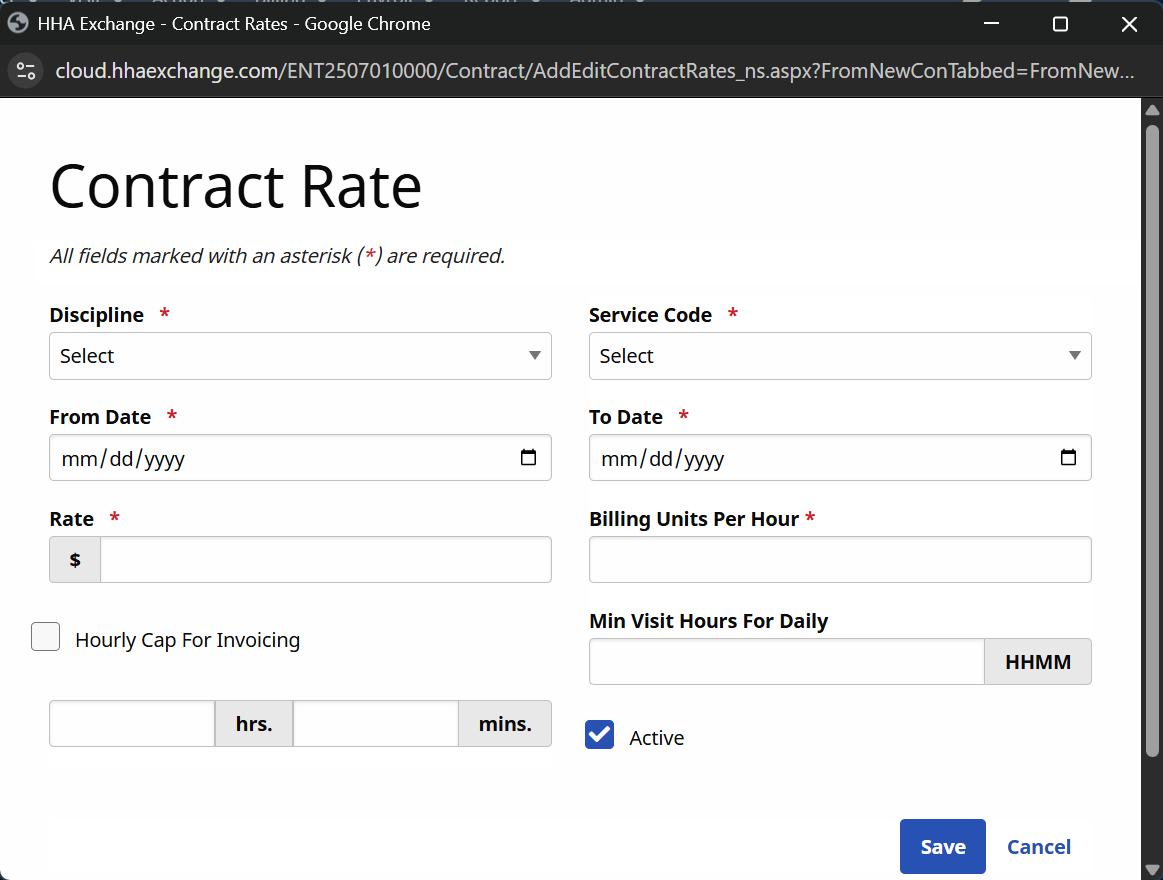
Complete all required fields. Select the applicable Service Code(s) to be used for scheduling Cluster visits. Click Save.
Run Authorizations for each Patient in the cluster. Complete the following steps to create or edit Authorizations.
-
Go to Patient > Search Patient and select the appropriate Patient.
-
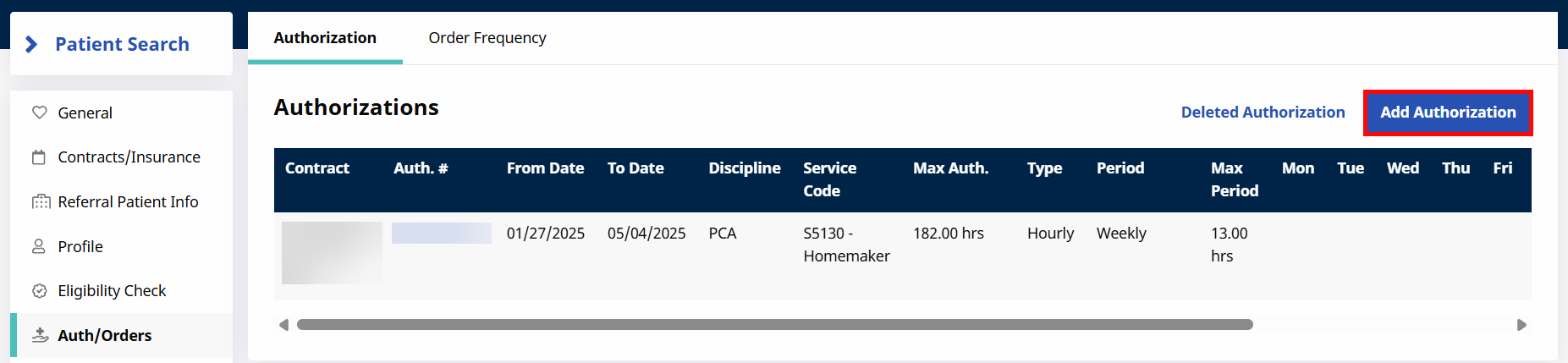
Select Auth/Orders from the left navigation panel.
-
To create a new authorization, select the Add Authorization button.
-
To update an authorization, select View/Edit under the Actions column.
-
-
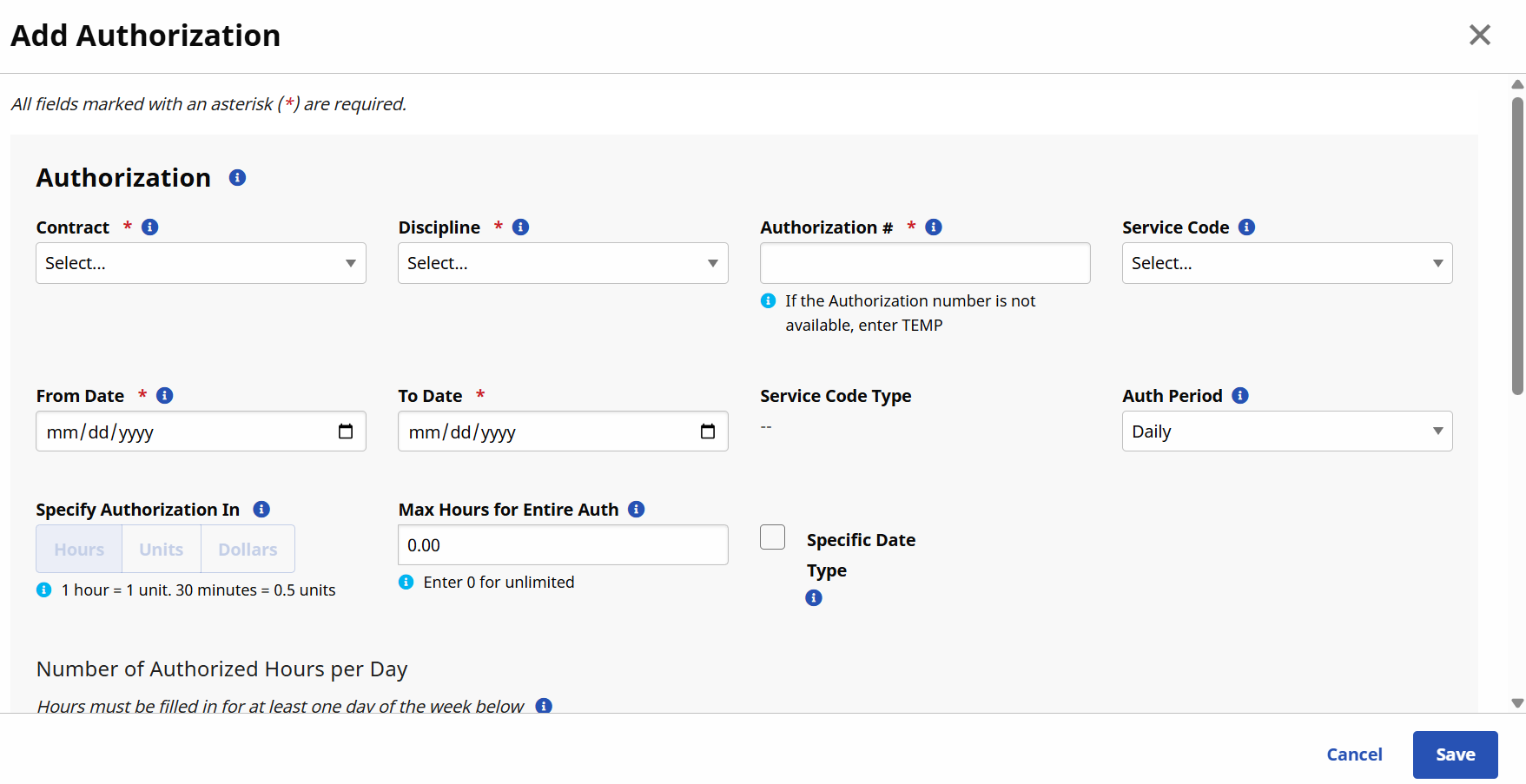
In the Add Authorization window, complete the required fields. Enter a Service Code that is set up for Cluster Visit.
-
Complete this process for next Patient in the Cluster case.
Complete the following steps to create a Cluster visit for multiple Patients.
-
Go to Patient > Search Patient and select the appropriate Patient.
-
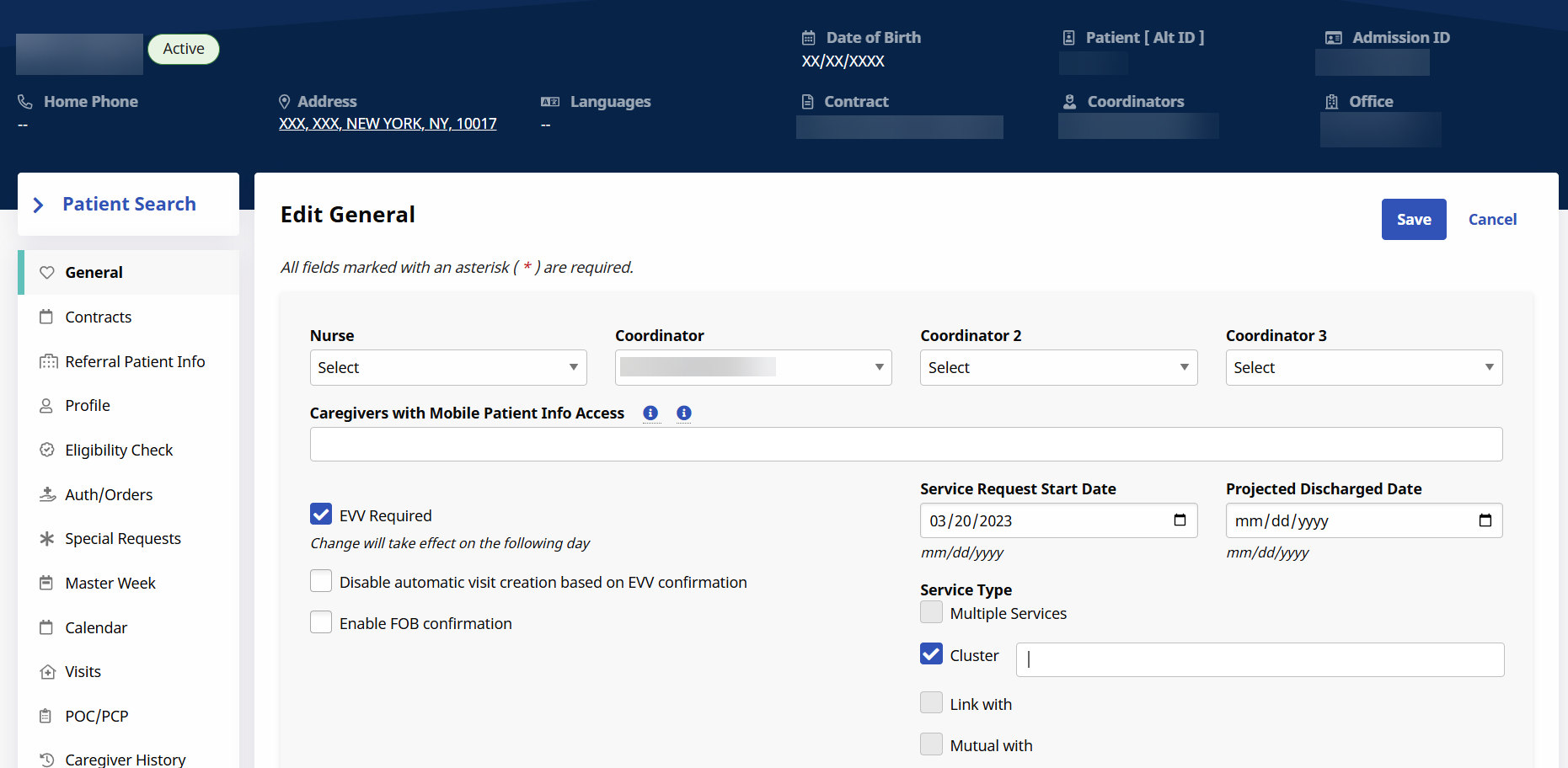
Select the General tab and then select the Edit button.
-
Add the Caregiver in the Caregivers with Mobile Patient Info Access field.
-
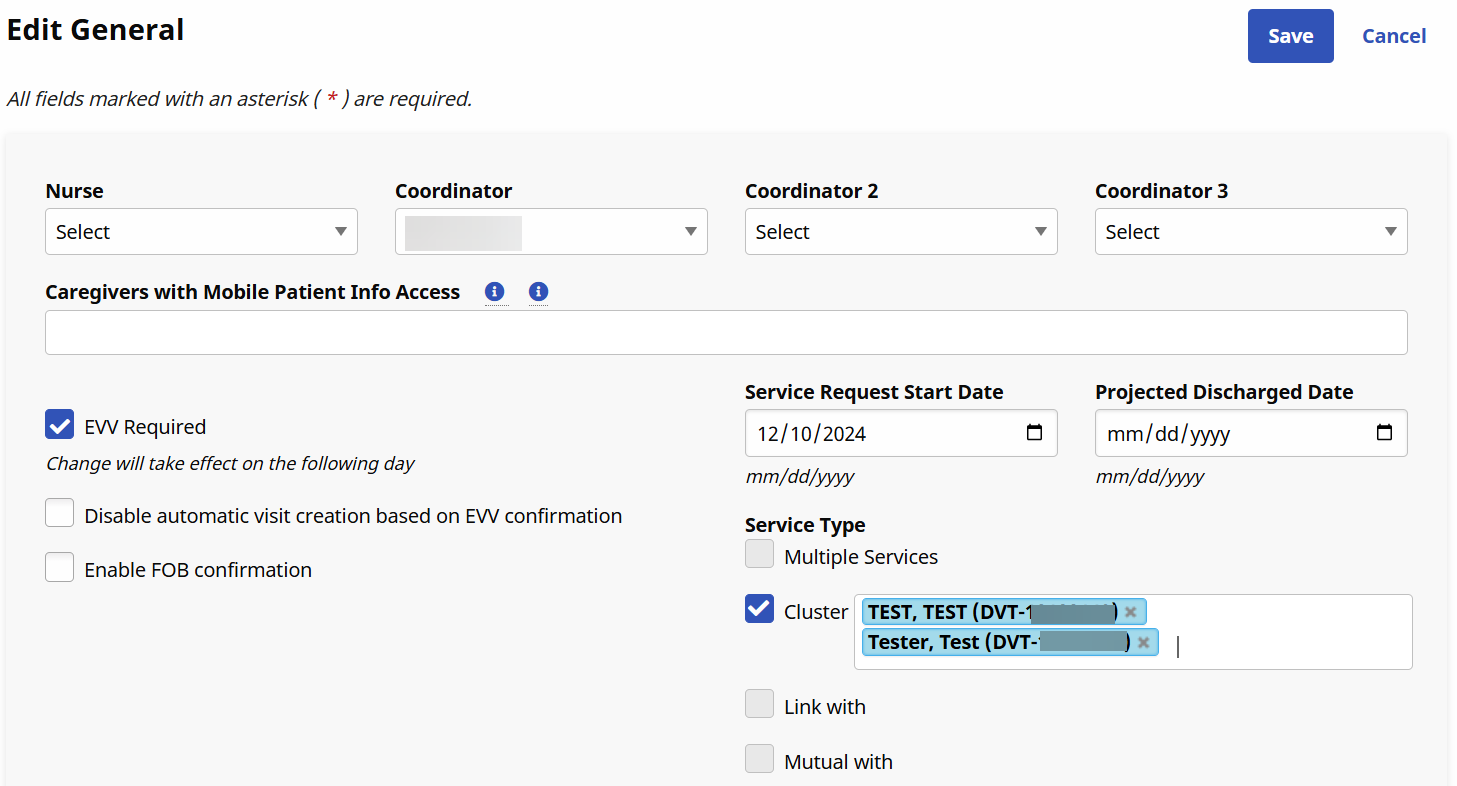
In the Service Type field, select Cluster. In the search box, search for and select all of the patients for the cluster visit.
All patients must have the same Caregiver and address to add the patients to the cluster visit.
-
Select Save.
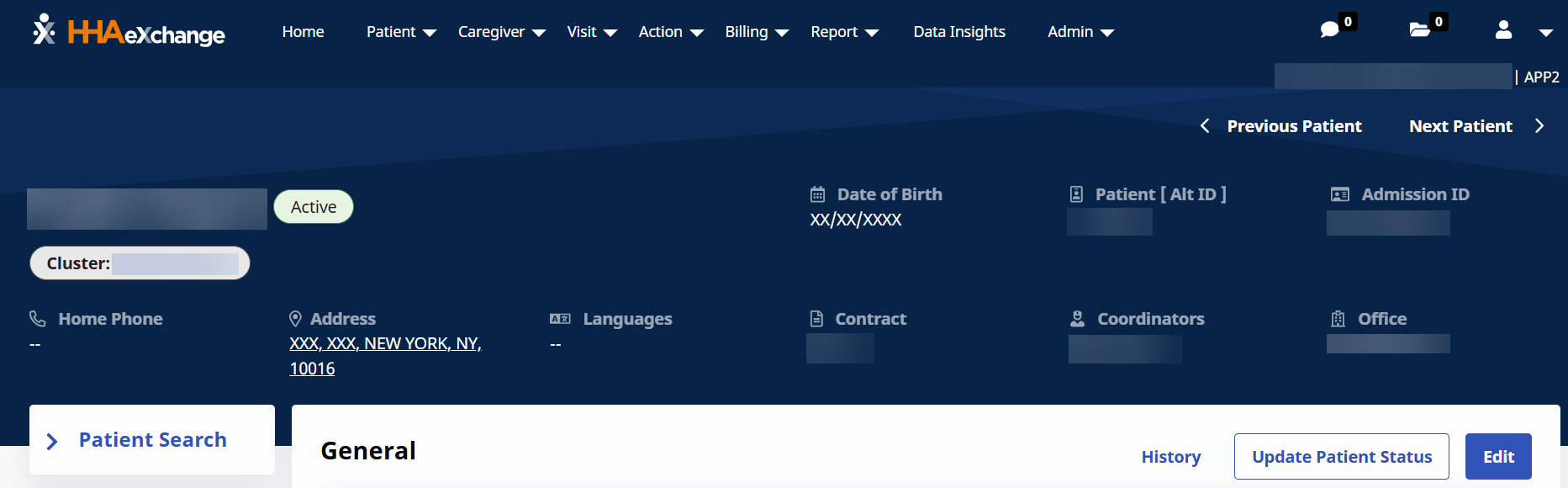
Once a successful link is made between the Patients, a header message displays in all Patient Profiles listing the Patients in the Cluster.
Click the Patient’s name to toggle between each of the Patients.
-
Next add the Visit to all of the Patients Calendars.
The Visit Start and End Time must be identical all of the Patients in the Cluster Visit. Complete the following steps to schedule the Cluster Visits.
-
Go to Patient > Search Patientand select the Patient.
-
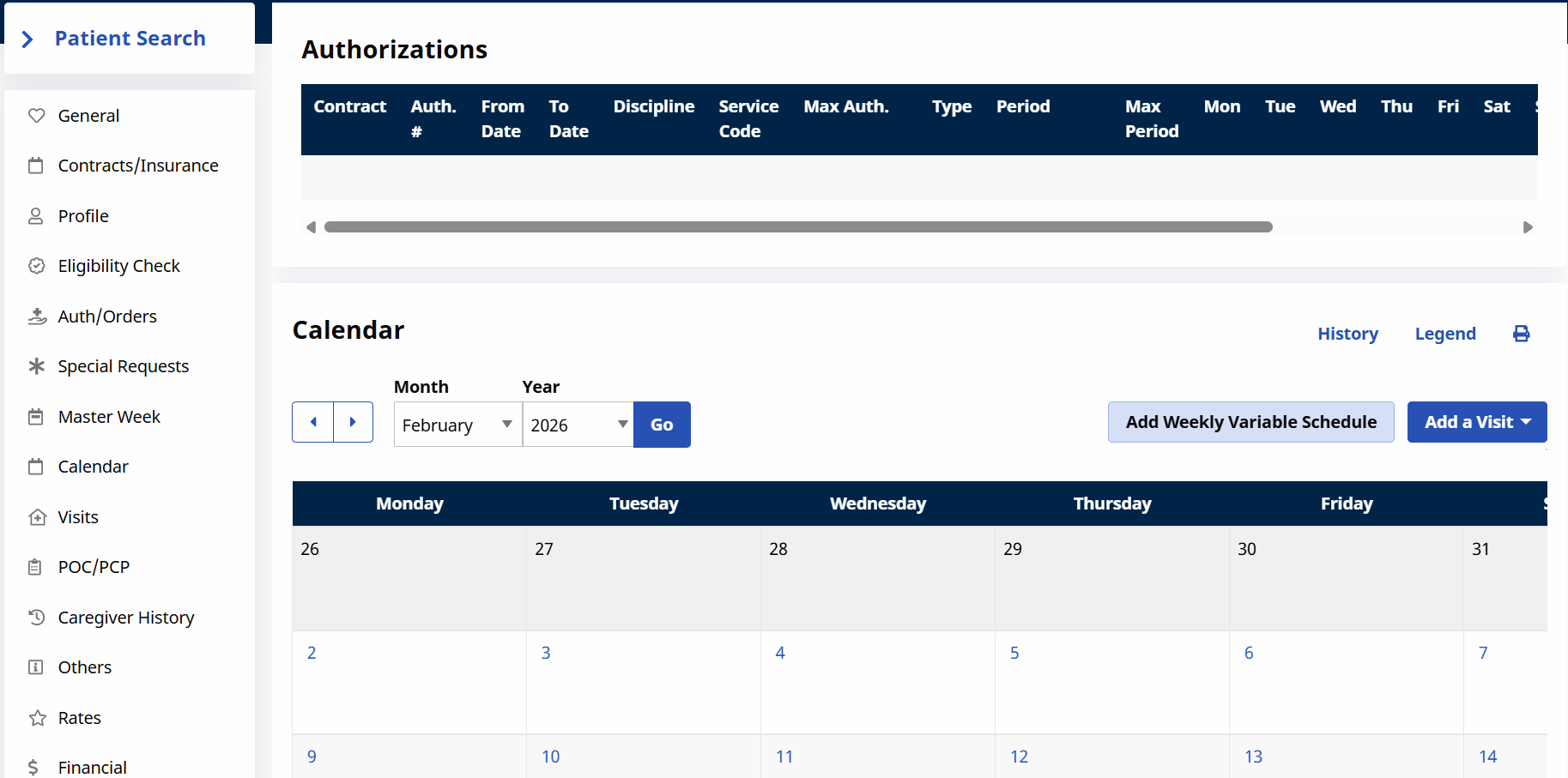
Select Calendar from the left navigation panel.
-
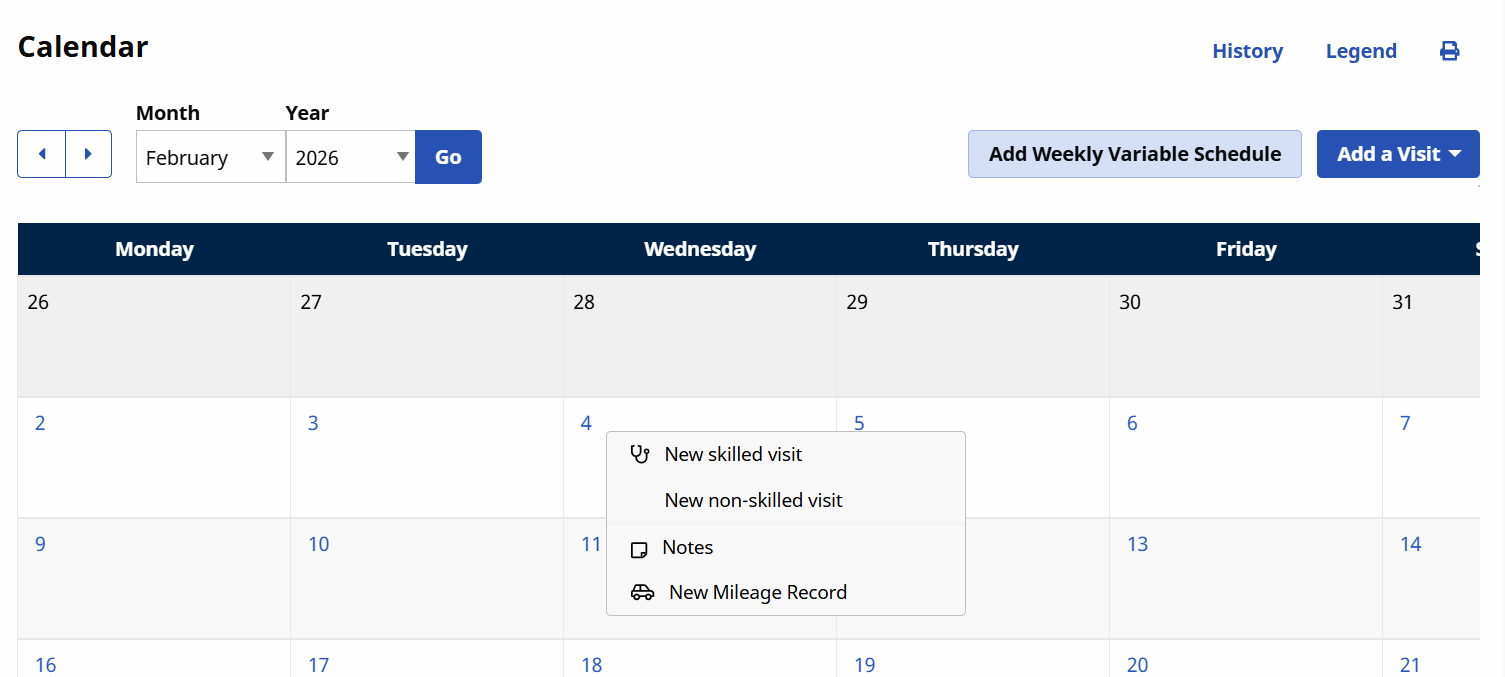
Select a date on the calendar and then select New non-skilled visit.
-
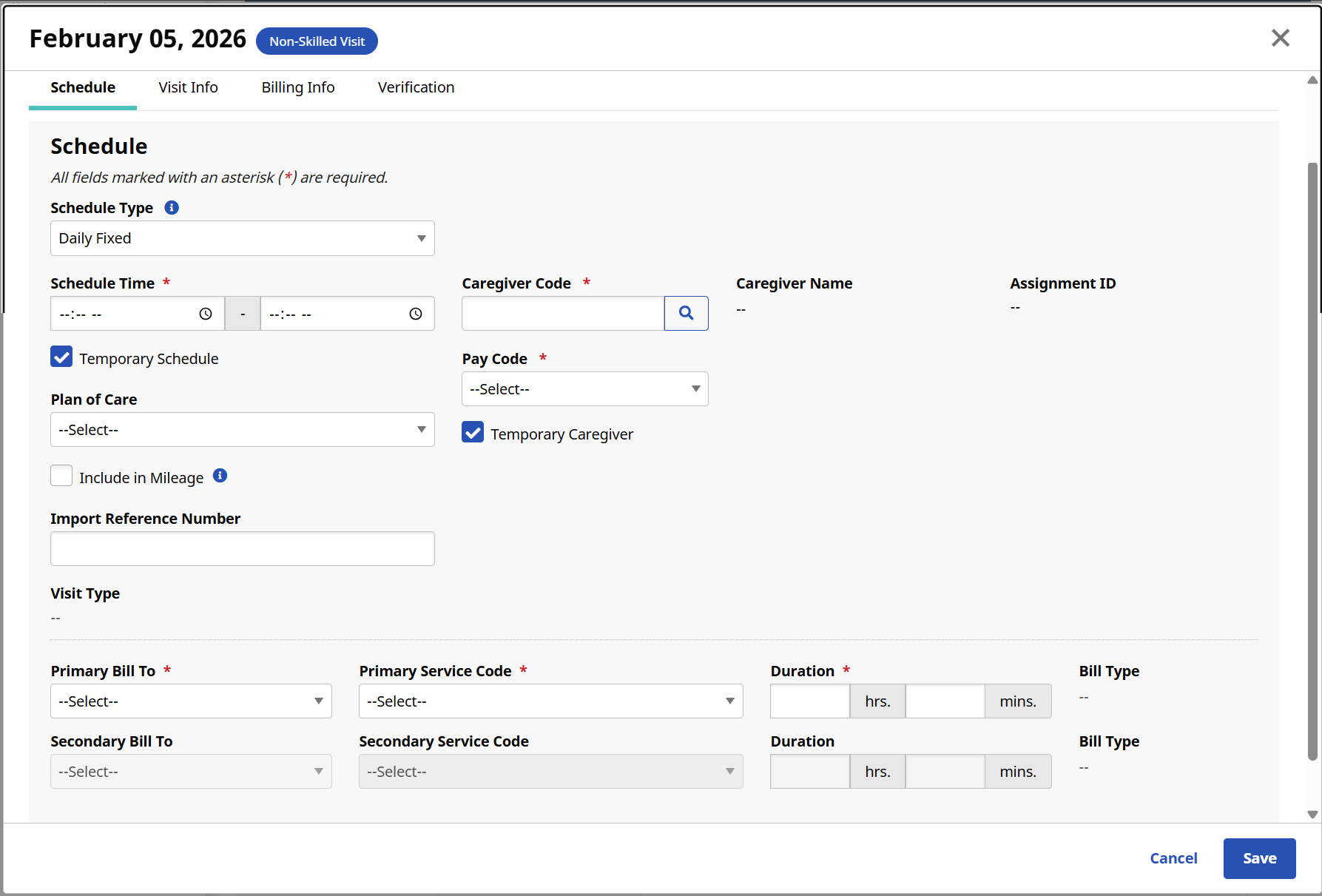
Complete all required fields. Ensure to select the correct Service Code. Click Save.
-
Upon saving the visit, a Warning
 icon in the visit cell appears. This warning indicates that the other Patient in the Cluster, referred to as a Secondary Patient, does not have a matching visit on their calendar.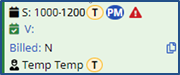
-
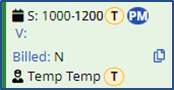
Go to all of the Patient Calendars and create a new visit to match the scheduling details. Once saved, the Warning icon is removed from the Calendar.
-
The Caregiver is only required to Clock-IN and Clock-OUT once for the visit. The system applies the EVV to both visits if they are scheduled correctly. Duties are entered for all Patients when Clocking OUT. For example:
-
Caregiver Clocks IN at 1000.
-
The system applies the EVV to the scheduled visit on all Patient Calendars
-
Caregiver Clocks OUT at 1200. The Caregiver enters the first SPatient’s duties, followed by 00 or 000 (depending on your Agency's landline IVR settings). The Caregiver then enters the next Patient’s duties, followed by 00 or 000.
-
The system applies the EVV and duties to the scheduled visit on all of the Patient Calendars.
-