Control Access to Patient's Clinical Records
The Clinical Access feature enhances security by allowing Providers to limit a clinical user’s access to only an assigned Patient’s clinical records and documentation (such as a Nurse in charge of the Patient’s care). For example, if a Nurse (user) works with only Patient A and Patient C, then this user does not need to view/access Patient B’s Profile.
The ability to control the access to individual Patient clinical information is set at the HHAeXchange System User level. Access to other non-clinical Patient information is determined by Permissions set at the Role level. HHAeXchange strongly urges the Agency to review all roles to ensure users have only the access needed to Patient information.

In the Update User Account page under Admin > User Management > Search User, the Clinical Access section is used to configure users with the proper permissions or to limit access accordingly. This section becomes available when editing an existing user (i.e., after the User Profile has been created). Refer to the Permissions section for permissions details.
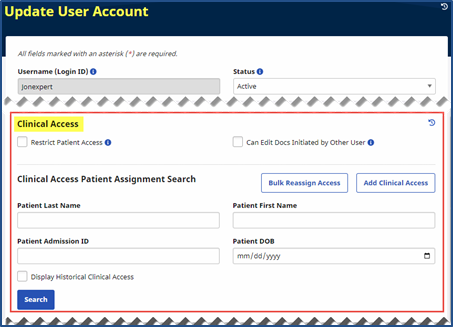
The Clinical Access Configuration section contains two options: Restrict Patient Access and Can Edit Docs Initiated by Other User.

Select the Restrict Patient Access checkbox to restrict the user’s access to view the Patient Profiles (records and Visits), with the exception of the Patients listed in the Clinical Access Patient Assignment section (covered below). Selecting this option without defining Patients restricts the user from access to any Patient information.
Select the Can Edit Docs Initiated by Other User checkbox to allow the user to edit a Patient’s clinical documents that were created by another user.
The Clinical Access Patient Assignment section is used to assign the access permission to specific Patient information. This section is also visible in Edit User details. Click Search to view previously assigned Patients (Search Results) or click the Add Clinical Access button to assign user access to a Patient.
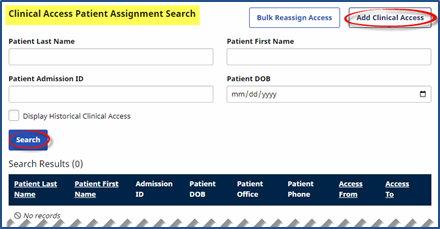
The user must be associated to at least one Office before adding Clinical access. Refer to the Office Setup section in the User Account page.
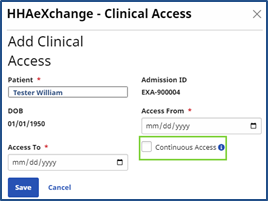
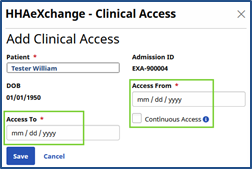
The Clinical Access window opens (when clicking the Add button) to assign a Patient to a User Account. Complete the required fields (denoted with red asterisk). Click Save to add.
|
Field |
Description |
|---|---|
|
*Patient |
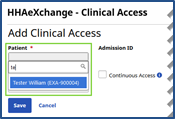
Enter the Patient’s name. This field auto-fills as characters are entered.
|
|
Admission ID |
Field auto-populates when the Patient is selected. |
|
DOB |
Field auto-populates once the Patient is selected. |
|
*Access From |
Define the effective date as of when the user has access to the Patient information. |
|
*Access To |
This date is only required if the Continuous Access checkbox is unselected. |
|
Continuous Access |
Select this checkbox to grant access to Patient information on an ongoing basis. When selected, the Access To field becomes unavailable. |
Clicking the Search button generates search results in the Clinical Access Patient Assignment section. Each line item contains the Patient’s Last Name, First Name, Admission ID, DOB, Office, Phone Number, Access From/To, and an Edit link.
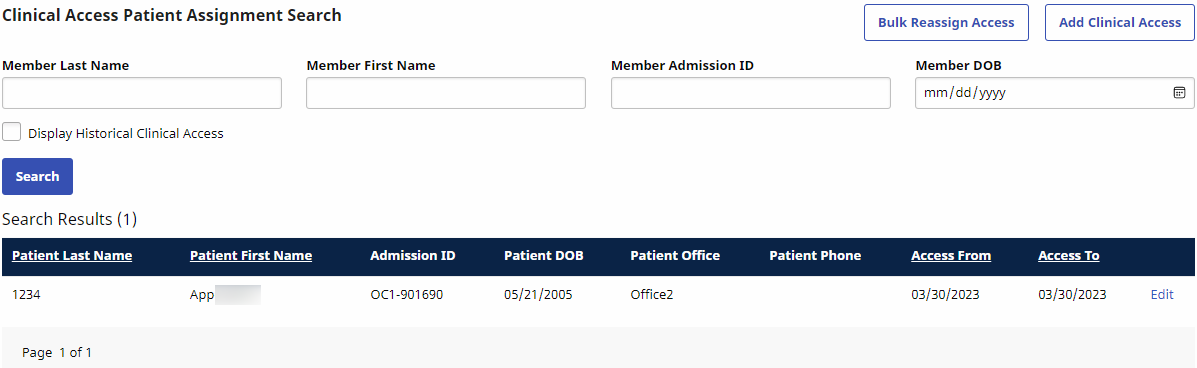
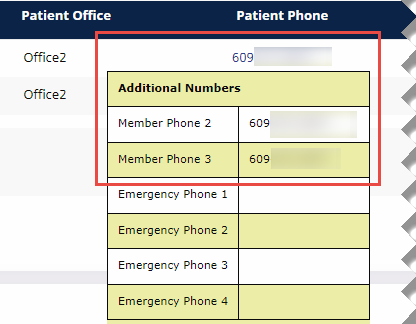
The Name and Date columns are sortable. Hovering over a Patient Phone number populates a pop-up window displaying other Phone Numbers listed for the Patient.
Click the Edit link (from a record line) to edit a record. The Clinical Access window opens. Update the date range information or select/deselect the Continuous Access checkbox. The Patient Name, Admission ID, and DOB are unavailable to edit. Click Save to update.
To view historical data on Clinical Access, click the History Icon  on the top-right of the Clinical Access window.