Create Patient Visits
This section provides a high-level instruction on how to schedule visits using the Patient Calendar under Patient > Search Patient > Calendar page, as well as scheduling using the Master Week function.

Using the Copy and Create tool, you can add new visits to the Calendar in the following ways:
-
Select Copy to duplicate visit information to a clipboard. Once copied, apply the visit information to other dates.
-
Select Copy and Create to copy the visit information and open a new window to apply the information to other dates and also edit the visit information.
-
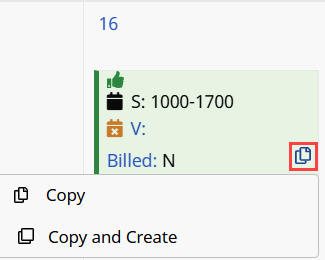
From the Patient’s Calendar page, click the Copy/Copy and Create icon in the Calendar day cell and select Copy.
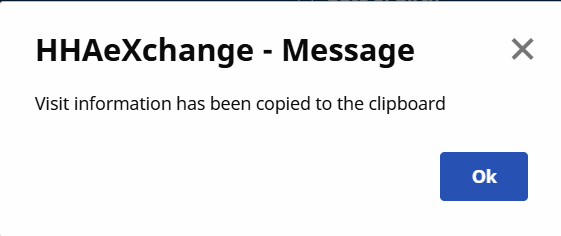
A Visit information has been copied to the clipboard popup message appears, click Ok.
-
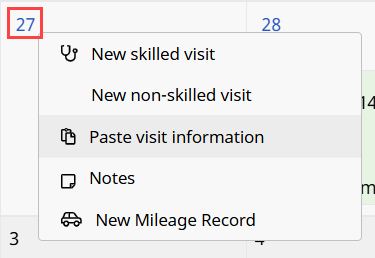
Click the calendar date link in the desired Calendar day cell and select Paste visit information.
-
The copied visit appears on the Calendar for the selected date.
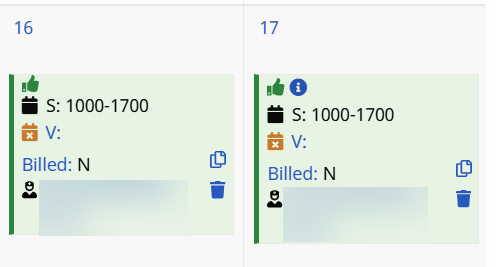
The visit details may be applied to multiple dates, as desired.
Even if a copied visit is within an authorized range, pasting it on a date not covered by the authorization will result in an unauthorized visit, which is highlighted in pink.
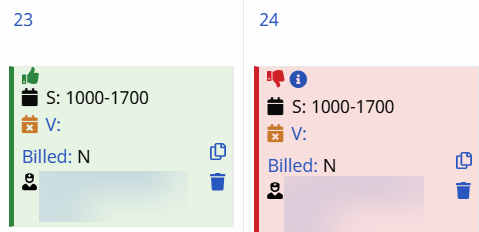
-
From the Patient’s Calendar page, click the Copy/Copy and Create icon in the Calendar day cell and select Copy and Create.
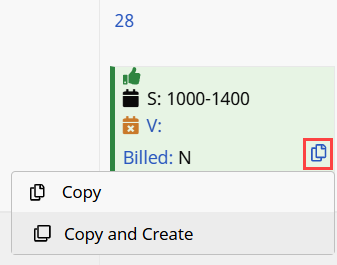
-
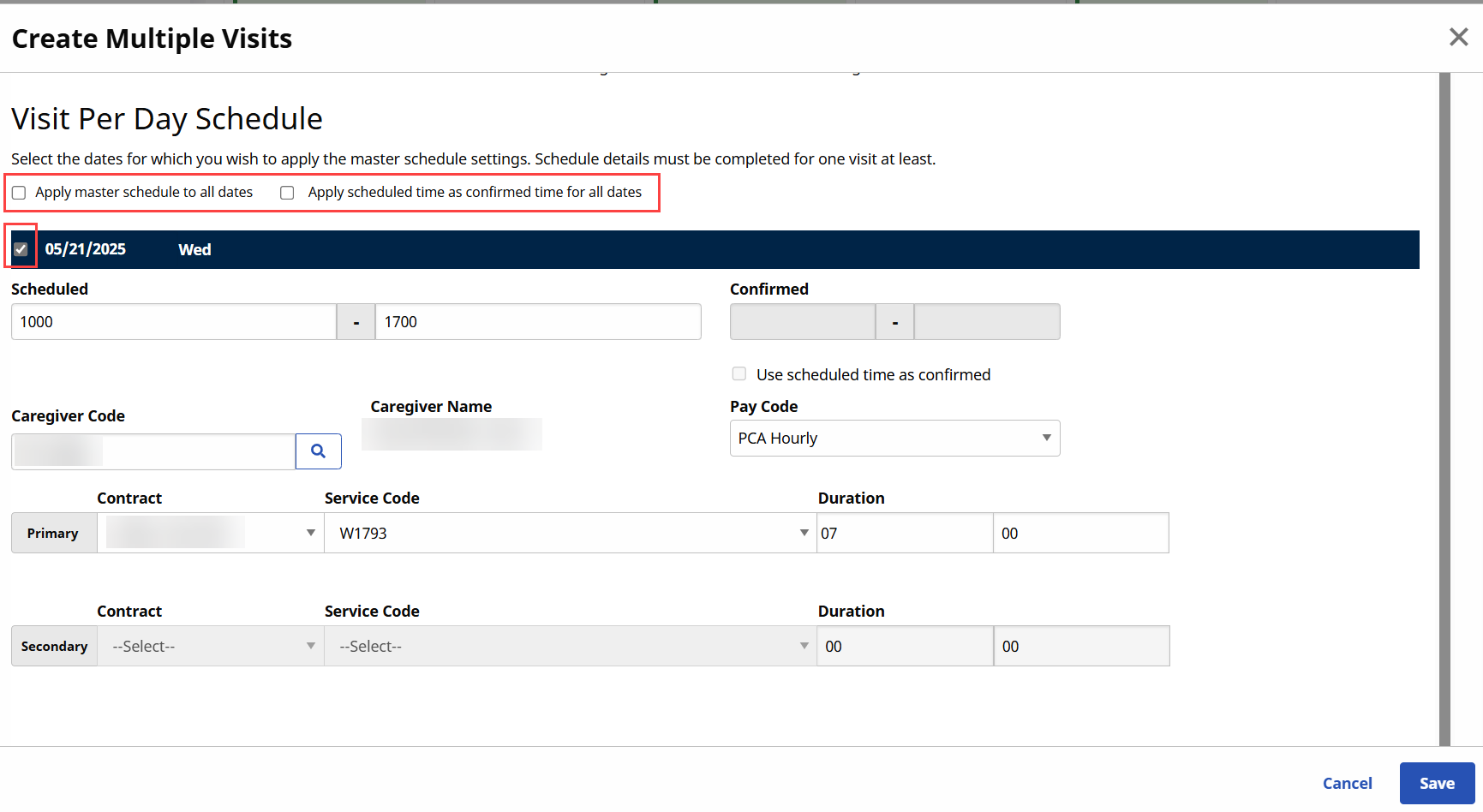
The Copy and Create Multiple Visitspage opens. Complete the requited fields, scroll down the page and click the Generate Schedule button.
Select the checkboxes in the blue bars to copy the Visit information to multiple days. Visit information may also be edited for each day it is applied to.
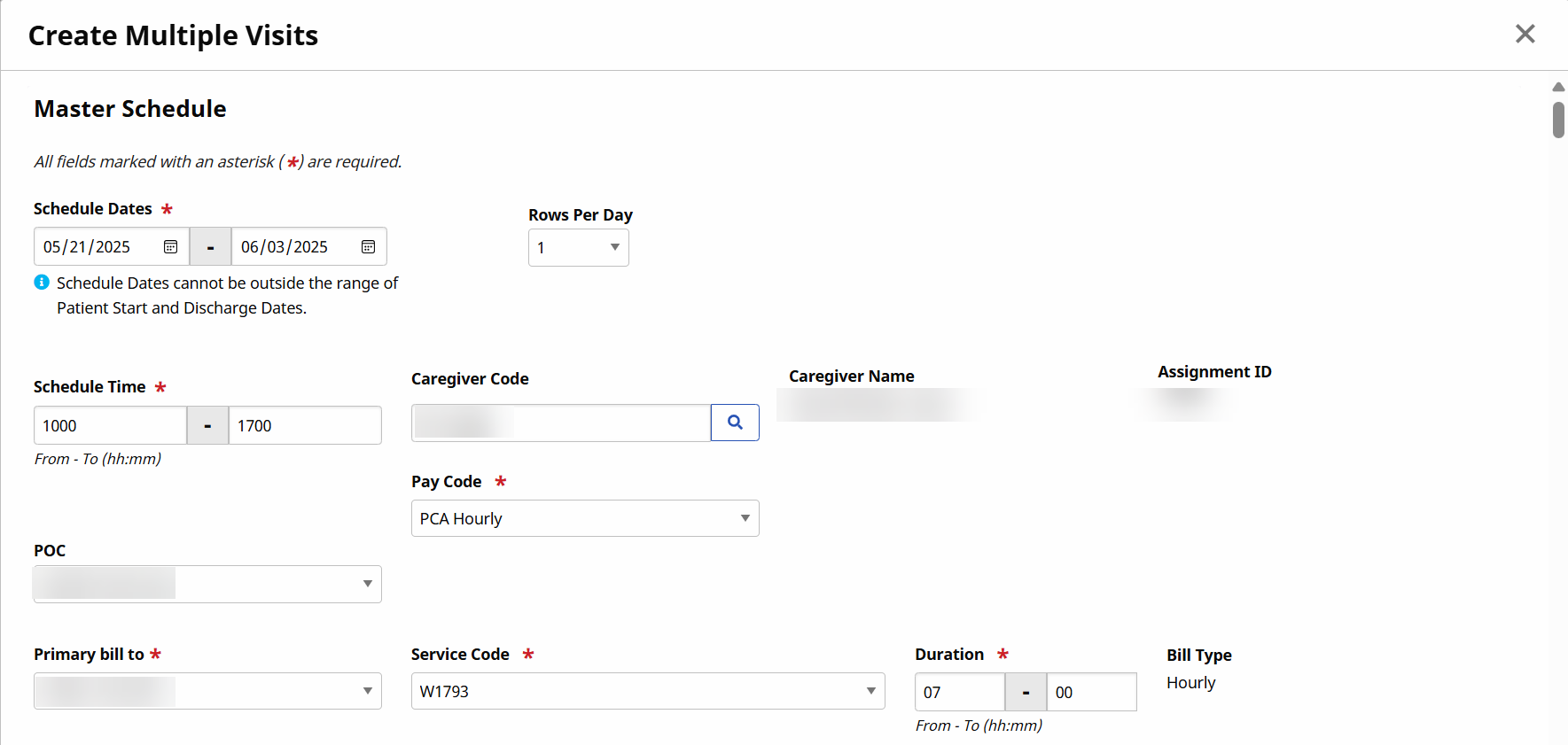
-
Scroll down to the Visit Per Day Schedule section and select the checkbox for each date within the specified Scheduled Dates, the schedule details appear for the selected dates.
-
Select the checkbox for Apply master schedule to all dates and/or Apply scheduled time as confirmed time for all dates and click Save. Refresh the webpage to see the updated Calendar.
Non-clinical visits in the system are classified as Non-Skilled, meaning only non-skilled disciplines can be assigned to them. Follow the steps below to create a non-skilled visit.
-
Go to the desired Patient and click the Calendar page on the Index.
-
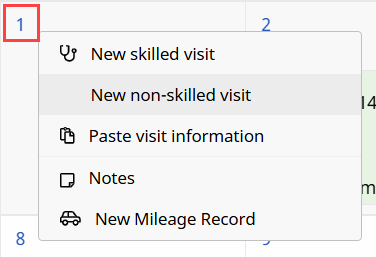
Click the date number link at the top-left of the Calendar cell and select New non-skilled visit from the options.
-
The Non-Skilled Schedule window opens on the visit Schedule tab. Complete the required fields and click Save.
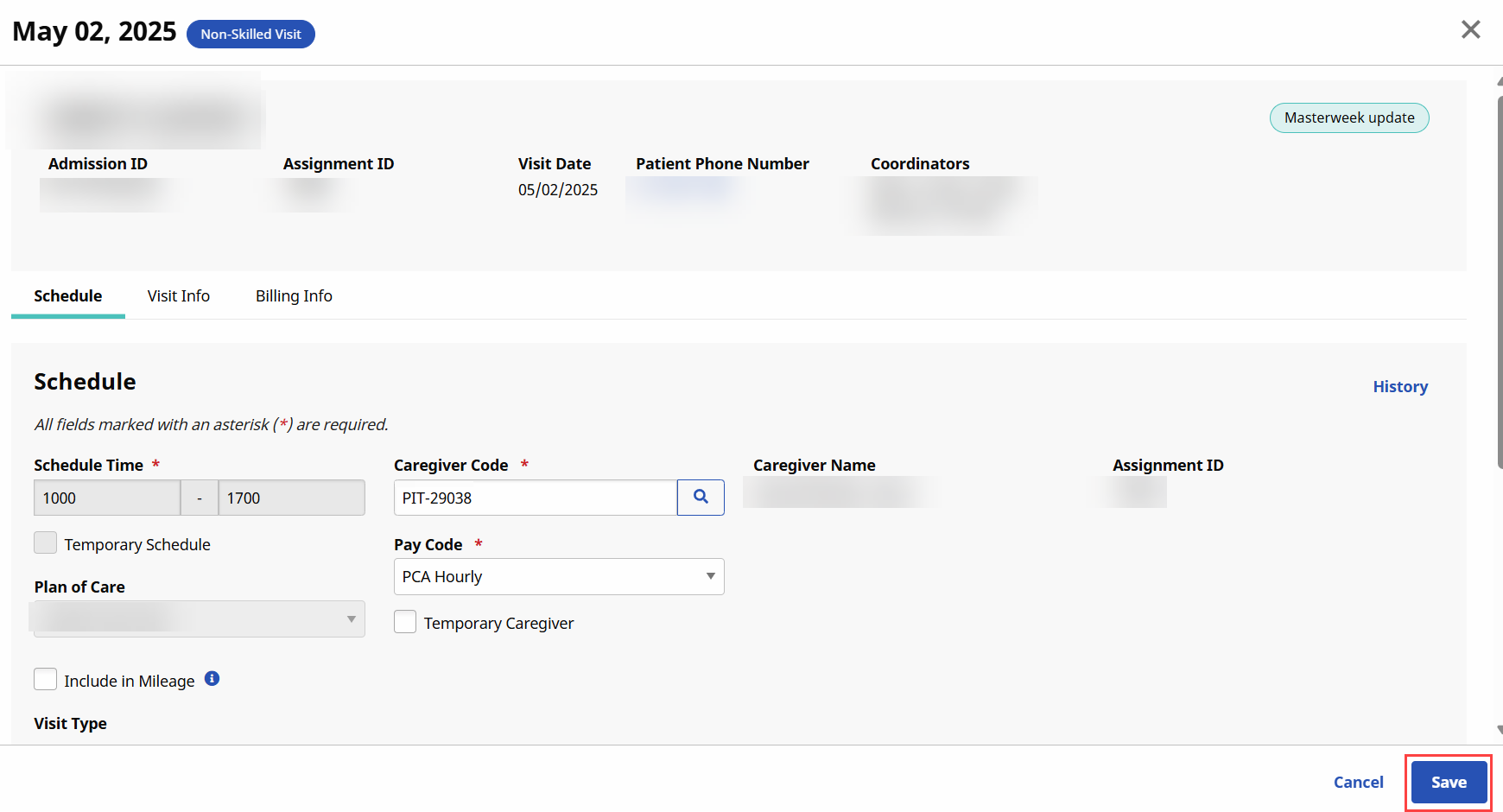
If a Caregiver is marked as Absent, has a Restriction for the select Contract, or is scheduled for an In Service on the date of the visit, the system issues a warning either requesting confirmation or stating that the selected Caregiver cannot be scheduled.
The Visit Info and Bill Info tabs are used to review visit information after the visit has been completed and billed.
-
Once saved, the system automatically performs a series of validation and authorization checks to ensure any Agency rules or contractual obligations are not breached. If a validation error is detected, then the system warns or restricts one from saving the visit.
Visits displayed in green are within Authorization parameters, while those in pink indicate an Authorization issue.
The system only reviews visits in a 14-day block based on the current date. visits outside of this range display in white.

Visits scheduled with a Service Code that is not covered by the Authorization, or setup to bypass Prebilling validations also display in white, even if within the 14-day block. Consult with an Administrator to discuss which Service Codes the Agency has authorized to skip Prebilling validations.
The Patient Calendar includes reasons for Unauthorized visits displayed in pink. Hovering over the red Thumbs Down icon displays a pop-up message indicating the reason the visit is not Authorized.
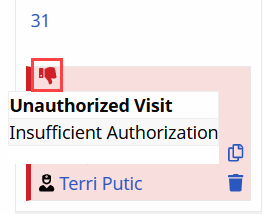
A visit may have multiple un-authorization reasons. Hovering over the icon shows a single reason at a time. If corrected, then the second reason displays.
The following table provides a list of Scenarios, the associated Unauthorized Visit Reason and a description for each.
|
Scenario |
Unauthorized Visit Reason |
Description |
|---|---|---|
|
Additional Rules |
Additional Rules – Failed Validation |
Visit fails Additional Rules validation |
|
Billing Adjustment to use Authorization Units |
Insufficient Authorization |
Billing adjustment causes the visit to not have sufficient Authorization |
|
Blackout Date |
Blackout Date |
Visit on a blackout date |
|
Daily Period Type Authorization with Time Restrictions |
Insufficient Authorization |
Visit scheduled outside of Daily Period Type Time Restrictions |
|
Daily, Weekly, Monthly Authorization (Type 2) |
Insufficient Authorization |
Visit exceeds the allowed Max Units for the Entire Authorization |
|
Exceeds Guardrail Limit |
Insufficient Authorization - Guardrails |
Visit does not have sufficient authorization because of a monthly Guardrail limit |
|
Manual Authorization |
Manual Authorization |
Manual intervention required due to a manual Authorization |
|
Missed Visit – Travel Time |
Insufficient Authorization |
Missed Visit Travel Time approval |
|
No Authorization |
Authorization Not Available |
No Authorization available for the visit |
|
Primary/Secondary Contract |
Insufficient Authorization |
Primary and Secondary Contract together do not have sufficient Authorization for a visit |
|
Service Code |
Authorization not available with this Service Code |
Missing Service Code or the Service Code is not valid for the Authorization Type |
|
Visit less than 15 Minutes |
Visit less than 15 Minutes |
Visit is less than 15 minutes |
|
Visit Out of Authorized Date Range |
Authorization Not Available |
Visit falls outside of Visit Start or End Date |
|
Weekday (Specific Date Type) |
Visit cannot be scheduled to start on a Weekend |
Visit is authorized for a specific date type (weekday) but the visit is scheduled on the weekend or holiday |
|
Weekend (Specific Date Type) |
Visit cannot be scheduled to start on a Weekday (unless a Holiday) |
Visit is authorized for a specific date type (weekend/holiday) but the visit is scheduled on a weekday |
|
Weekly, Monthly Authorization (Type 1) |
Insufficient Authorization |
Visit exceeds the allowed Max Units per Period |
If a Patient receives the same service on a regular basis, the Master Week function is used to generate a permanent schedule. Once set, the system uses the information in the Master Week to update the Patient’s Calendar every night for 14 days into the future in a process known as roll over. Any changes to the Master Week are reflected in future visit when it rolls over again.
If a Master Week schedule results in a Caregiver surpassing the Agencies set overtime threshold, the Master Week only needs to be validated once. The system does not inform/require users to validate the Caregiver’s overtime in the future.
Skilled visits (Clinical) are those involving medical services and only skilled disciplines such as Nurses or Physical Therapists can be assigned to them. Follow the steps below to create a Skilled visit.
-
Go to the desired Patient and click the Calendar page on the Index.
-
Click the date number link at the top-left of the Calendar cell and select New skilled visit from the options.
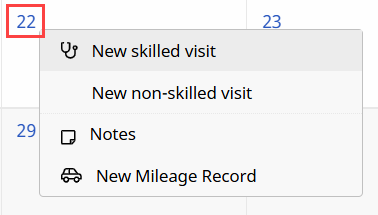
-
The Skilled Schedule window opens on the Visit Schedule tab. Complete the required fields and click Save.
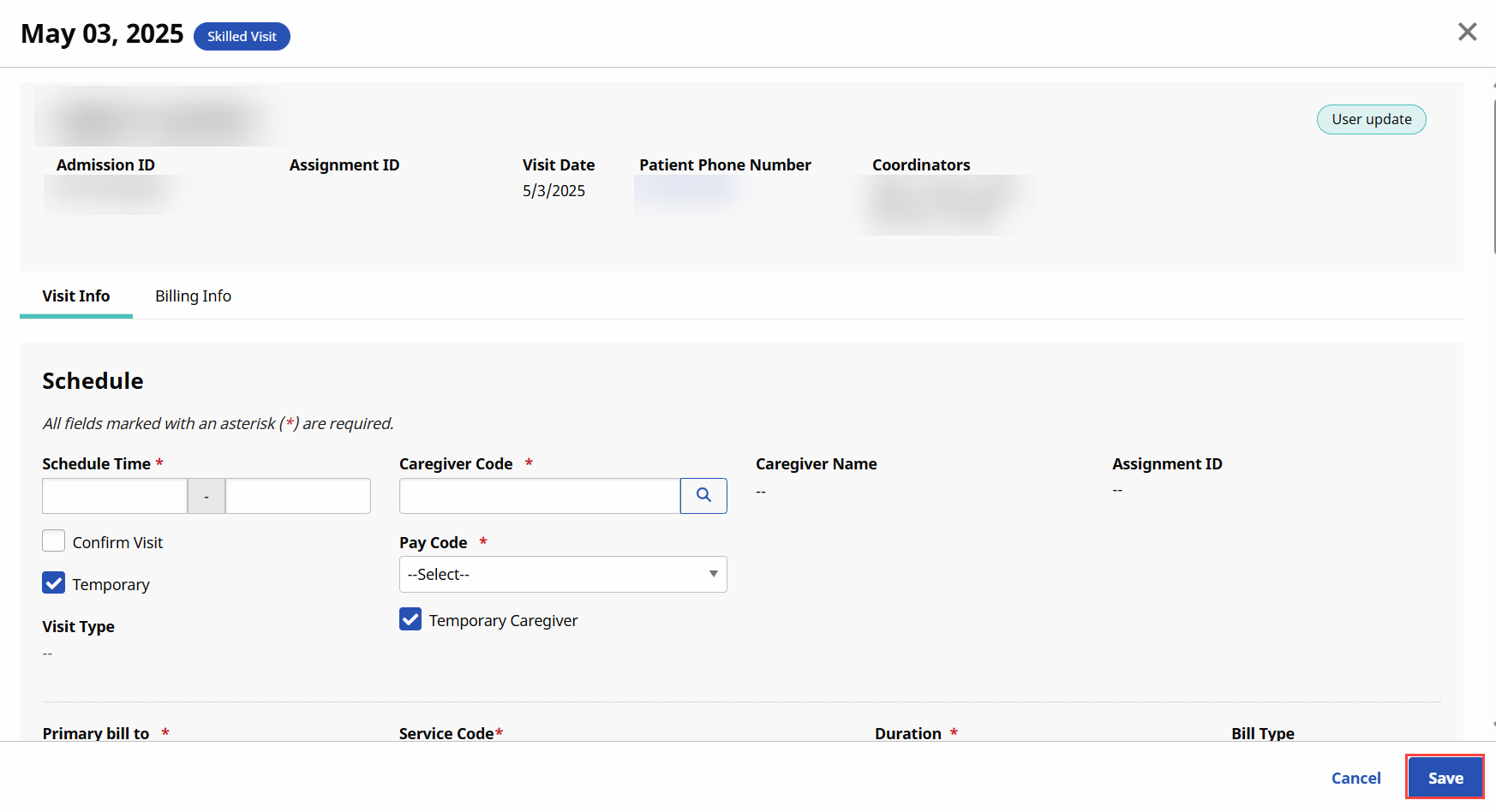
Once saved, the system automatically performs a series of validation and authorization checks to ensure any Agency rules or contractual obligations are not breached. If a validation error is detected, then the system warns or restricts one from saving the visit.
Visits displayed in green are within Authorization parameters, while those in pink indicate an Authorization issue.
The system only reviews visits in a 14-day block based on the current date. visits outside of this range display in white.
This section covers scheduling scenarios and validations caused by the addition of the Visit Authorization Allocation function.
Users may choose to apply 0 Authorizations Units to a visit without triggering a validation error. Instead, the visit displays in pink, indicating that it is unauthorized and is held on the Prebilling Review page. The system requests confirmation before saving a visit with 0 Authorization Units.
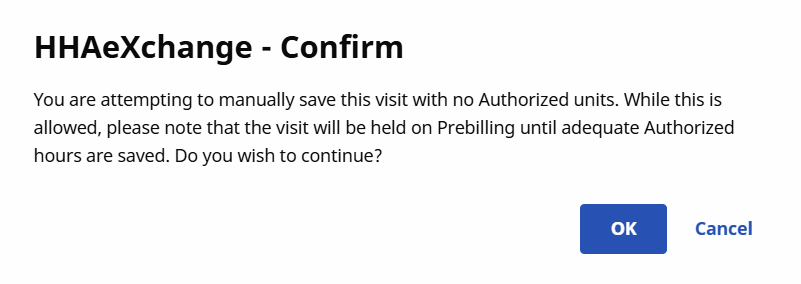
Any visits associated with an Authorization that have been billed or exported cannot be deleted. If a user attempts to delete an authorization where visits have been billed or exported, the system displays the following message: This Authorization has already been applied to billed visits and cannot be deleted.
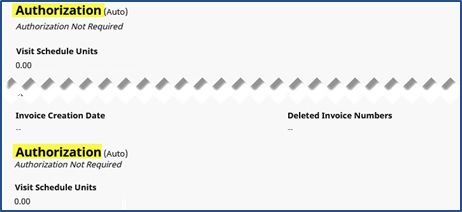
If the Service Code selected for the Primary Contract is set to bypass Prebilling validation, or the Primary Contract does not require an Authorization, the visit Authorization section for both the Primary and Secondary Contract is set to Authorization Not Required.
When invoicing a visit with more than one Authorization applied to the Primary Contract and/or Secondary Contract, the system applies the first Authorization for each to the invoice. For example, in the following image, Auth 1 for Primary Contract and Auth 3 for the Secondary Contract would be applied to the invoice for this visit.
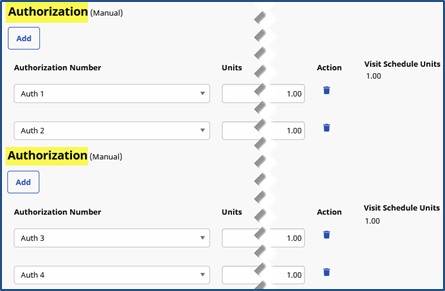
Authorizations applied to Visits may exist in two states: Automatic and Manual.
An Automatic state refers to a visit Authorization unedited or removed by a user. The Authorization/Units are automatically applied to the visit by the system at the time of scheduling. When a visit Authorization is in this state, the system automatically updates the Authorization information with respect to changes to the visit schedule.
A Manual state is when a user manually edits, removes, or adds Authorization information for either the Primary or Secondary Contract to a visit. In this case, the system does not automatically adjust the Authorization to fit changes to the visit schedule.
If the visit schedule duration is extended or the Service Code is changed, the system automatically reduces the Authorization Units to 0. The visit subsequently turns pink on the Patient Calendar signifying that there is an Authorization issue.
The system reduces the number of applied Units in a Manual state if a visit is rescheduled with a shorter duration.
This logic also applies when the Authorization is edited on the Patient Authorization page. The system reassesses visits in an Automatic state to ensure they are still compliant, whereas visits in a Manual state are automatically reduced to 0 Units.
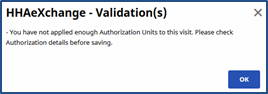
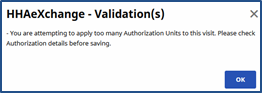
Over or under applying Authorization Units to a visit results in a validation error. For example, if a single Authorization Unit is applied a to a visit scheduled for 2 hours, one is only authorizing a single hour of the visit. In the other hand, applying 3 Authorization Units to a 2-hour visit authorizes an hour of non-scheduled service.
The system does not allow for either scenario. If over or under Authorization Units are applied, the following validation messages display:
Agencies may review and edit Authorizations automatically applied to Scheduled Visits on the Visit Billing Info tab.
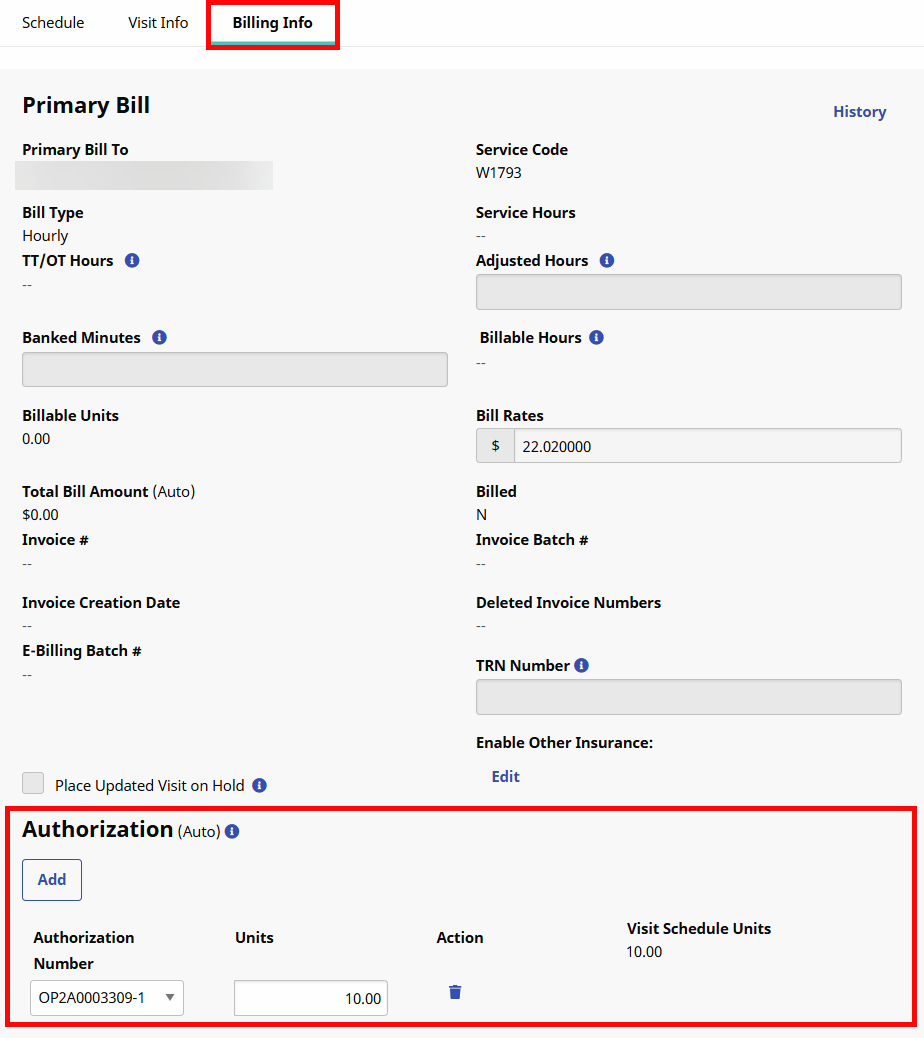
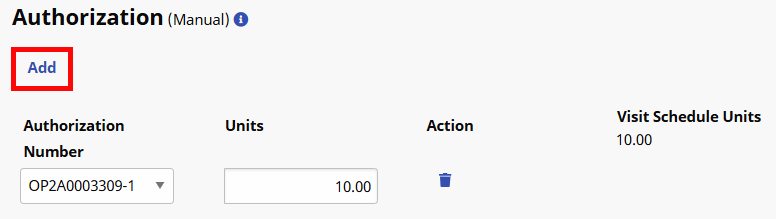
The Authorization section of the Bill Info tab contains the following fields / functionality:
|
Field / Functionality |
Description |
|---|---|
|
Add (button) |
Allows one to apply additional Authorizations to the visit.
|
|
Authorization Number |
The Authorization currently assigned to the visit. This field also contains all the Authorizations associated with the Patient applicable to the visit. For example, if the Scheduled visit is for Non-Skilled service, only Authorizations for Non-Skilled service are available. |
|
Units |
Allows one to set the number of Units from the Authorization applied to the visit.
|
The Authorization functionality is available for both Primary and Secondary Contracts, allowing Agencies to split Authorization hours between the two:
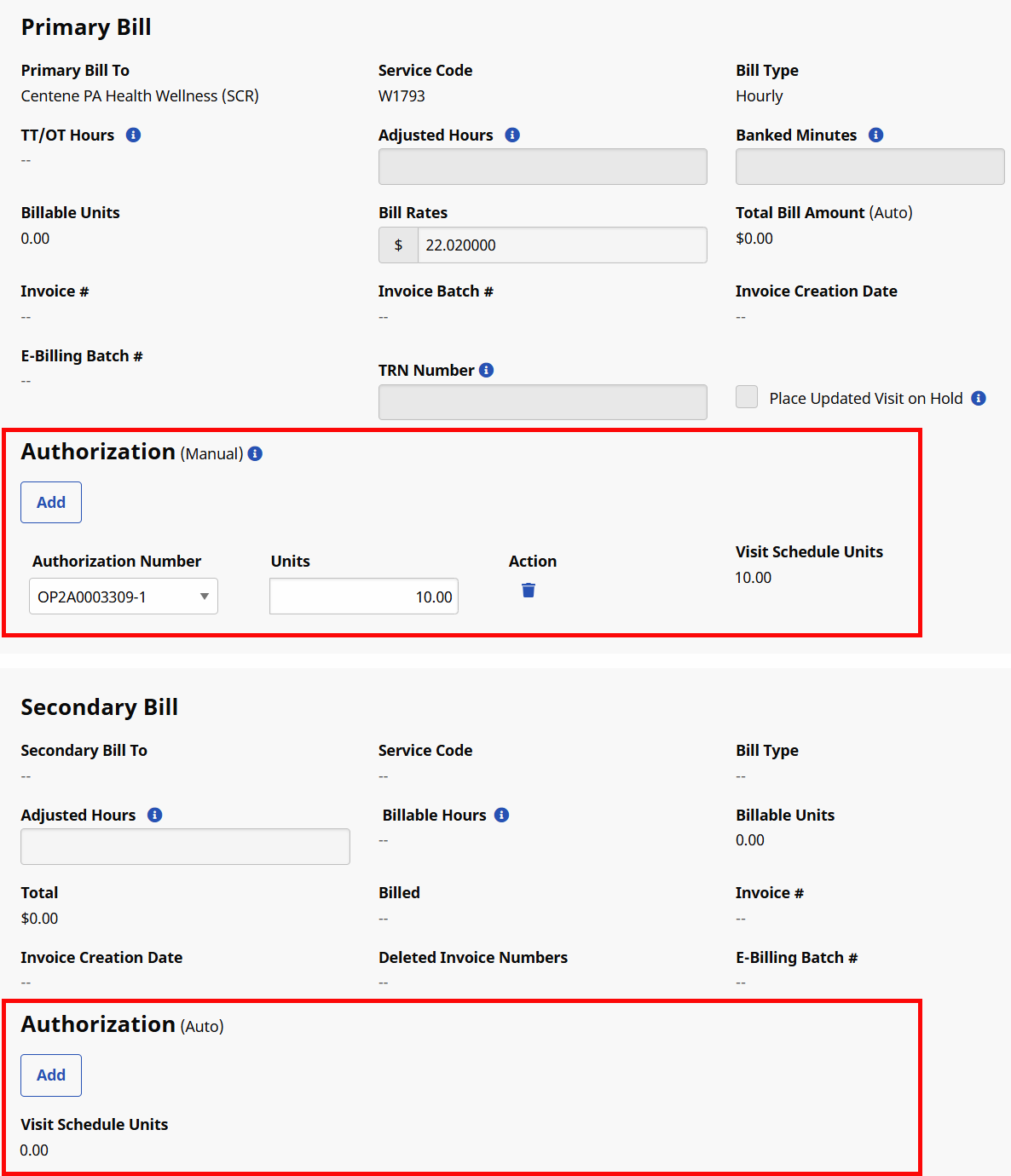
The Authorization section of the Bill Info tab has several statuses depending on how the Authorization is applied to the visit, as well the Contract’s scheduling requirements, as follows:
|
Status |
Description |
|---|---|
|
Authorization (Auto) |
This status indicates that the system assigned the Authorization(s) to the visit.
|
|
Authorization Not Required |
This status indicates that the selected Contract does not require an Authorization to schedule visits. |
|
No Authorization Selected |
This status indicates that an existing Authorization has been deleted and a new one was not assigned. |
|
No Matching Authorization Found |
This status indicates that the system was unable to assign an Authorization that matches the visit details (e.g., no Authorization for selected Caregiver skill type). |