New Patient Placements
New Patient cases are presented by Payers as placements in HHAeXchange. There are two types of Patient placements, as follows:
-
Confirmed Placements are issued directly from a Payer to a specific Provider (without the Provider having to accept).
-
With Pending Placements, Providers review the Placement information (such as the Patient’s service and scheduling requirements) before deciding whether to accept or deny it. When a placement is accepted, the system generates a new profile in the Provider system based on the information created by the Payer.

A new placement contains essential information such as General Patient Info, Special Requests, and Authorizations for Providers to review a Patient’s case and scheduling requirements before deciding to accept or deny it.
Complete the following steps to review and accept or deny a new pending placement.
-
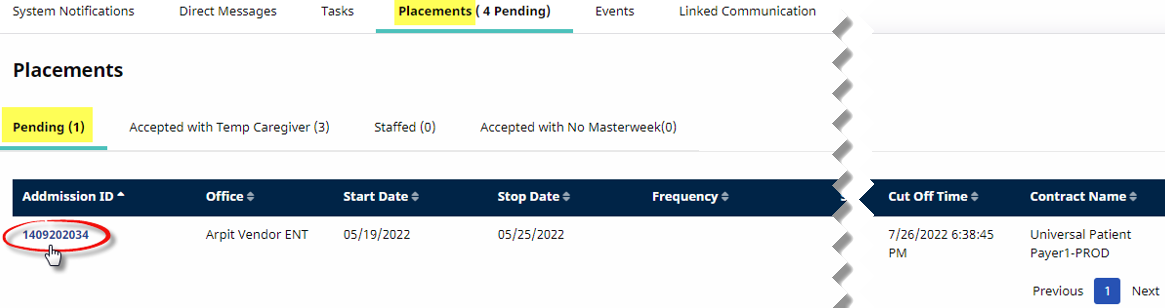
Select the Placements tab on the Home module to open the Pending tab.
-
Click on the Admission ID link of the Placement.
-
The Patient Info window opens displaying detailed information including the General section (demographics and scheduling preferences) and the Authorization section. Review the case and scroll to the bottom to proceed.
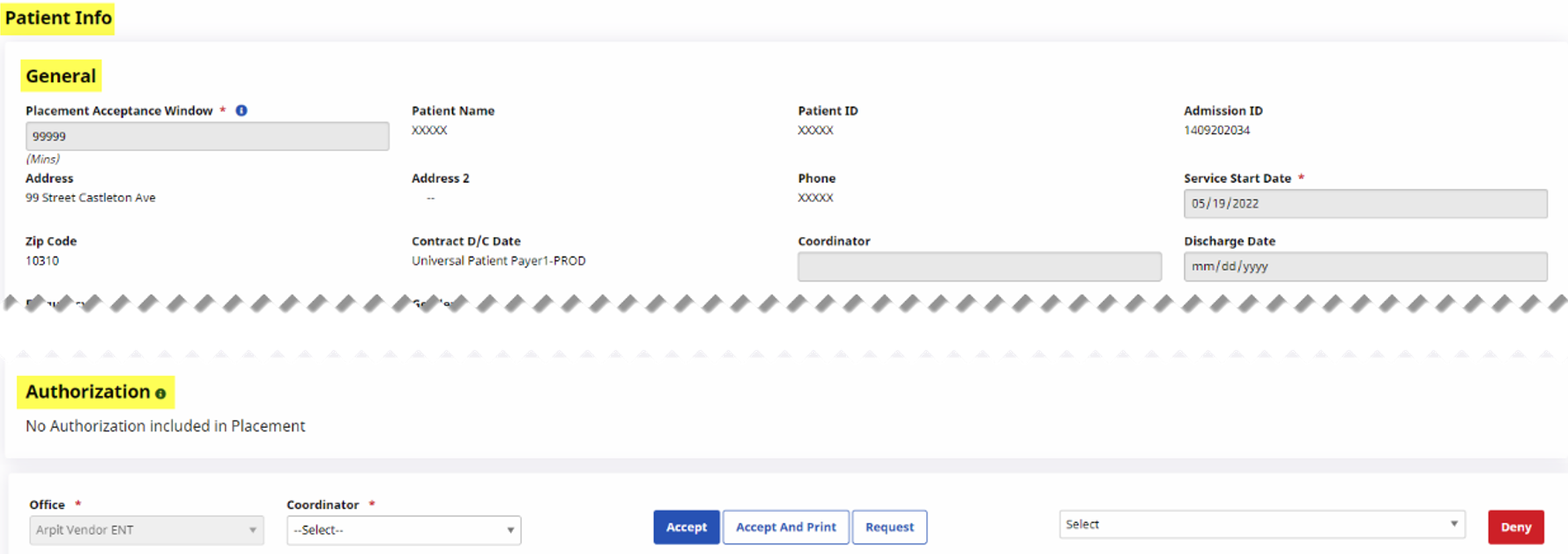
Some information is view only and some fields are masked until after the Patient is accepted.
-
Select the required Office and Coordinator fields to assign the placement.
-
Click the desired action button to proceed.
-
Accept - To accept the placement and create the Patient Profile.
-
Accept and Print - To accept and print the placement.
-
Request - To request more time from the Payer to review the case before proceeding.
-
Deny - To deny the placement.

-
-
After a placement has been accepted or denied, it is cleared from the Pending Placement tab.

-
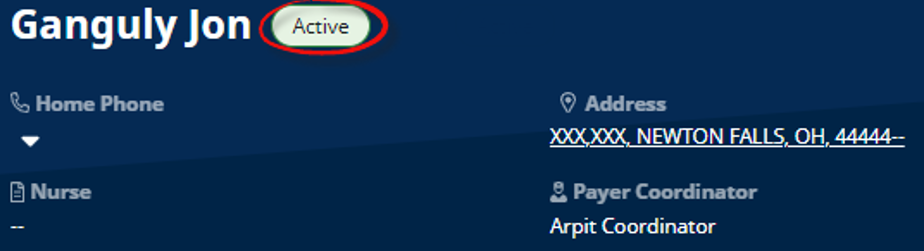
When a placement is accepted, a new Active Patient Profile is generated.
Every placement has a Cut Off Time (deadline) when the system removes the case from the Provider’s system. When a case is approaching the Cut Off Time, the Request Sent At column (in the Pending Placements section of the Home module) displays the value in red. Cut Off Times may vary for each Payer.

Complete the following steps to enable automated notifications.
Users must have Admin permissions to enable notifications.
-
Go to Admin > Office Setup > Search Office to locate the applicable Office.
-
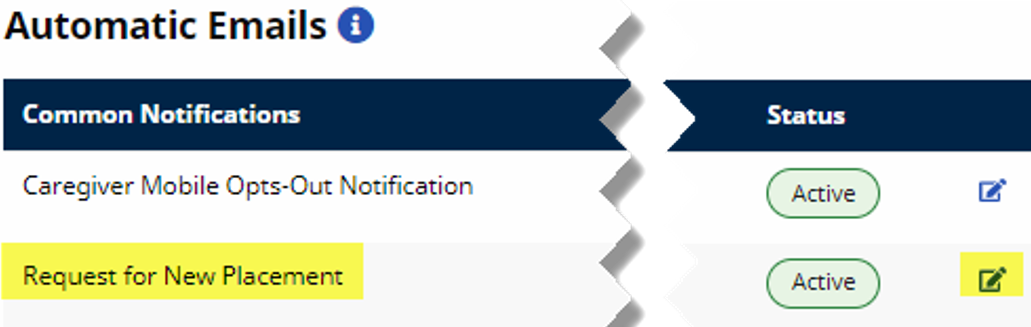
On the Edit Office page, scroll to the Automatic Email section at the bottom of the page. Locate the Request for New Placement email notification and click the Edit Icon.
-
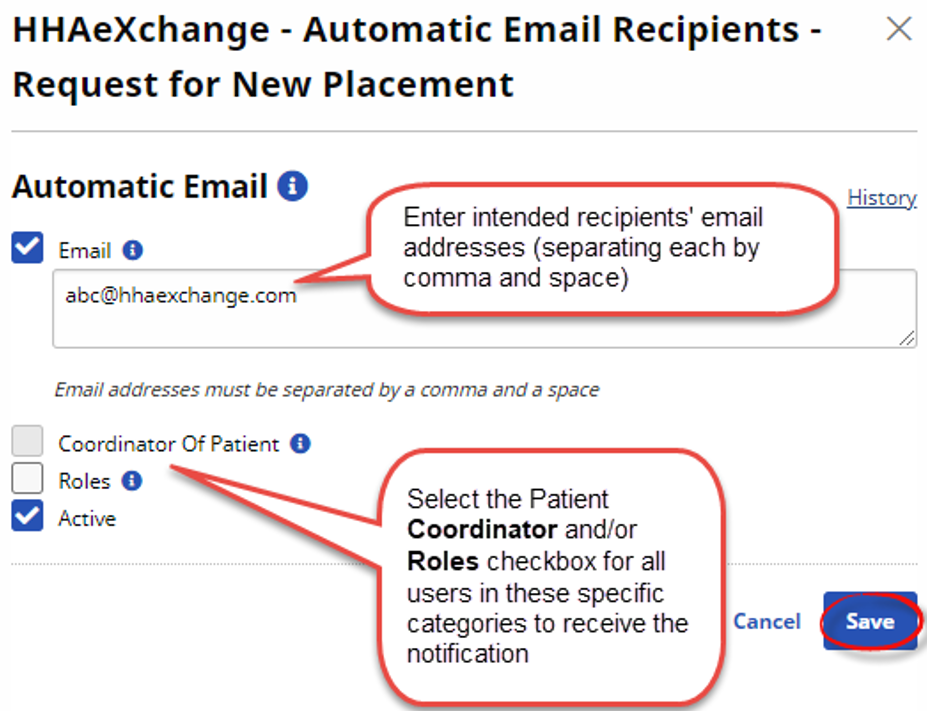
The Request for New Placement window opens. Complete as follows:
-
Enter the intended recipients’ email addresses (separating each by comma and space). The Email checkbox is selected by default.
-
Select the Patient Coordinator and/or Roles checkbox if the notification also applies to the Patient’s Coordinator and/or all users in a specific Role.
-
The Active checkbox is selected by default.
-
Click the Save button.
-
-
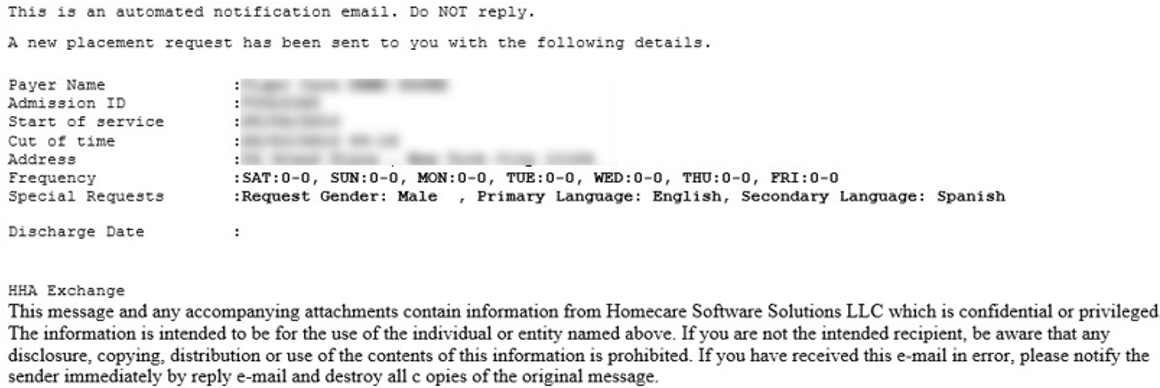
The system automatically generates a Placement Notification email each time a new Placement is sent.
The Pending Placement Queue under Action > Pending Placement Queue page serves as a dashboard where placement activity is tracked. The queue is comprised of four placement categories/sections based on the action taken by the Provider.

|
Pending Queue Section |
Description |
|---|---|
|
Pending |
Placements are currently in the Pending Placement section of the Home module and are awaiting acceptance or denial upon review. |
|
Staffed with Temp Caregiver |
Placements have been accepted and scheduled with a Temp Caregiver. |
|
Staffed |
Placements have been accepted and staffed with a named Caregiver. |
|
Accepted with No Master Week |
Placements have been accepted. Patients who are assigned as a confirmed placement by Payer appear here. |
Placements issued by a Payer appear under the Placements section on the Provider’s Home module. Users with access to the Placements section can review and accept the Placement under the Pending tab.
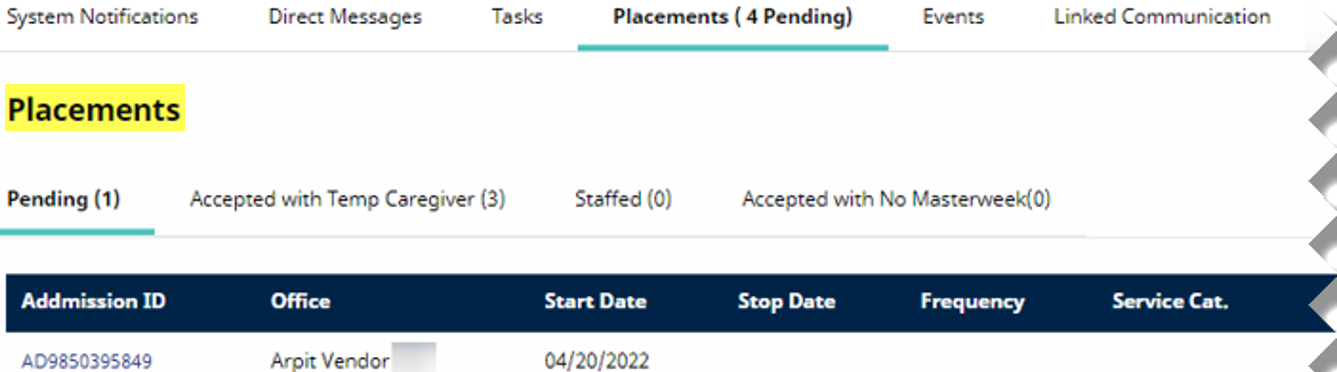
Users with administrative permissions can set up an automated email notification for new placements. Placement emails are for notification purposes only. New placements can only be accepted by a user who is logged into the system. Refer to the Automated Placement Notification section for setup instructions.