Patient Notes
The Patient Notes feature allows Payers and Providers to easily communicate about a specific Patient and any aspects of the Patient’s care. Complete the steps outlined below to enter, respond, and review Patient Notes.
The Patient Notes section under Patient > General offers the same functionality described in the Home page. On this page there are minor differences, as follows:
-
Users can sort by Date, Conversation, and Priority. The Conversation mode allows users to view all replies to the original message. Refer to the Conversation Mode section of the Communications Message Center topic for further details.
-
The Patient column does not display while an Internal column is visible. Notes with an encircled Checkmark icon indicate that the Note is Internal (only applicable within the Agency.
-
Use the New button to add a new Patient note in the Patient Notes section. Refer to the Creating a Patient Note section below for instructions.
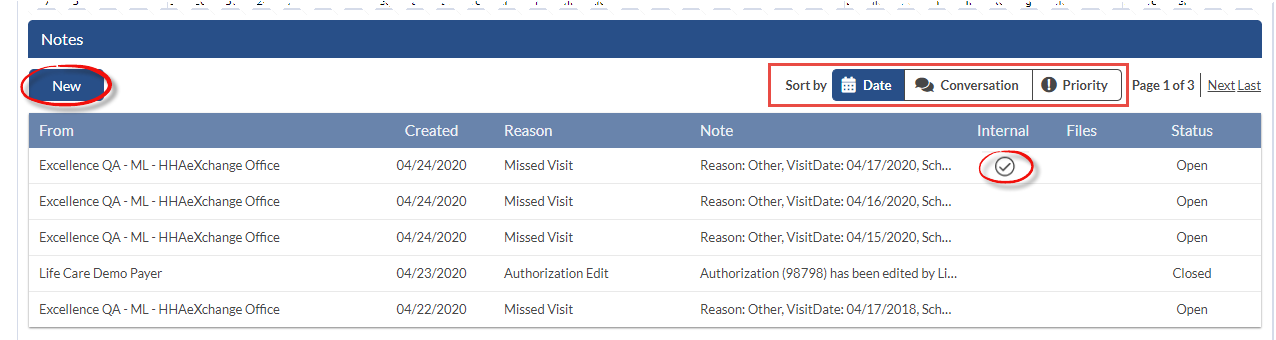

The Patient Notes feature allows Payers and Providers to easily communicate about a specific Patient and any aspects of the Patient’s care. Complete the steps below to create a Patient Note.
-
Go to Patient > Patient Search and select a Patient.
-
Click the General link on the Index.
-
Scroll to the Notes section to review all Notes pertaining to the Patient. Click the New Message button to create a new Note.
-
The New Message window opens. The From, From Office, Payer, and Patient fields are pre-populated by the system, according to the Patient’s information. Complete the remaining fields.
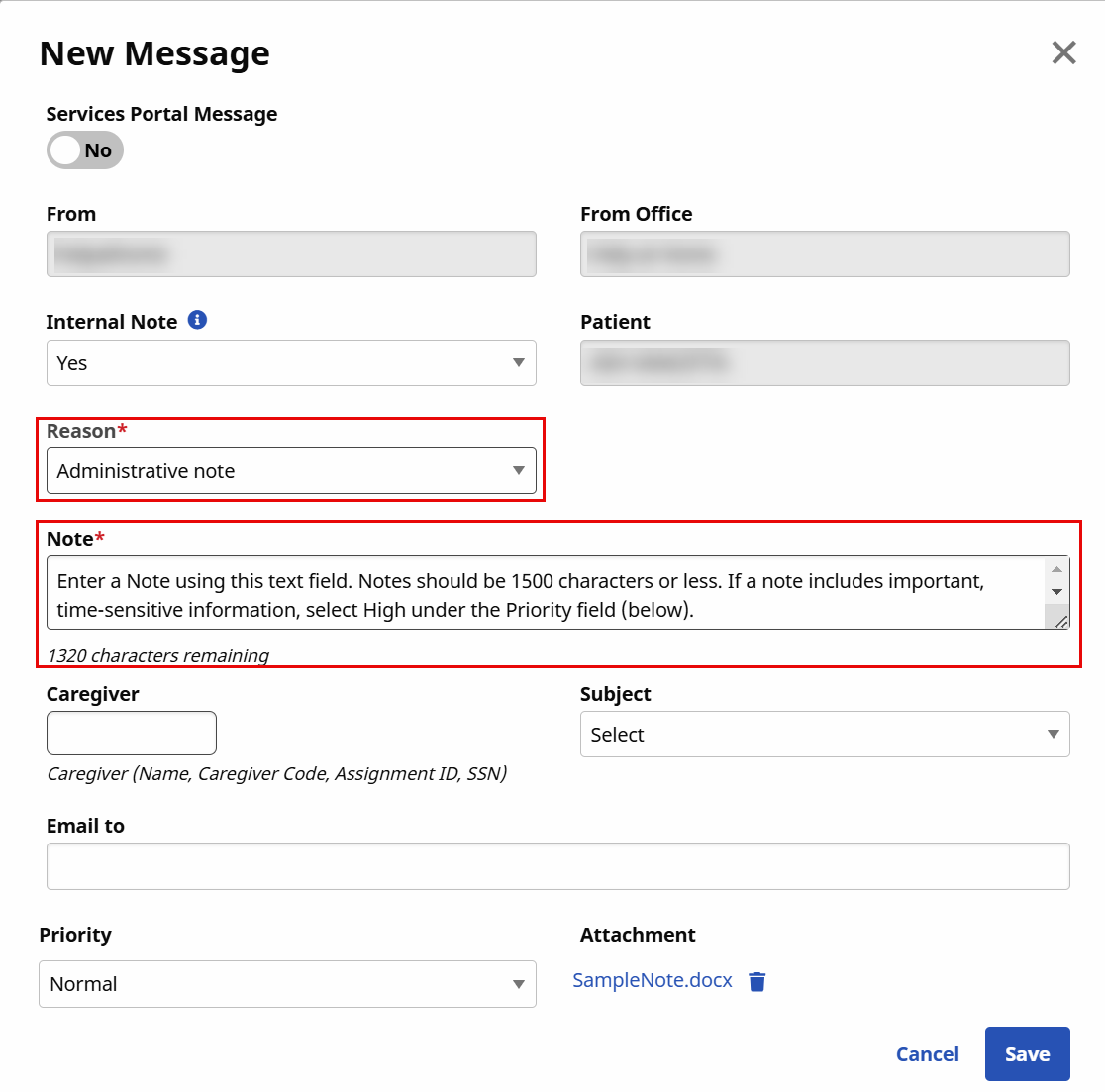
-
The Reason and Note fields are required. Click the Save button to send the message.
Field
Description
Internal Note
By default, No is selected. Select Yes if the Note is applicable only within the Agency (not shared with the Payer).
Reason*
Select the “reason” or topic of the Note. Values for this dropdown are setup by the Payer (may vary from Patient to Patient). Refer to the Internal Patient Note Reasons for Linked Contracts section below.
Note*
Enter the communication to send to the Payer.
Email to
Enter an email address in this field to send the note directly to the specified address.
Priority
By default, Normal is selected. Select High if the Note is of an urgent matter. Priority messages are denoted with a red alert symbol.
Attachment
Click button and follow the system prompts to attach a supporting document to the Note. A paperclip icon indicates an attachment.
-
A confirmation window alerts of a successful send. Click Close to exit.
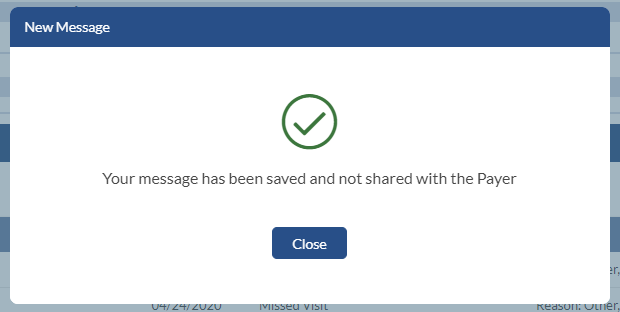
For this example, an Internal note was created. The confirmation alerts that this Note is not shared with the Payer.
The Note appears in the Patient’s General page.

Selecting Yes in the Internal Note field when creating a Patient Note provides a list of Reasons defined by the Provider via the Patient General Notes Reasons Reference Table.
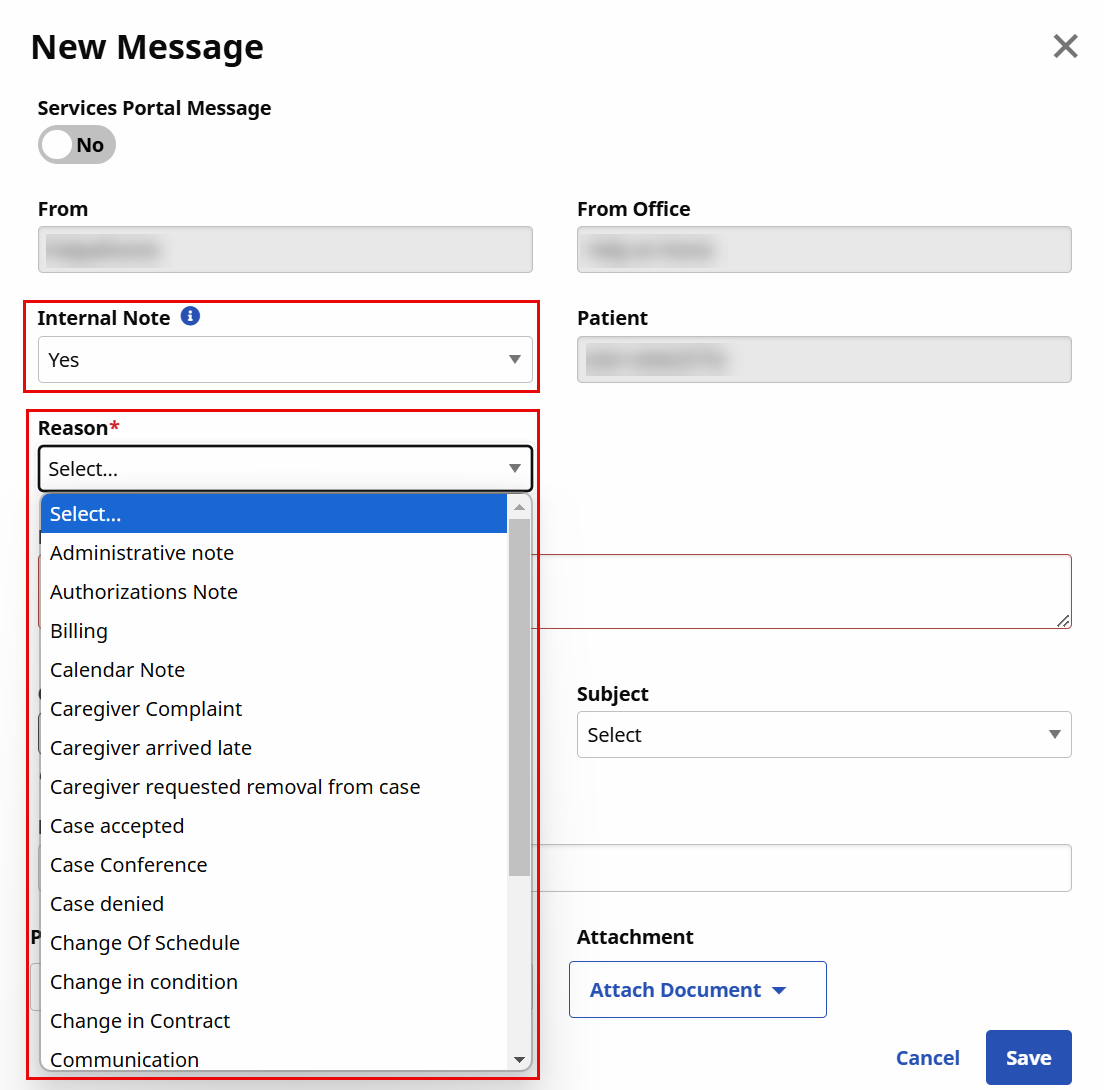
Selecting No in the Internal Note field provides Note Reasons defined by the Payer under the Reasons field via the Notes Reasons Reference Table.
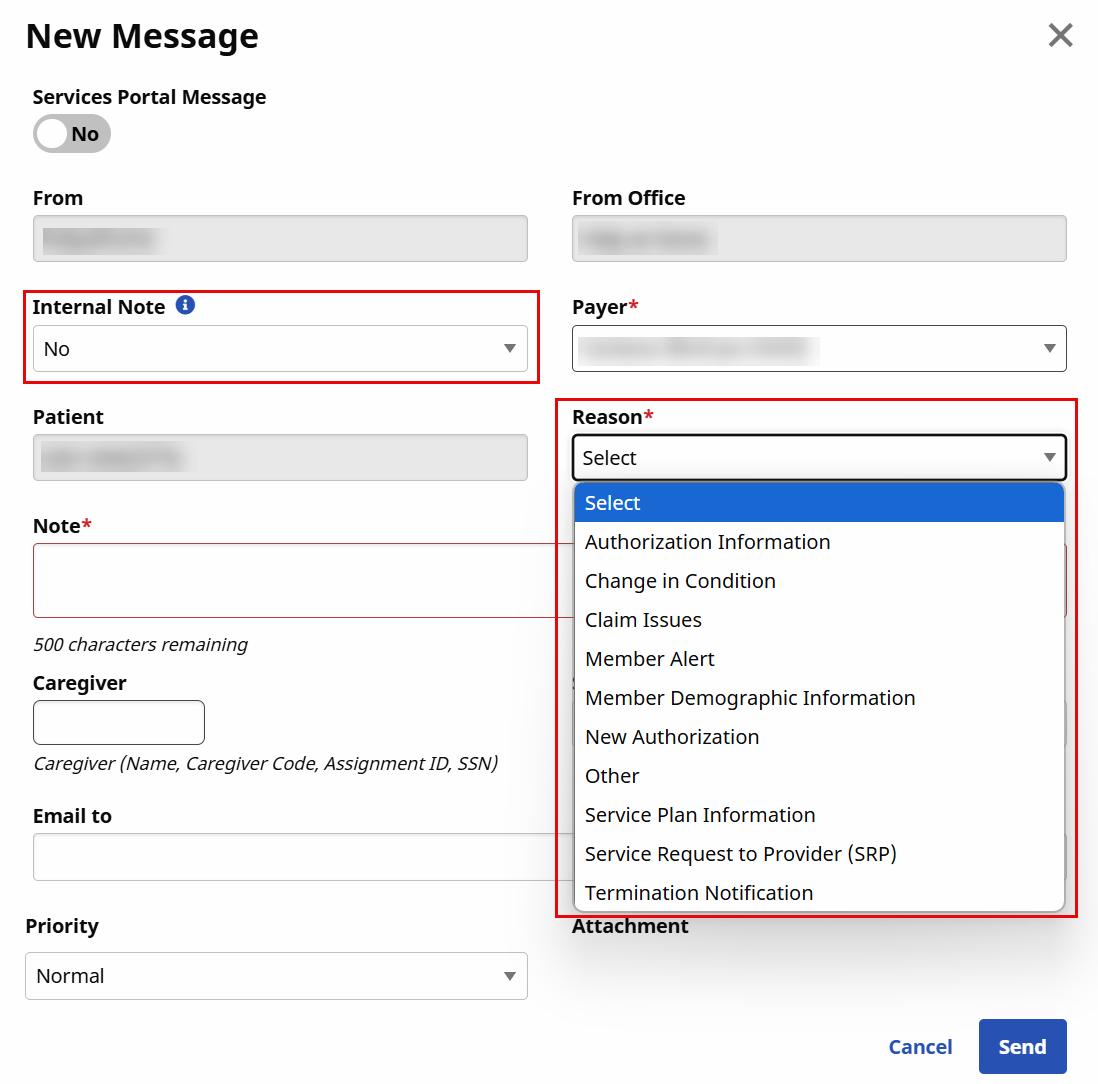
This functionality also applies to the Notes section in the Communications Message Center page.