Provider-Managed Billing Diagnosis Codes
This feature is activated by HHAeXchange System Administration. Contact HHAeXchange Support Team for details, setup, and guidance.
Billing Diagnosis Codes are determined by the Payer and sent in the Authorization at the time of placement. Providers servicing Linked Contracts receive Billing Diagnosis Codes as read-only, unable to edit if/as needed for billing purposes.
A Payer-based permission is available to allow Providers to add and manage Billing Diagnosis Codes for any Linked Contract; whether the ones assigned by the Payer or the one entered/edited by the Provider. This feature applies to all Linked Contracts.
A blank Diagnosis Code may result in an item placed on Billing Hold. Refer to the Resolving Missing Primary Dx Code Exceptions Job Aid to resolve. For specific Contract Setup details and instructions, consult with the respective Linked Payer.

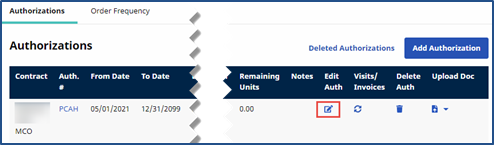
Once a Payer enables a Provider to edit or add Billing Diagnosis Codes for an Authorization located at under Patient > Authorization, an Edit icon appears on the applicable row of the Authorization tab. The Edit icon only appears if the Provider has permission to add Billing Diagnosis Codes.
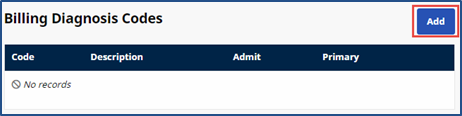
Providers who are enabled to change Billing Diagnosis Codes are presented with an Add button in the Billing Diagnosis Code(s) section of the Patient Authorization window.
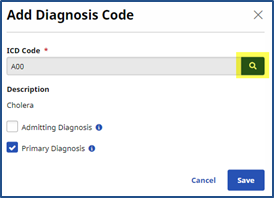
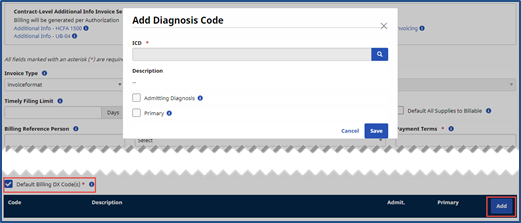
On the Authorization Default DX Code window, select the Search Icon  (i.e., magnifying glass) to access the ICD-10 Diagnosis search. Refer to the section below to select an ICD code.
Once the ICD code is selected, determine if this is an Admitting Diagnosis and/or a Primary Diagnosis by selecting the appropriate checkboxes. Click Save to finalize.
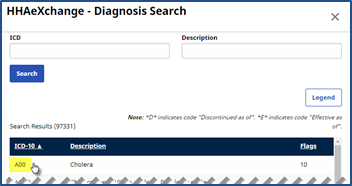
Use the Diagnosis Search window to search for and select an ICD-10 Code. To add an ICD code, click the respective link from the ICD-10 column.
For some Linked Contracts, Billing Diagnosis Codes can be added on the Contract level under Admin > Contract Setup > Billing/Collections tab. On the Billing/Collections tab, select the Default Billing Diagnosis Code(s) checkbox. Click the Add button to open the Contract Default DX Code window. Click the Search Icon  on the right of the ICD field to search and select the applicable diagnosis Code.
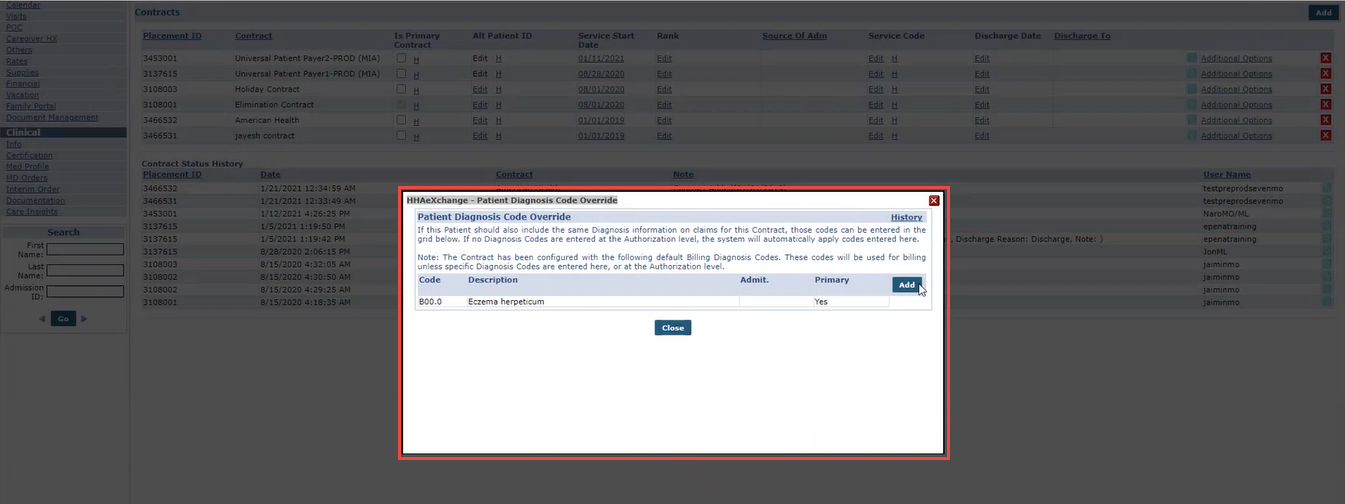
Billing Diagnosis Codes can also be added for some Linked Contracts at the Patient Contract level under Patient > Contracts. On the Patient Contract page, click the Additional Options link for the respective contract. Select Patient Diagnosis Code Override from the menu. On the Patient Diagnosis Code Override window, click the Add button to search and select the applicable Billing Diagnosis Code.
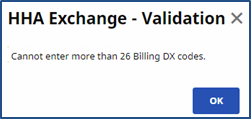
Up to 26 unique Billing Diagnosis Codes are allowed per Patient, with one defined as Primary. When attempting to add more than 26 codes, the system issues a validation not allowing further entries.
On the Invoice Details page, click the Billing DX Code link to open the Billing Diagnosis window. To edit an existing code, click the Code link and make the changes. To add a Billing Dx Code, click the Add button and follow the instructions above. Click Save to finalize.
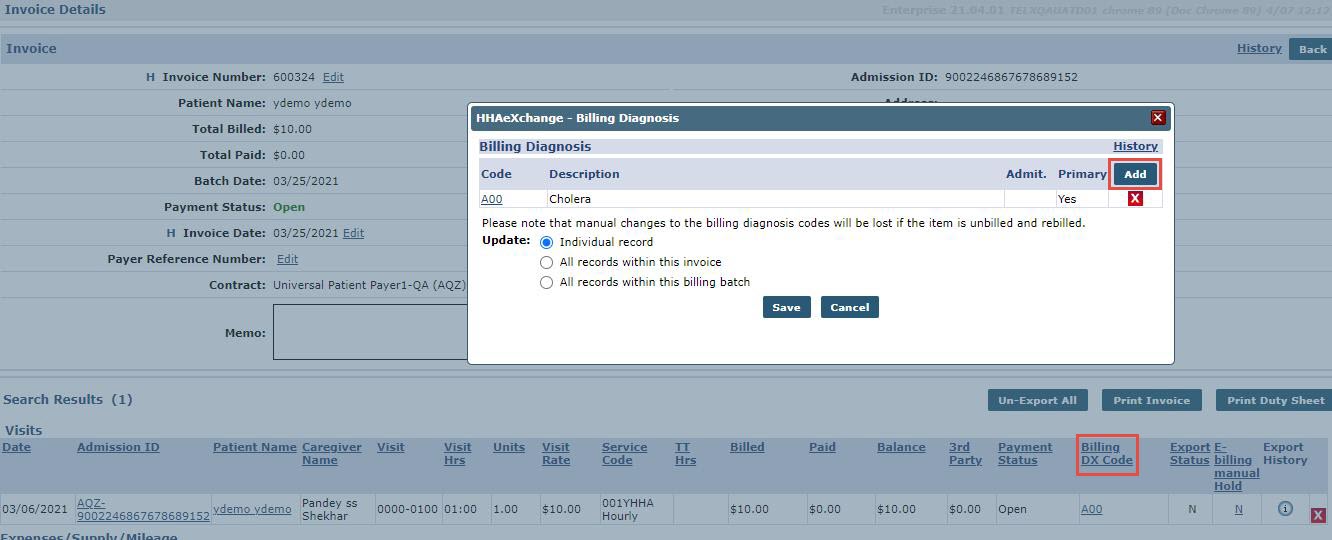
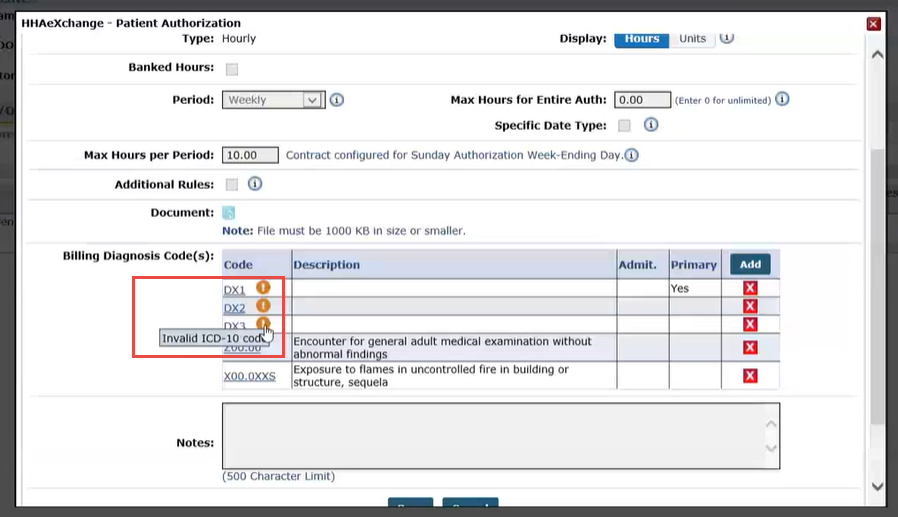
At times, a Payer may send an invalid Billing Diagnosis Code. Invalid codes are denoted with an orange exclamation point ! icon indicating that it must be corrected.