Rebill - Claims Resubmission

| Select... | To... |
|---|---|
|
Original |
Default option; used if the Provider does not edit the Submission Type. |
|
Adjustment |
The TRN Number* and Update fields are required if Adjustment is selected. For the TRN Number, indicate if this adjustment is for a Single Claim, All Claims with same Invoice Number, or All Selected Claims. Refer to the bullets below this table for guidance.
*TRN refers to Transaction Reference Number, unique claim identifier number to be adjusted. The TRN can also be referred to as the Form Number, Claim ID, or Claim Number. The TRN can is also located on the Electronic Remittance Advice (ERA). |
|
Void |
When selecting Void, the TRN Number is required and the Place Updated Visit on Hold checkbox is automatically selected and un-editable. Select the applicable Update option (Single Claim, All Claims with same Invoice Number, or All Selected Claims).
Selecting Void hides other adjustment information fields on the window. |
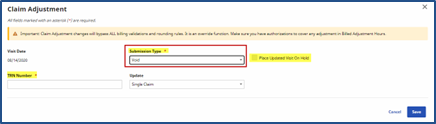
Upon adjusting, click Save to update the selected record(s).
Based on the selected Submission Type, respective TRN Number, and Update option, the selected records are updated accordingly.
-
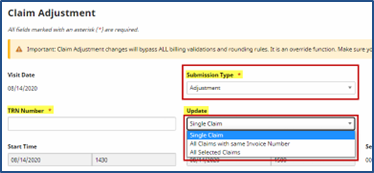
If Single Claim is selected (from the Update field), then only the current record for the selected Submission Type and TRN Number is updated.
-
If the All Claims with same invoice number is selected (from the Update field), then all matching records with the same Invoice Number are updated according to the chosen Submission Type and TRN Number.
-
If All Selected Claims is selected, then all records are updated with chosen Submission Type and TRN Number.
-
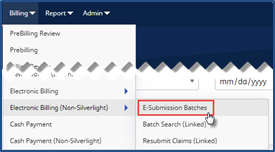
Go to Billing > Electronic Billing (Non-Silverlight) > E-Submission Batches.
-
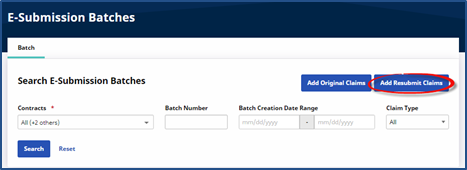
On the E-Submission Batches page click the Add Resubmit Claims button.
-
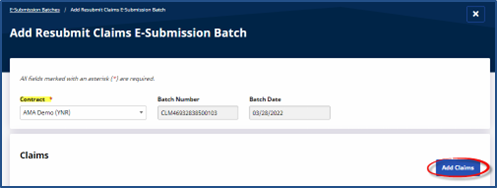
On the Add Resubmit Claims E-submission Batch page, select the Contract. The system automatically generates a Batch Number and the Batch Date for the claims resubmission. Click the Add Claims button.
-
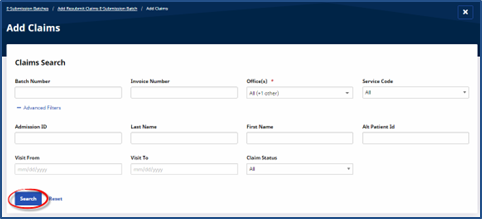
On the Add Claims, Claims Search page, select applicable filter fields and click Search.
-
From the Search Results, select the claims to add and click the Add button at the bottom of the page.
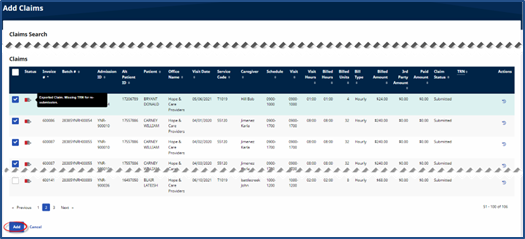
Hovering over the Status icon provides a high-level indication of the state of the claim and possible missing information.
-
On the Add Resubmit Claims E-submission Batch page, click the Edit Icon
 to open the Claims Adjustment window.
 To delete a record from the claim to be resubmitted click the Delete Icon
 under the Actions column.

-
The Claim Adjustment window opens. Select the Submission Type (refer to the Rebilling Adjustment Type section below for guidance).
Correct any applicable fields ensuring that required fields (denoted with a red asterisk) are completed.
The Billed Adjusted Hours, TT Hours, and 3rd Party fields cannot be edited when resubmitting a claim.
-
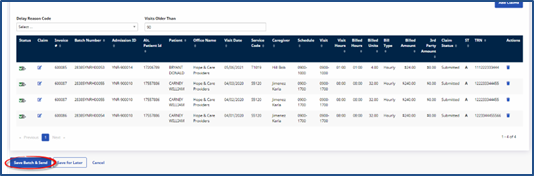
Once saved and ready to resubmit, click the Save Batch & Send button on the Resubmit Claims E-submission Batch page.
-
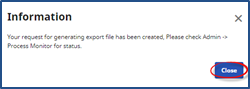
The system alerts that the export file is generating. Click Close to continue.